Overview
Use Offline Mode during a temporary internet outage only after Flyght has configured it at site level while connectivity is available. A Manager Profile is required to move a PAD offline.
Contact Flyght Support to check whether Offline Mode is configured for your site. It is not enabled by default.
Reminders
Reserve Offline Mode for emergencies. Card approval or decline is unknown until the system returns online. Record the customer's name and phone number for follow-up if payment is declined. Sites still require backup connectivity.
Review the Key Limitations with your staff before moving devices offline.
Tasks You and Your Staff Can Do While in Offline Mode
-
Record and store orders on each PAD.
-
Take payments, which remain stored locally until that PAD returns online.
-
Print receipts and kitchen tickets only while connected to the LAN and receiving the Spooler's offline broadcast. Individually offline PADs cannot print.
How will a Manager know if there is a connectivity issue?
A green cloud at the bottom of the PAD screen indicates stable cloud connectivity. Offline Mode is unnecessary in that state.
A red cloud indicates lost cloud connectivity.
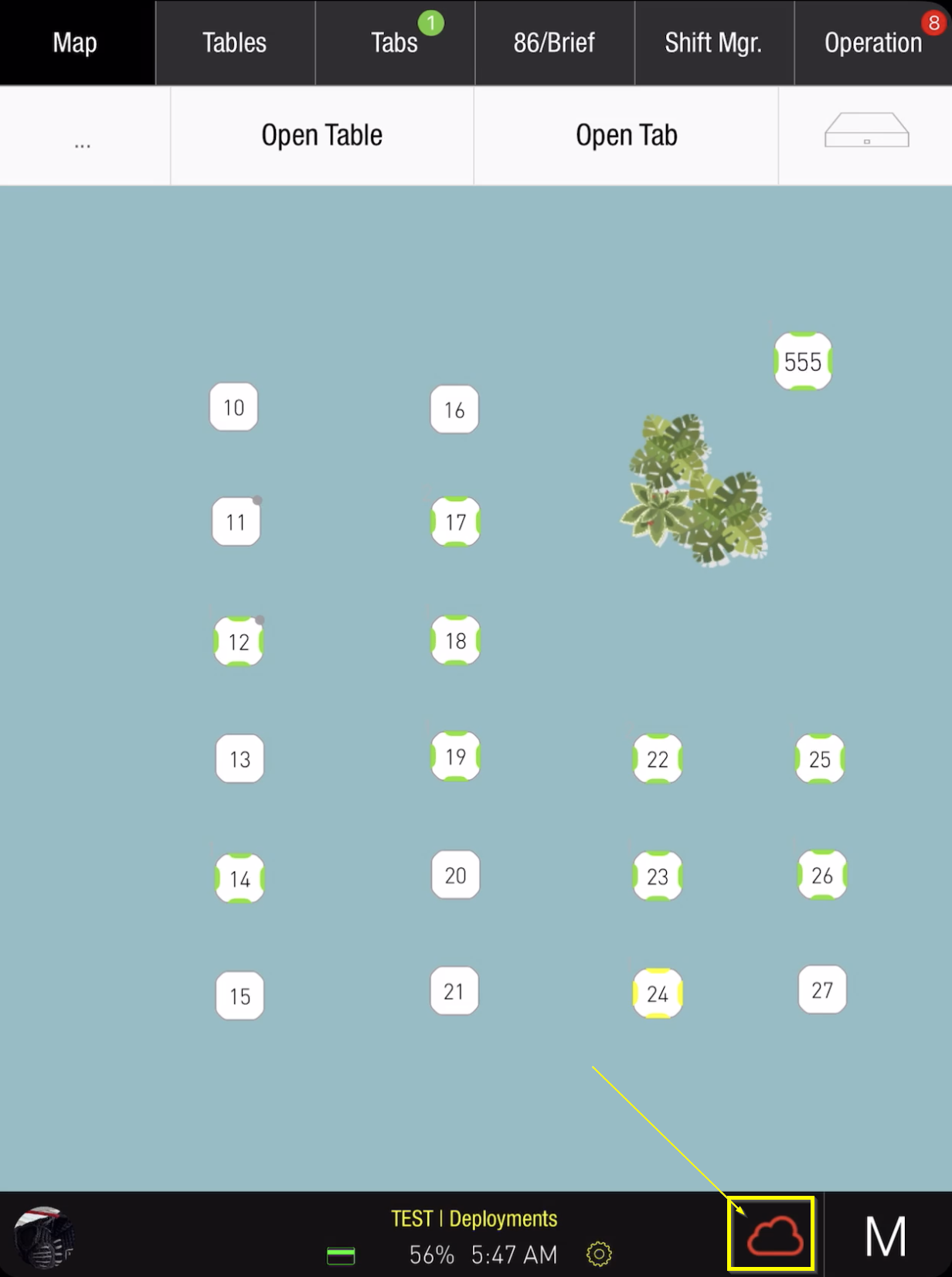
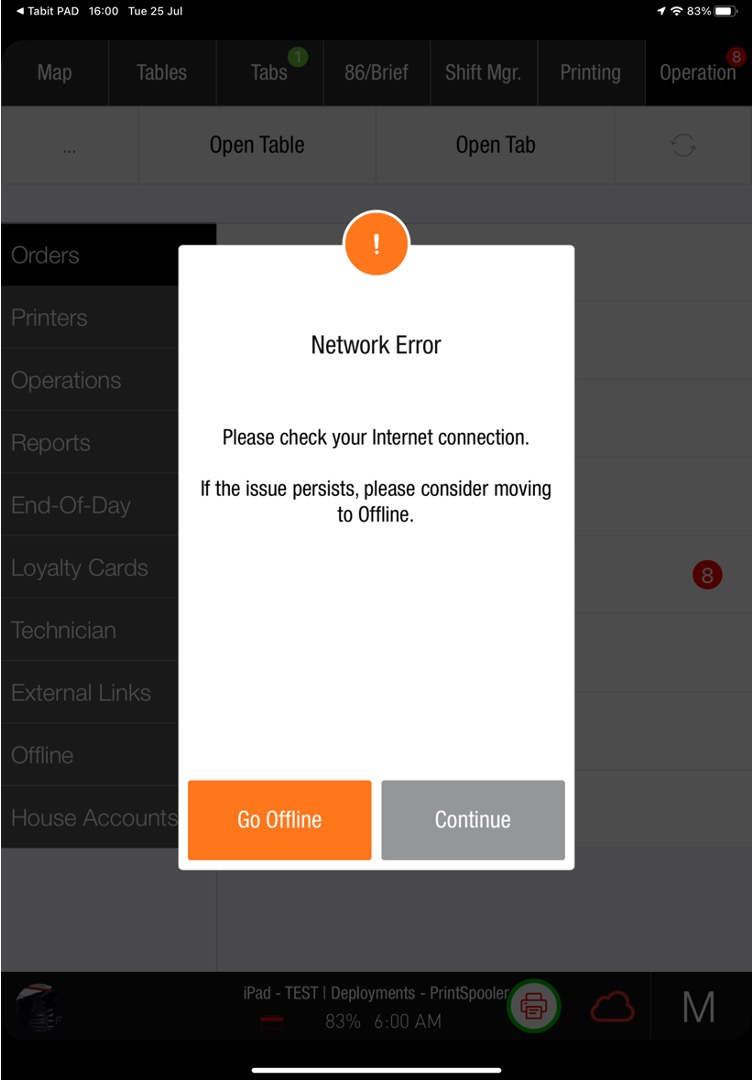
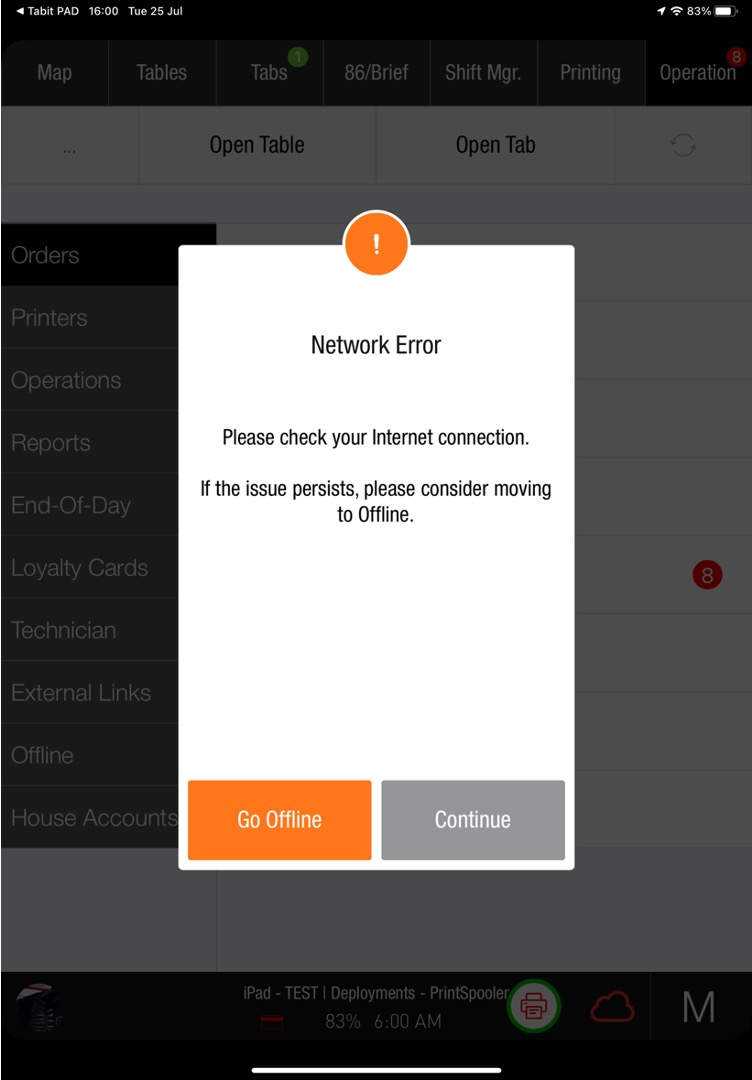
A notification also appears, as illustrated below.
On the Spooler PAD:
On Individual PADs:
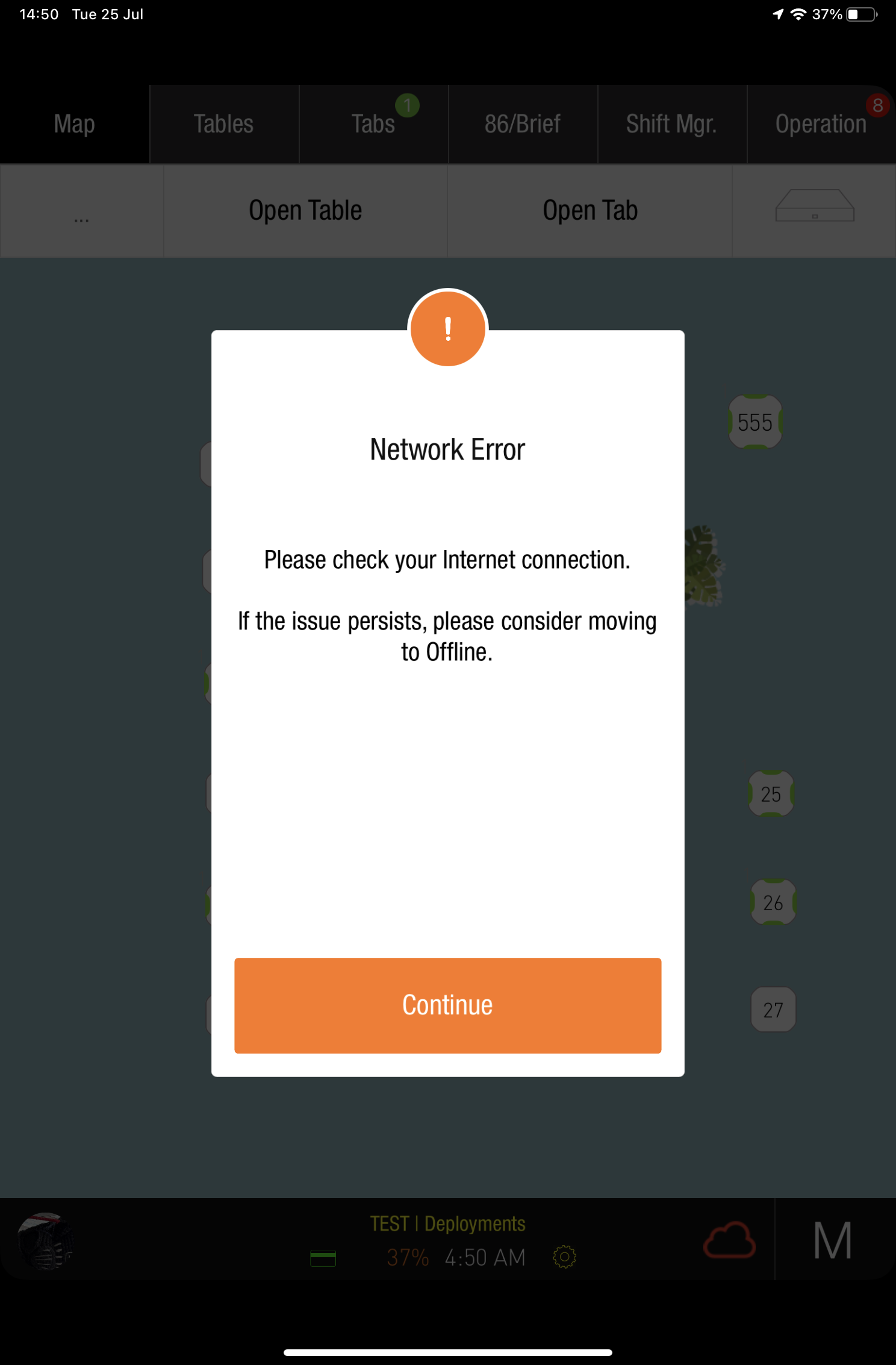
If the LAN is working, use the Spooler to broadcast the notification and move its connected PADs offline.
If the LAN is unavailable, the Spooler cannot reach the other PADs. Move each PAD offline manually.
How can a Manager Move a Site to Offline Mode?
-
Sign in to the Spooler PAD with the Manager's PIN.
-
Select Go Offline on the Network Error notification to move connected PADs into Offline Mode.
-
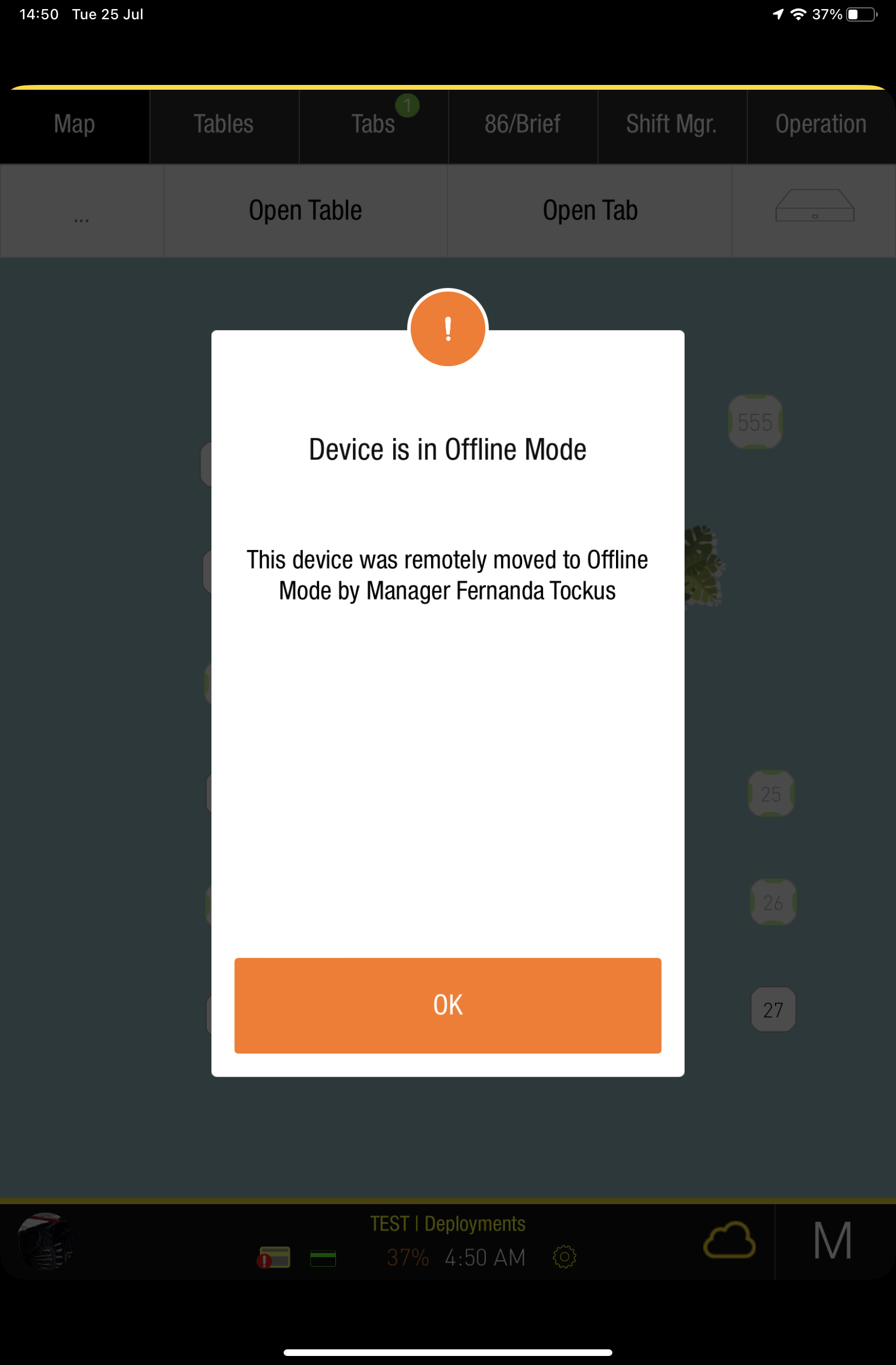
Each PAD shows the notification below. Yellow bars at the top and bottom and a yellow cloud indicate Offline Mode.