Follow the steps below to add a message in Tabit Order
-
Login to Tabit Office with you Manager credentials
-
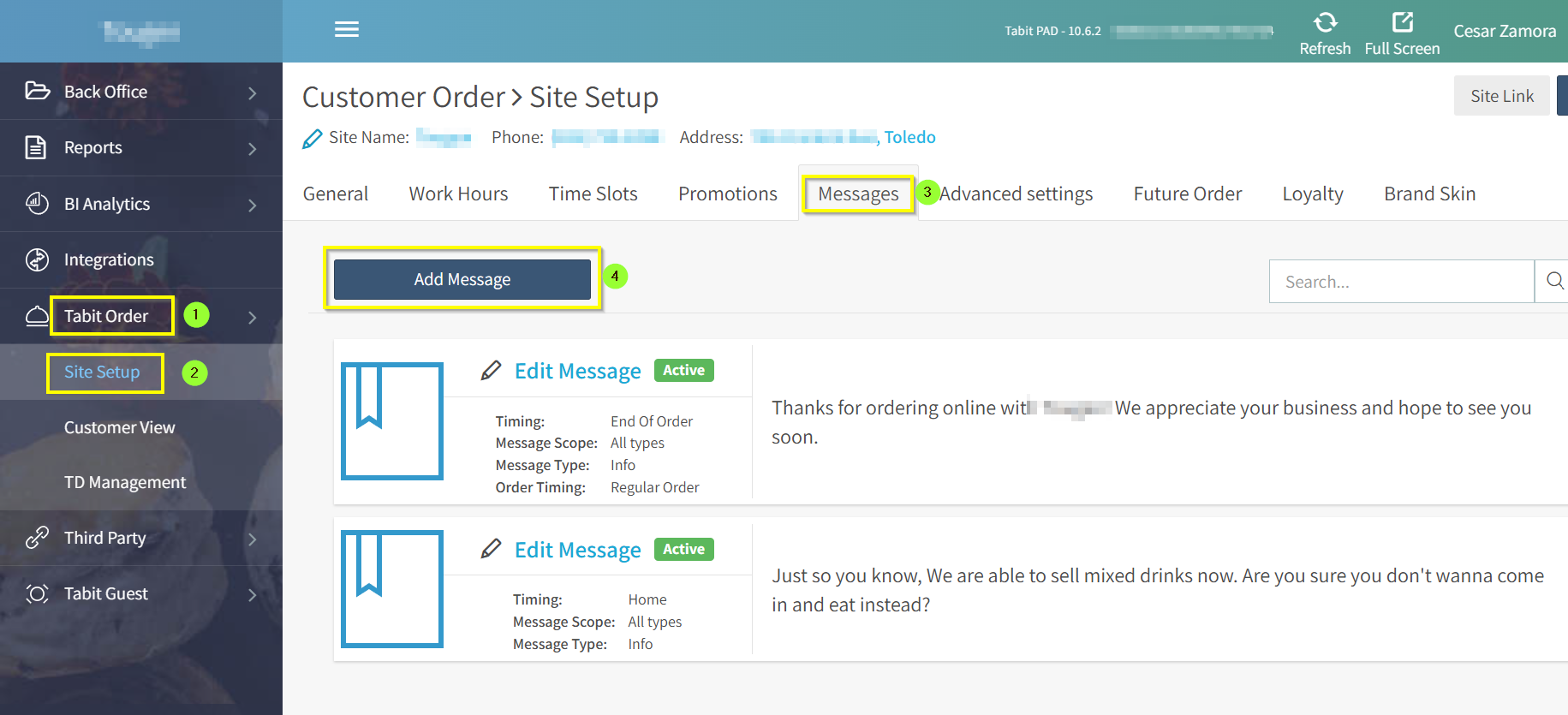
Go to Tabit Order > Site Setup, select the Messages tab, and then click Add Message
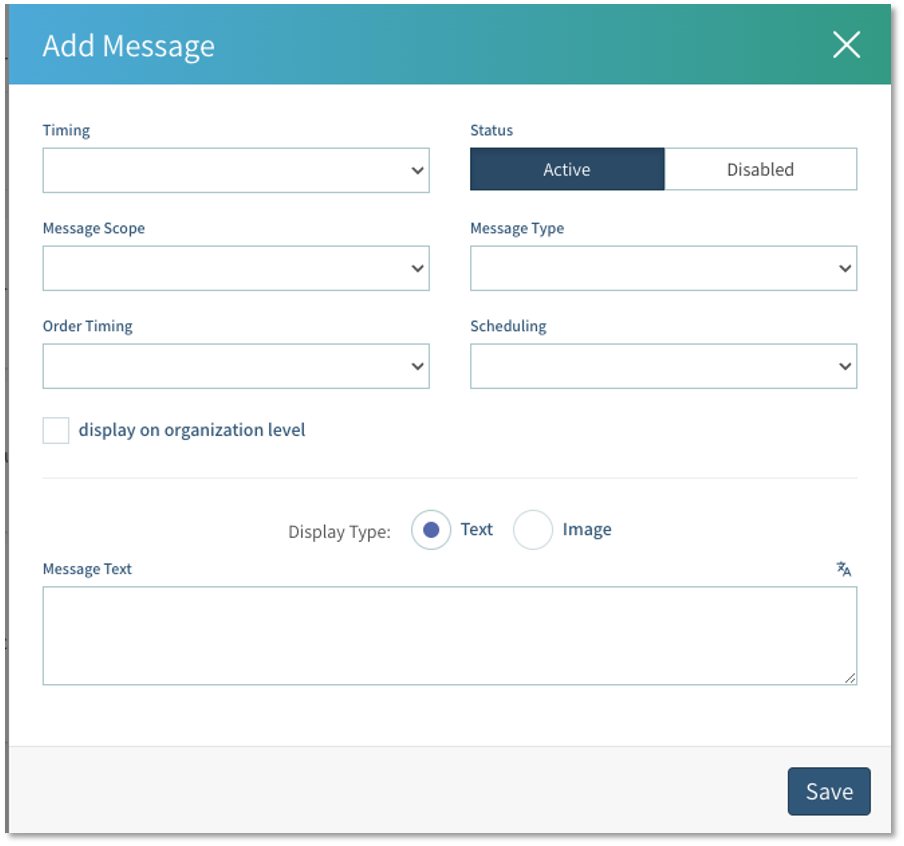
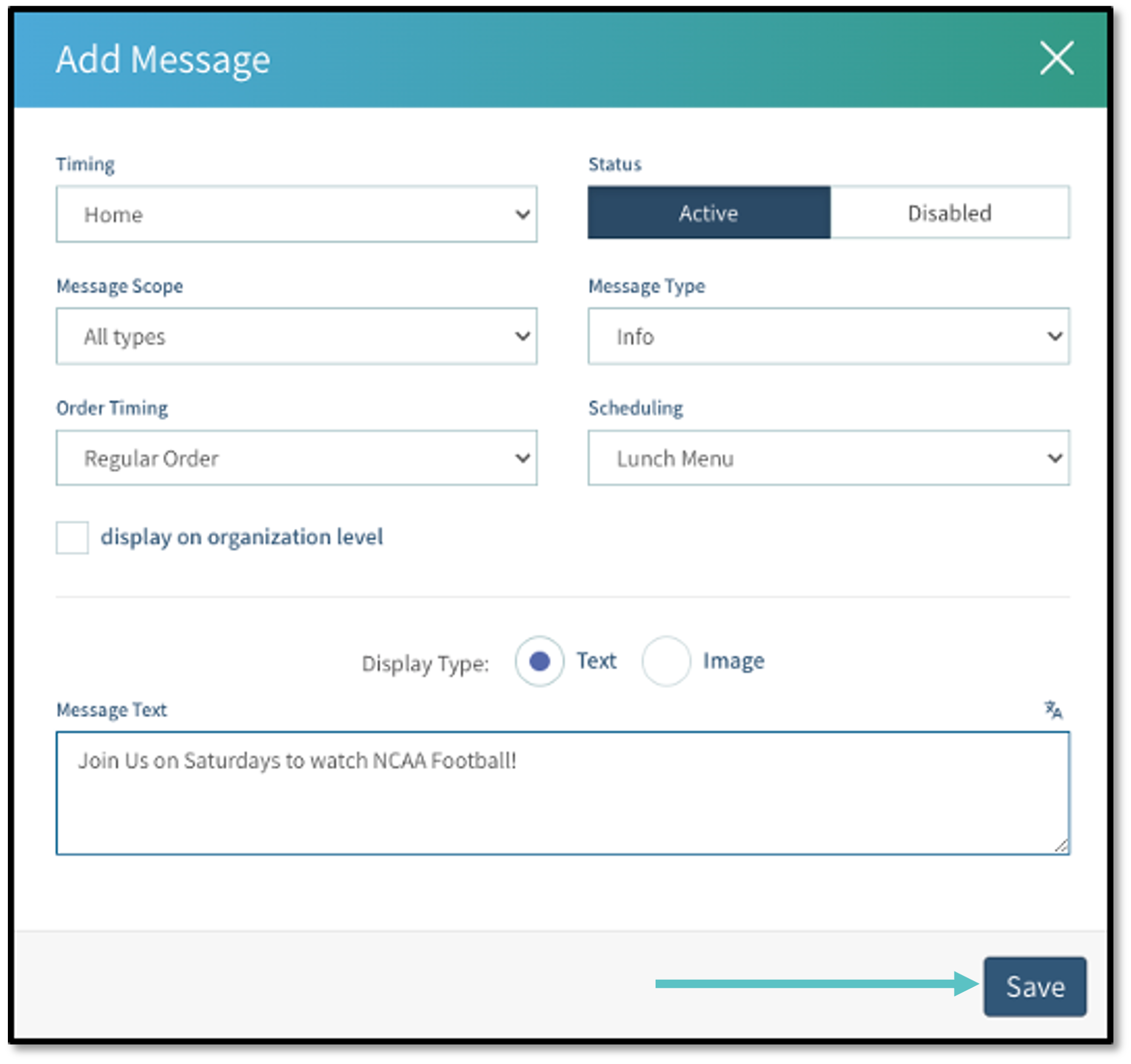
Enter the required information
-
Timing: Determines at what point in the online ordering process the message will be displayed on Tabit Order. The options are:
-
Home
-
Address
-
After selecting a service
-
In Menu
-
Before Payment
-
End of Order
-
-
Status: Determines if the message is currently Active or Disabled
-
Message Scope: Determines which type of Order the message will appear for
-
All types
-
Takeaway
-
Delivery
-
Eat In
-
Tabit Pay
-
-
Message Type
-
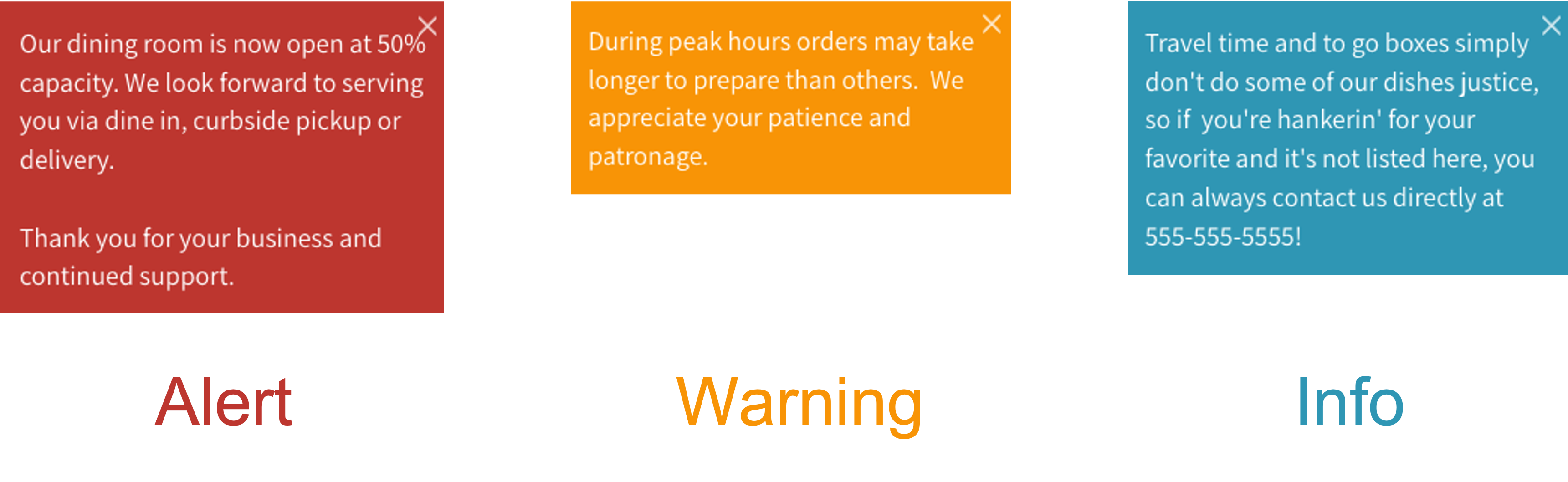
Alert: A message that is displayed to customers to convey important information about a change in service or availability, such as changes in hours, new service offerings, or capacity restrictions
-
Warning: A message that is displayed to customers to provide information about potential delays, issues, or inconveniences that may affect their order or their experience
-
Info: A message that is displayed to customers to provide additional information about special events, promotions, or other non-urgent information that may be of interest to the customer
-
-
Order Timing: Determines which type of order the message is displayed for
-
Regular orders: Orders for the same day of business
-
Future orders: Orders for a future date
-
Scheduling: Refers to which day part is the message going to appear
-
Display on Organization Level
-
Display Type
-
Text
-
Image
-
-
Message Text: The message that will be visible to the customer
-
-
-
Select Save
-
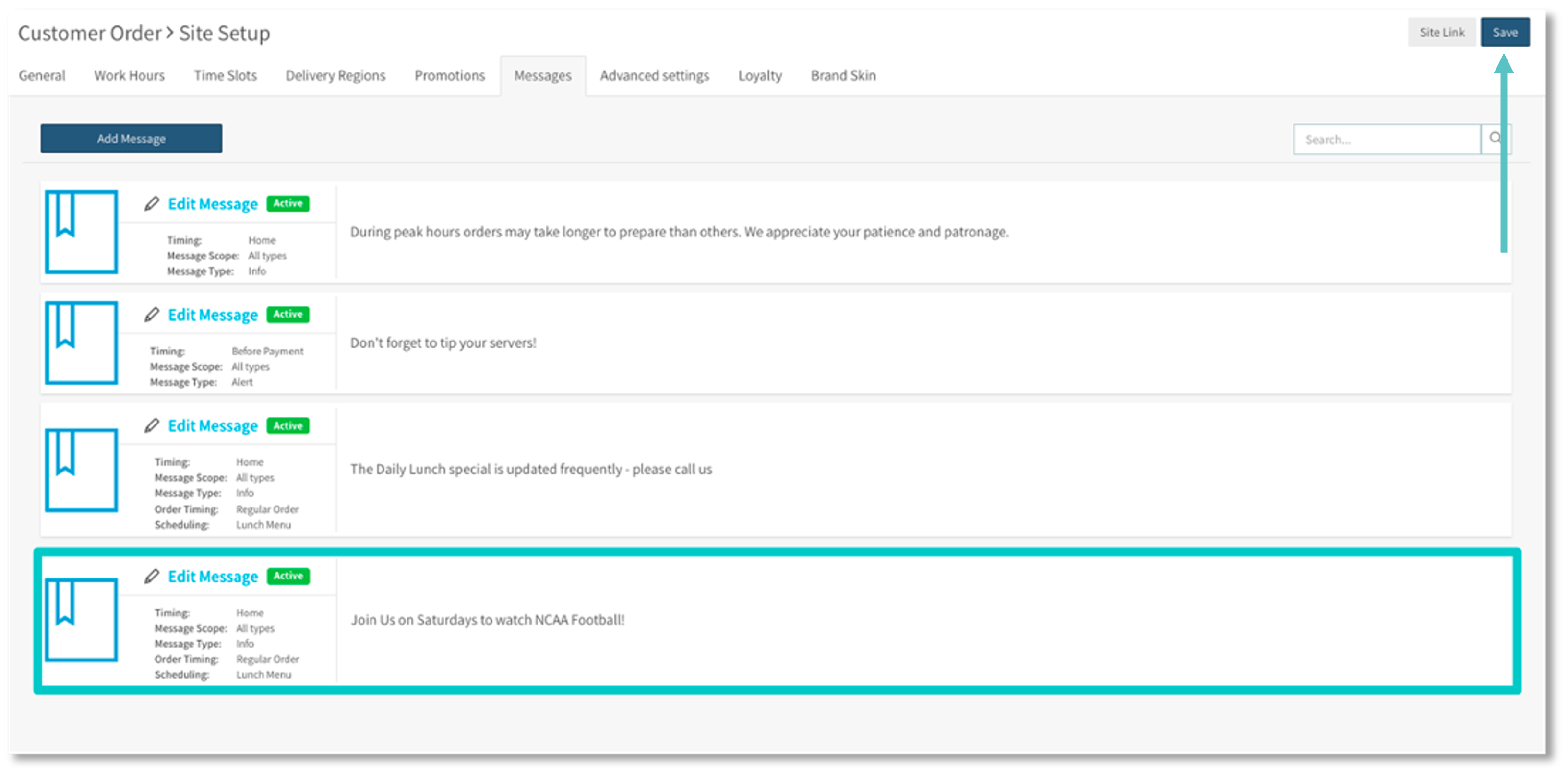
Confirm that the new message has been saved and that the information is correct. Then select Save in the top right corner