
Overview
https://app.guidde.com/share/playbooks/o5aEddVcP1sH9RfYUELcWR
Server teams let managers create predefined teams of servers, so that every time a team member opens a new order, the order is automatically assigned to the team. This ensures tips and reporting are distributed fairly and consistently.
What are Server Teams?
A server team is a predefined group of employees with assigned ratio percentages. When one of the team members opens an order, the system automatically creates an Order Team using the same members and ratios. Order teams are visible from within each order and are used for tip distribution, reporting, and ownership tracking.
Who Can Create and Manage Order Teams?
-
Only managers can create, edit, or delete server teams
-
Only clocked-in employees can be added to a team
-
Employees already assigned to a server team will not appear in the selection list
When are Server Teams Available?
Server teams are available on sites that meet the following conditions:
-
The Server Activity Report is enabled
-
The parameter loginOnlyClockedUsers is set to
true -
The parameter preventClockoutWithOpenOrders is enabled with restrictions
Follow the steps below to create a Server Team:
-
Login to the PAD with your Manager PIN
-
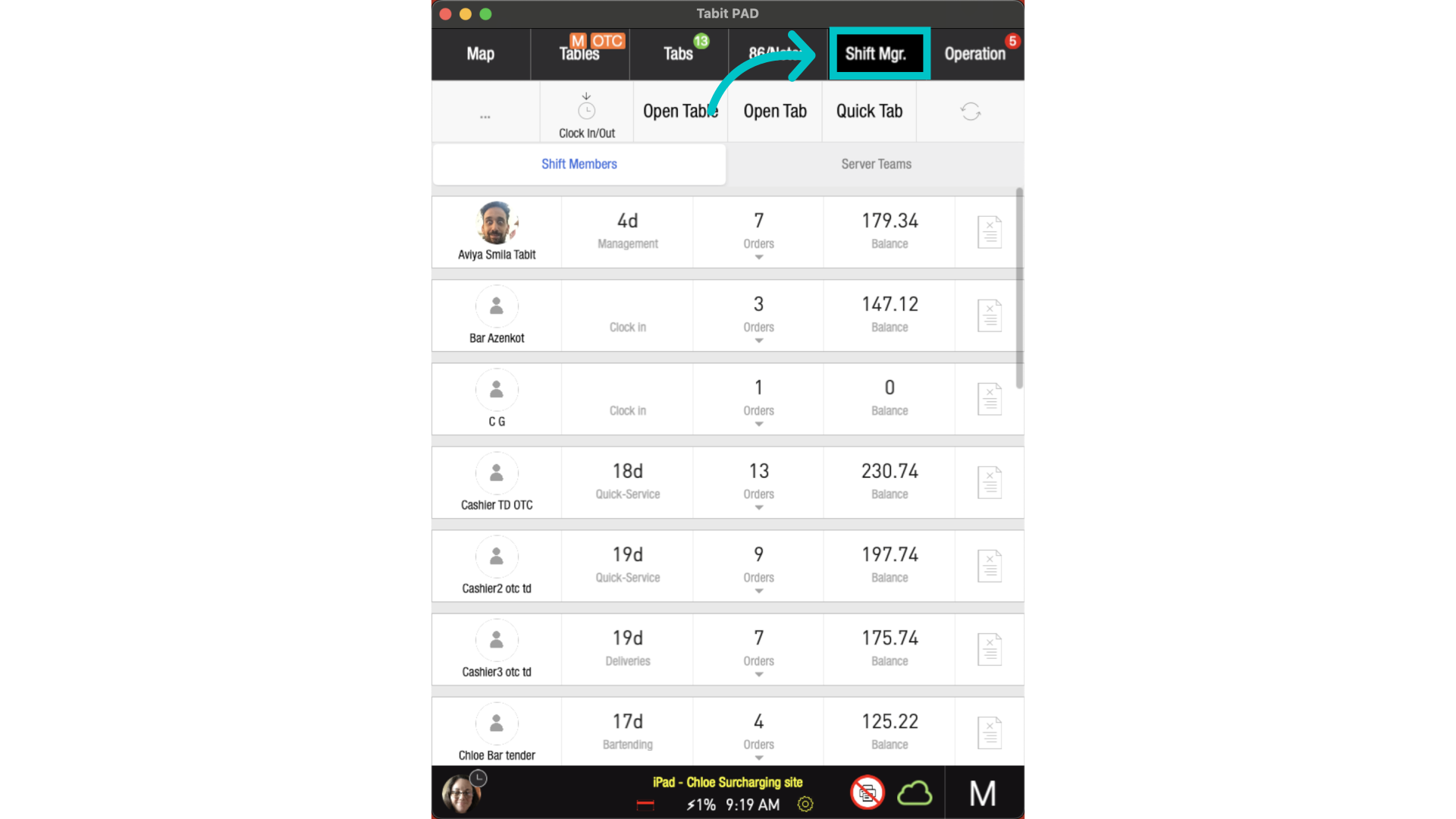
Go to the Shift Mgr. tab
-
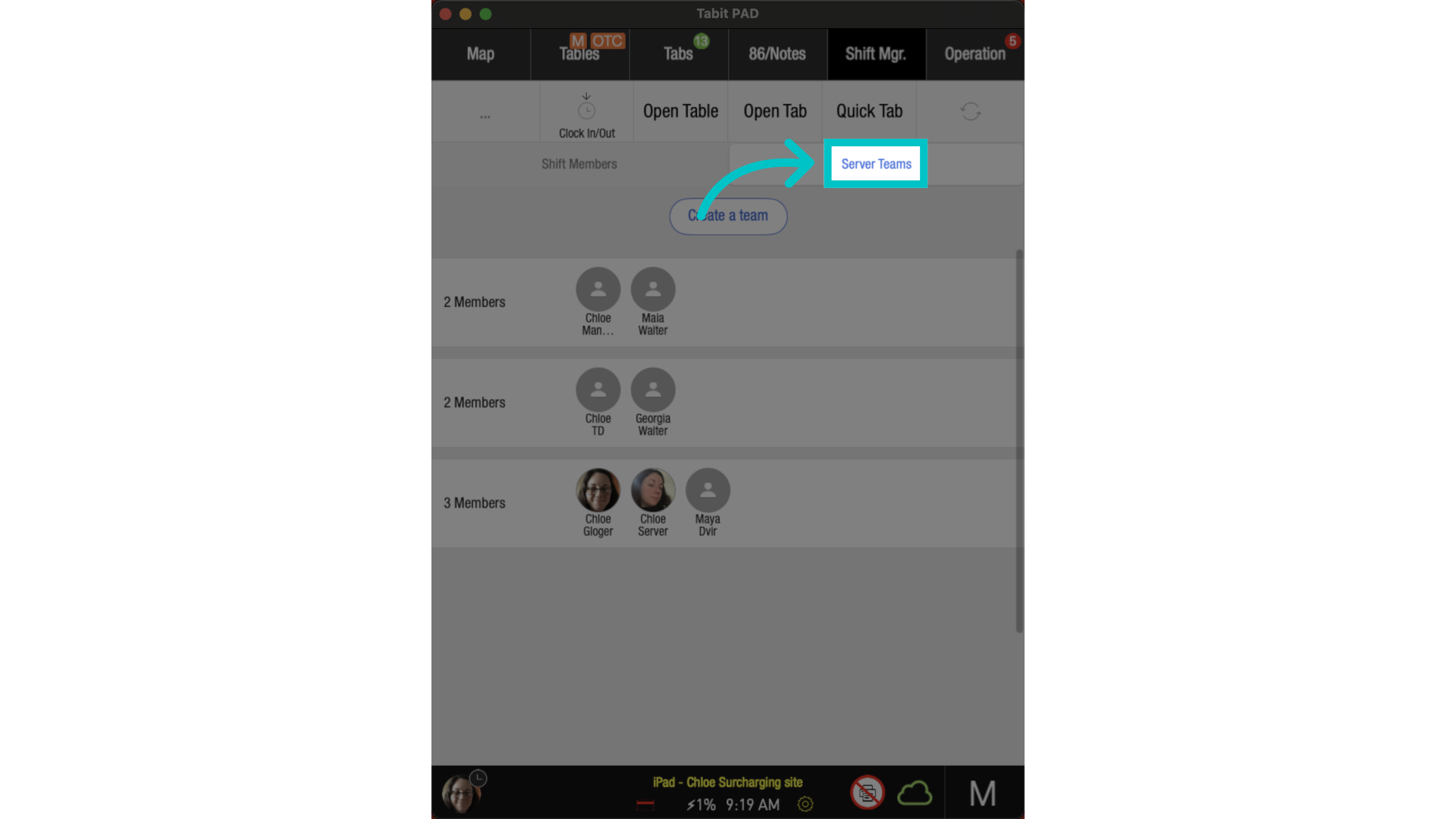
Tap Server Teams
-
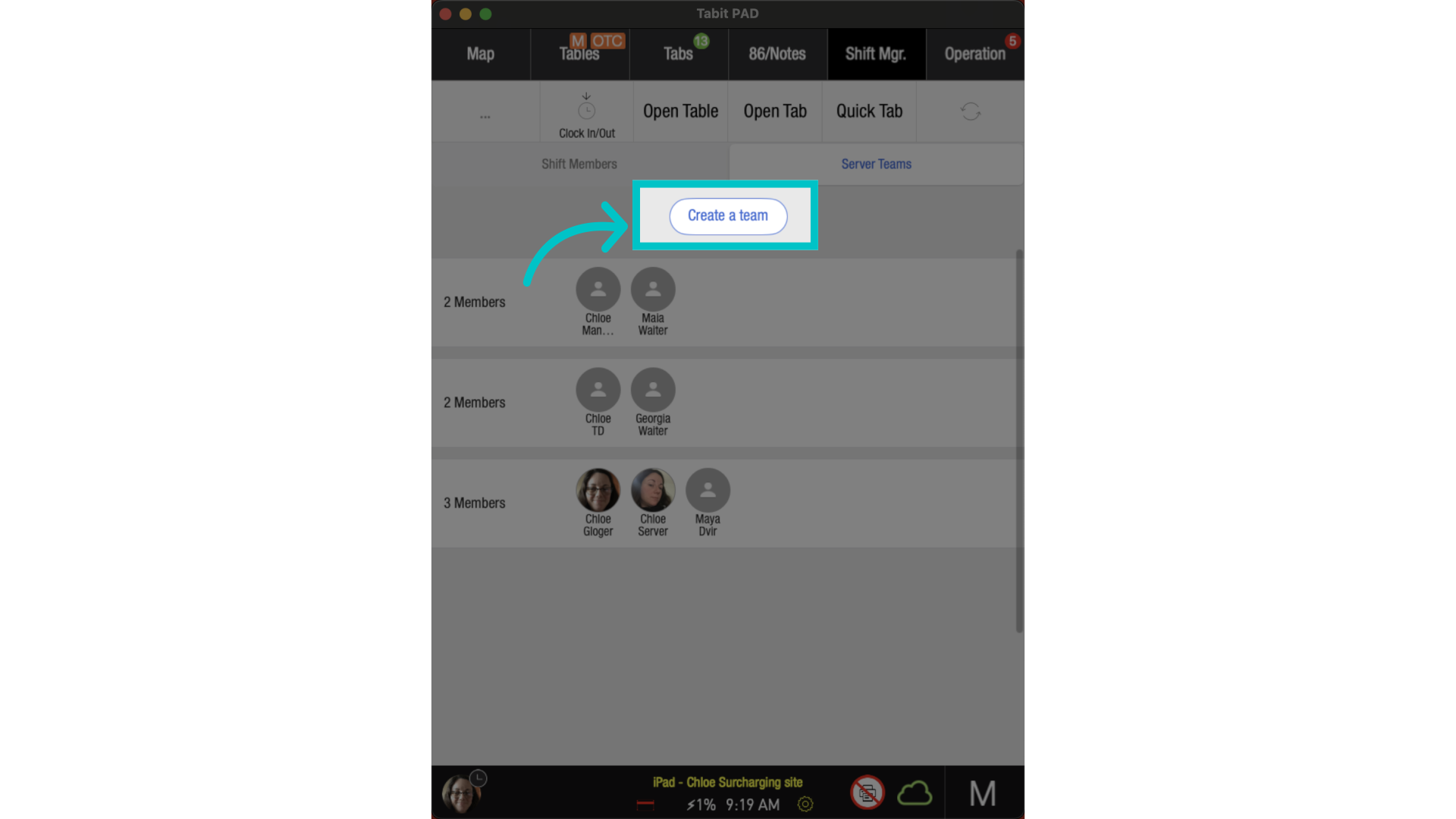
Tap Create a team
-
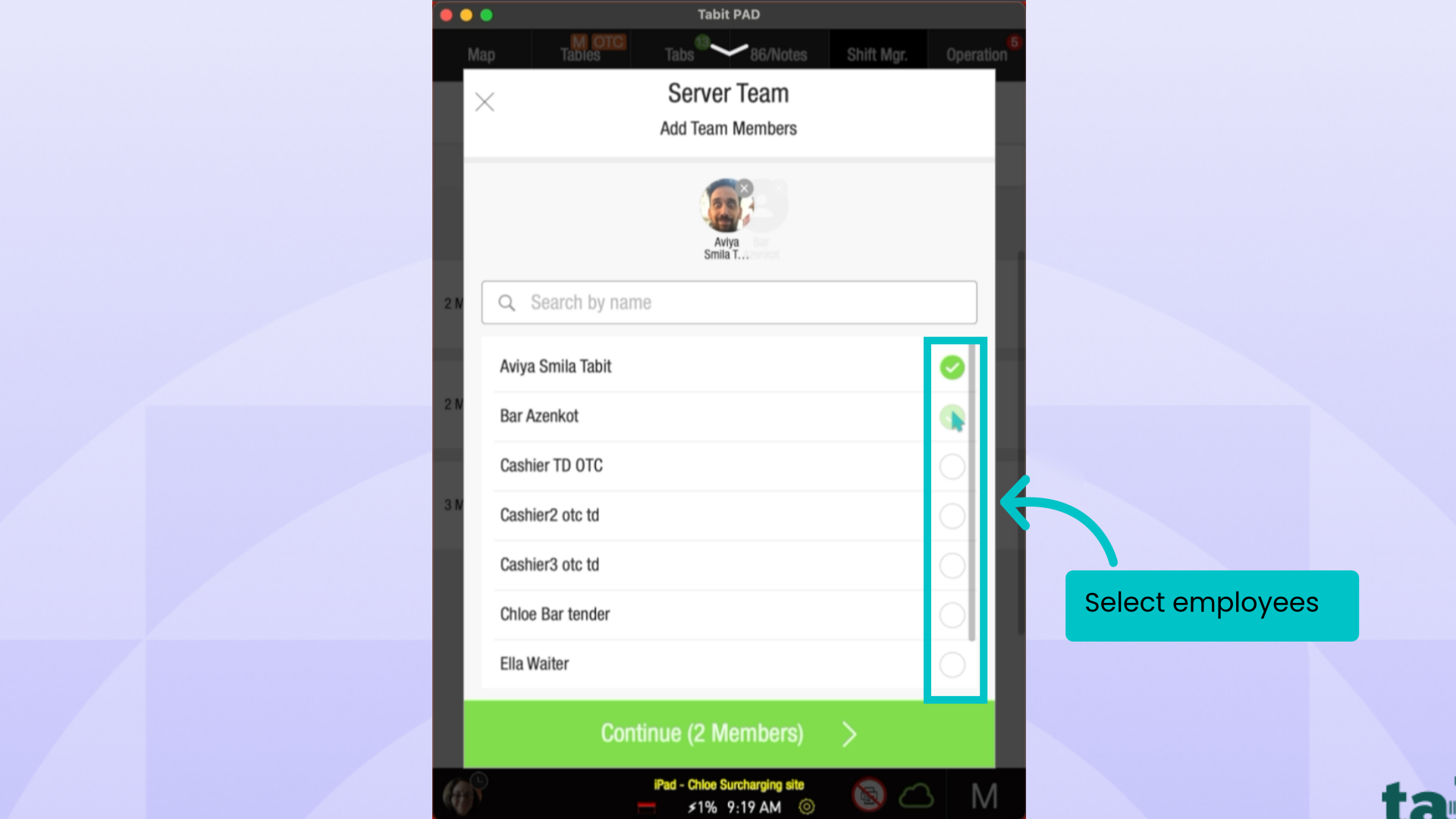
Select at least two clocked-in employees to add to the team
-
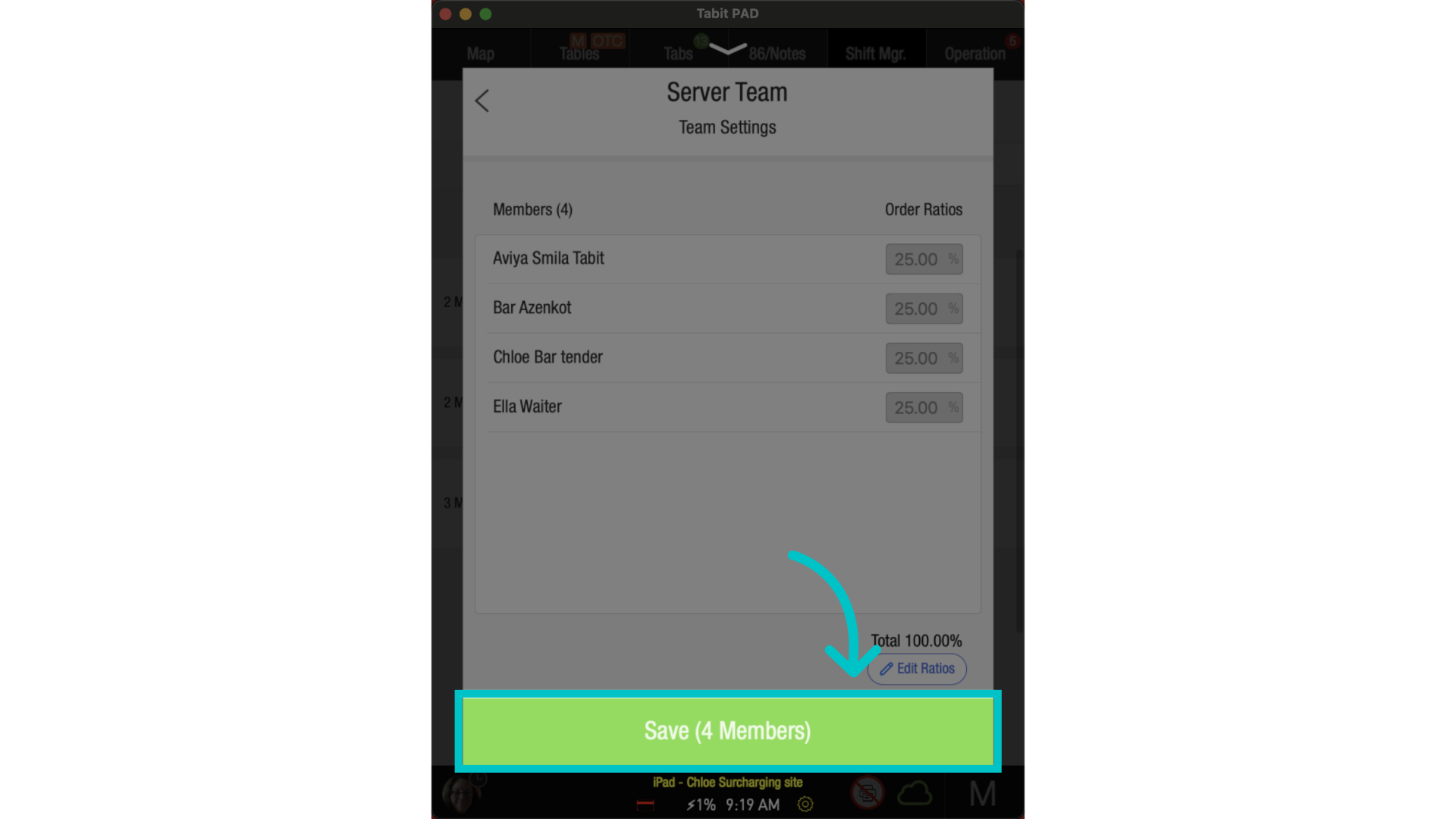
Save your selection and the team has now been created
-
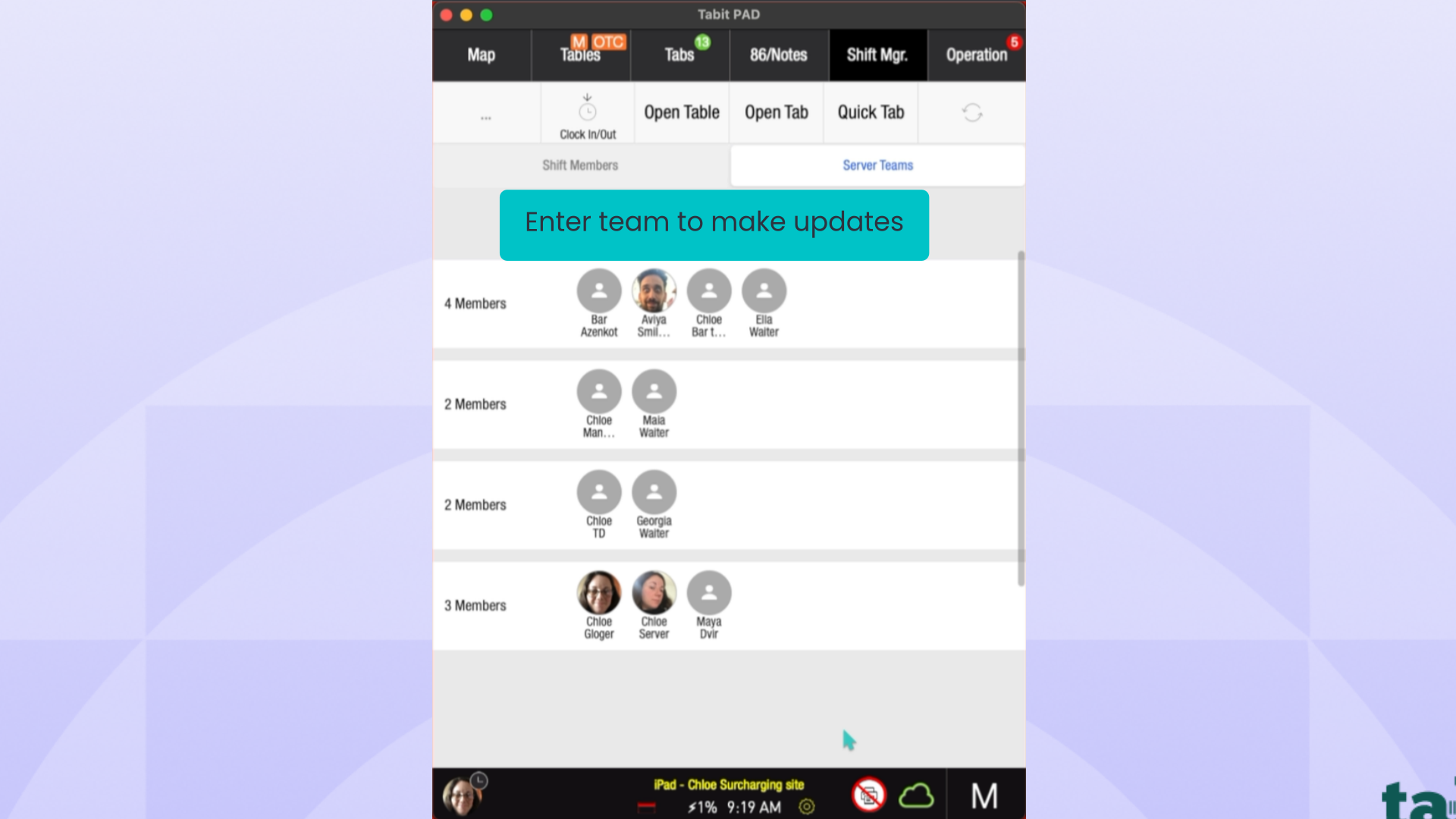
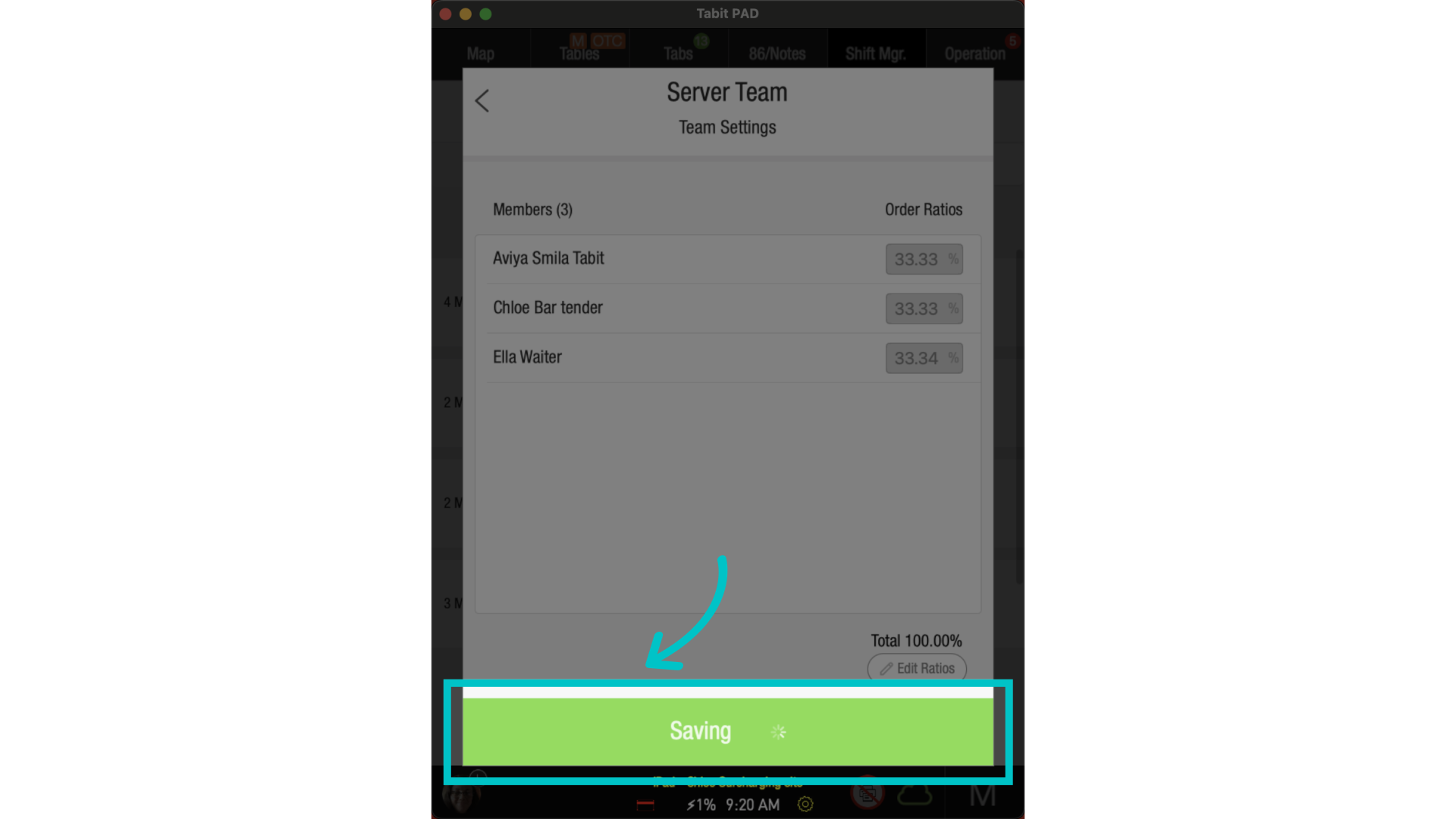
To update the Server Team you created, simply enter the team and remove any team members you'd like to exclude.
-
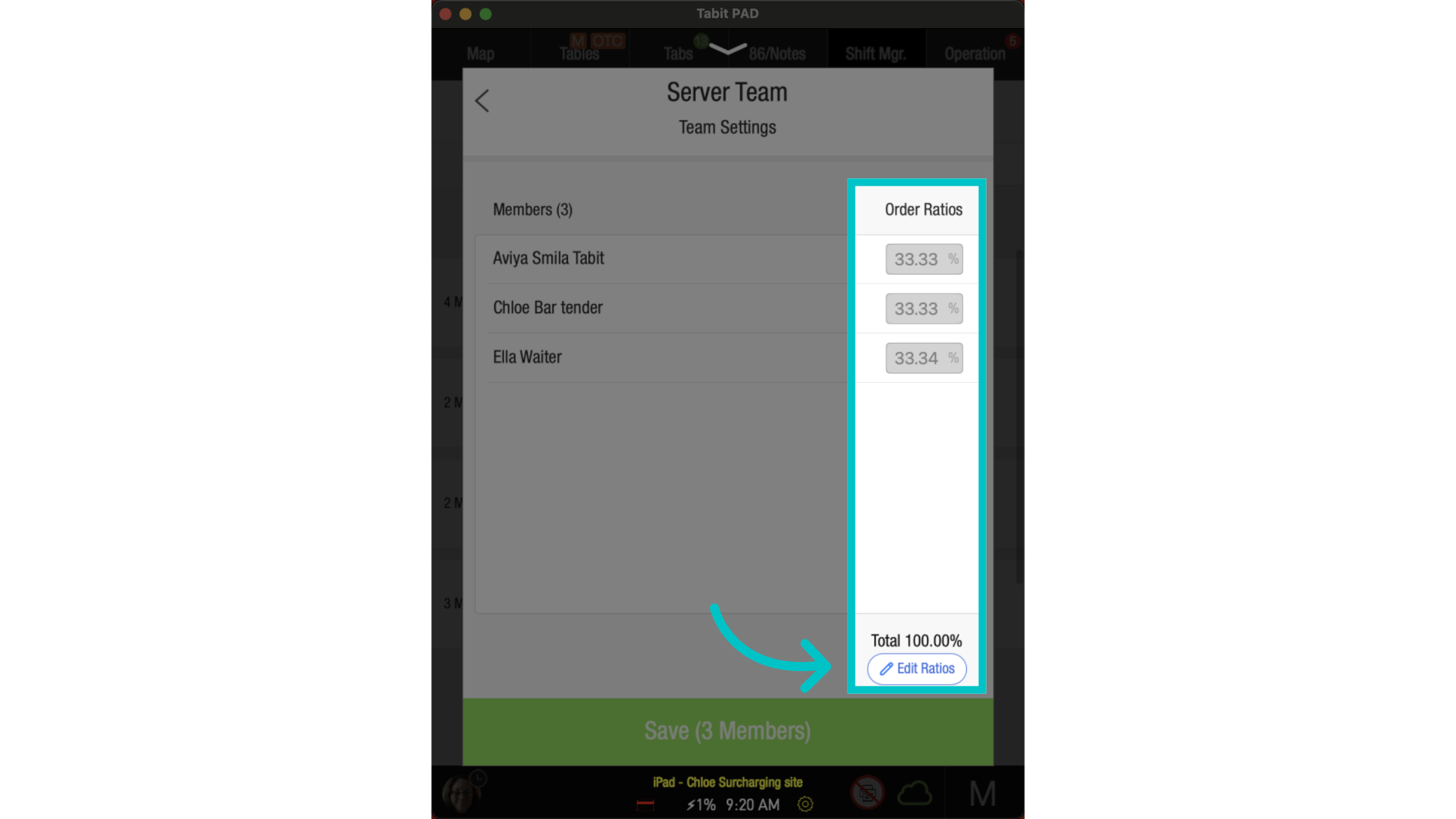
Modify the Order Ratios if needed
-
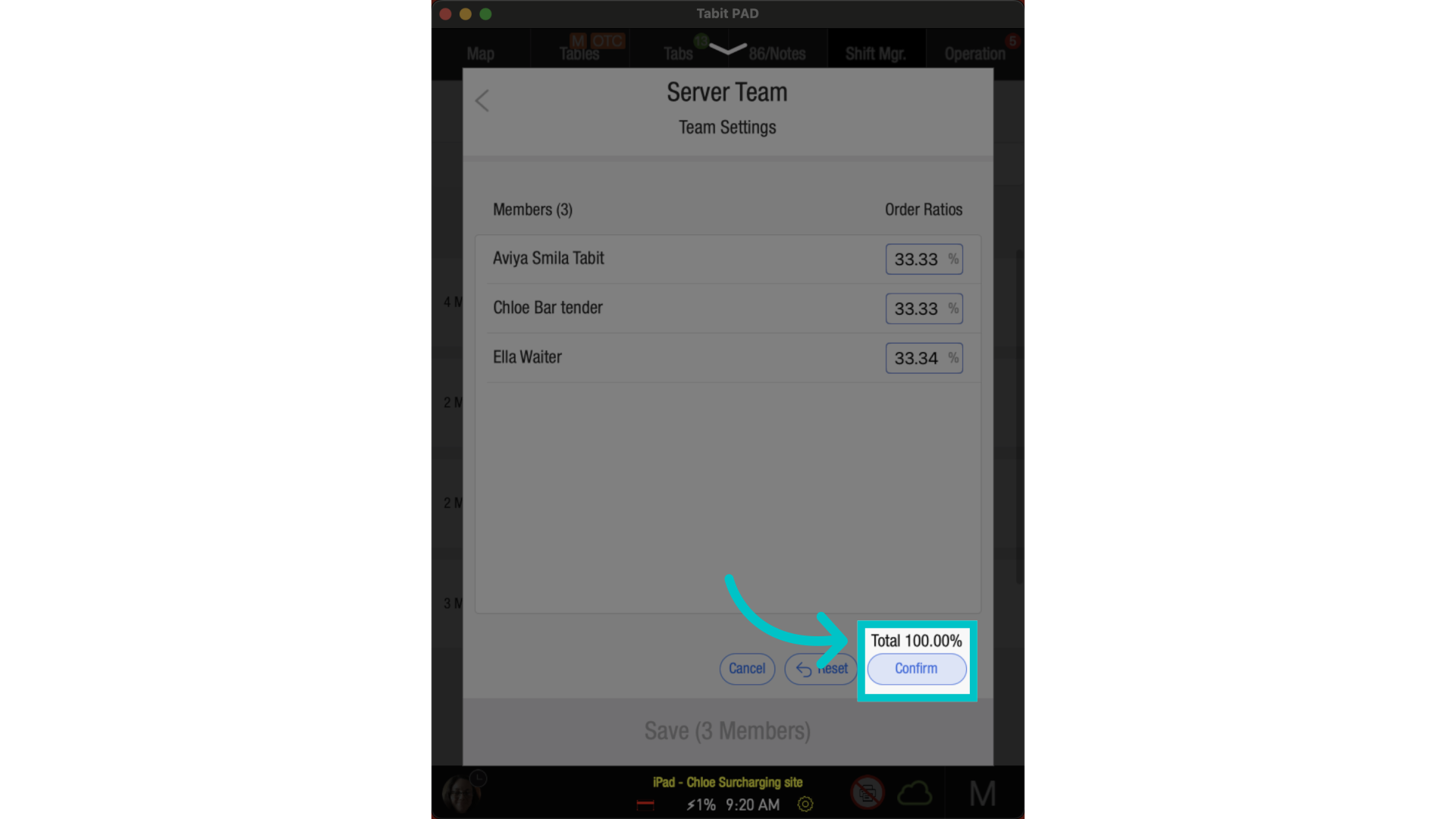
Confirm the updated ratios
-
Tap Save to finalize the team
How it Works
-
When a team member opens a new order, the system automatically creates an Order Team based on the Server Team
-
Changes to a Server Team do not affect any Order Teams that are already active
-
Employees assigned to a server team cannot clock out until a manager removes them from the team
Good to know
-
Changes to server teams only affect future orders. Active order teams remain unchanged.
-
TD orders will automatically create an order team based on the assigned courier’s server team
-
Server teams can include employees from different profiles (unless restricted by the parameter Role-Specific Access Based on Clock-In Status, consult your Tabit representative to activate)
-
You can delete a server team by swiping on it and confirming the deletion