Overview
Banners can be added to Tabit Order to highlight offers and key messages directly within the ordering experience. Use banners to promote limited-time deals, spotlight high-margin items, or surface important announcements while customers browse the menu.
There are two types of banners:
Hero: Appears at the top of the menu. Multiple hero banners can be configured and will be shown as a carousel
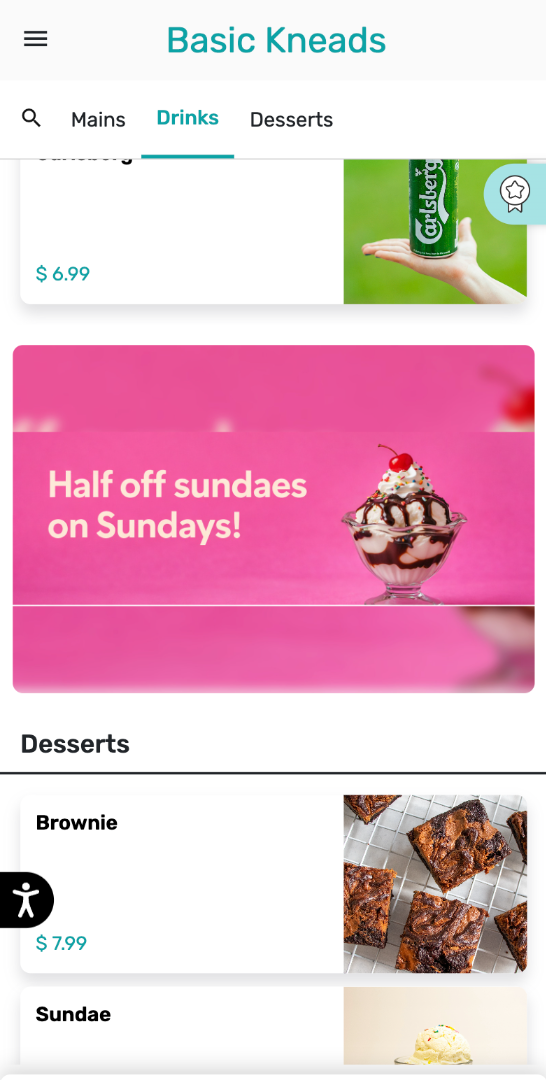
Between Categories: Appears before a select category and requires an additional step to set it up. Only one banner can be set to appear before each category
Learn How to Configure Banners for Tabit Order
Add a Hero Banner
Hero banners appear at the top of the menu in a rotating carousel. You can add up to three hero banners, which will auto-slide on both desktop and mobile.
-
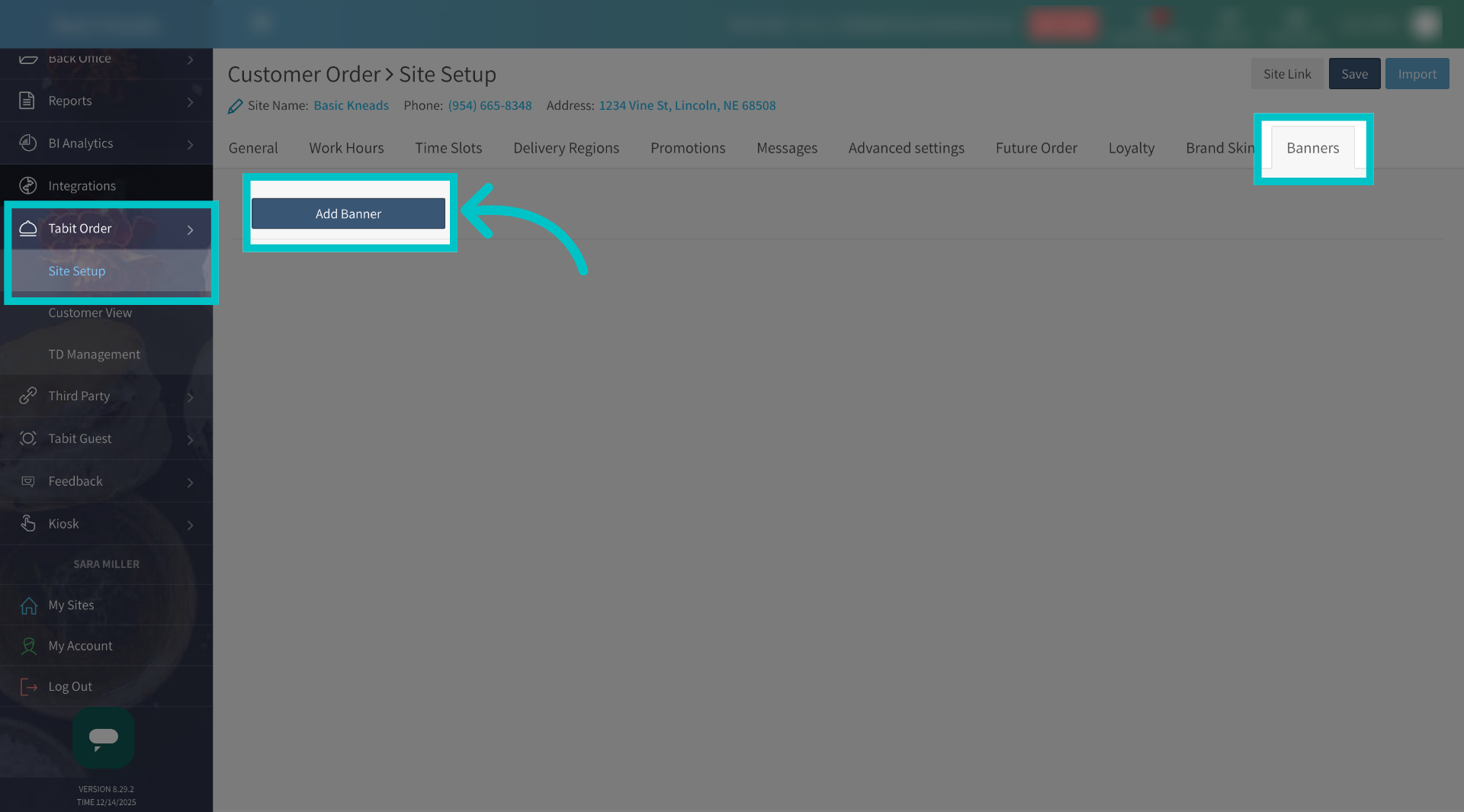
In Tabit Office, go to Tabit Order > Site Setup and select the Banners tab. Then select Add Banner
-
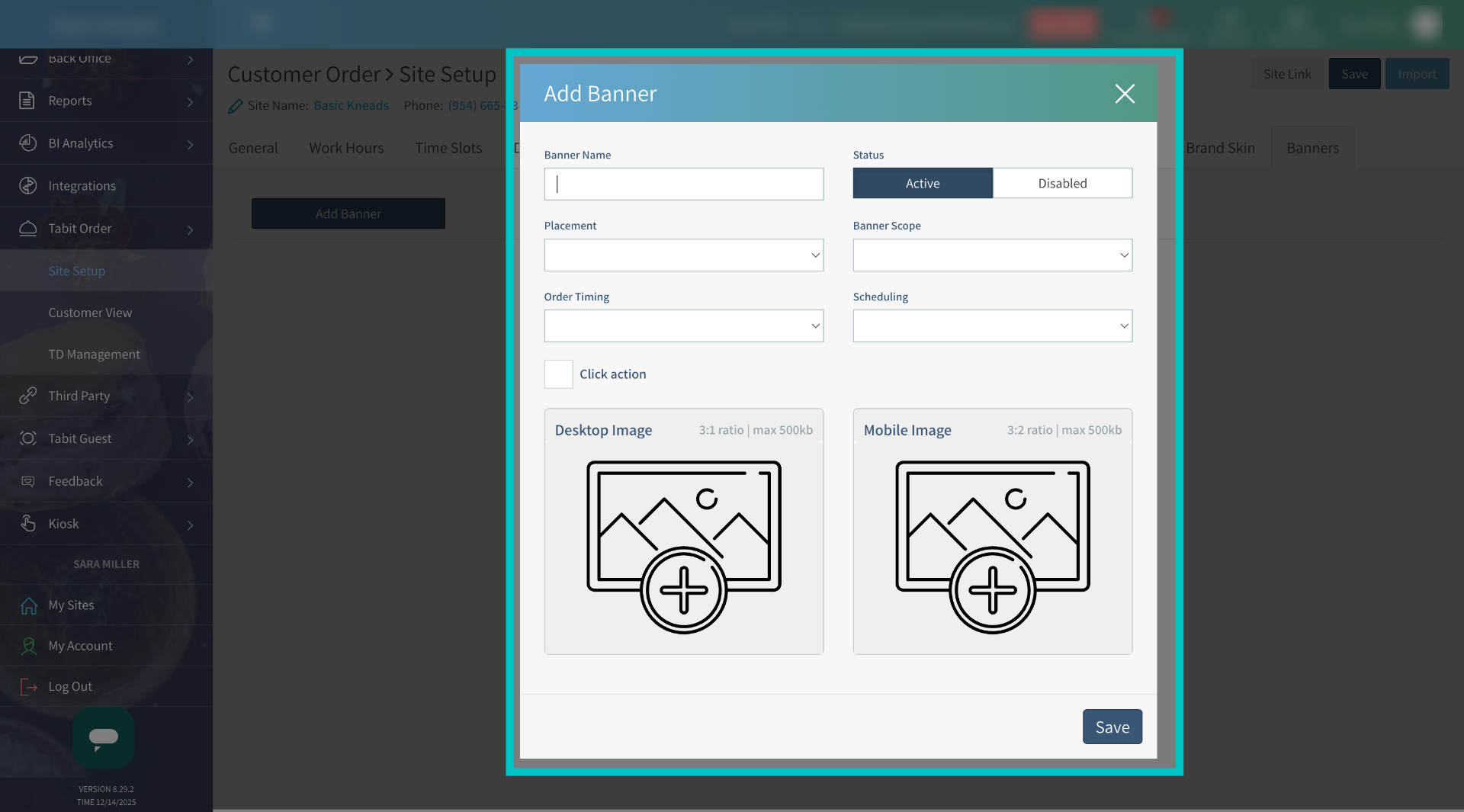
Give the banner a name
-
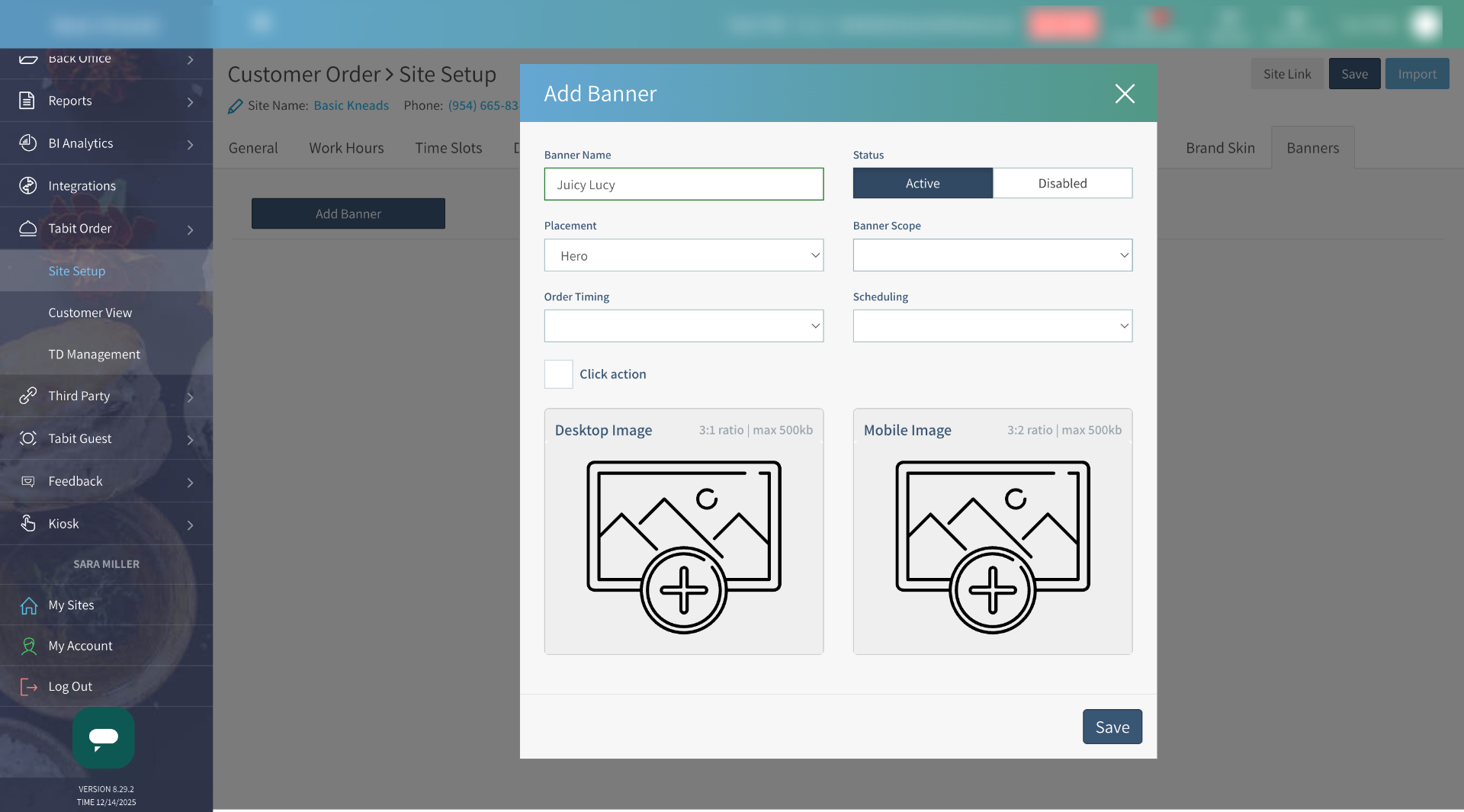
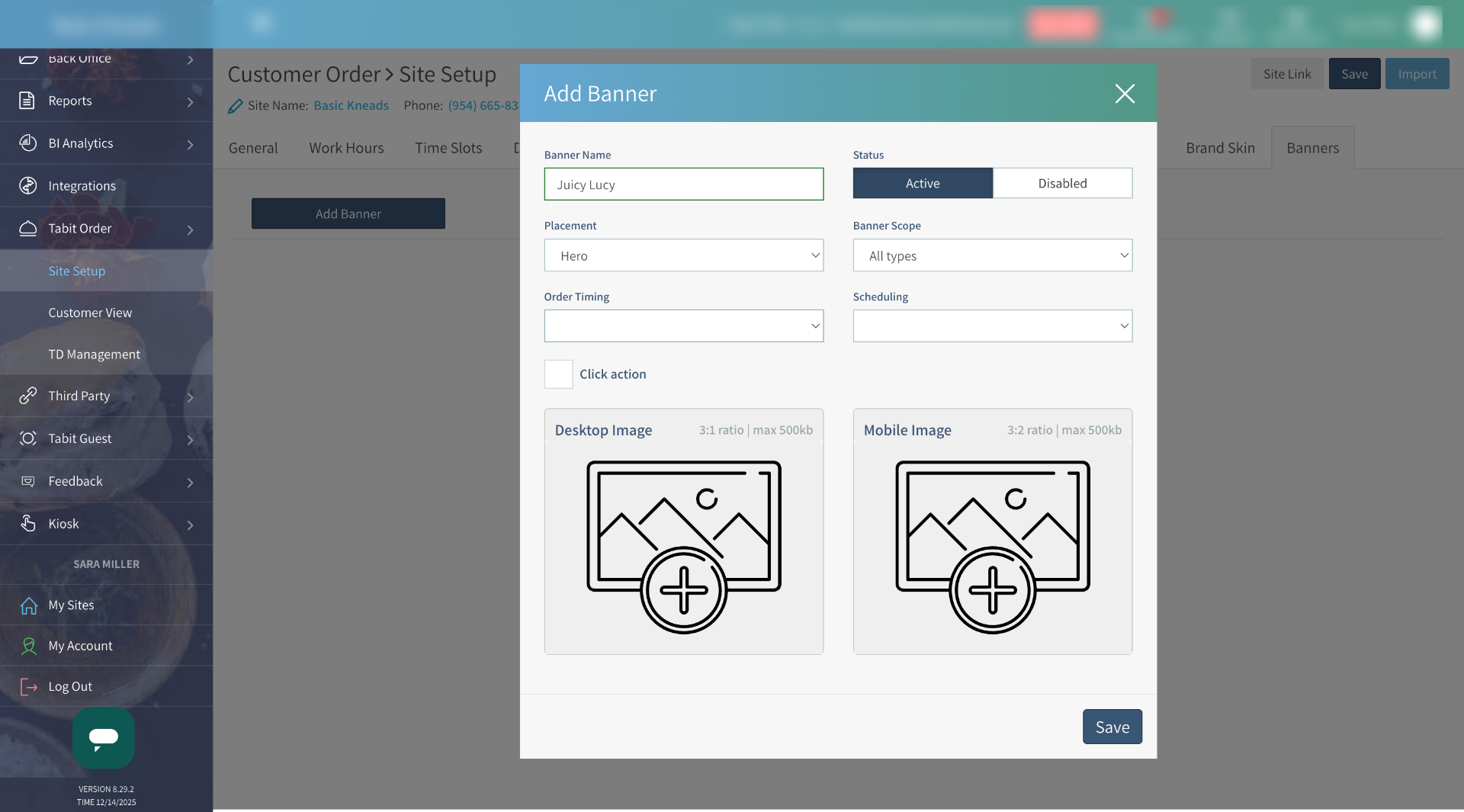
Under Placement, select Hero to display the banner at the top of the menu on desktop and mobile
-
Under Banner Scope, select the order types where the banner should appear
-
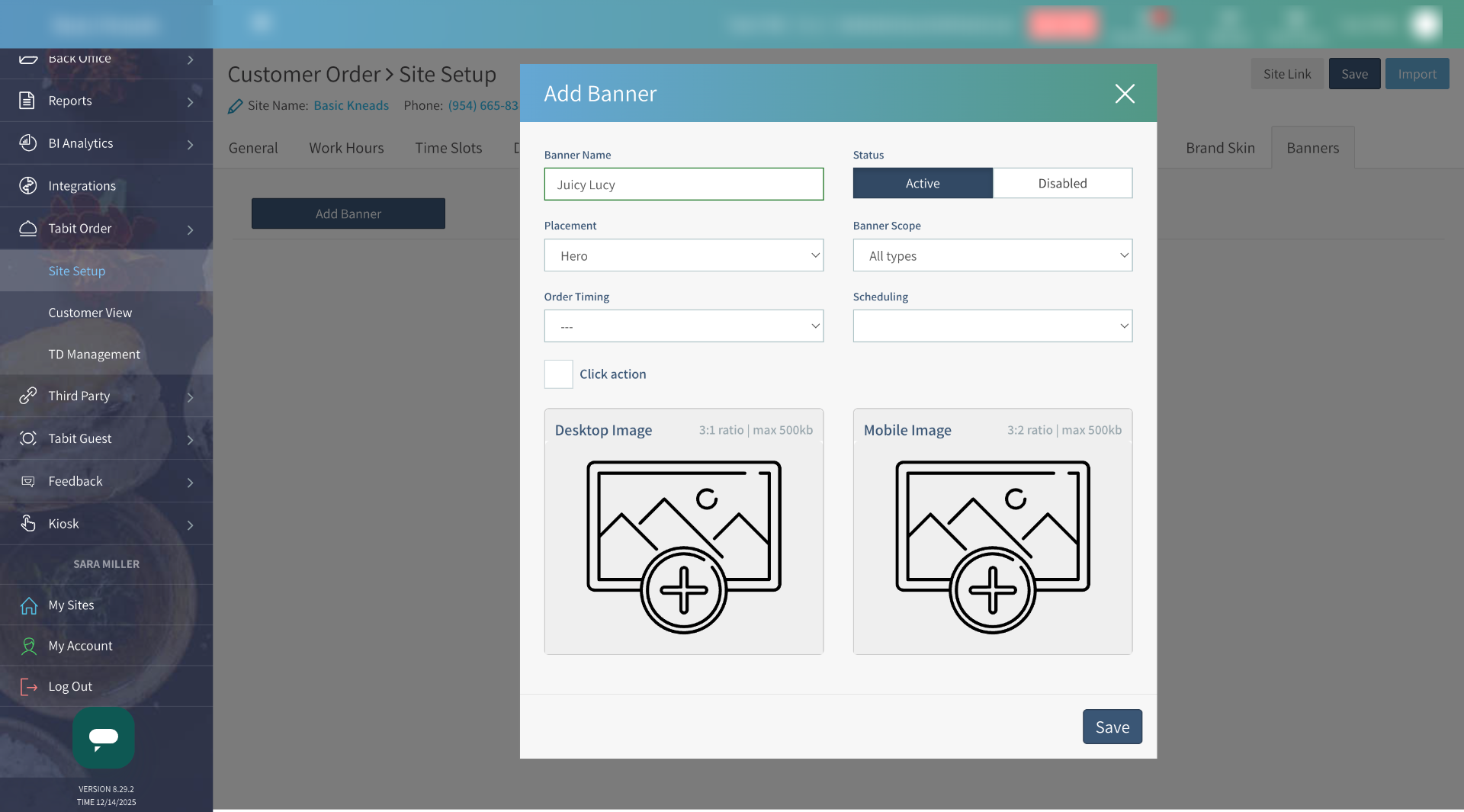
Choose whether the banner should appear for regular orders, future orders, or both
-
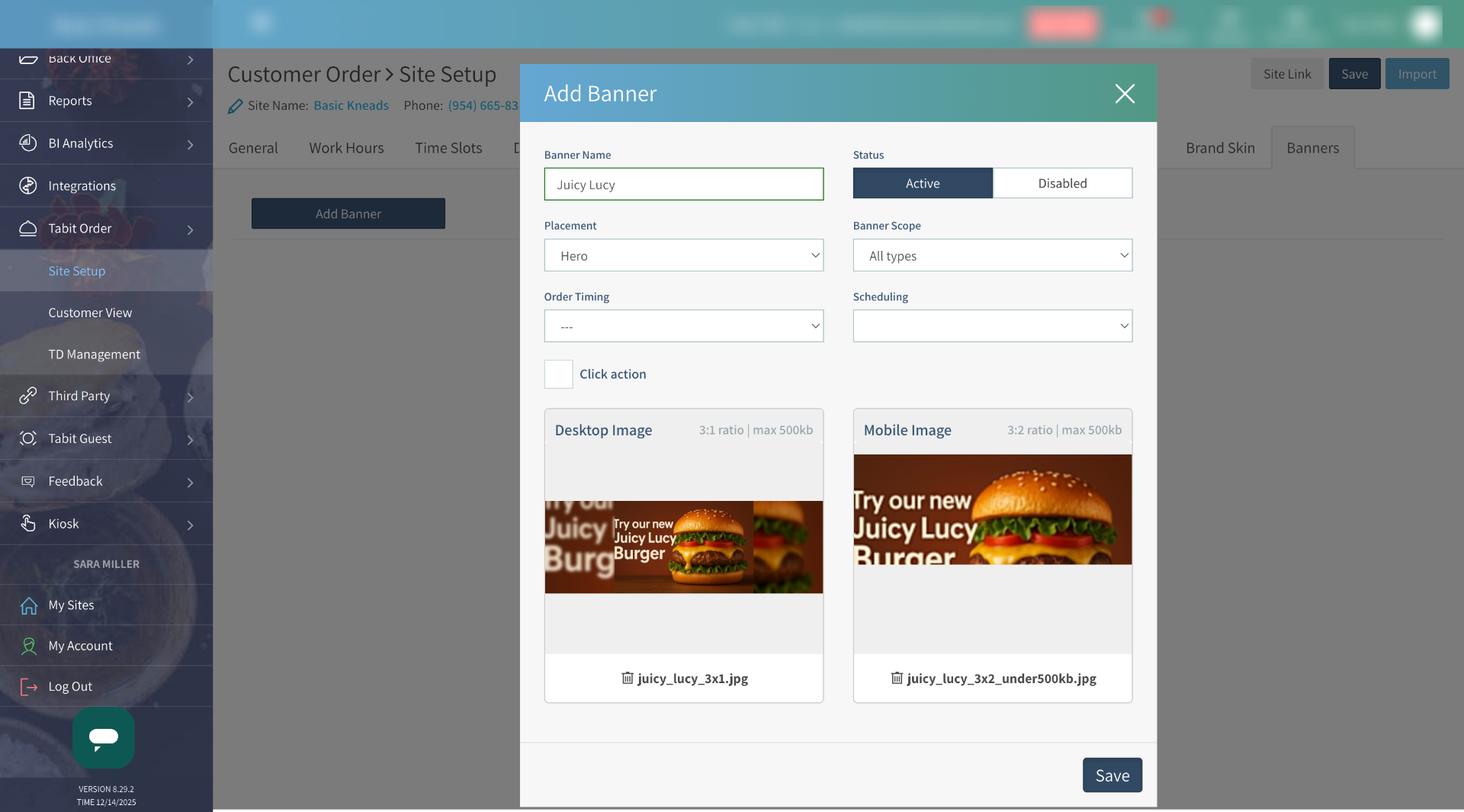
Upload separate images for desktop and mobile, then save the banner
-
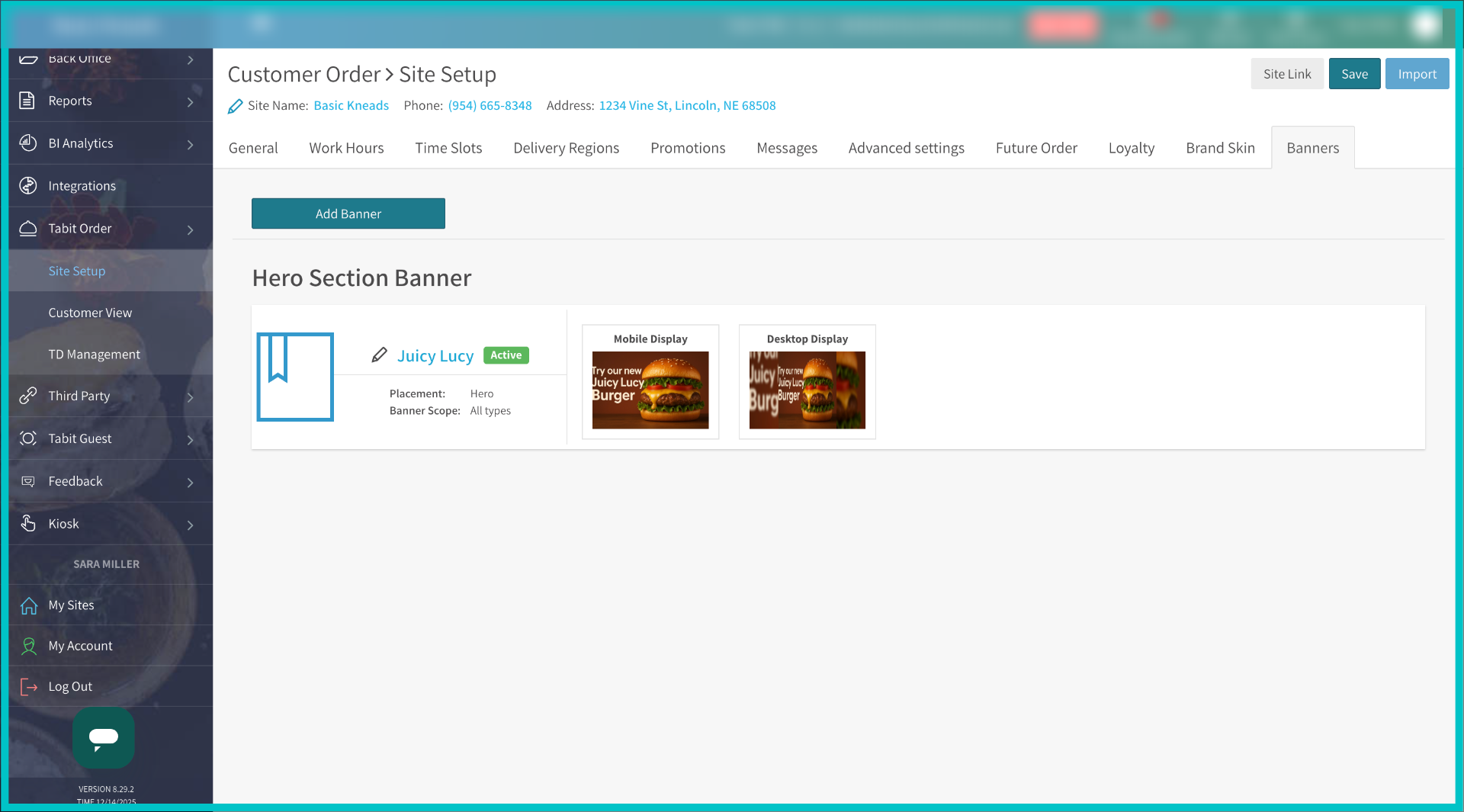
Review your banner and select Save to publish it to Tabit Order.
-
The hero banner will now appear on desktop.
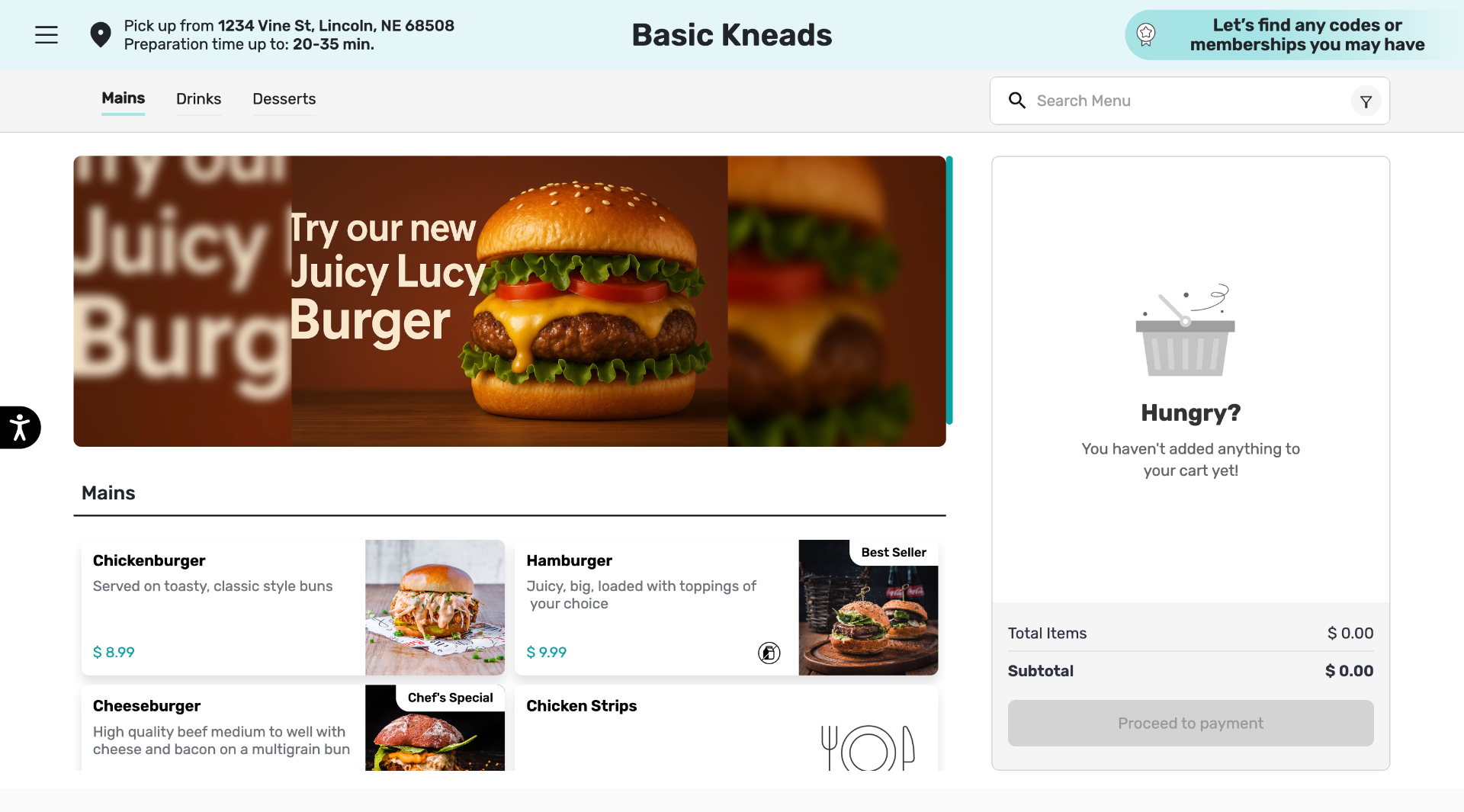
-
And like this on mobile
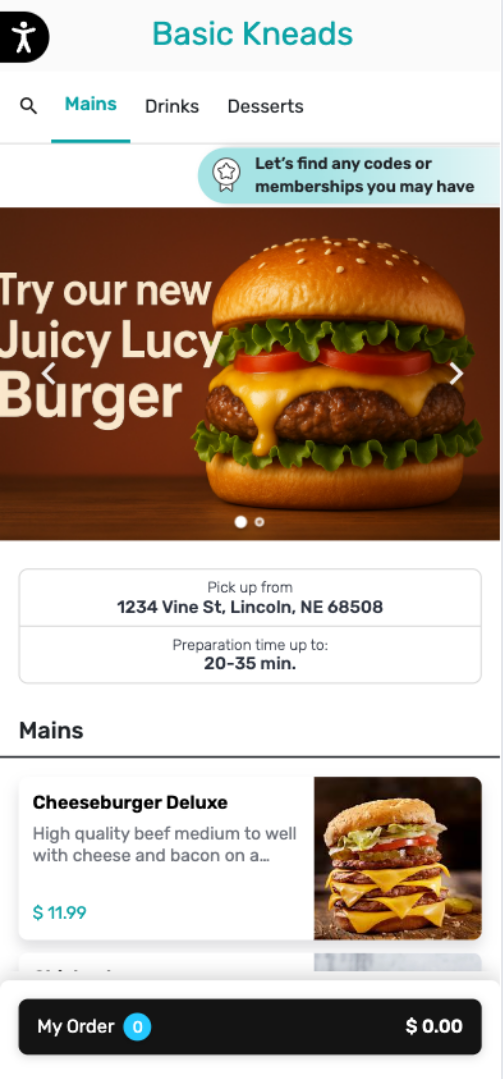
Add a Banner Before a Category
Banners placed before a category appear directly above a selected menu section. This is useful for drawing attention to specific areas such as desserts, drinks, or limited-time menus.
-
Adding a banner before a category is similar to a hero banner with a few small difference. Start the process the same as for hero banners, but select Before category for placement
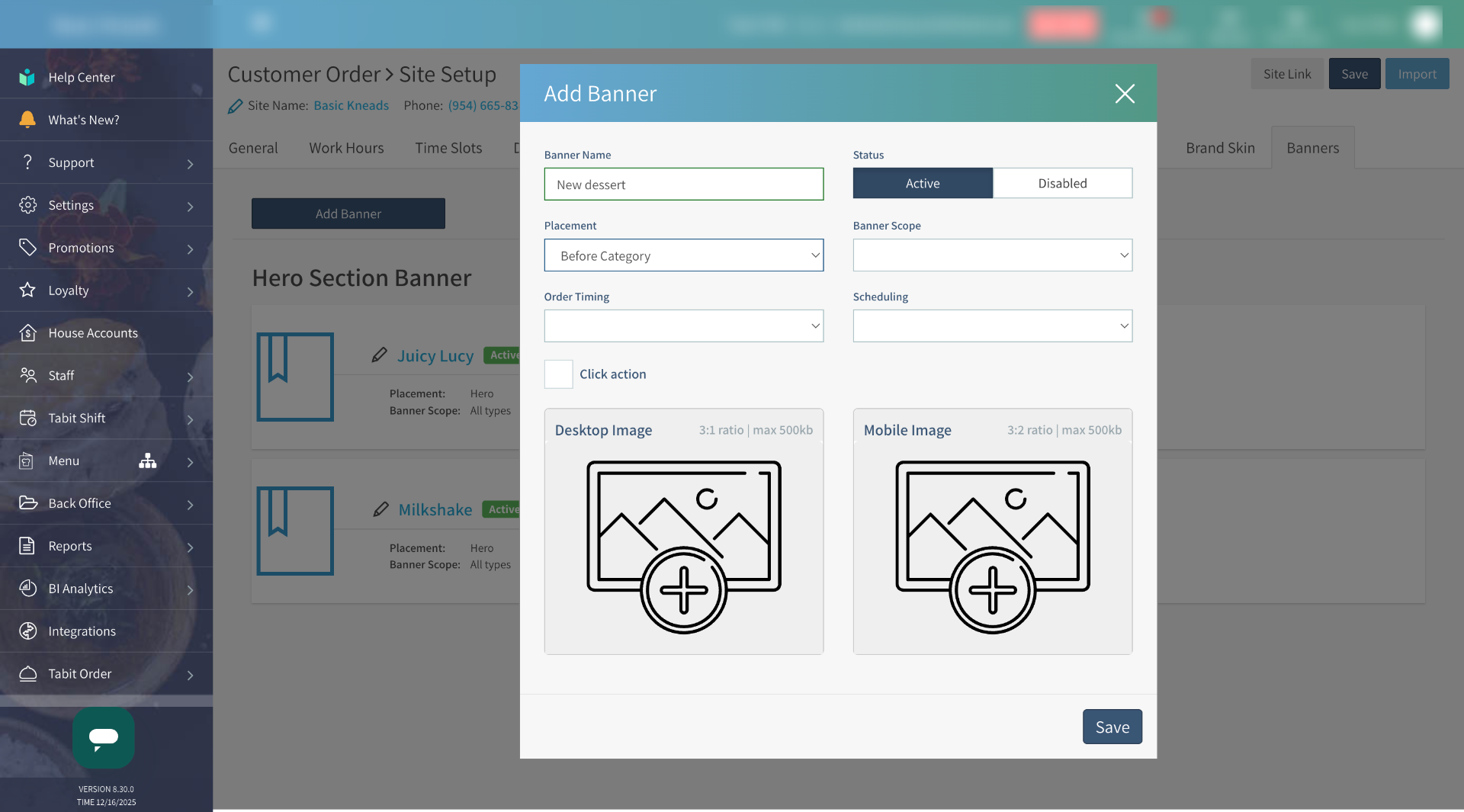
-
Configure the rest of the banner as usual and select Save
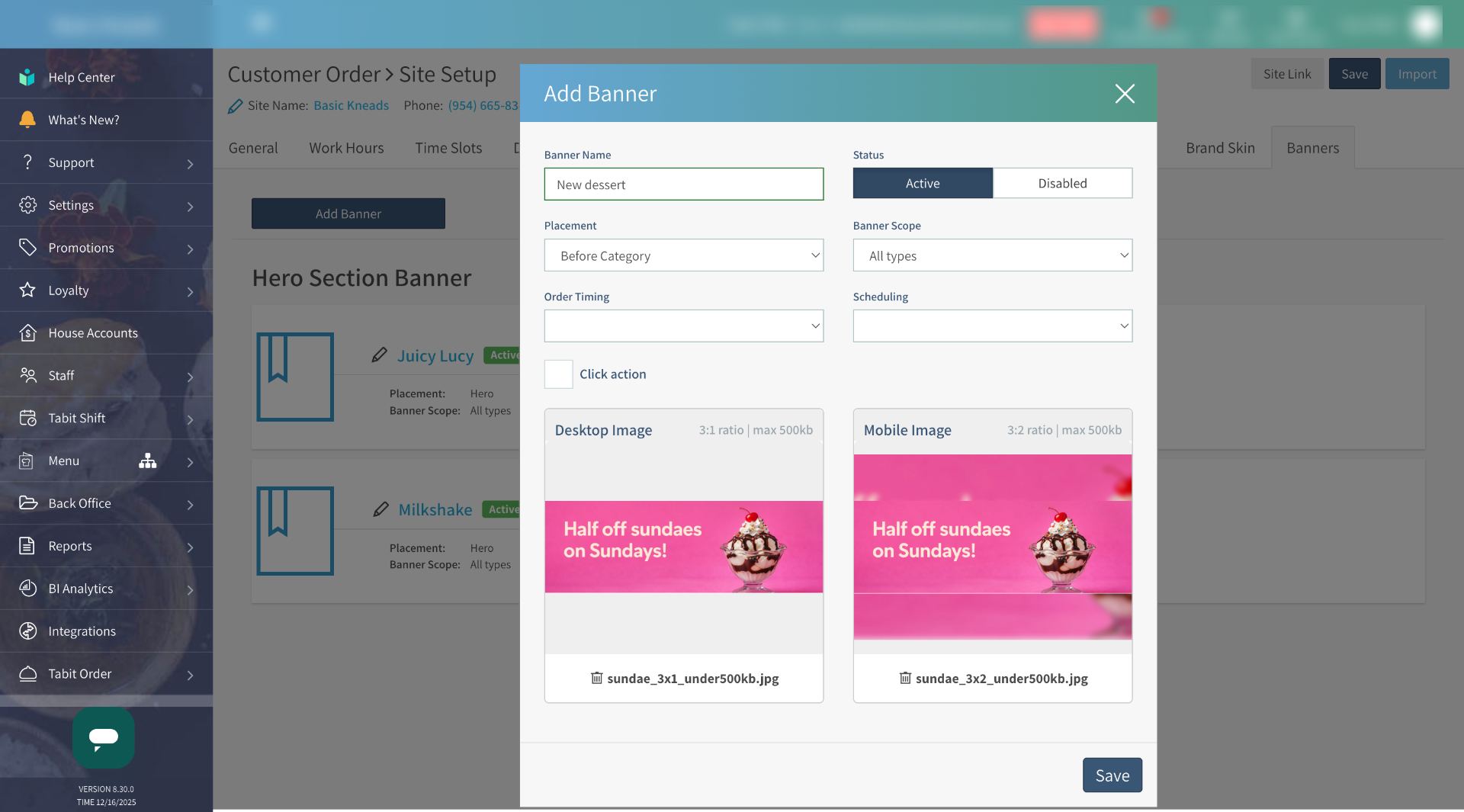
-
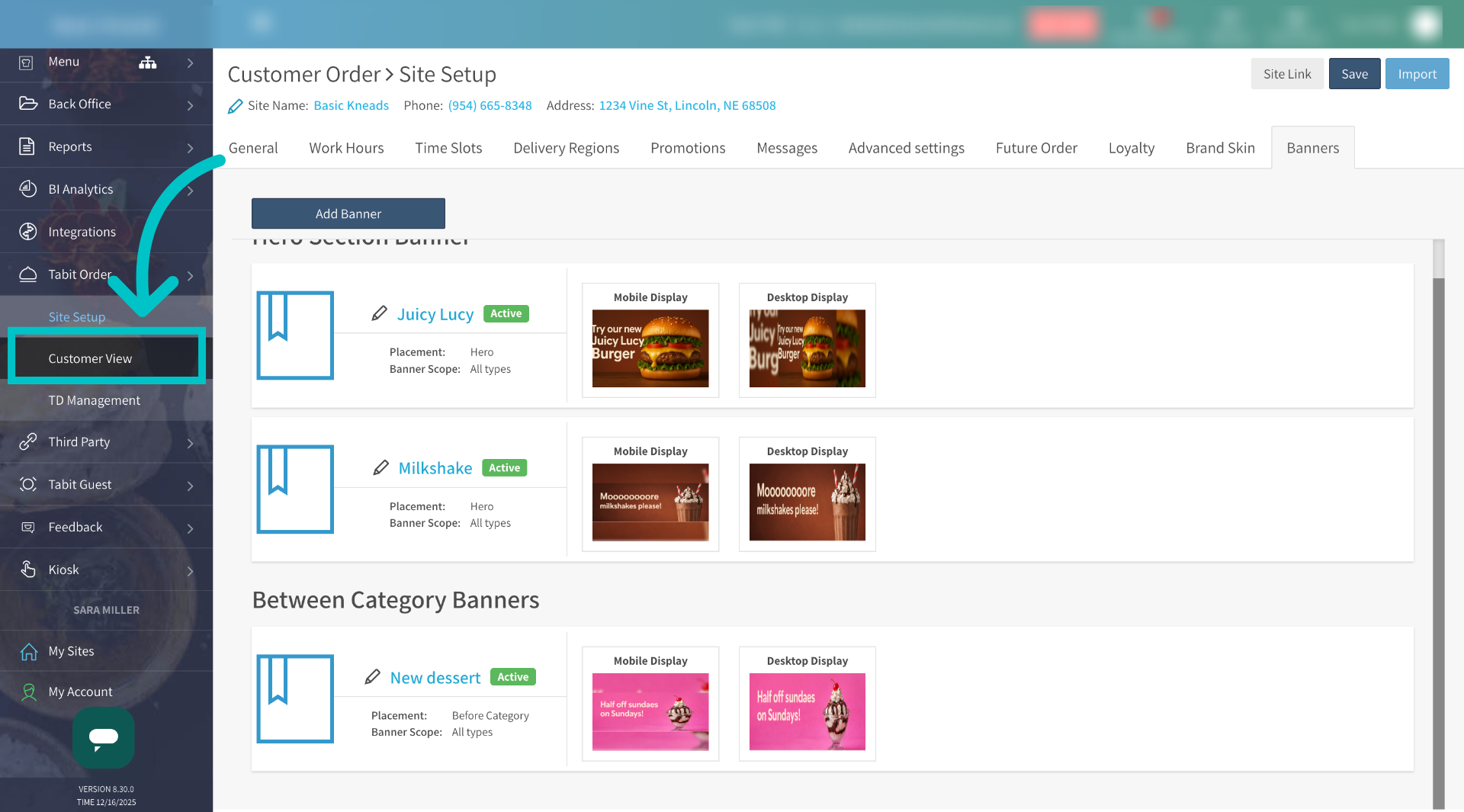
Now go to Tabit Order > Customer View
-
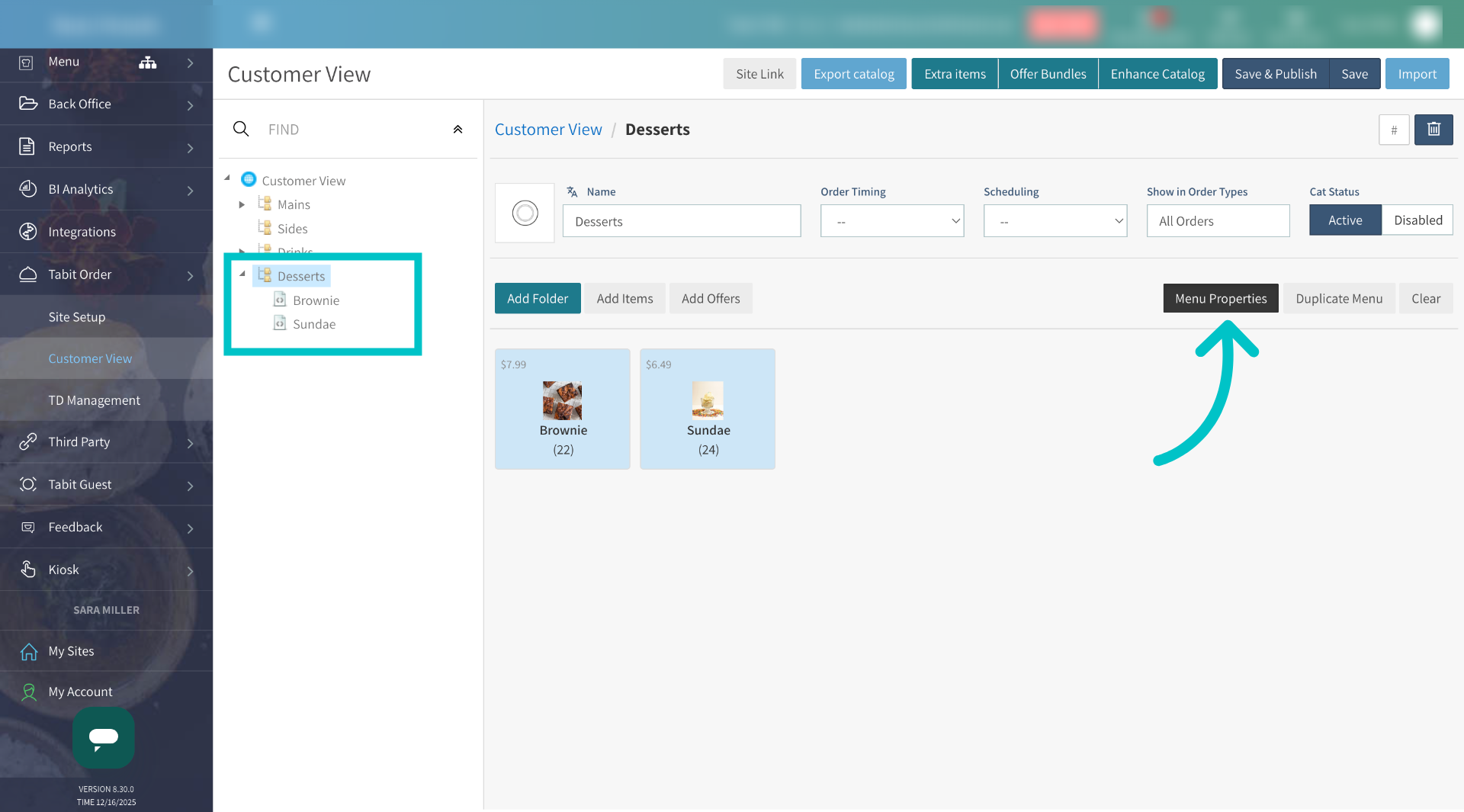
Find the folder you would like the banner to appear before and then select Menu Properties
-
Under Banner, select the banner that was created and then select Apply

-
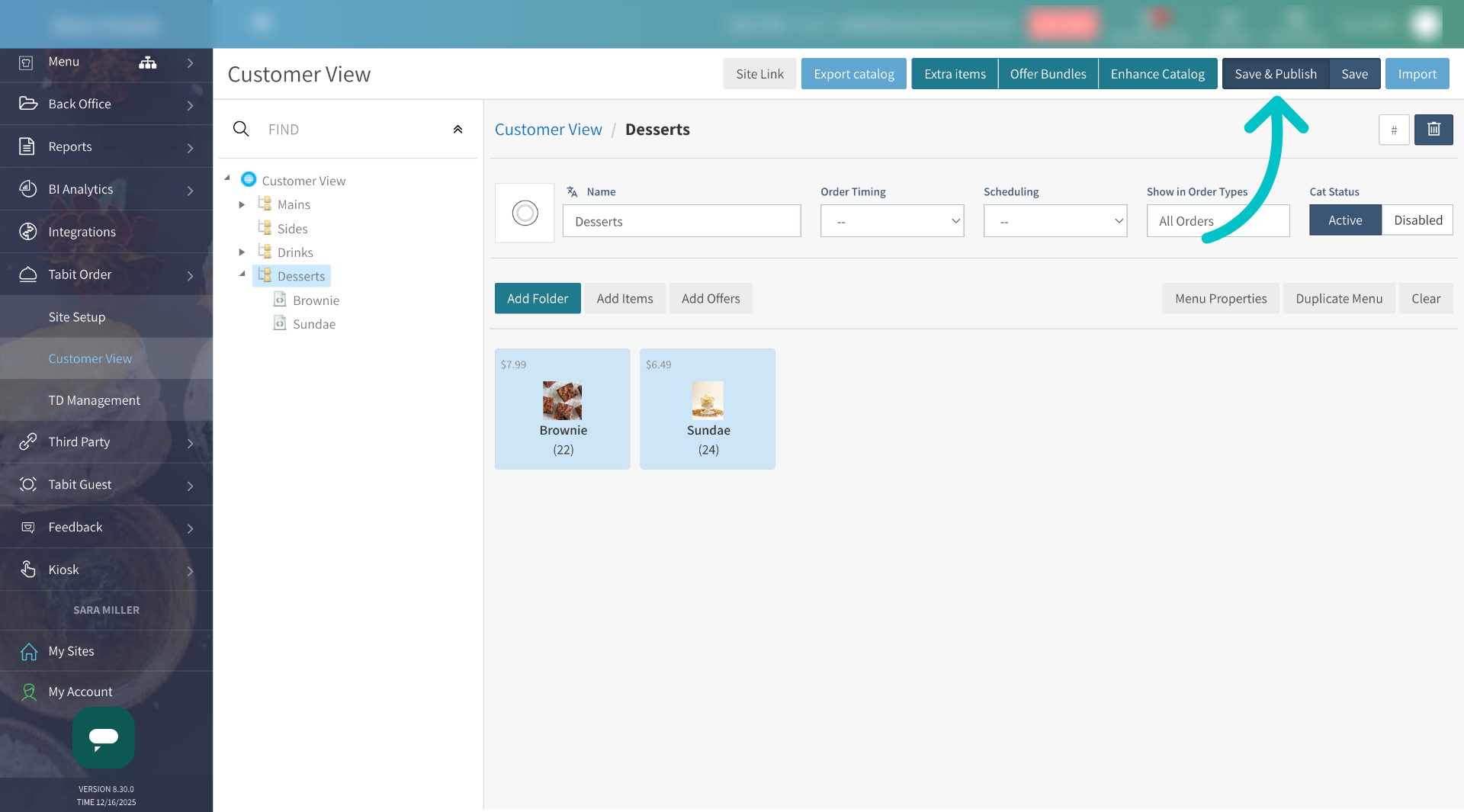
Select Save and Publish to push the changes to Tabit Order
-
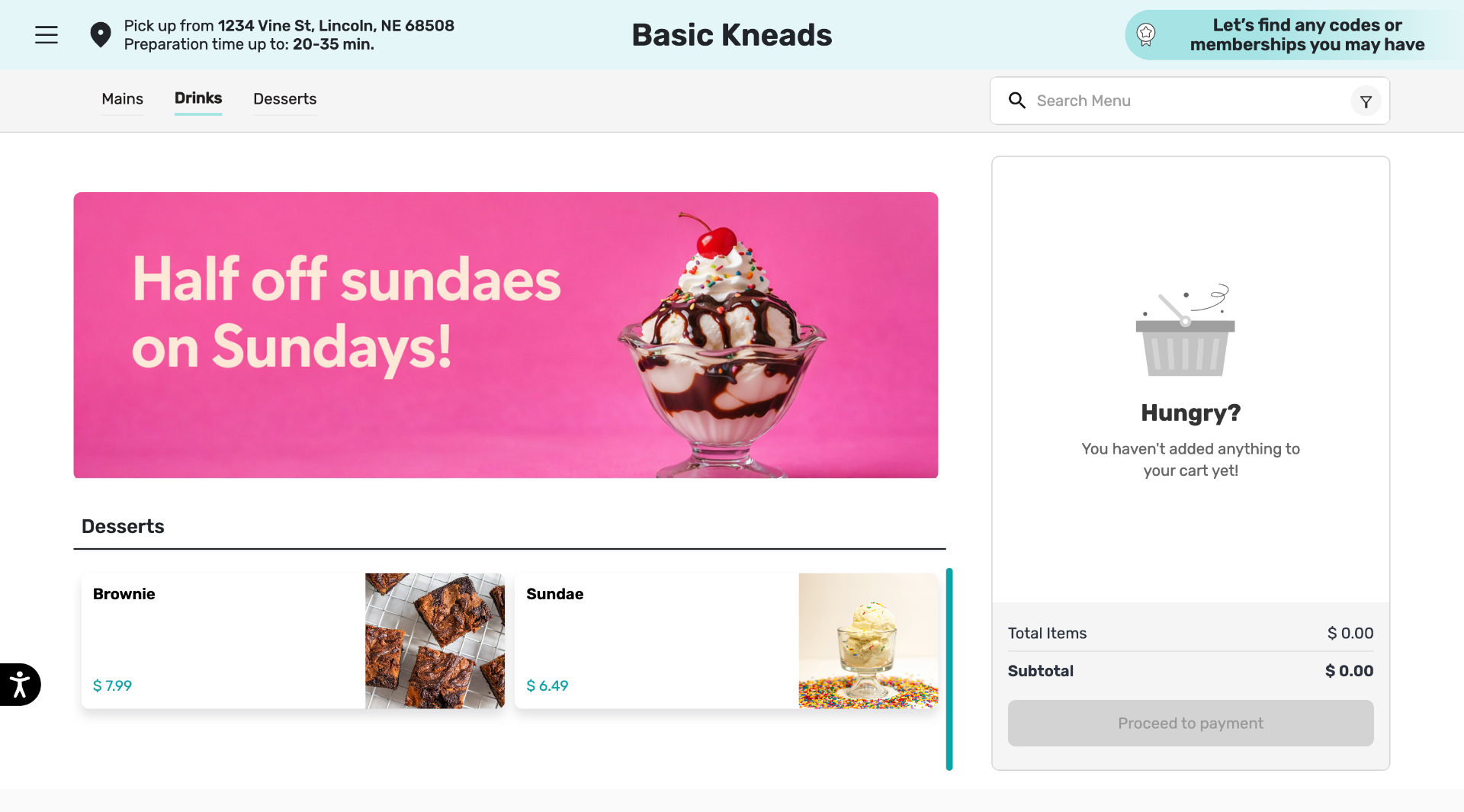
Now the banner appears above the relevant category on desktop
-
And on mobile