
Overview
Configuration Views let a restaurant share different Tabit Order menu links for catering, employee ordering, holidays, or other needs. Each view has its own link and displays the folders assigned to that view. Up to four views are supported.
Enable and name the views
-
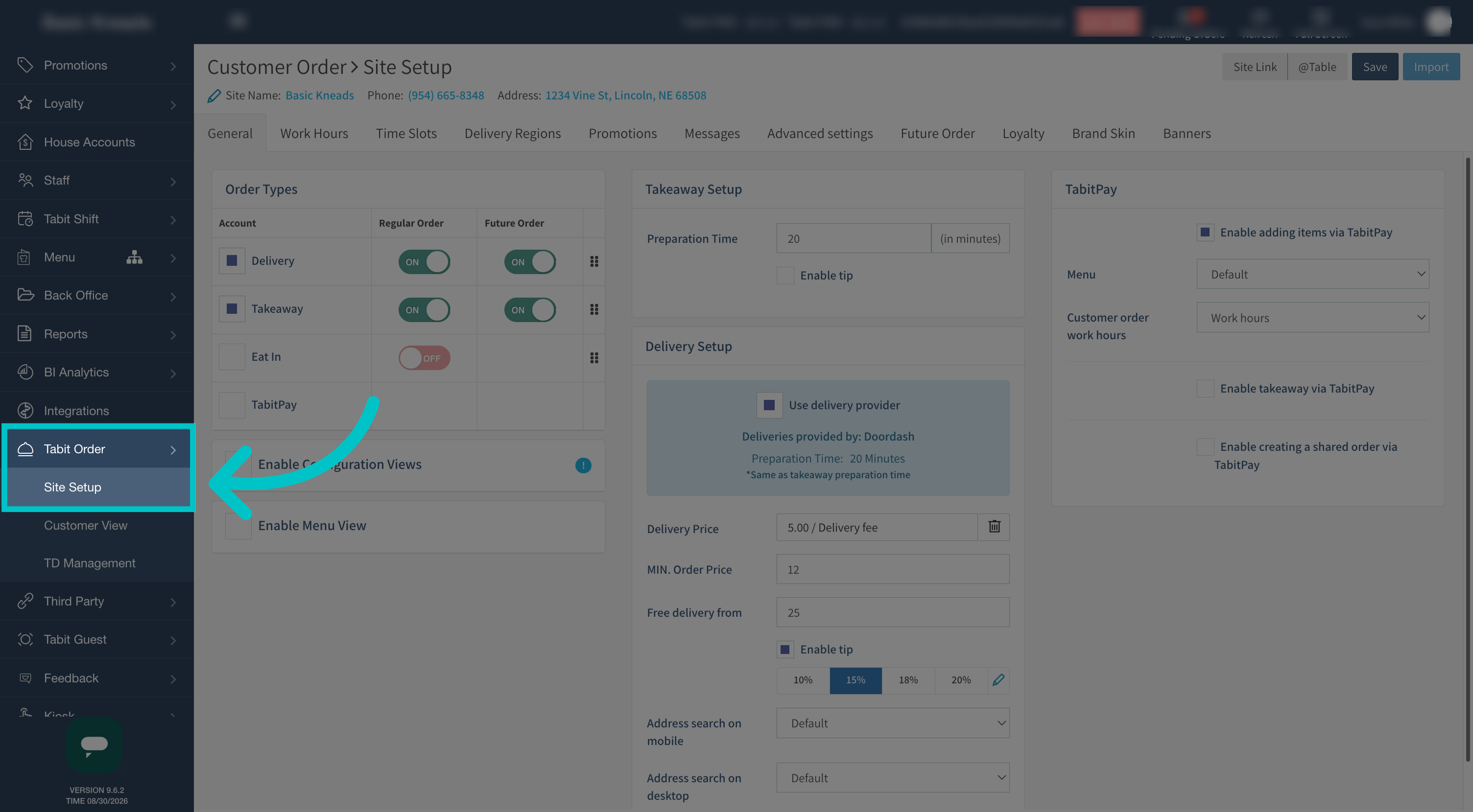
In Tabit Office, open Tabit Order > Site Setup.
-
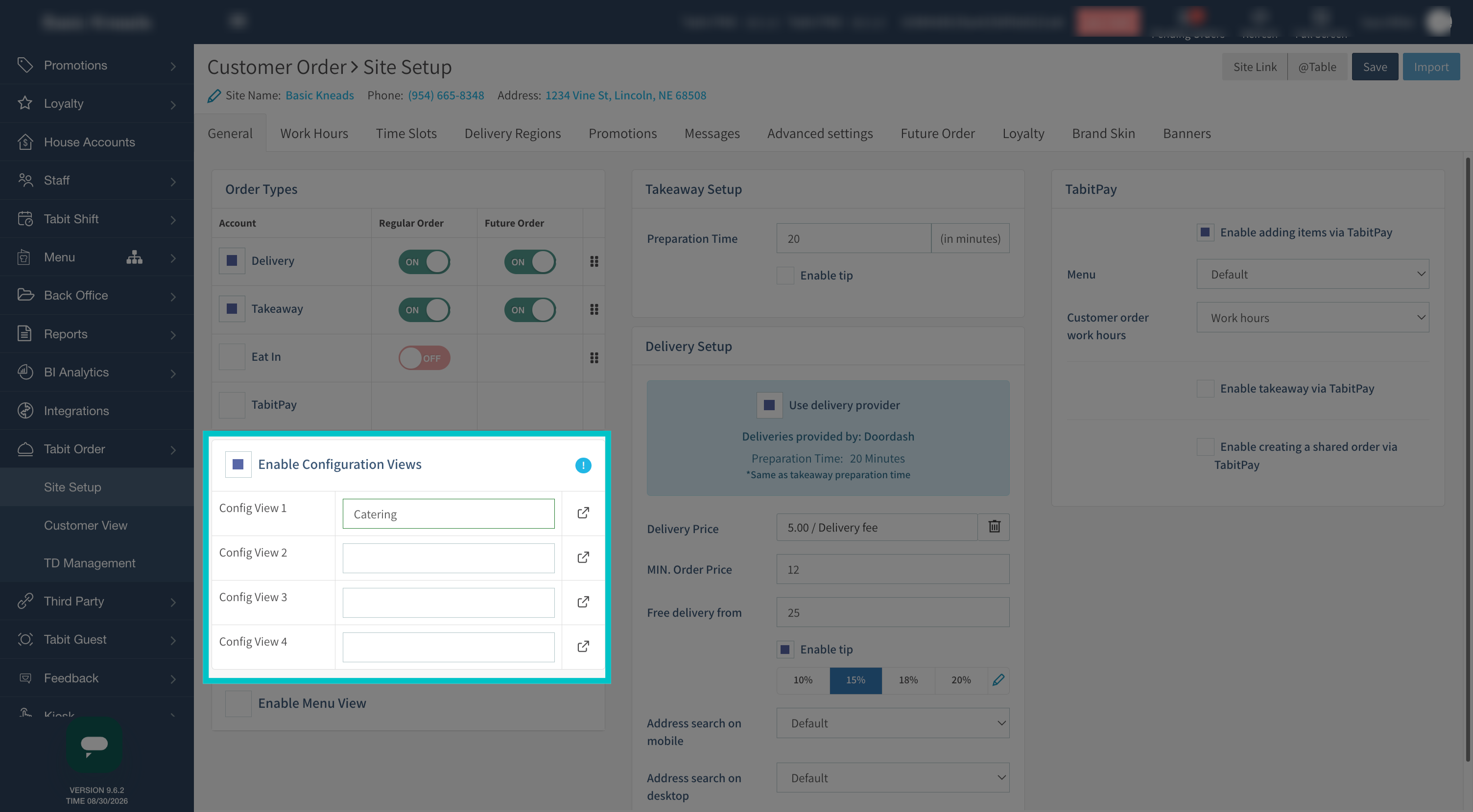
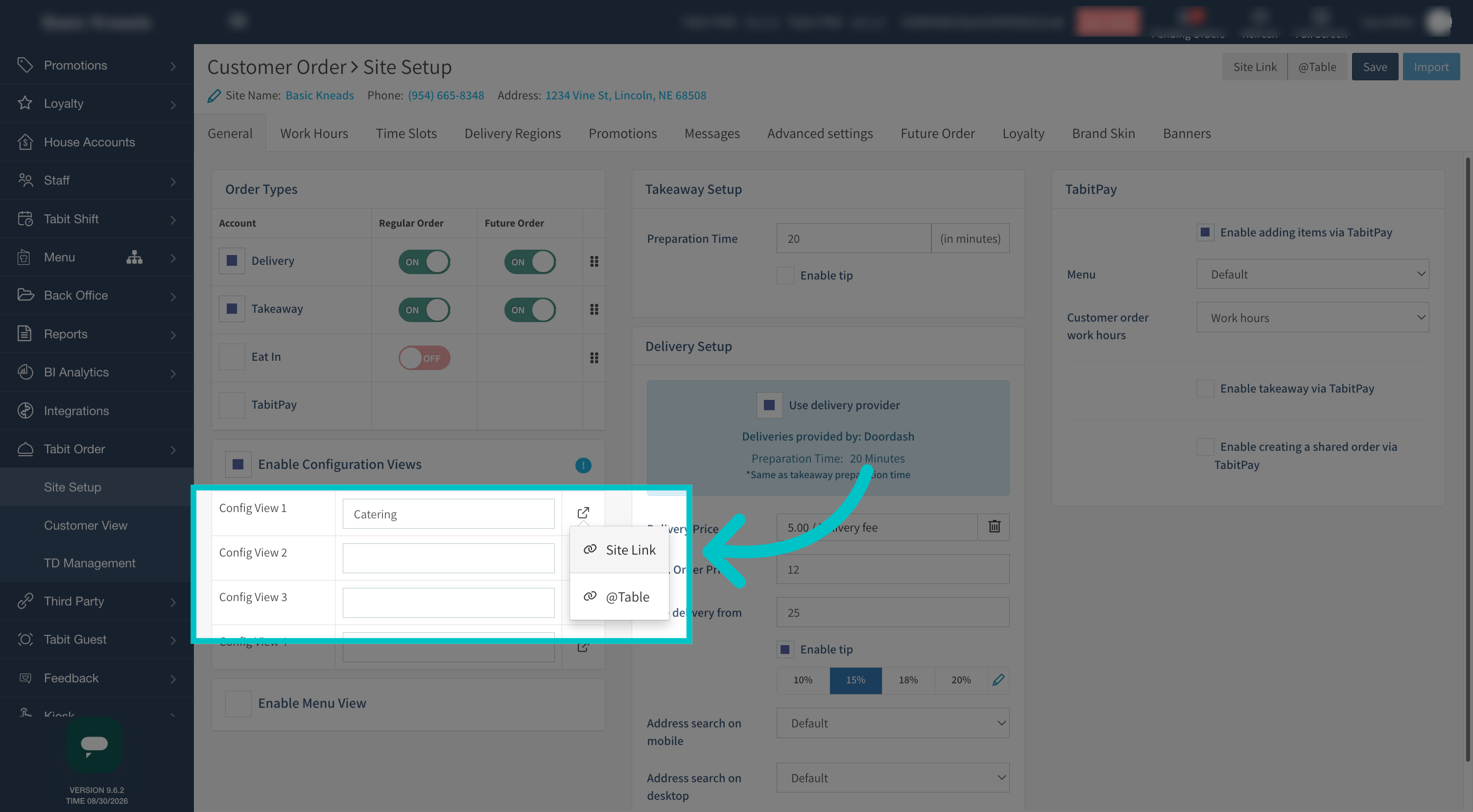
Enable Enable Configuration Views. Give the required views clear names, if desired.
-
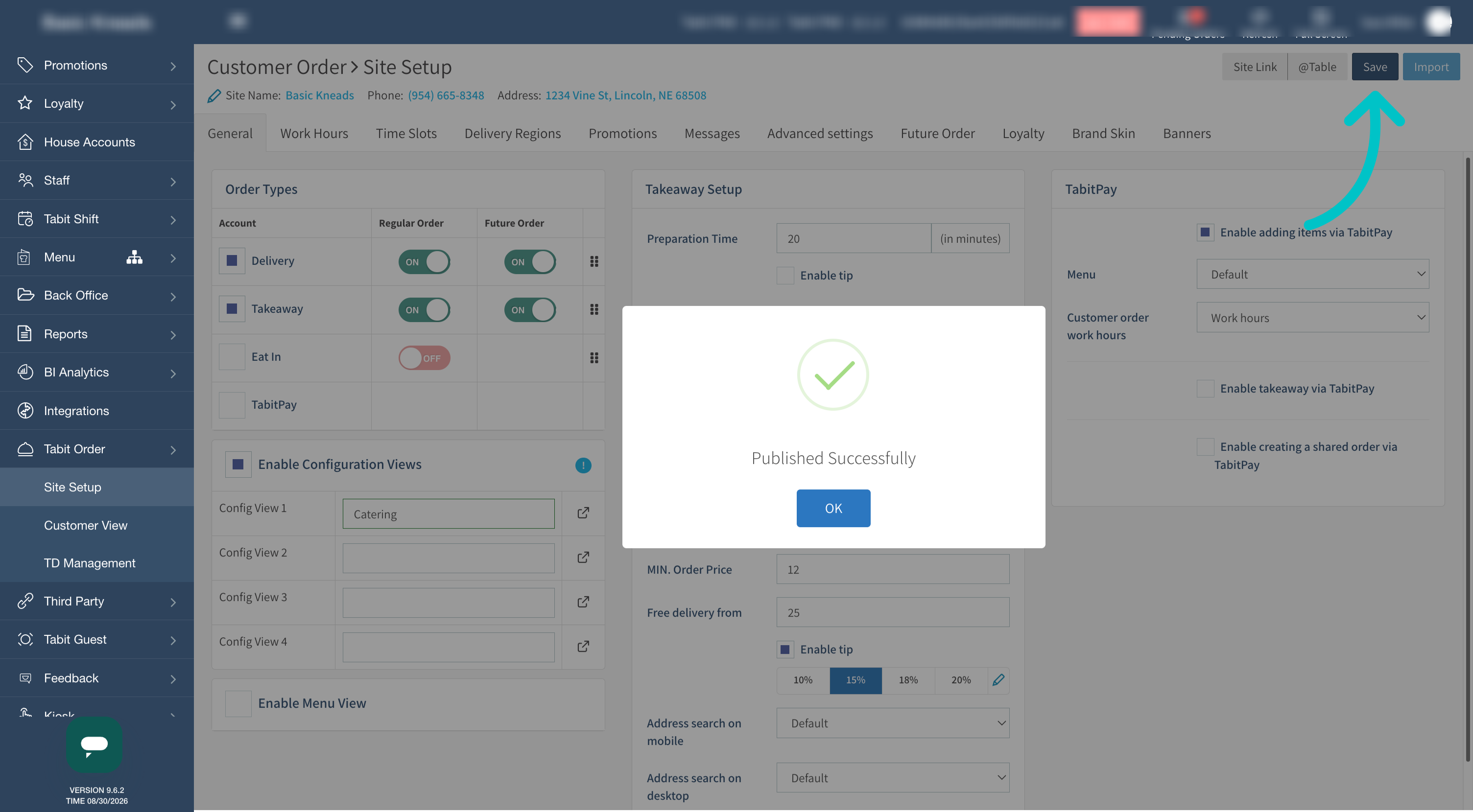
Select Save in the upper-right corner to save and publish the setup.
Assign folders to a view
-
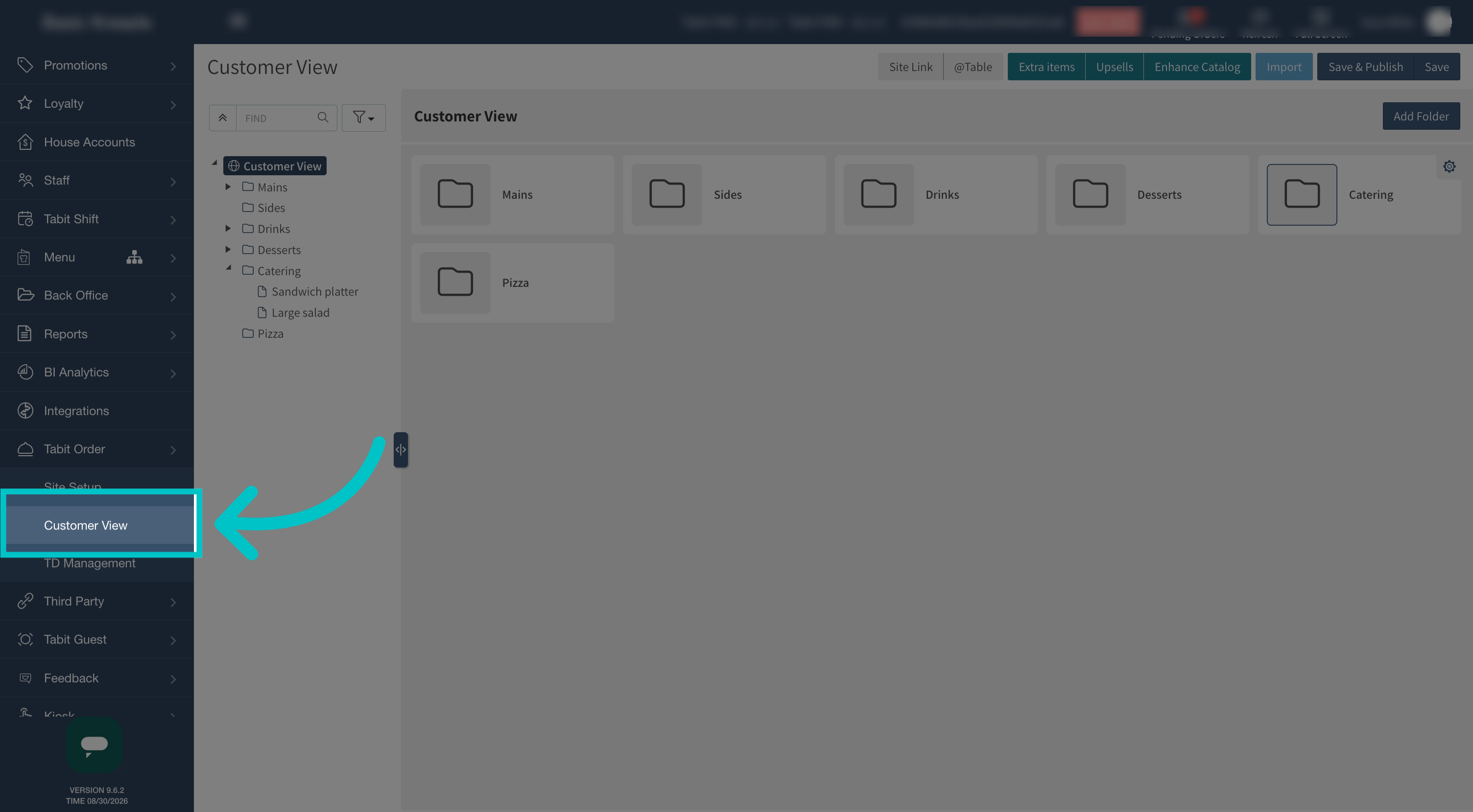
Open Customer View.
-
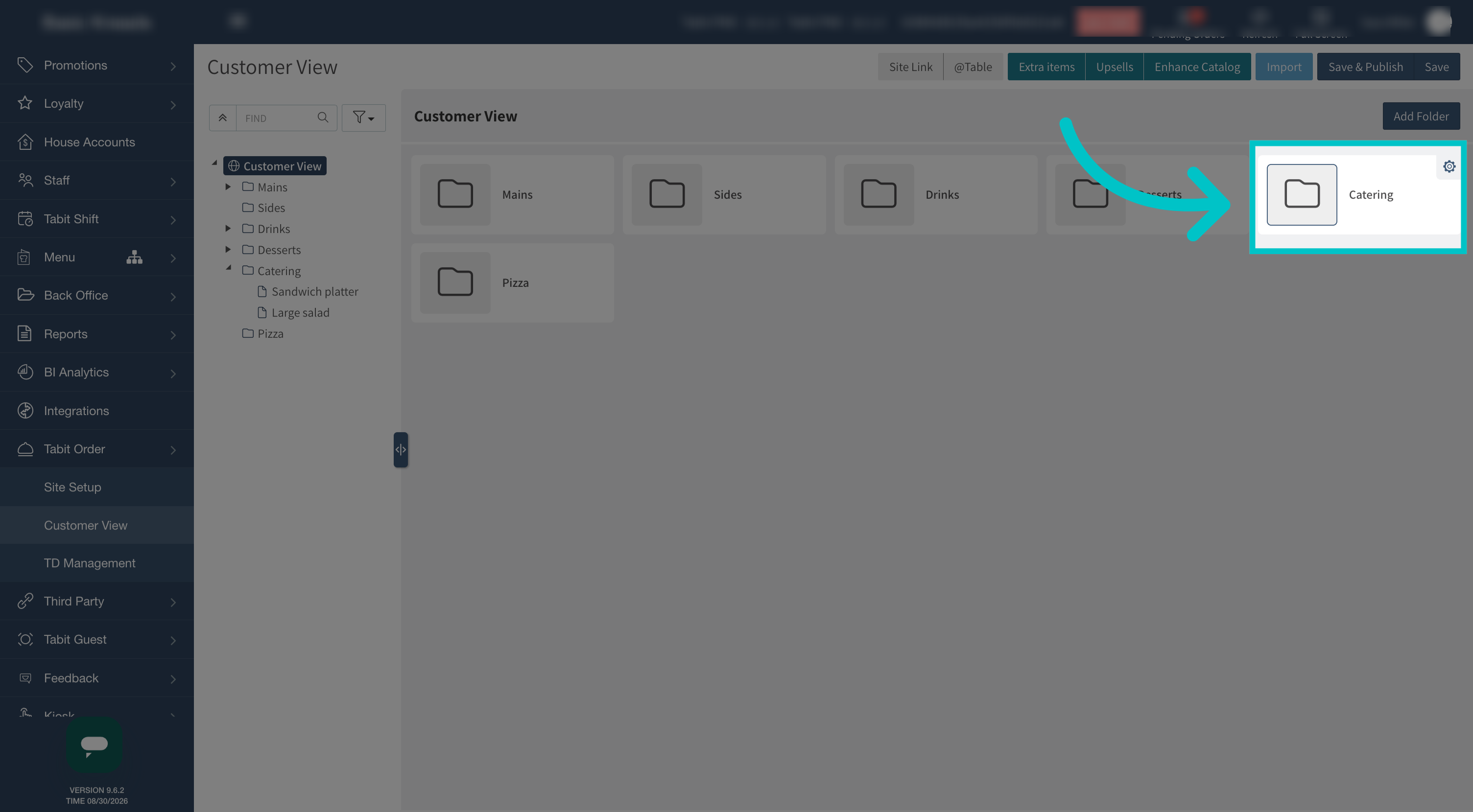
Select the folder you want included in a menu link.
-
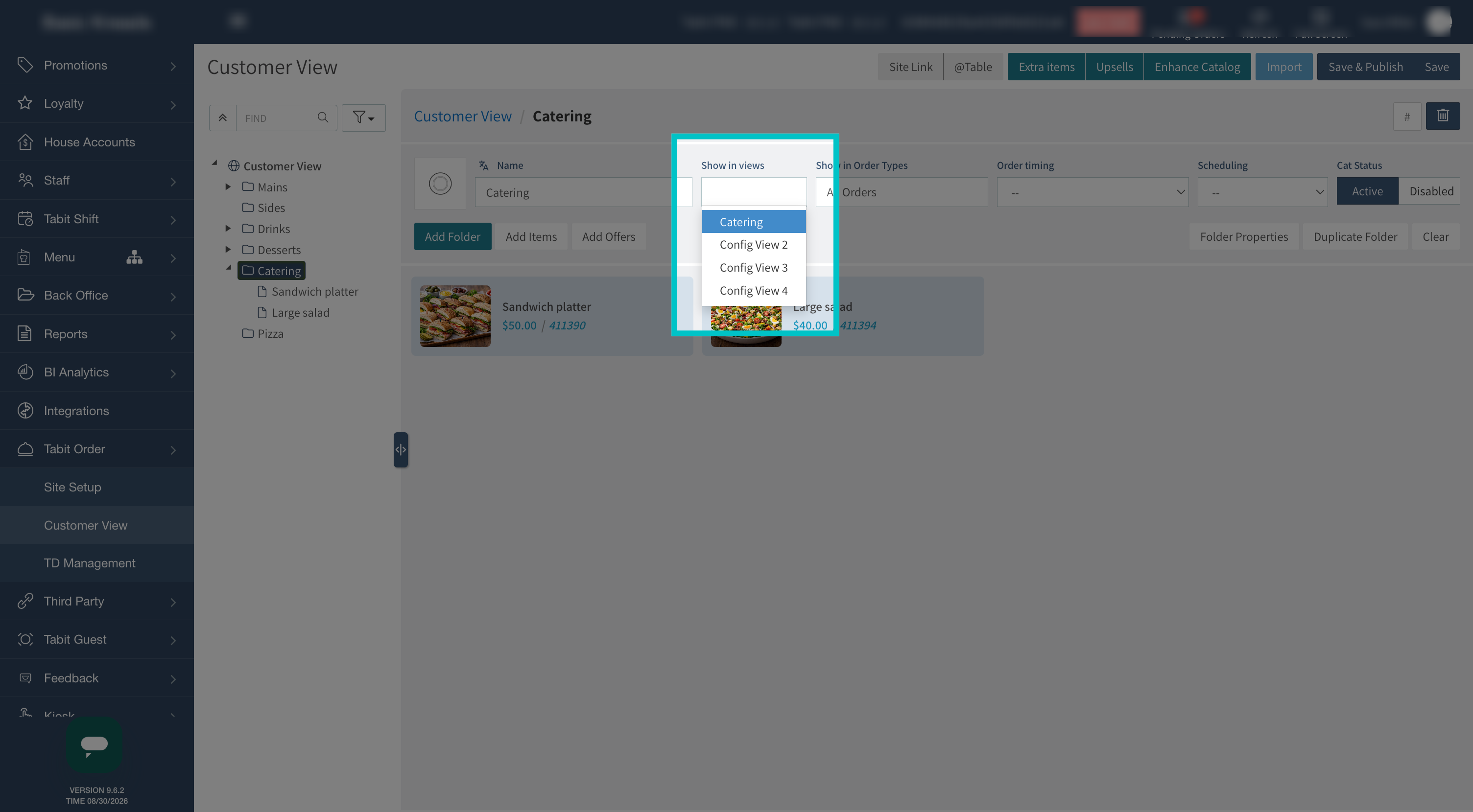
Under Show In Views, select the appropriate view.
-
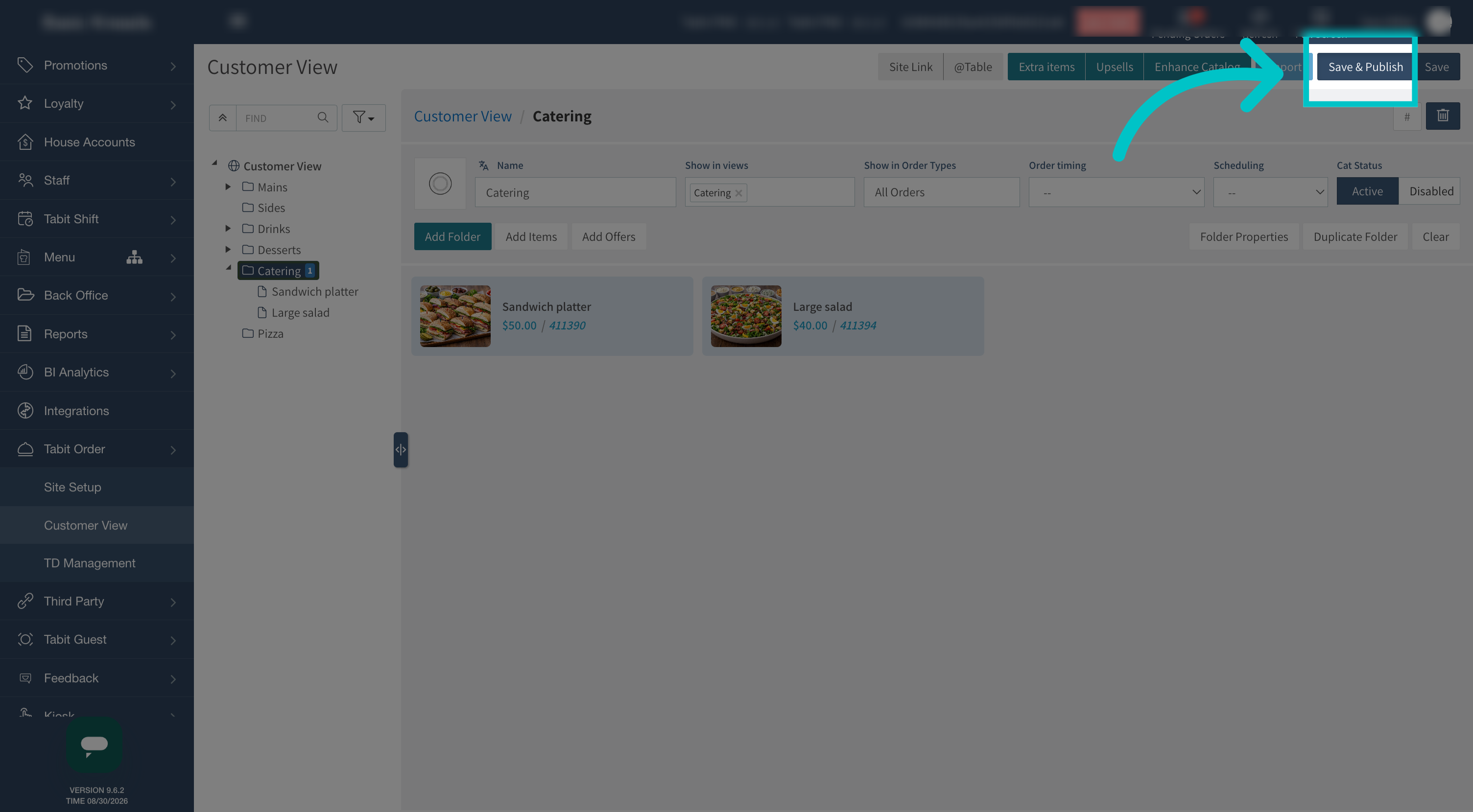
Select Save & Publish.
-
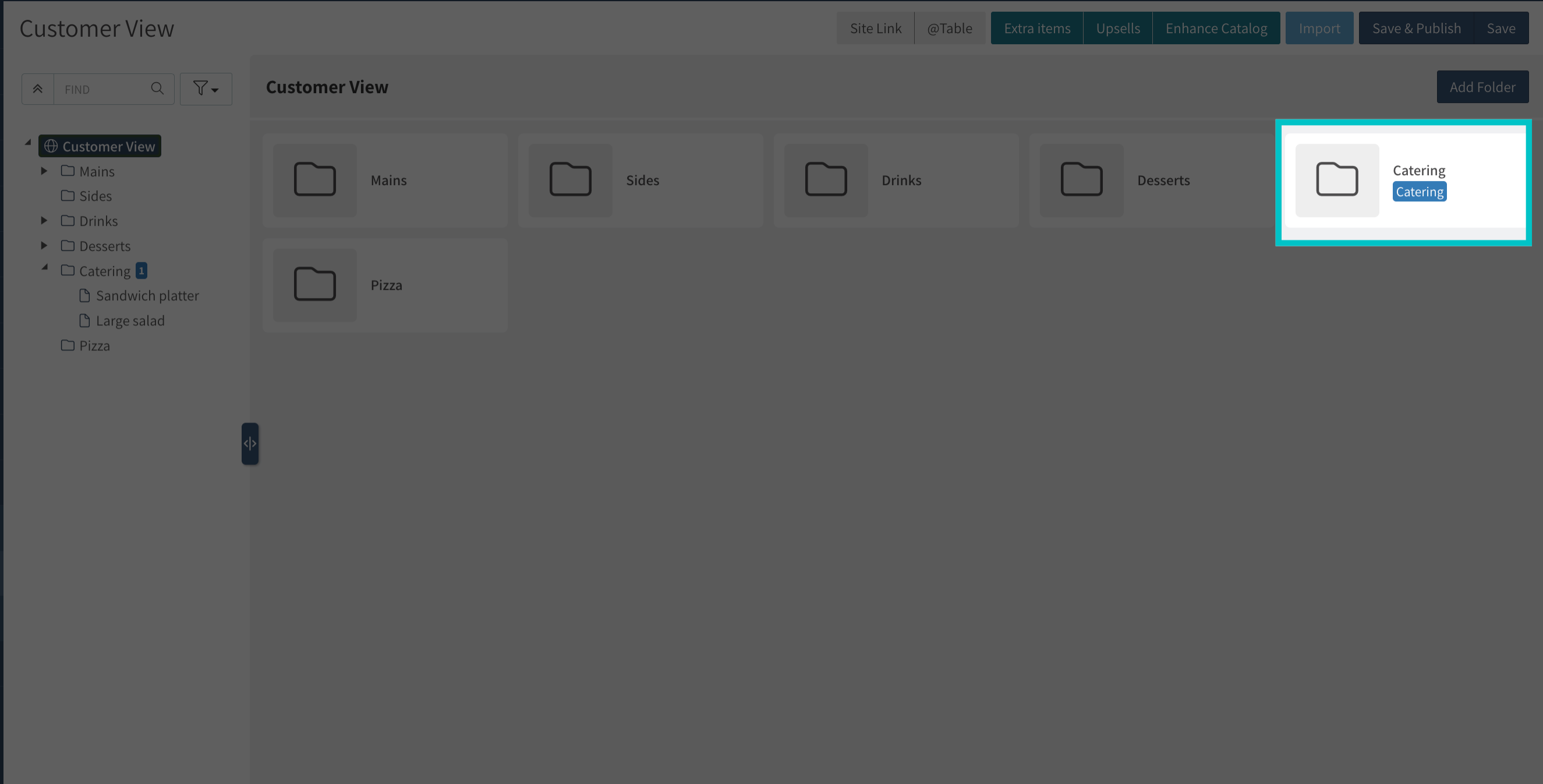
Confirm that the view tag appears on the folder in Customer View. Repeat for the other folders that should be available through that link.
Open and check each menu link
-
Return to Site Setup.
-
Select the site link for the required configuration view.
-
Check that the menu shows the intended tagged folders. Repeat for each view before sharing its link with customers.
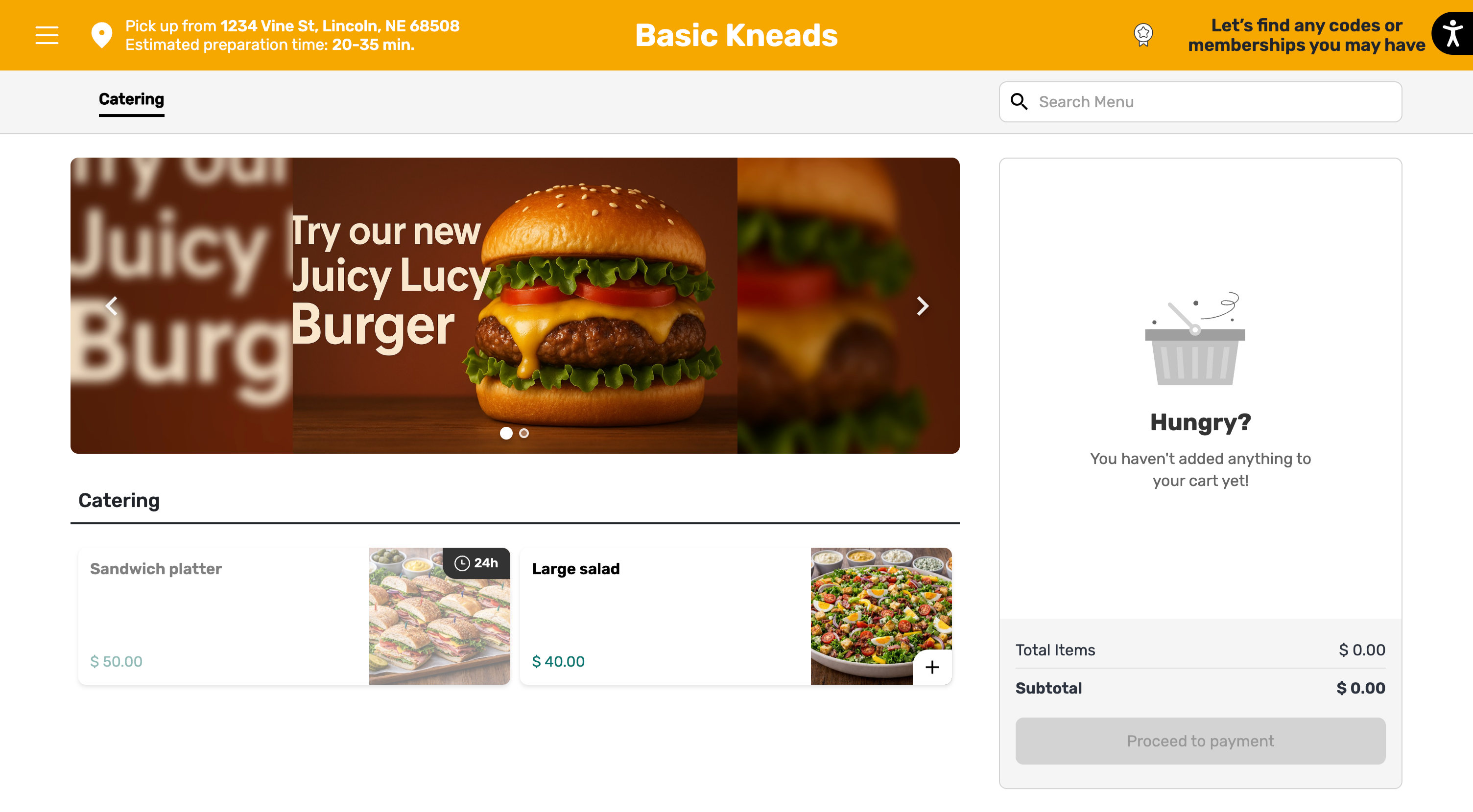
If the menu does not show the expected folders, review their Show In Views assignments, select Save & Publish, and reopen the correct view’s link.