
Overview
For holidays or other special days, your default time slots can now be overridden on third-party platforms. This will allow you to limit or expand your hours as needed without changing your default setup.
Learn how to set up special hours for third-party platforms below:
-
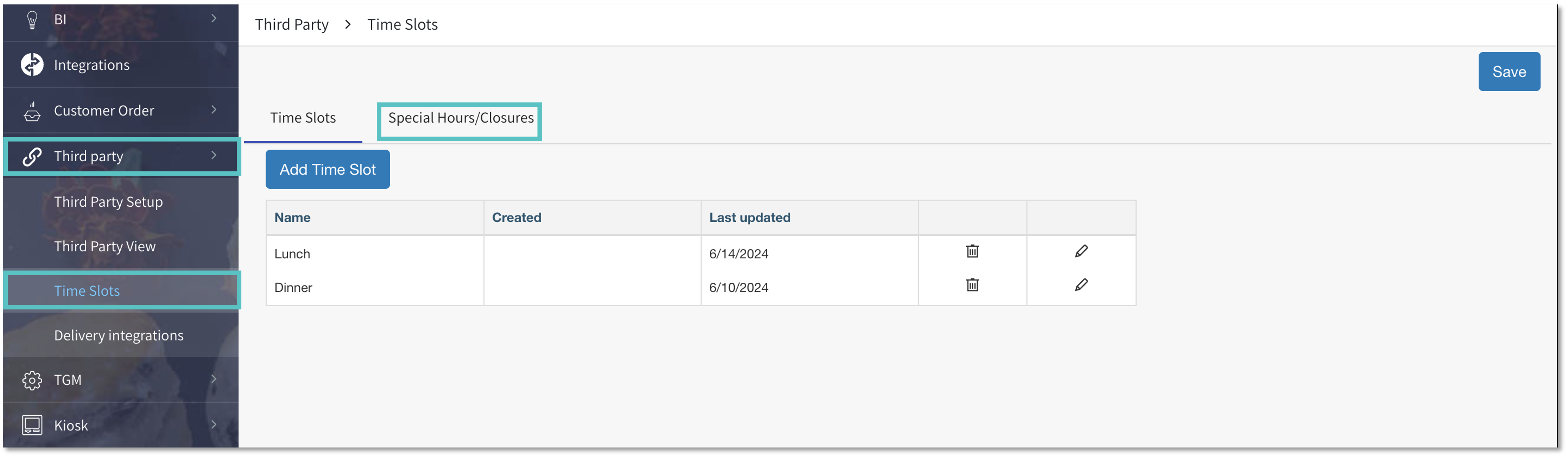
In Tabit Office, go to Third Party > Time Slots
-
Select the Special Hours/Closures tab
-
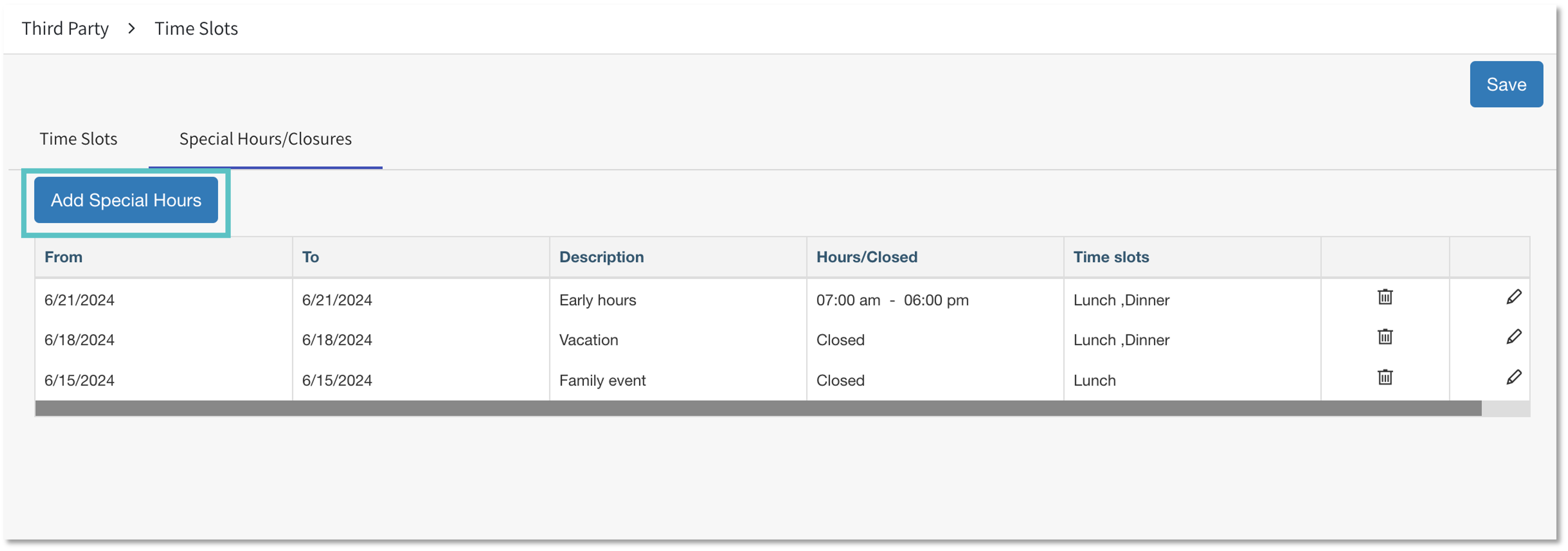
Select Add Special Hours
-
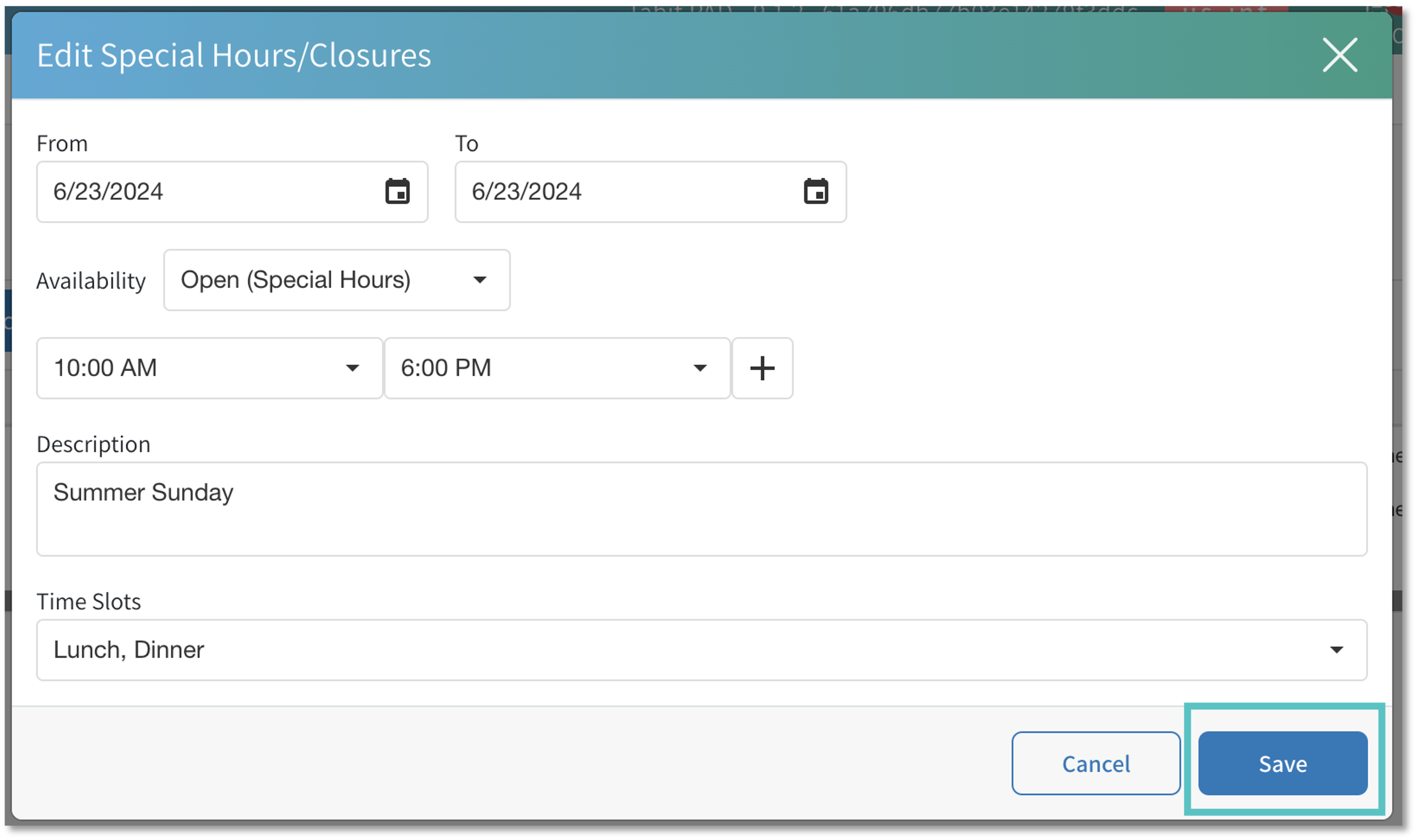
Enter all of the relevant information.Special Hours/Closures can be set for a single or multiple days (consecutive). Select the specific hours, add a description (internal only), and select the relevant time slots that will be affected by these changes. Then select Save
-
Now, the menu hours will be automatically changes when sent to Third Party, according to what you set.