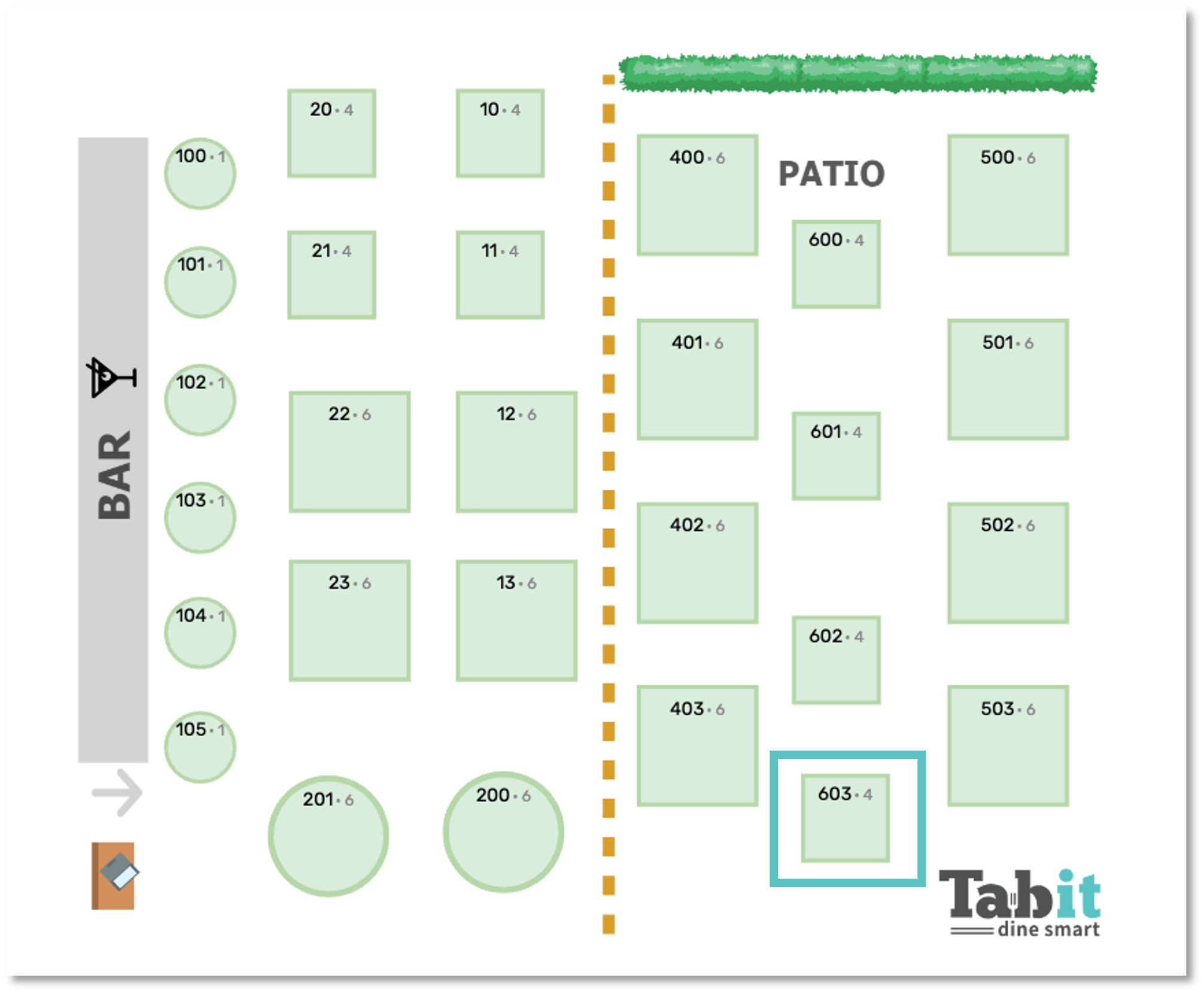
Overview
Create the table on the Back Office Restaurant Map before adding it to Tabit Guest.
See here for the Restaurant Map table-creation workflow.
Follow these steps to add a table to a Restaurant Map in Tabit Guest.
-
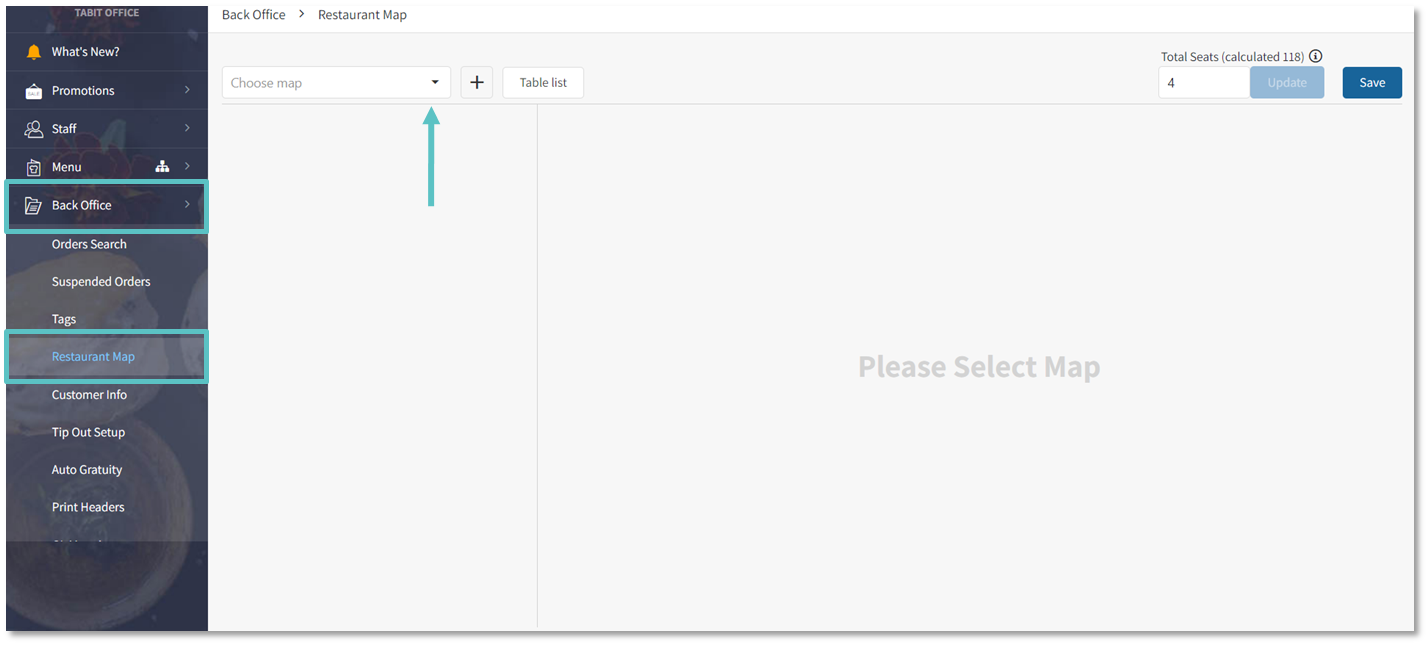
In Office, open Back Office > Restaurant Map and choose the Tabit Guest Map from Choose Map.
-
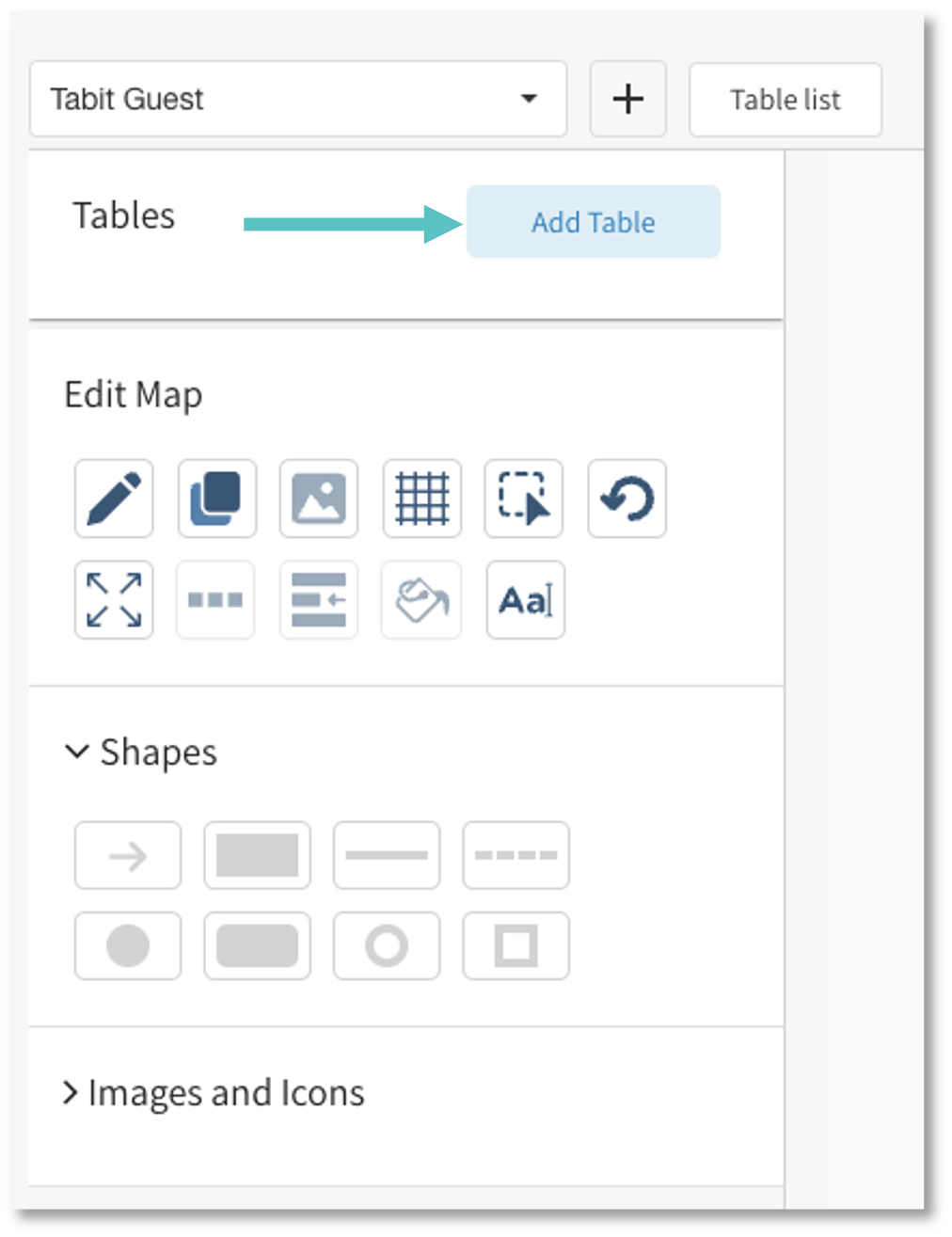
Choose Add Table.
-
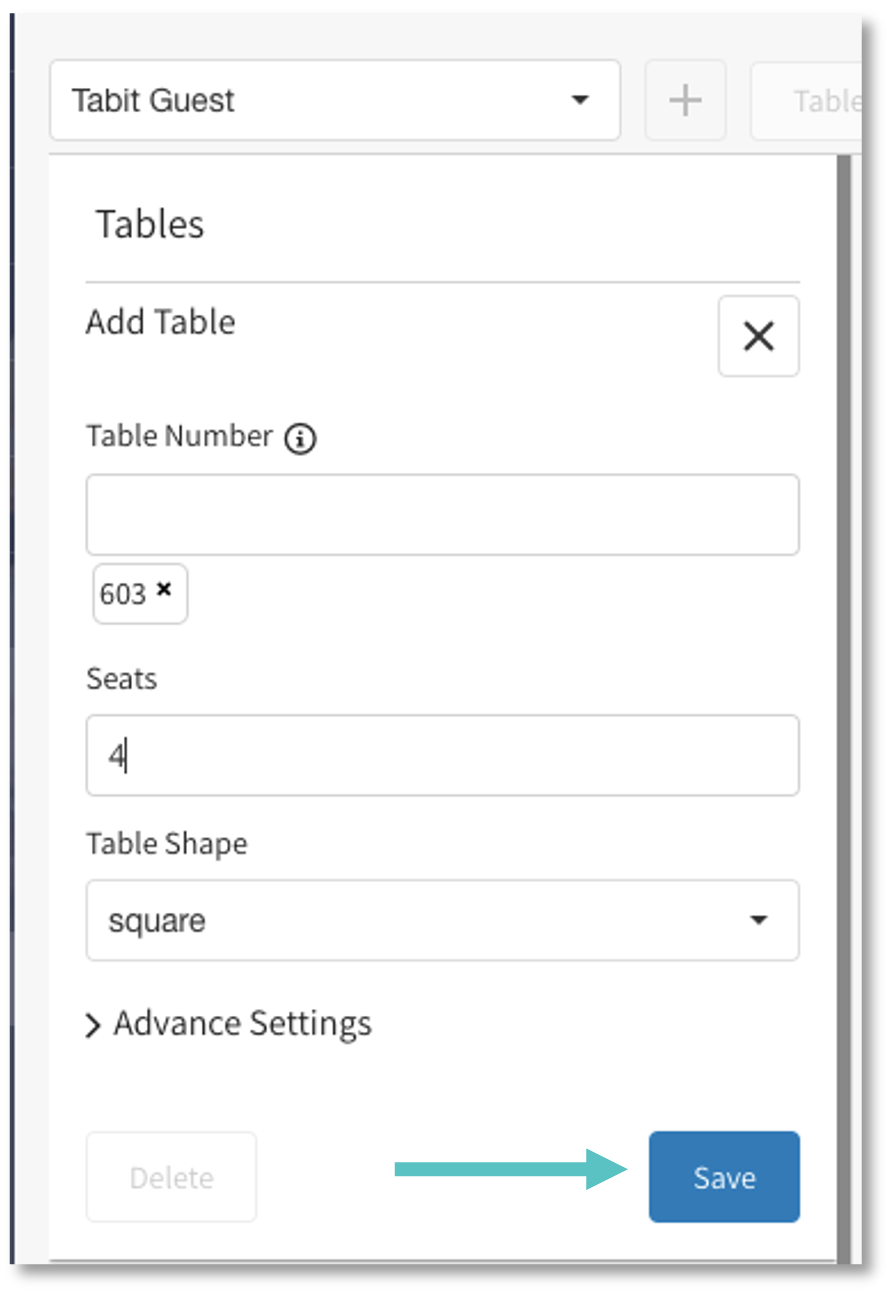
Enter Table Number and press Enter. If it already exists on a map, its settings carry over, including Seats and Table Shape.
-
Select Save at the lower-right of the table box.
-
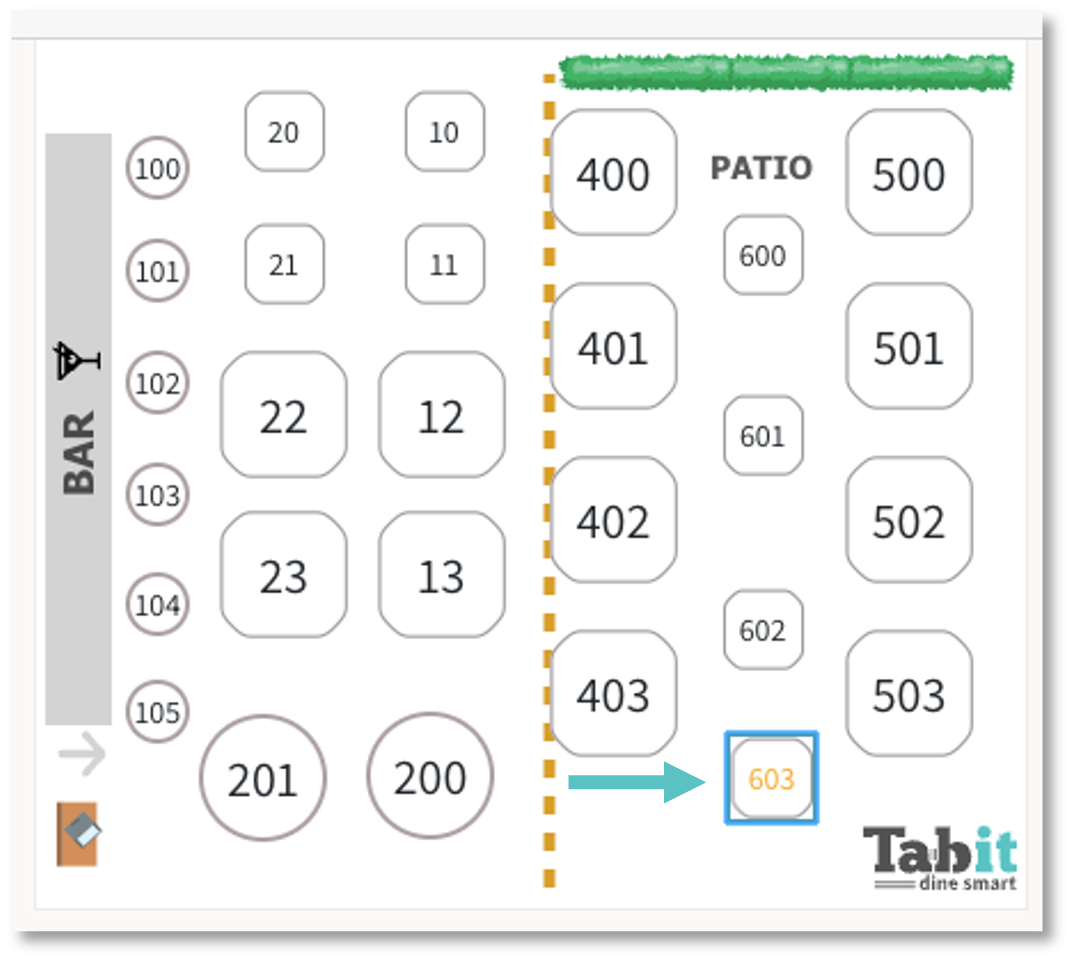
The new table number appears orange. Drag it into place, using the arrow keys for precise positioning if needed, then select Save at the upper-right.
-
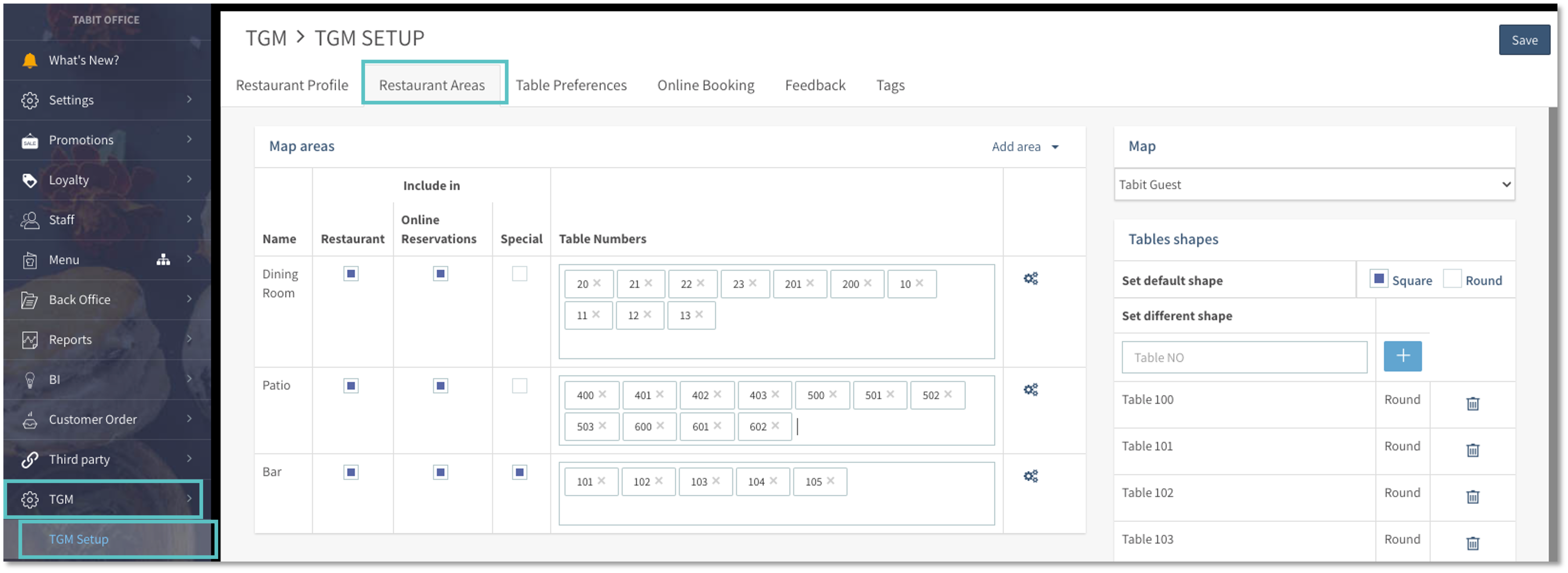
Open TGM > TGM Setup > Restaurant Areas.
-
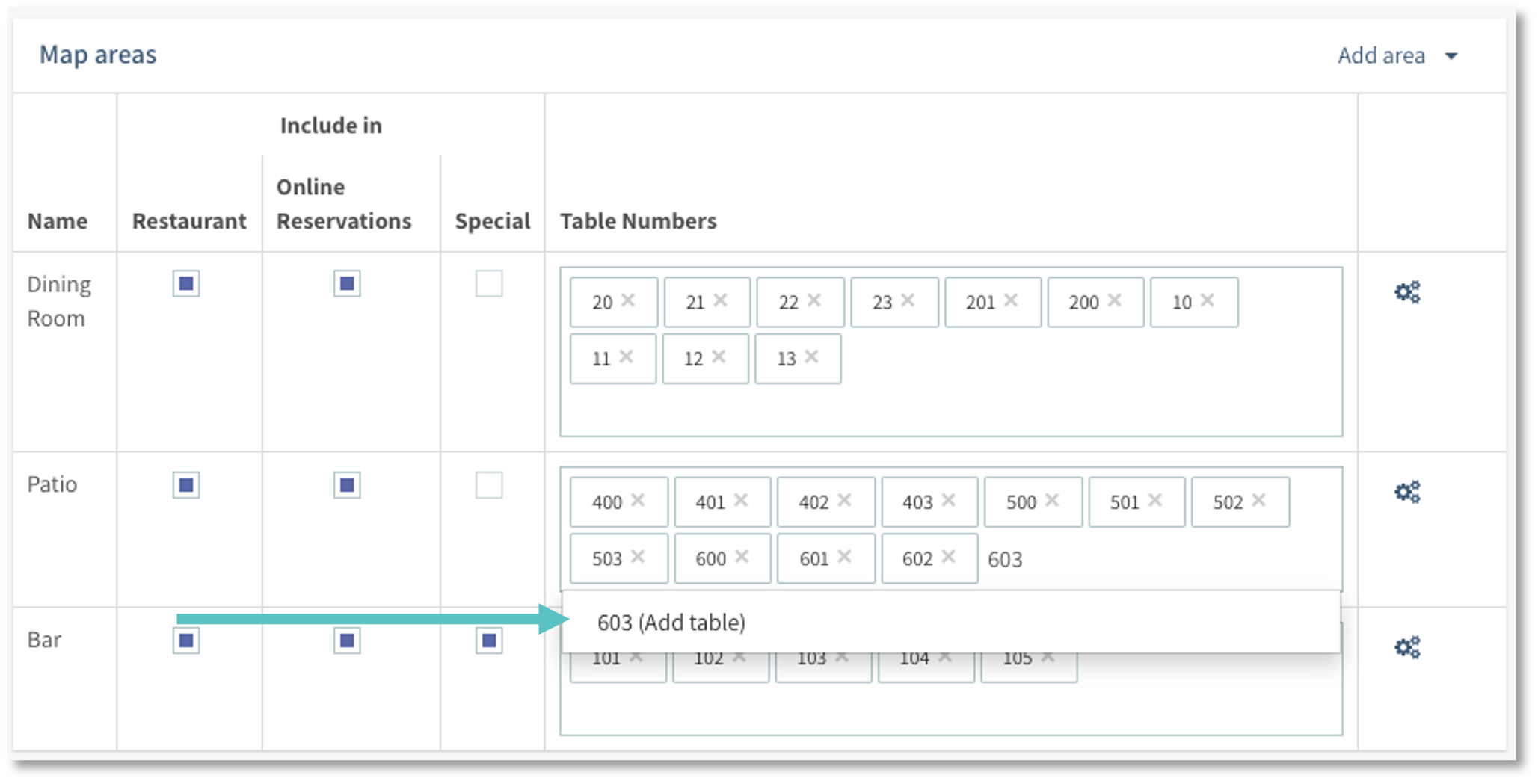
Add the table number to the appropriate area and press Enter.
-
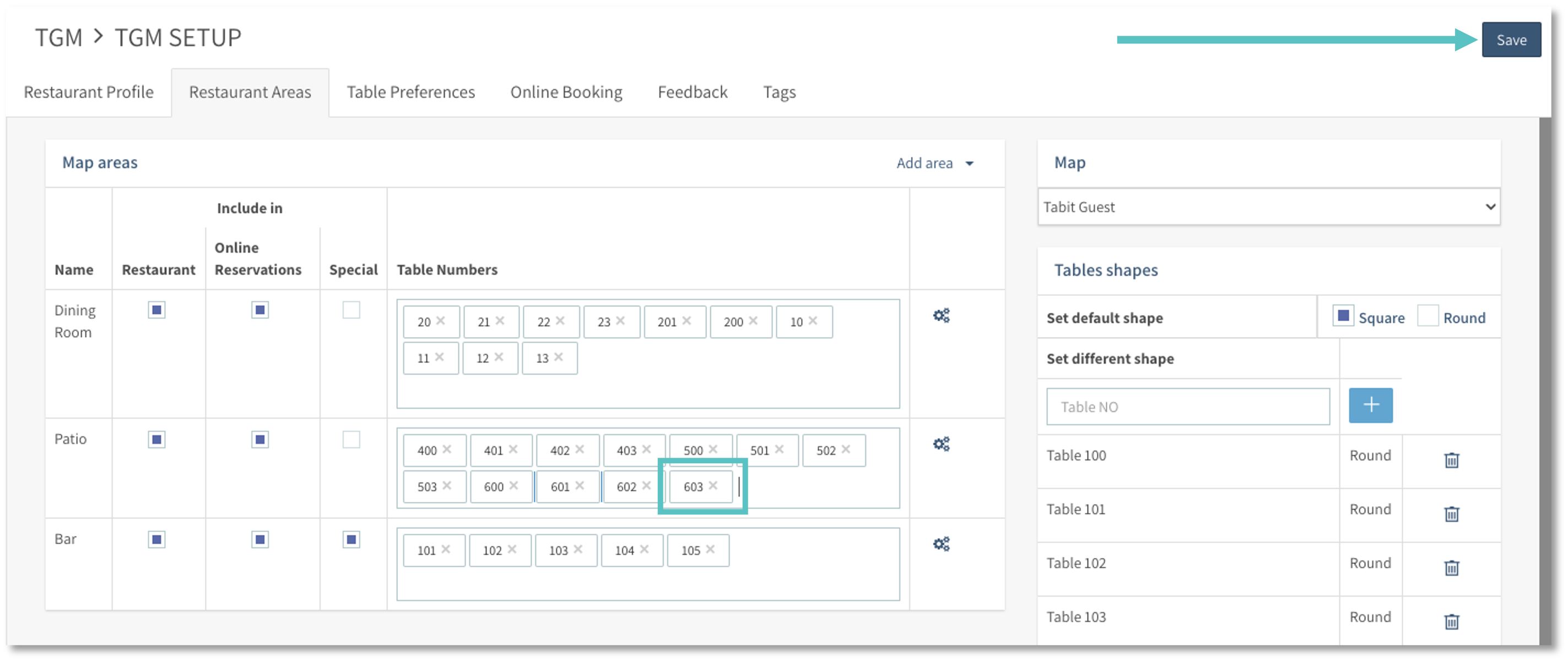
Select Save at the upper-right.
-
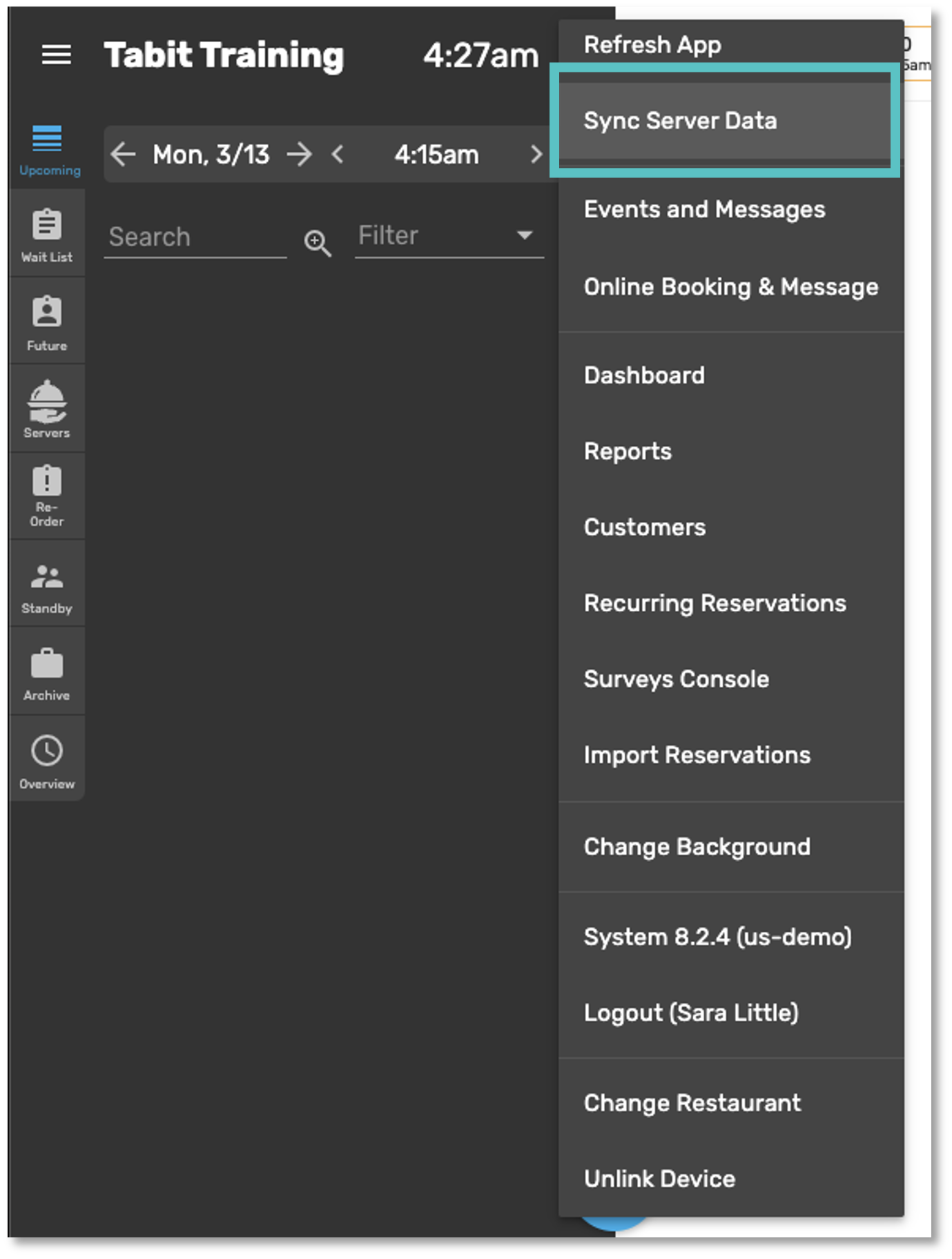
In Tabit Guest, open Settings and choose Sync Server Data. Run this on one device.
-
Open Settings again and choose Refresh App. Refresh every device using Tabit Guest.
The table now appears on the Tabit Guest Map.