
Overview
Use the issue descriptions below to identify common PAD payment errors and their corresponding troubleshooting steps.
Errors and Solutions
Error: Payment Service: This iPad is not enabled with Payment device. Please contact manager
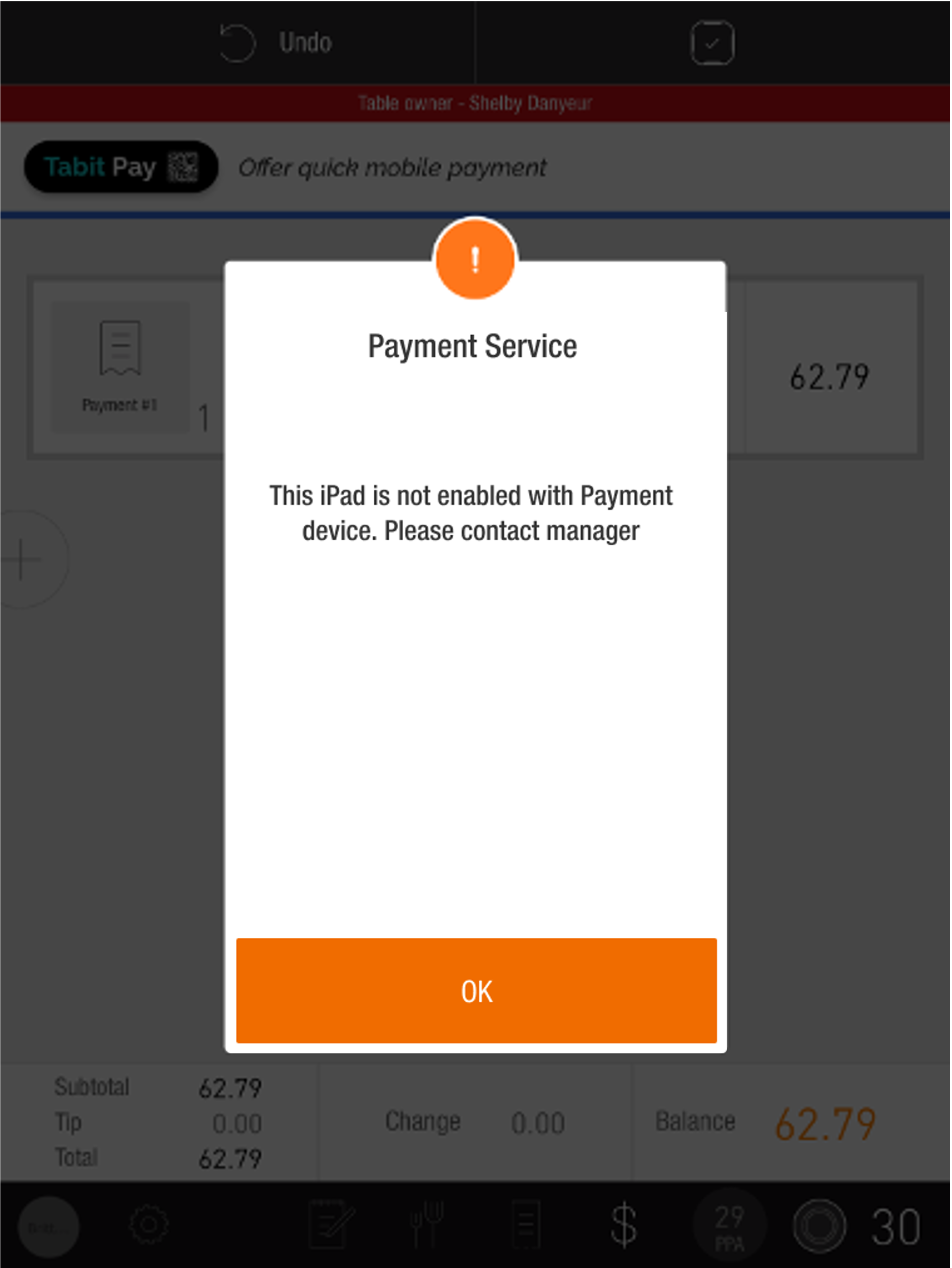
Issue: The payment device is disabled in Ingenico Device Handler.
To enable it:
-
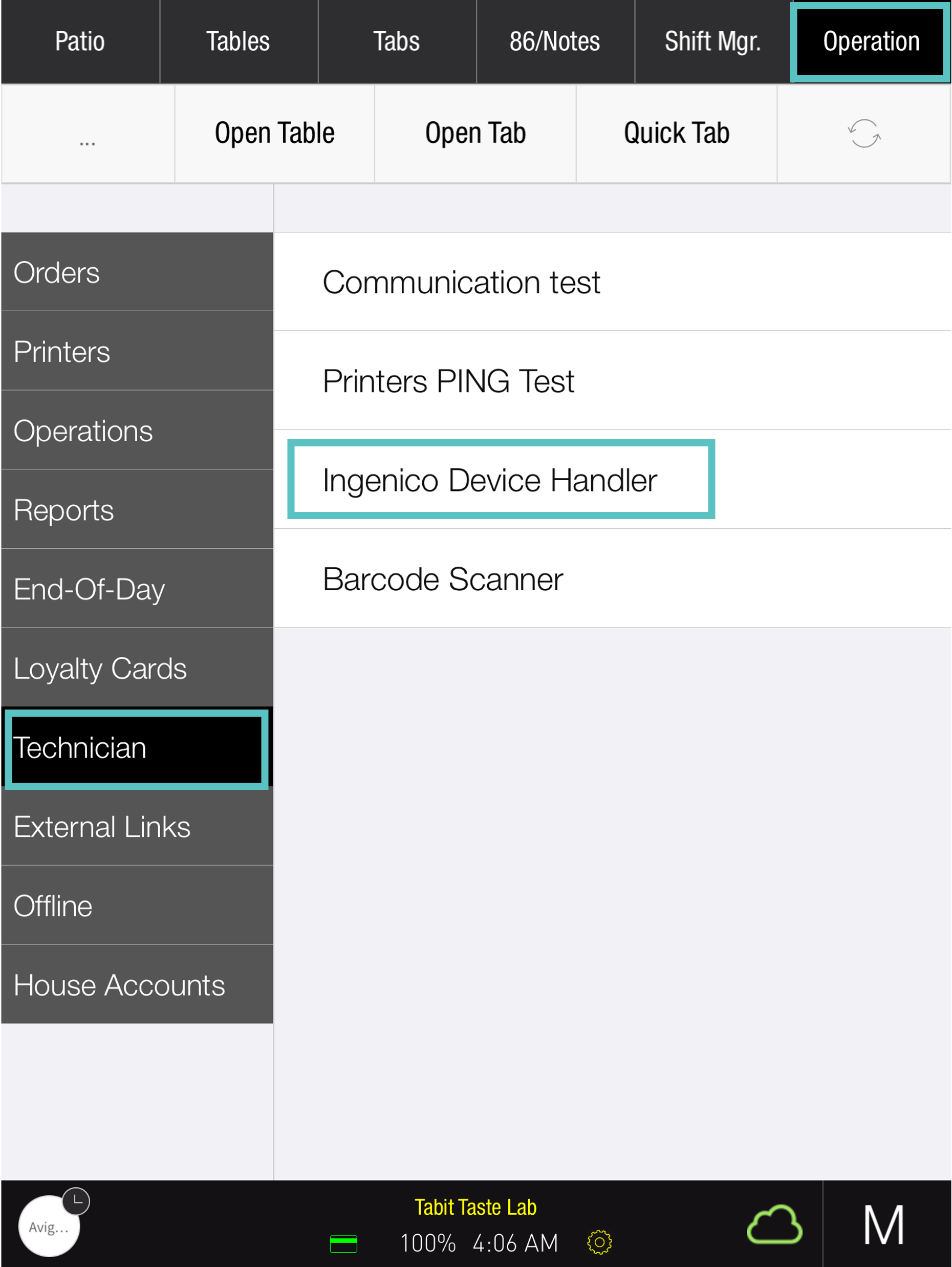
Using a Manager profile on the PAD, open Operation > Technician > Ingenico Device Handler.
-
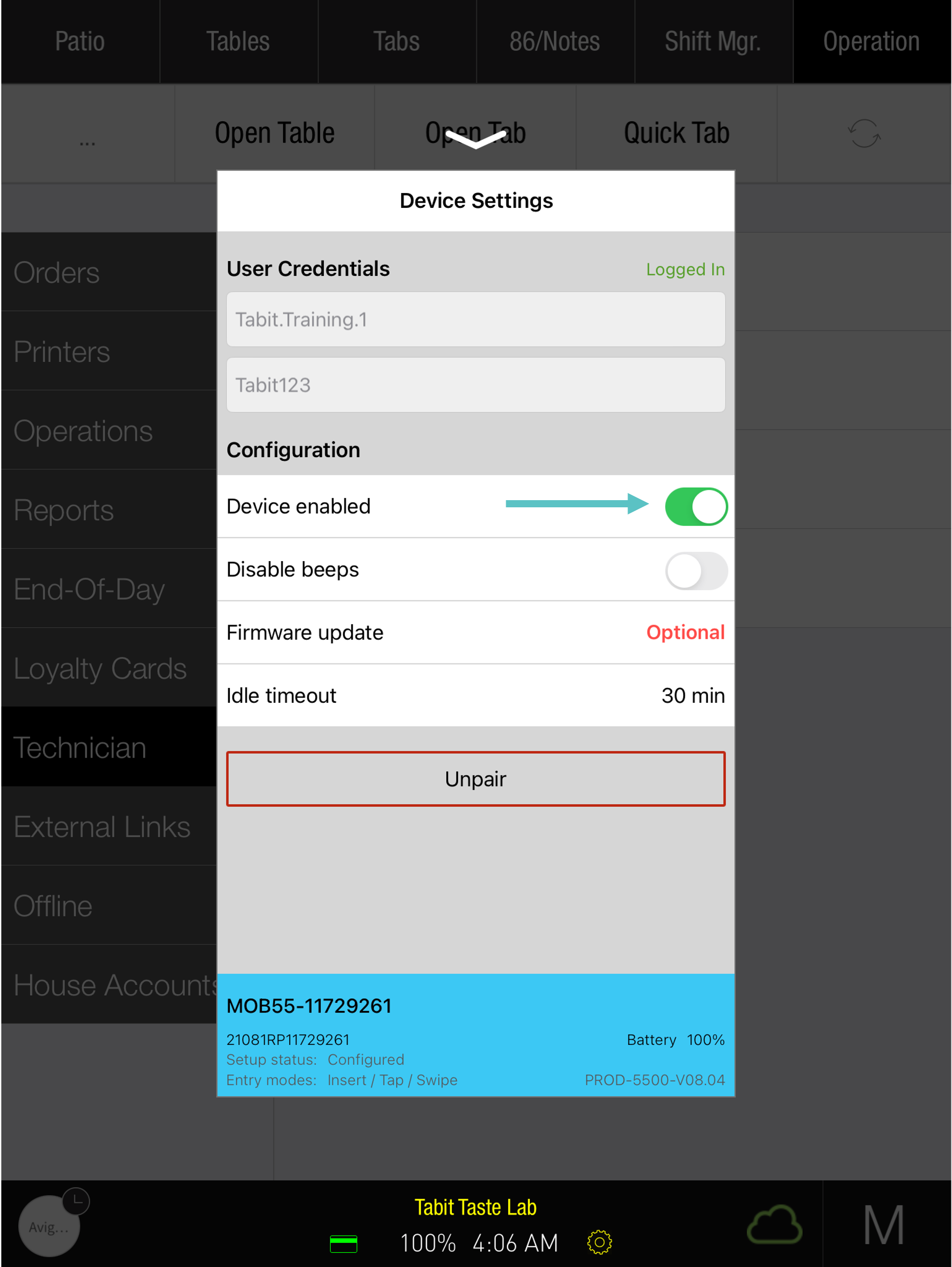
In Configuration, turn Device enabled ON.
-
Check that card payments are available again.
Error: Transaction Error [4000] [Unsupported Request]
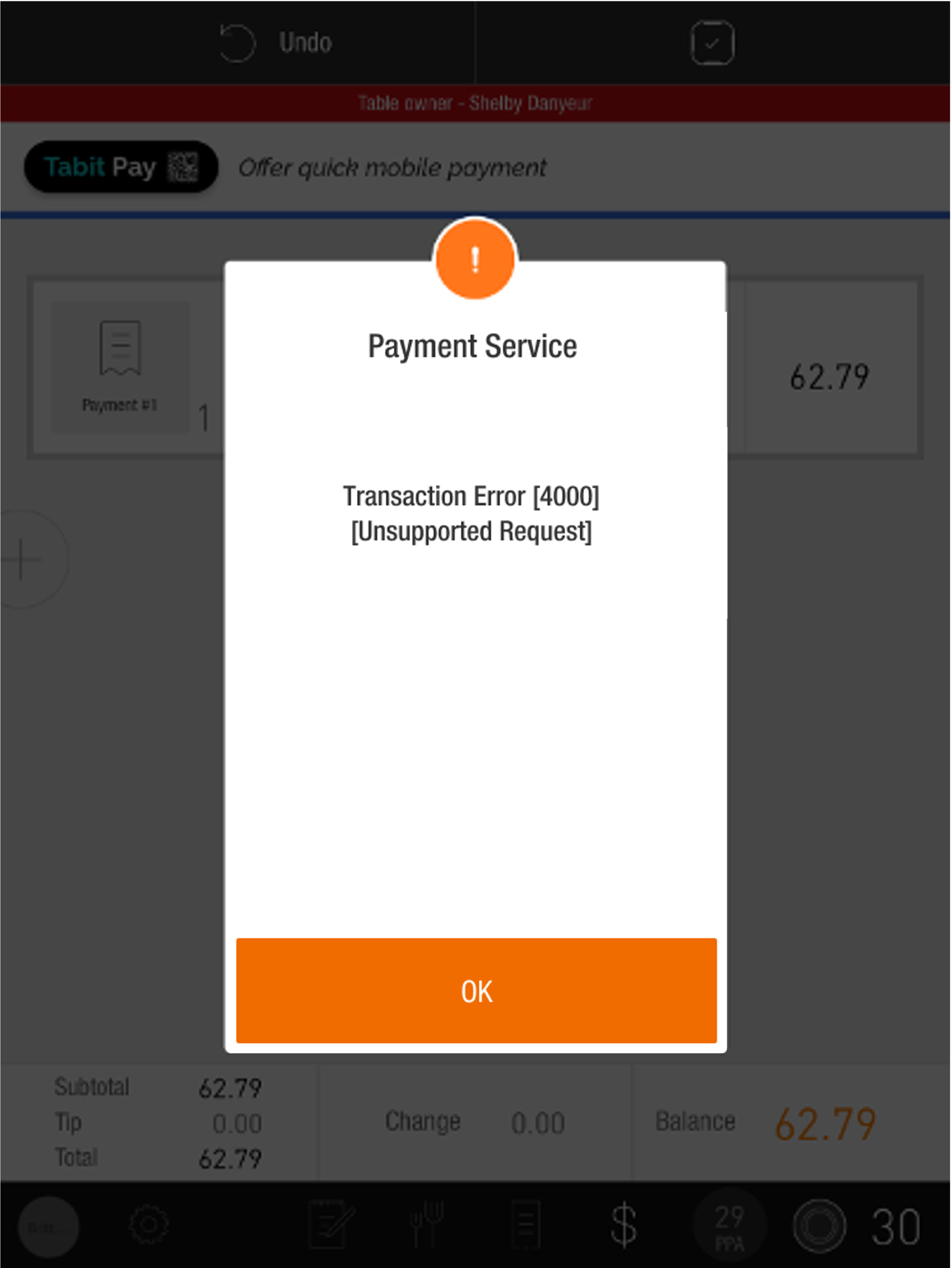
Transaction Error [4000] is a general error. The processor-specific configuration below is appropriate only for the applicable processors.
Issue: Some processors, including First Data (FDC RapidConnect), do not permit voiding completed transactions already settled with a tip.
Update the relevant payment account in Tabit Office:
-
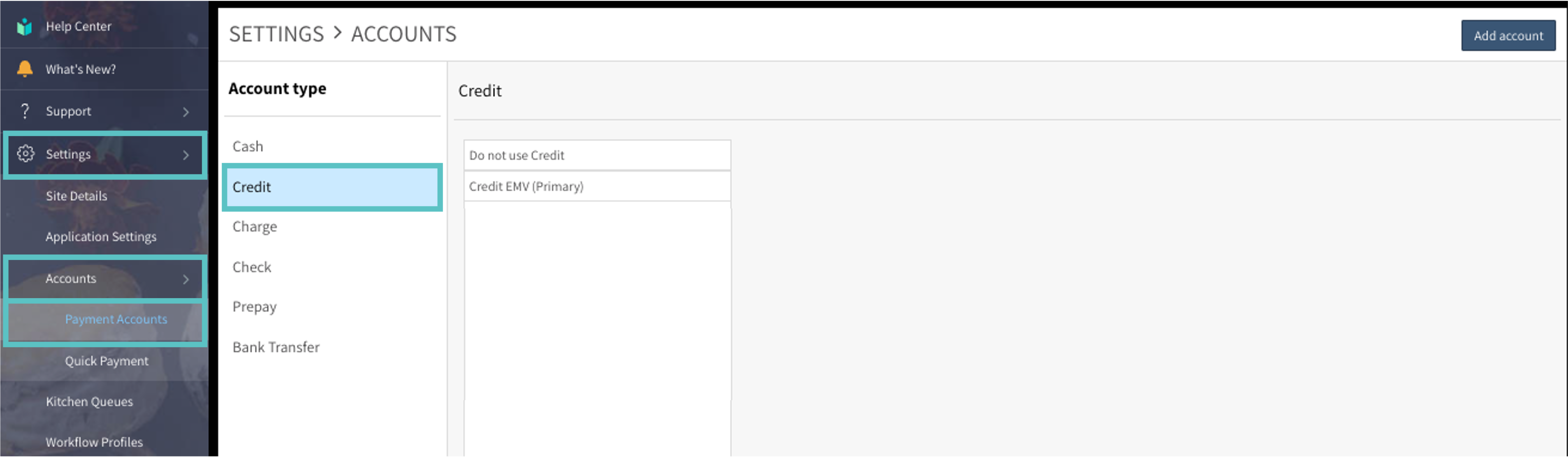
Open Settings > Accounts > Payment Accounts > Credit and choose the affected credit account.
-
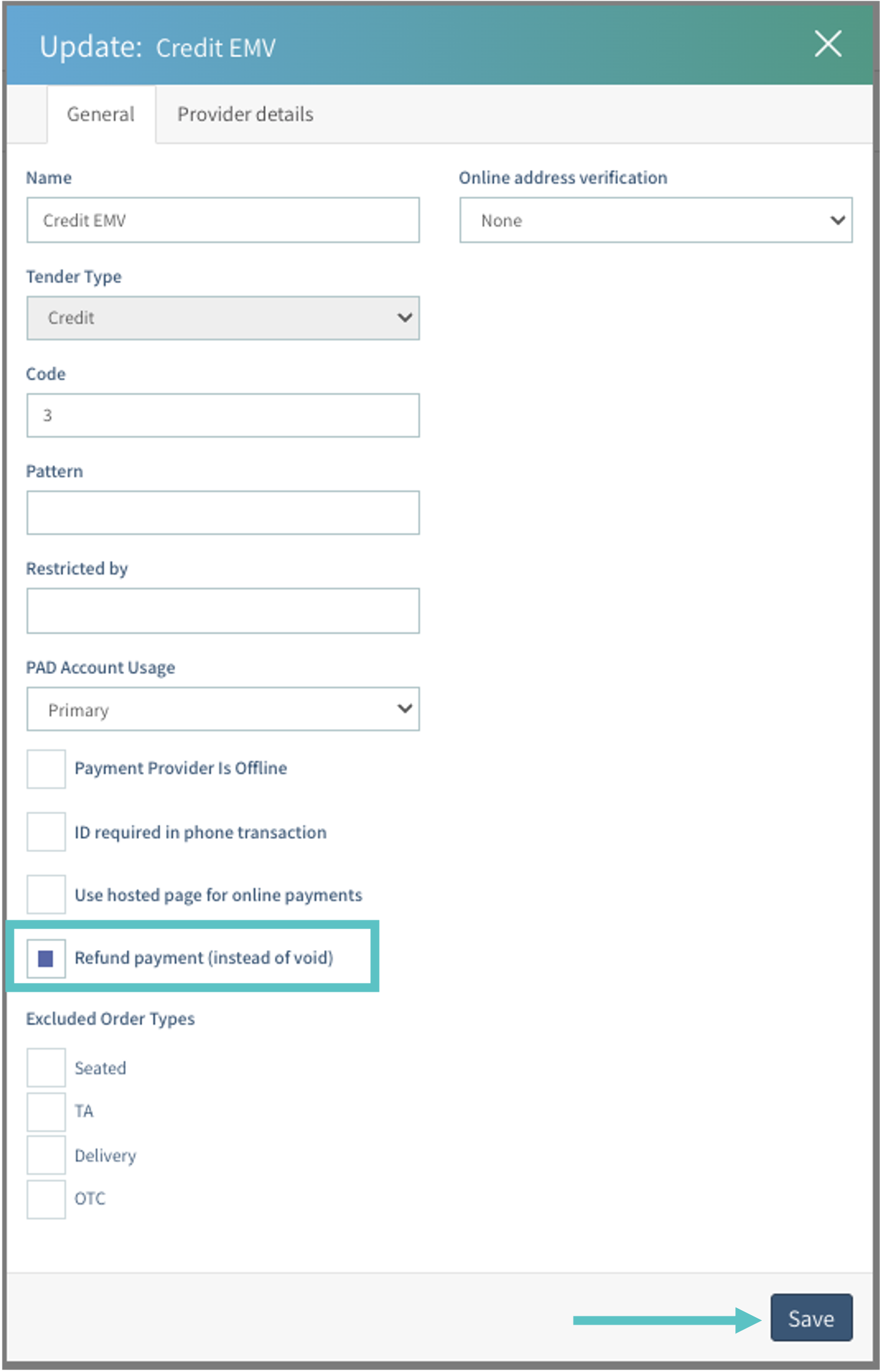
Enable Refund payment (instead of void) so the PAD can cancel the completed transaction.
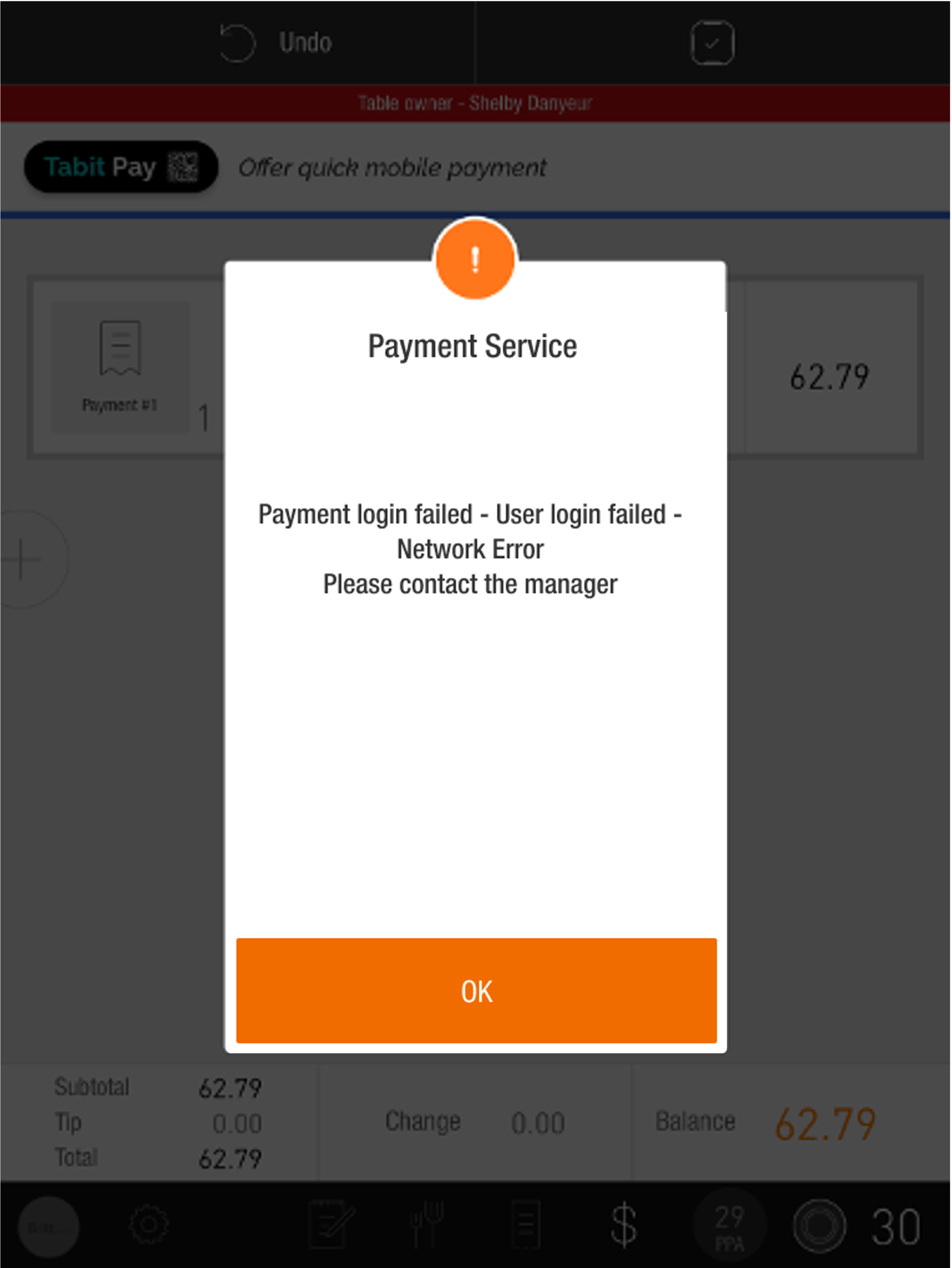
Error: Payment Login Failed - User login failed - Network Error - Please contact the manager
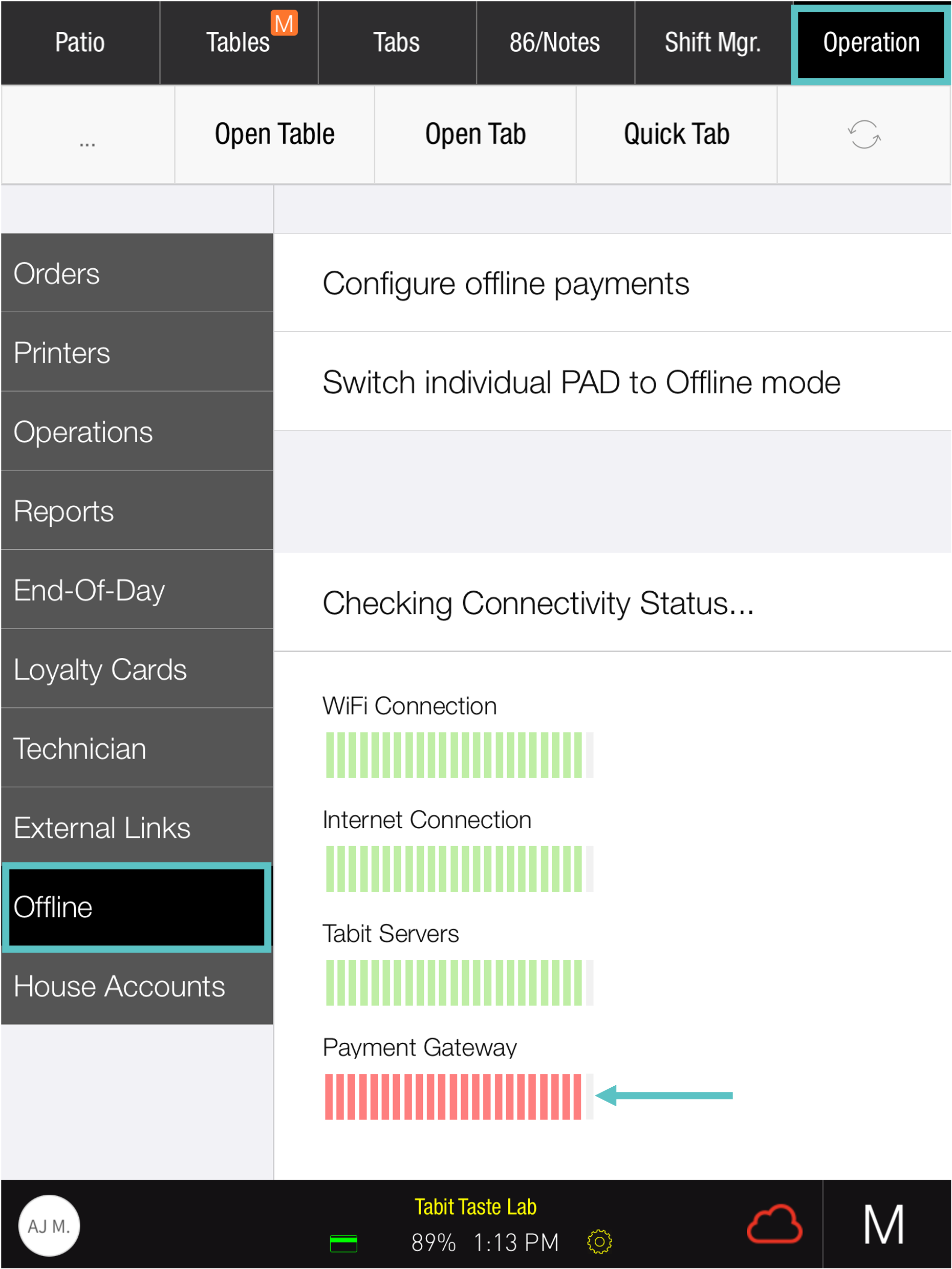
Issue: The reader cannot contact or sign in to the Roam gateway.
This can occur while internet and Tabit cloud communication are working but Roam cannot be reached. Check it from PAD > Manager Functions > Offline.
Contact Flyght Support to confirm the cause and discuss the appropriate solution.
Error: Payment Provider Error: Host NSF
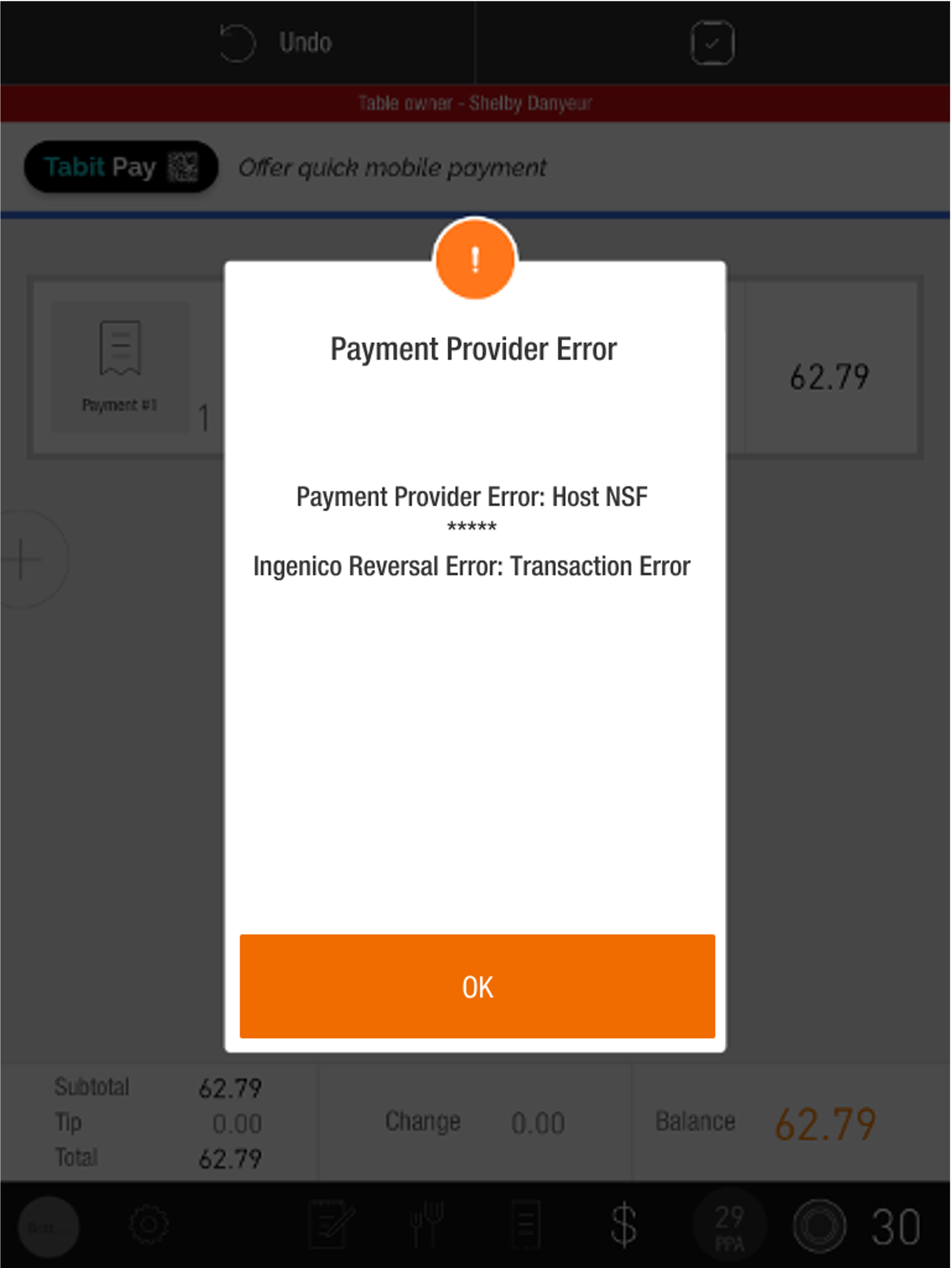
Issue: The issuing account lacks sufficient funds for the transaction.
Ask the customer to use another payment method.