
Use Tabit Office’s gift-card reports to review loading, redemption, card details, and balances.
To run Gift Card Reports, refer to the steps below:
-
Login to Tabit Office with a Manager account.
-
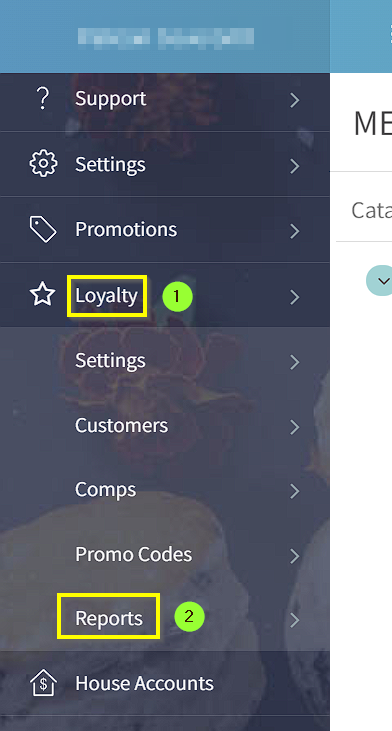
Open Loyalty > Reports.
-
Choose the report that fits your review:
-
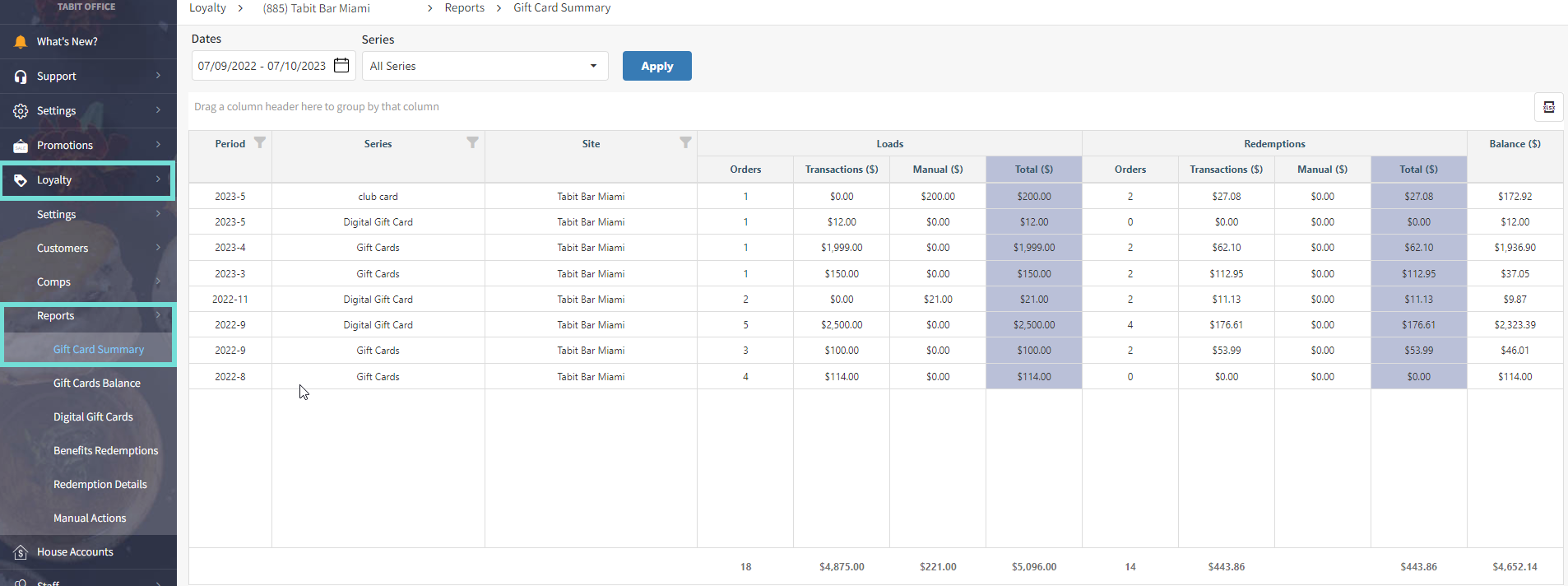
Gift Card Summary: Compare amounts loaded and redeemed within a selected date range to review gift-card activity and the reported liability figures.
-
View, search, or filter the site’s cards within the chosen period, including by Date/Time and Card Number.
-
Compare loaded and redeemed amounts for the selected period.
Open the summary report:
-
In Tabit Office, choose Loyalty > Reports > Gift Card Summary.
-
The initial range is the last 30 days. You can select a period up to a year and filter by series where the site uses several series.
-
Select Apply to generate the selected range. Common questions:
-
Why is Total Balance negative? More was redeemed than loaded during the selected period. A positive value means more was loaded than redeemed in that period.
-
To export the summary to Excel, select xlsx at the upper-right. An Excel file downloads.
-
-
-
Gift Card Report
-
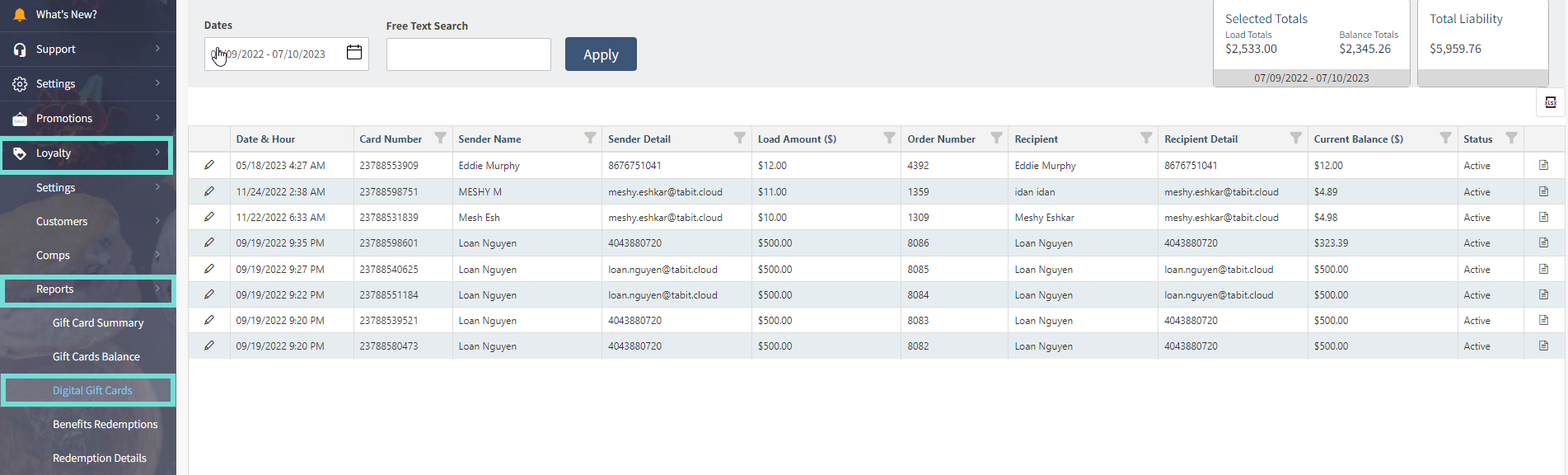
Gift Card Report lists digital-only cards within the selected dates.
-
Filter by Date/Time, Card Number, Sender/Detail, Recipient/Detail, Load Amount, Order Number, Current Balance, or Status.
-
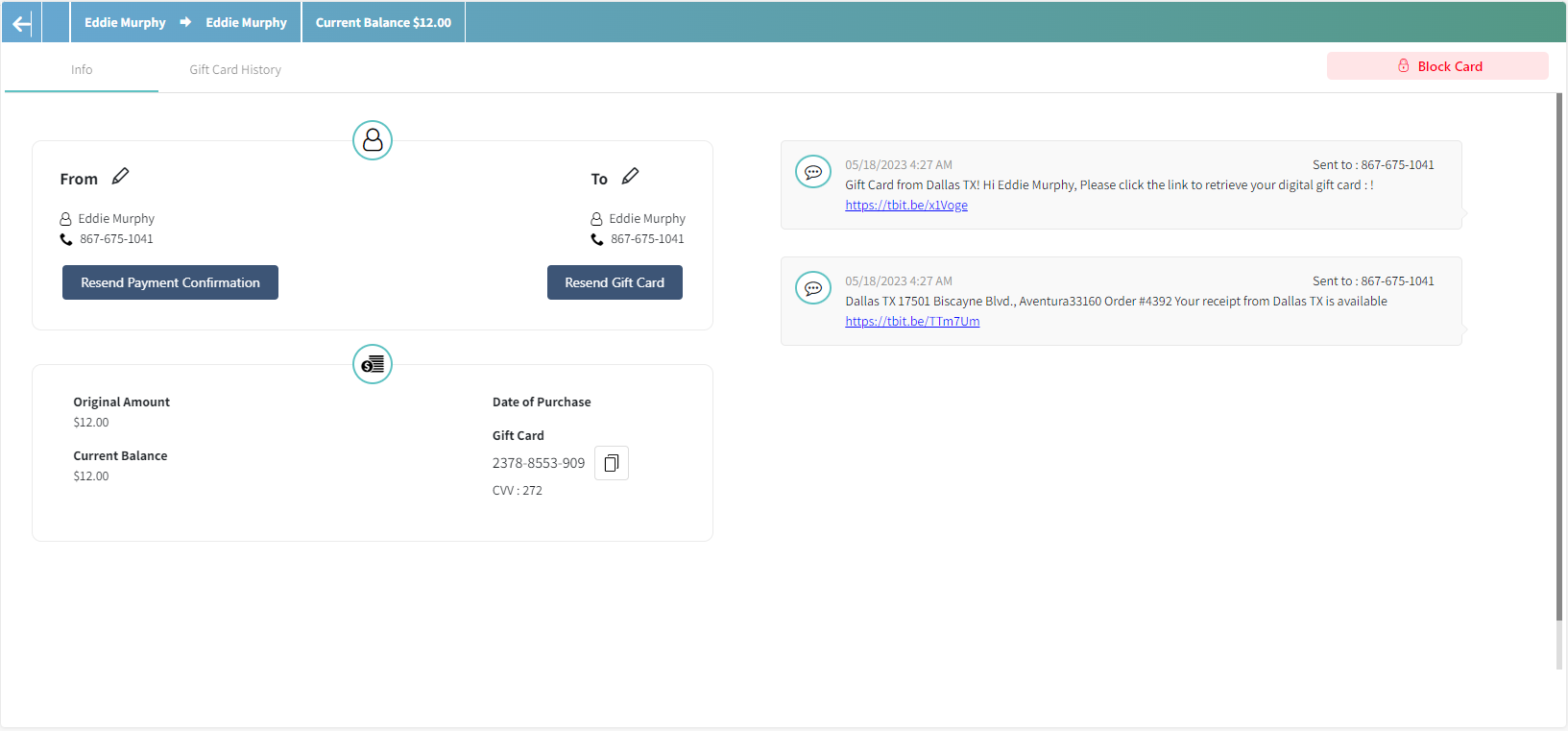
You can also view or copy the purchase receipt, edit sender and recipient details, and review text confirmations sent to guests.
-
-
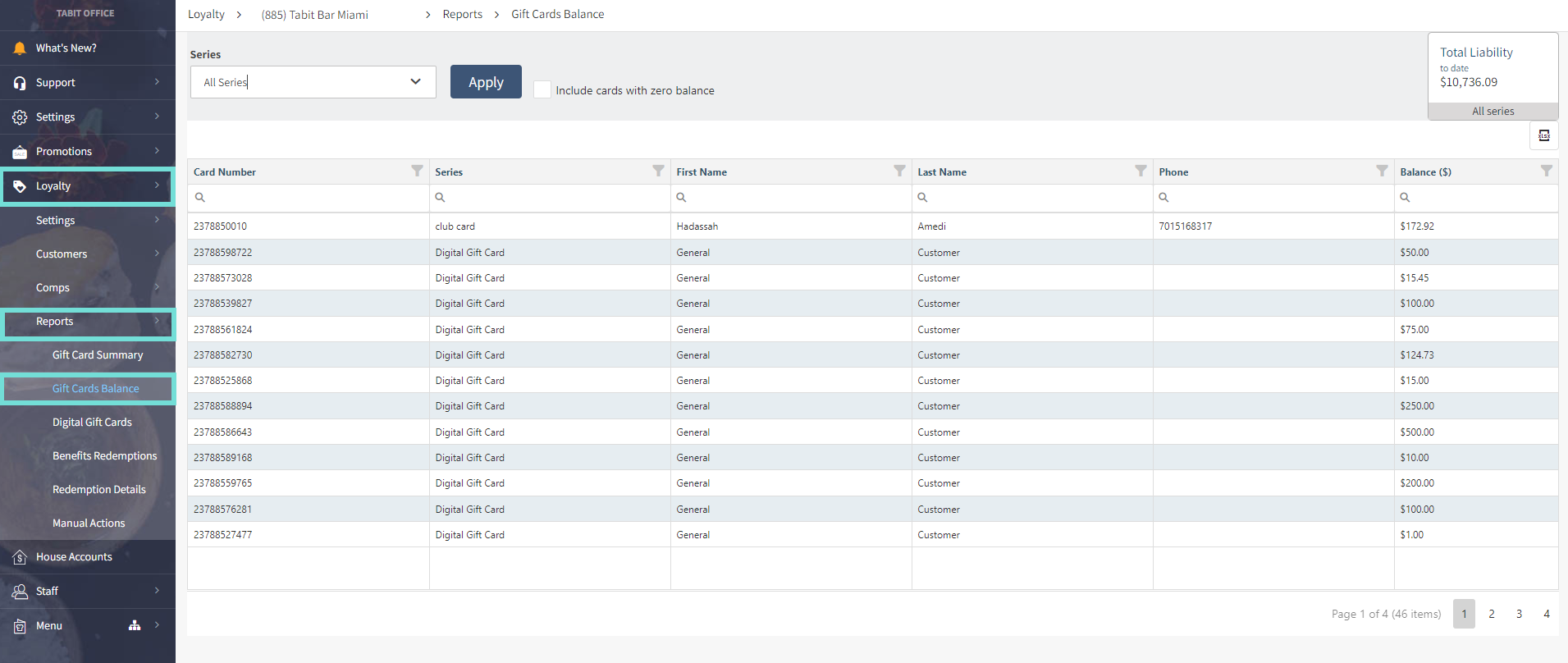
Gift Card Balance
Gift Card Balance provides lookup by Card Number, Series, First Name, Last Name, Phone Number, and Balance ($).
-