https://app.guidde.com/share/playbooks/uqFpqeYviwvbExXmhxSJso
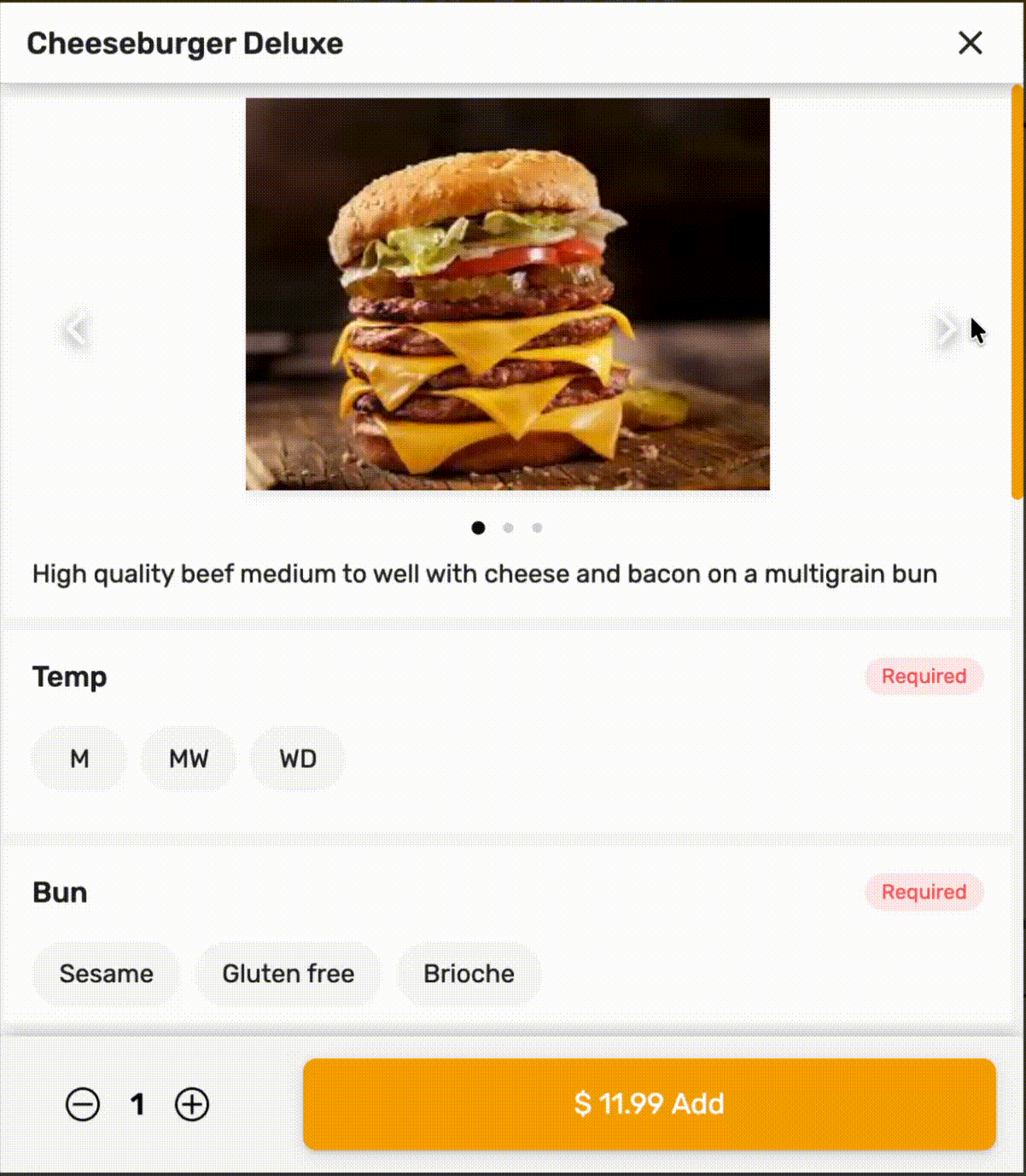
Show more views of an item in Tabit Order
Use multiple images to show an item’s presentation, portion, or details. An item supports up to four images in total.
Additional images appear in Tabit Order. They do not appear on the PAD or Tabit Kiosk.
Add and arrange the images
-
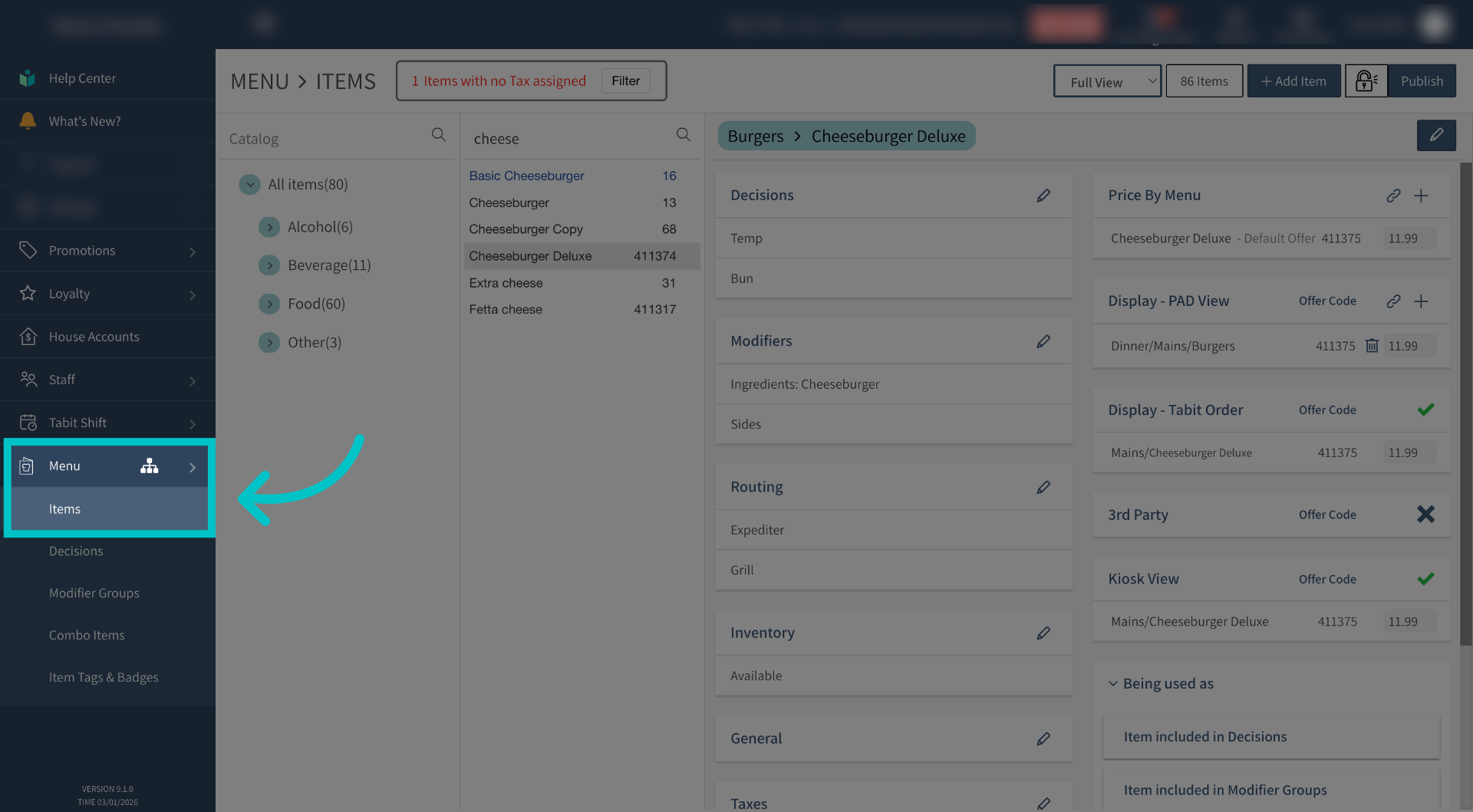
In Tabit Office, open Menu > Items and find the item.
-
Select the edit icon in the upper-right corner.
-
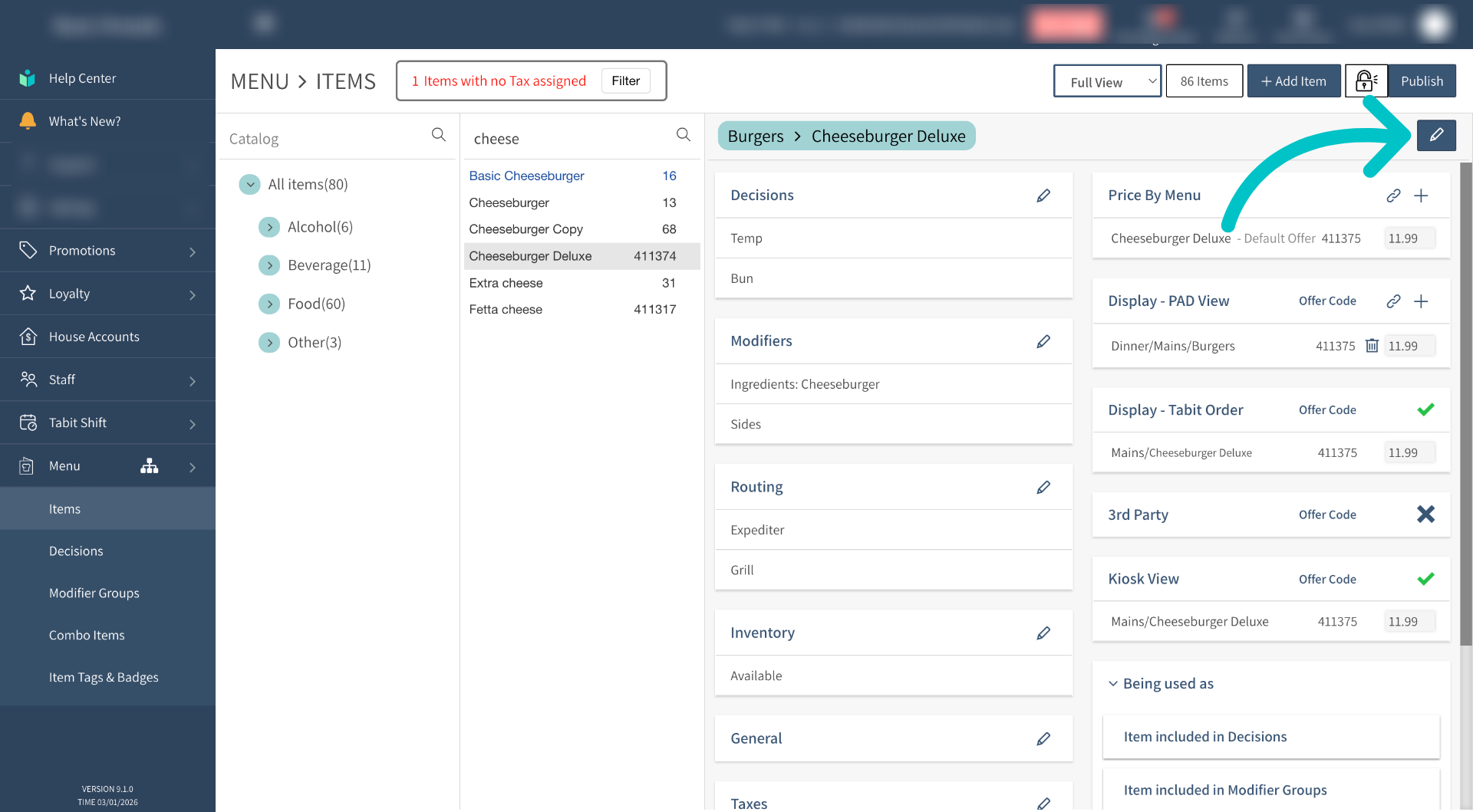
Open the display tab.
-
Upload or drag an image into the primary image box. You can also edit the item description here.
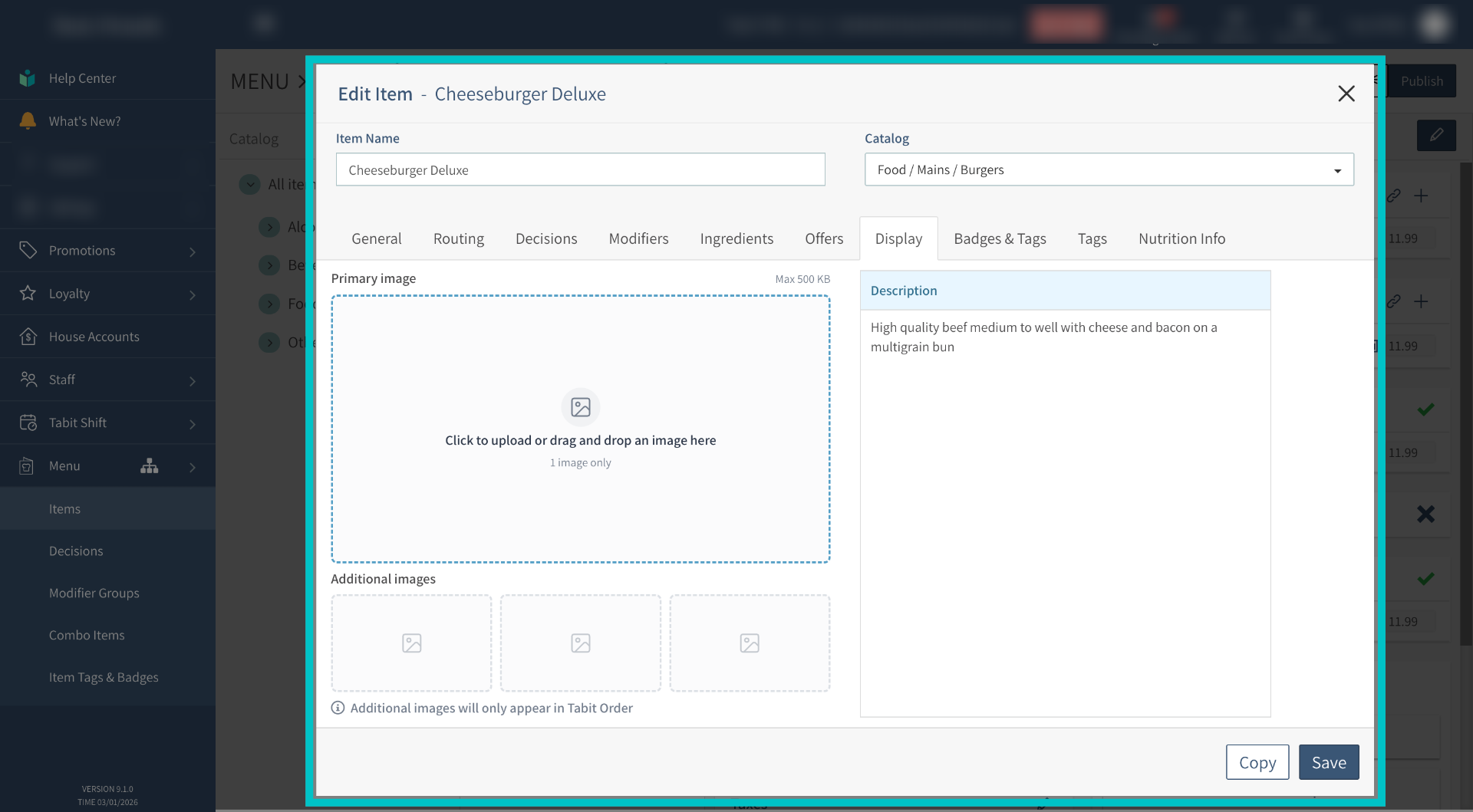
-
Under additional images, select + Add to upload more images, keeping within the four-image total.
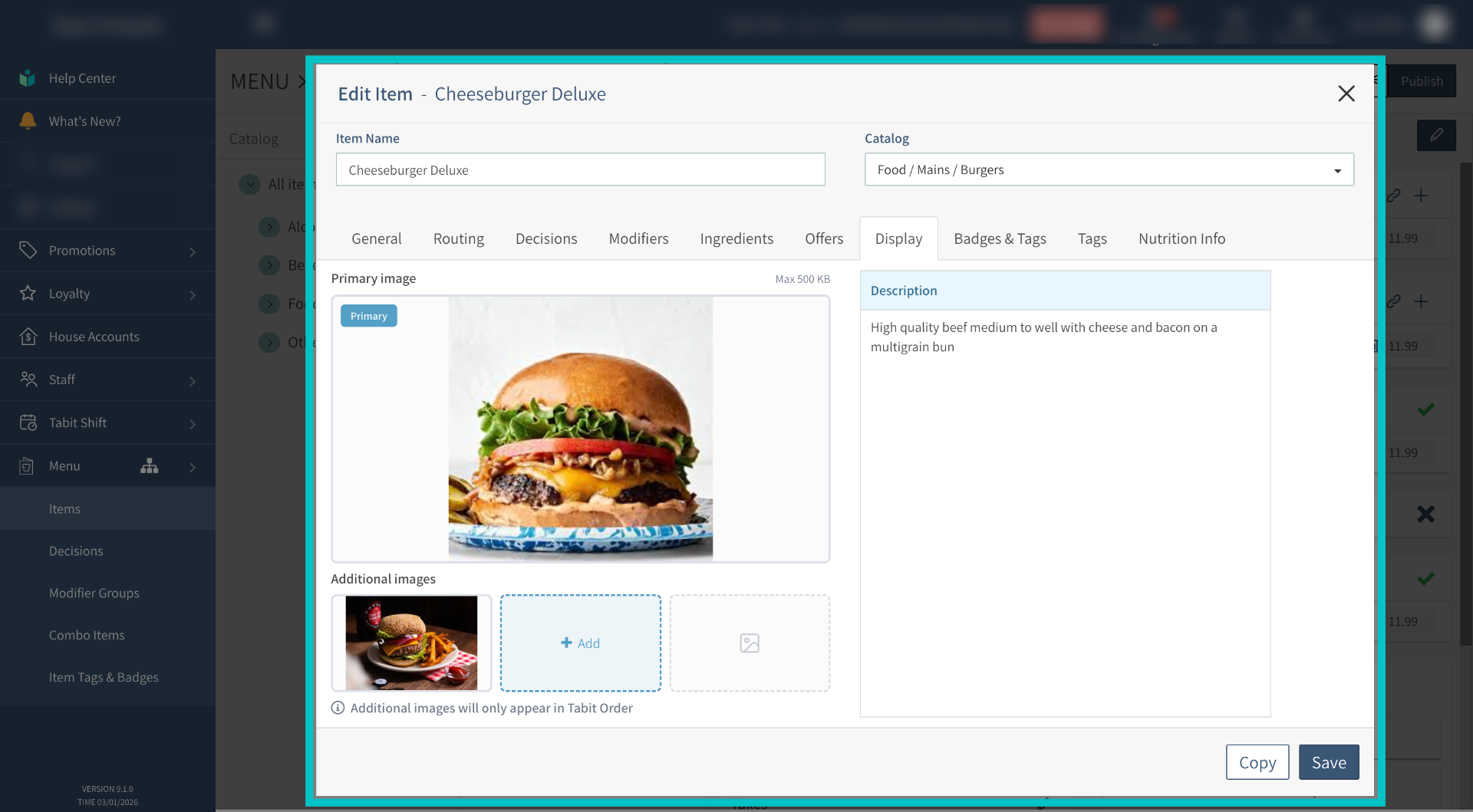
-
Drag the images to change their order.
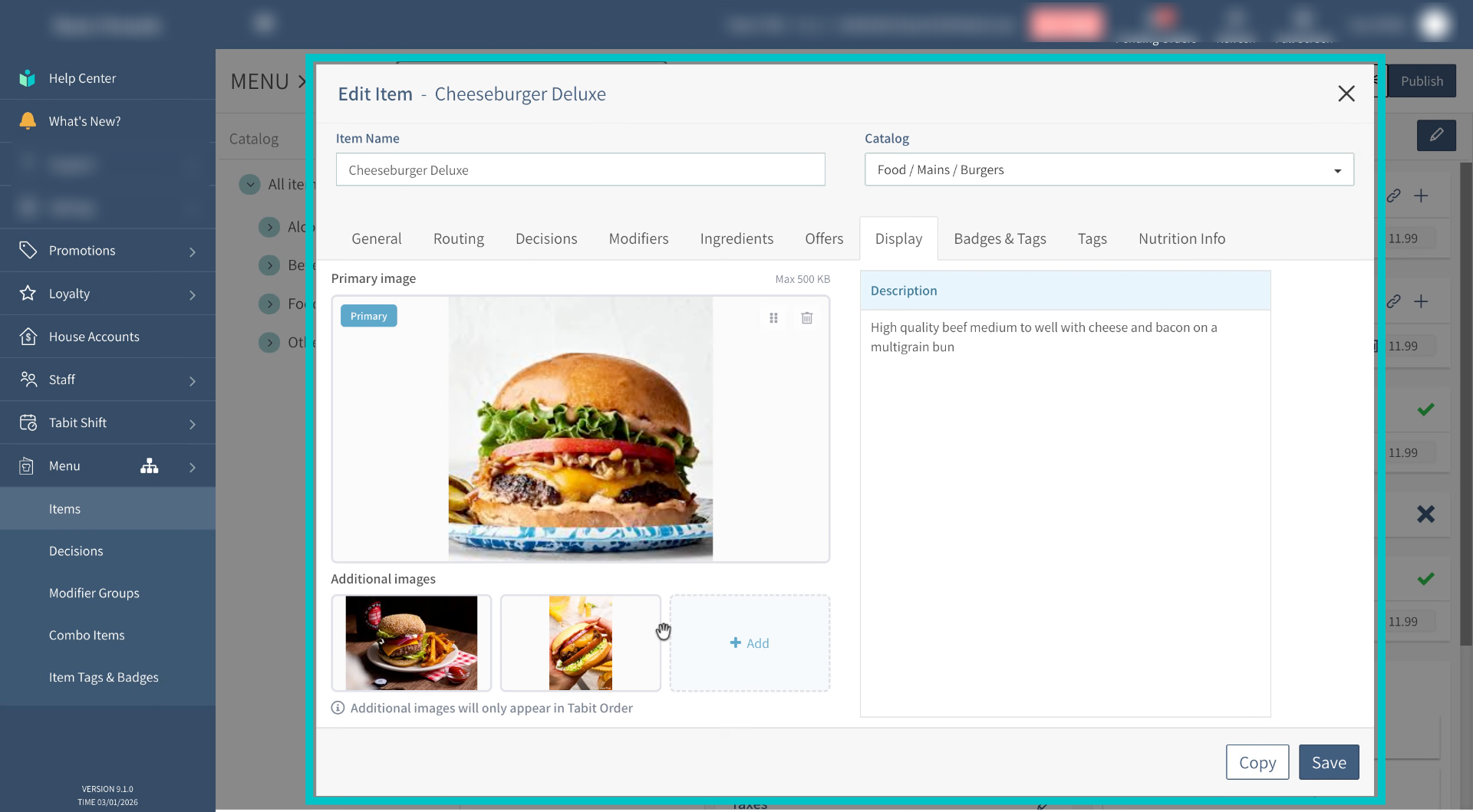
-
Select Save.
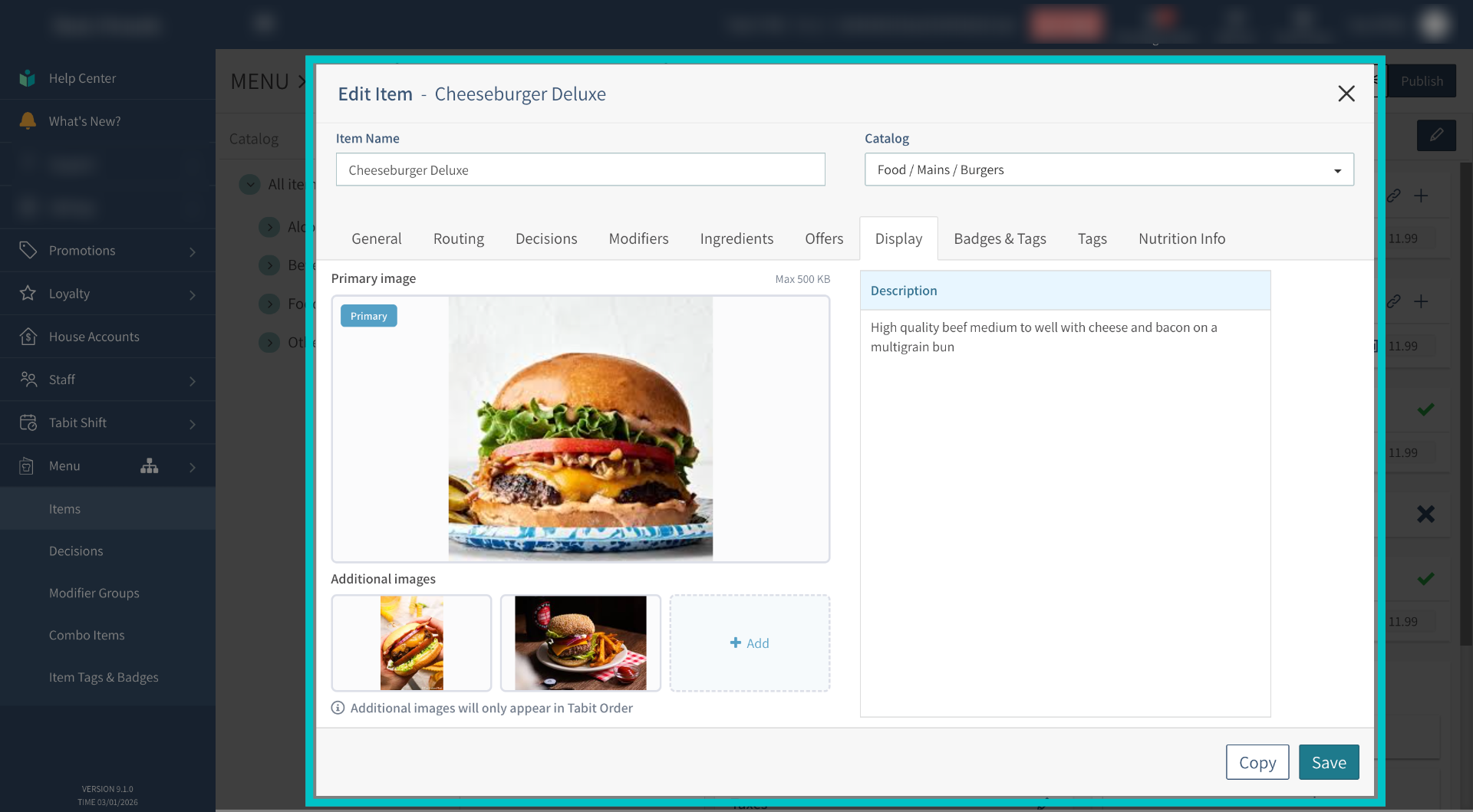
-
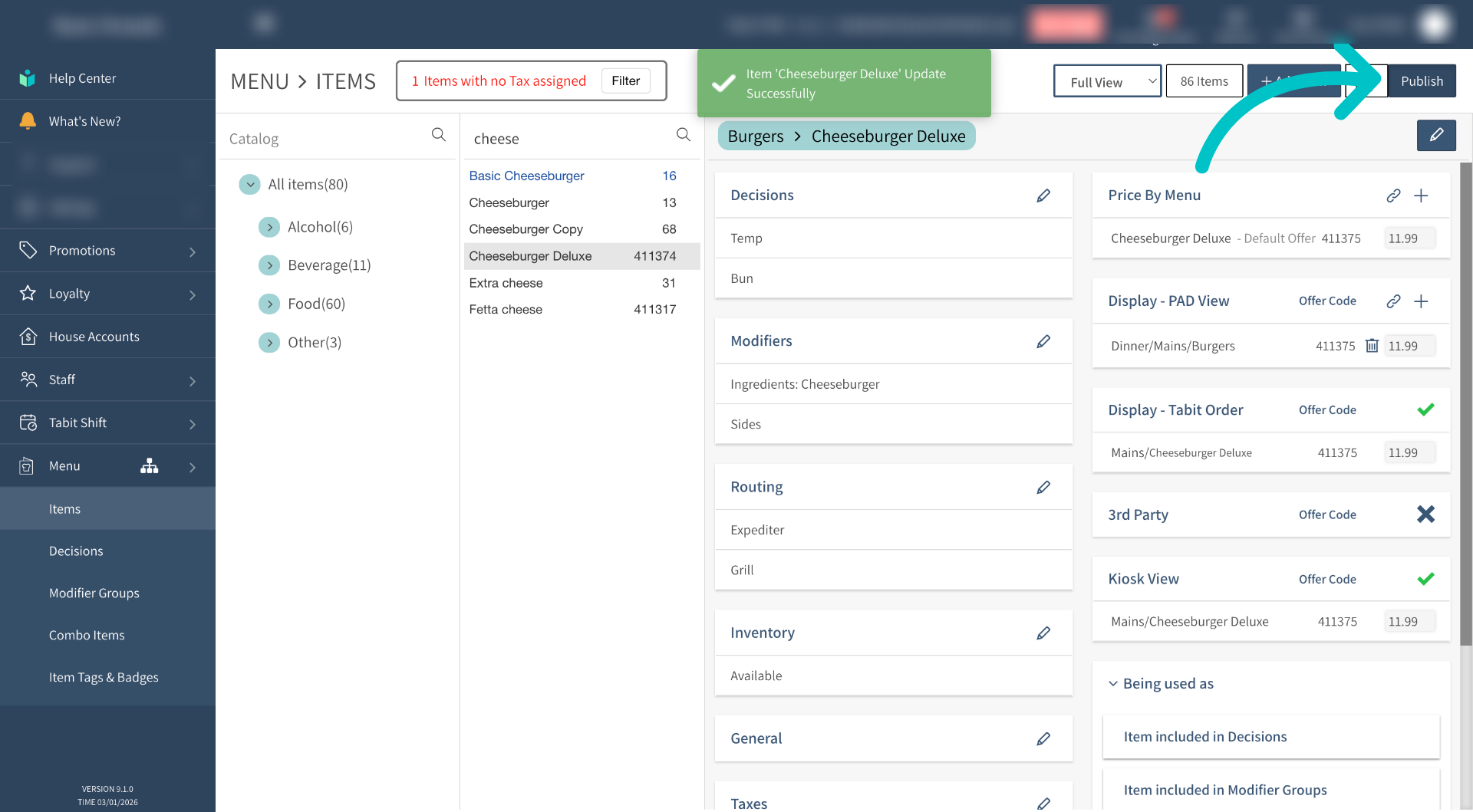
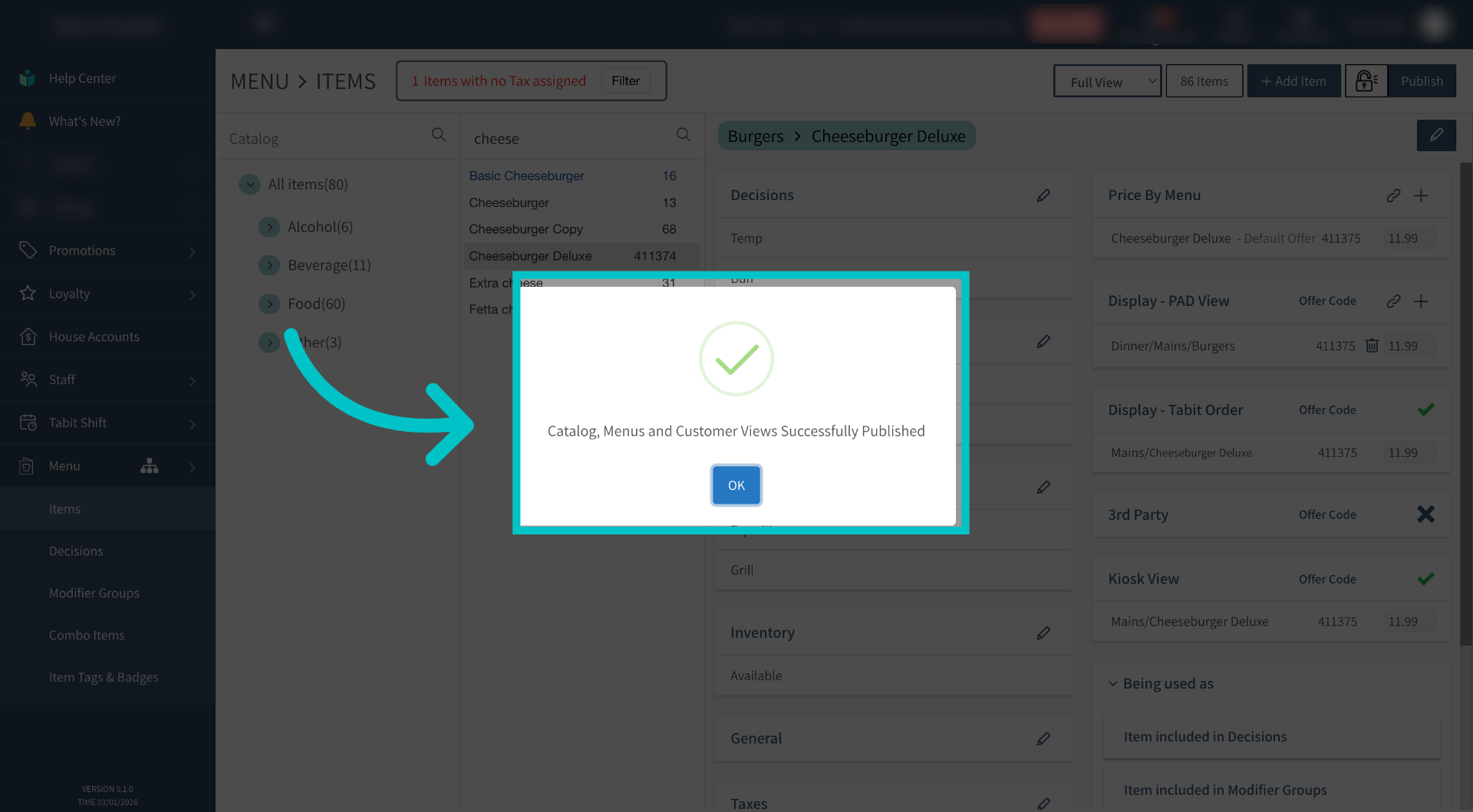
Select Publish to send the changes to the cloud, then select OK.
In Tabit Order, arrows beside the item image let customers browse the additional images.