Before you begin
Menu management on the PAD requires menu permissions and a site-level menu. Sites using an HQ master menu must make changes in Tabit Office.
Open and select a menu
-
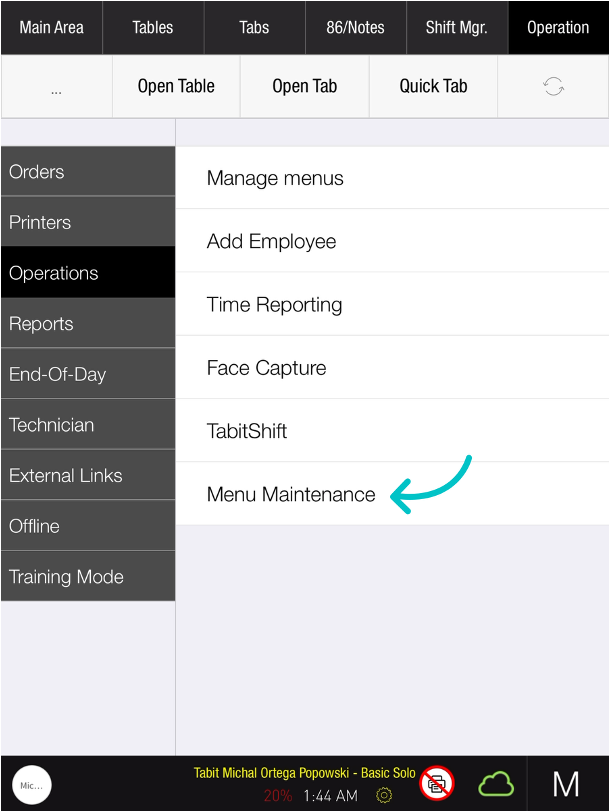
From a profile with menu permissions, open Operations > Operations tab > Menu management (called Menu maintenance in the release notes).
-
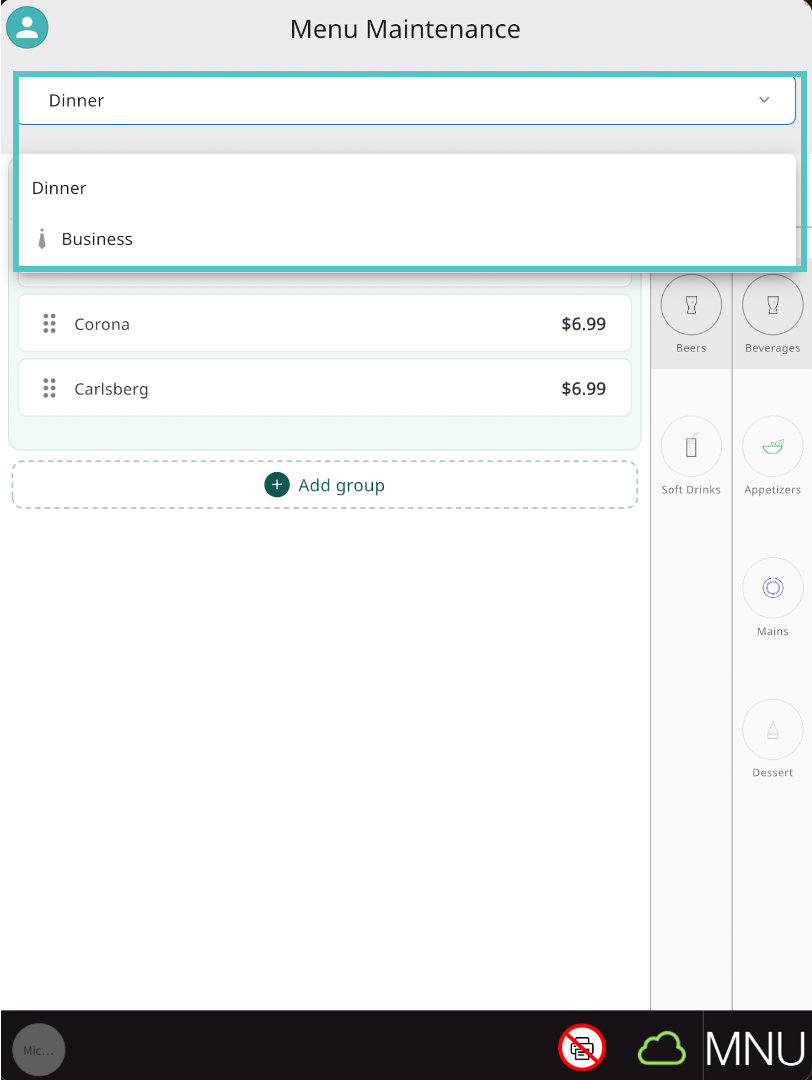
Check the menu name at the top. Tap it to choose another menu.
Pending changes in Tabit Office can block some PAD actions. Publish those changes from Tabit Office before continuing.
Organize categories and items
Select a category from the list on the left, then use the following controls:
-
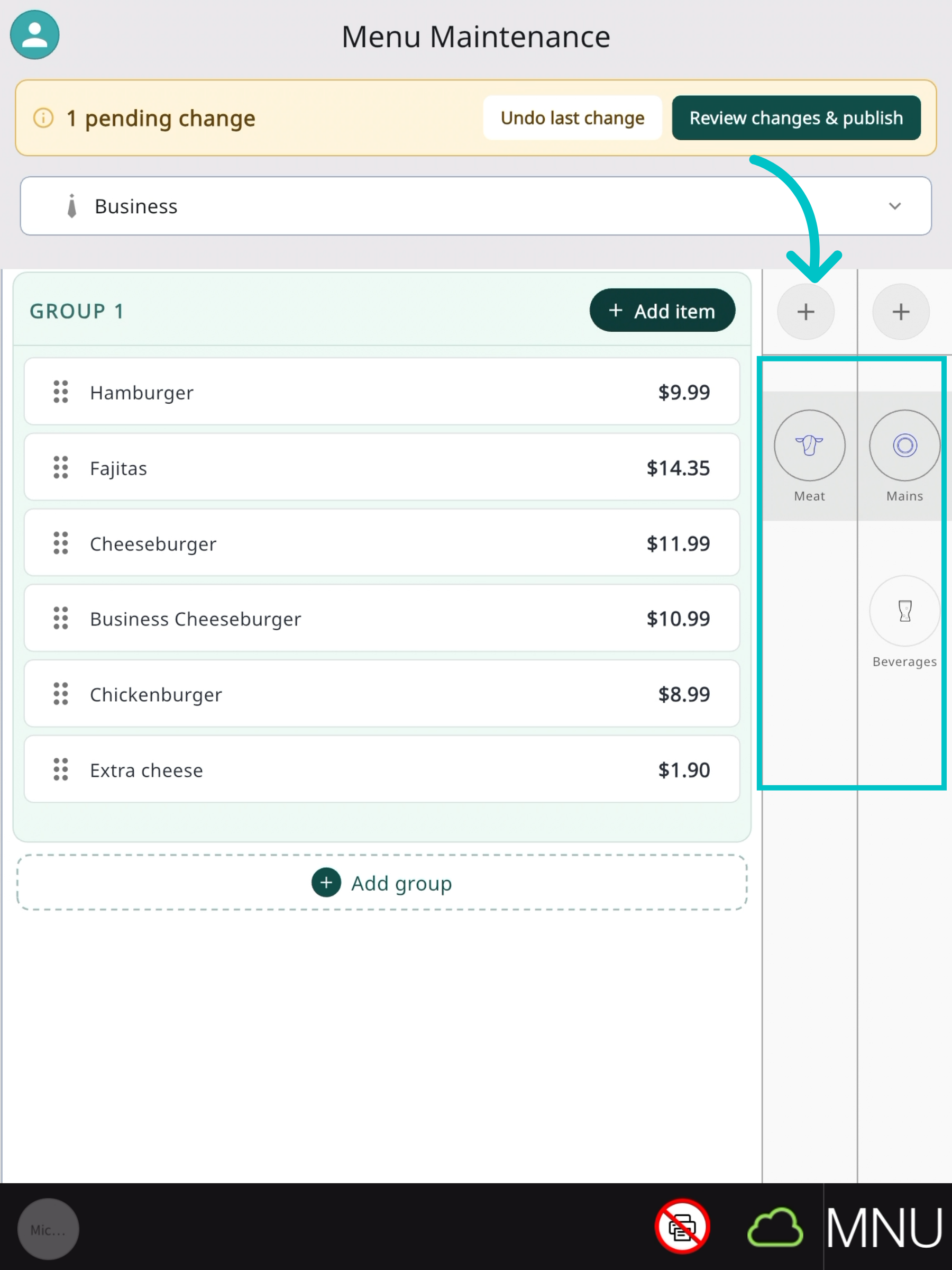
Add a category: tap the plus icon above the category list.
-
Reorder categories or subcategories: drag them to their new position.
-
Remove a category: drag it to the trash icon.
-
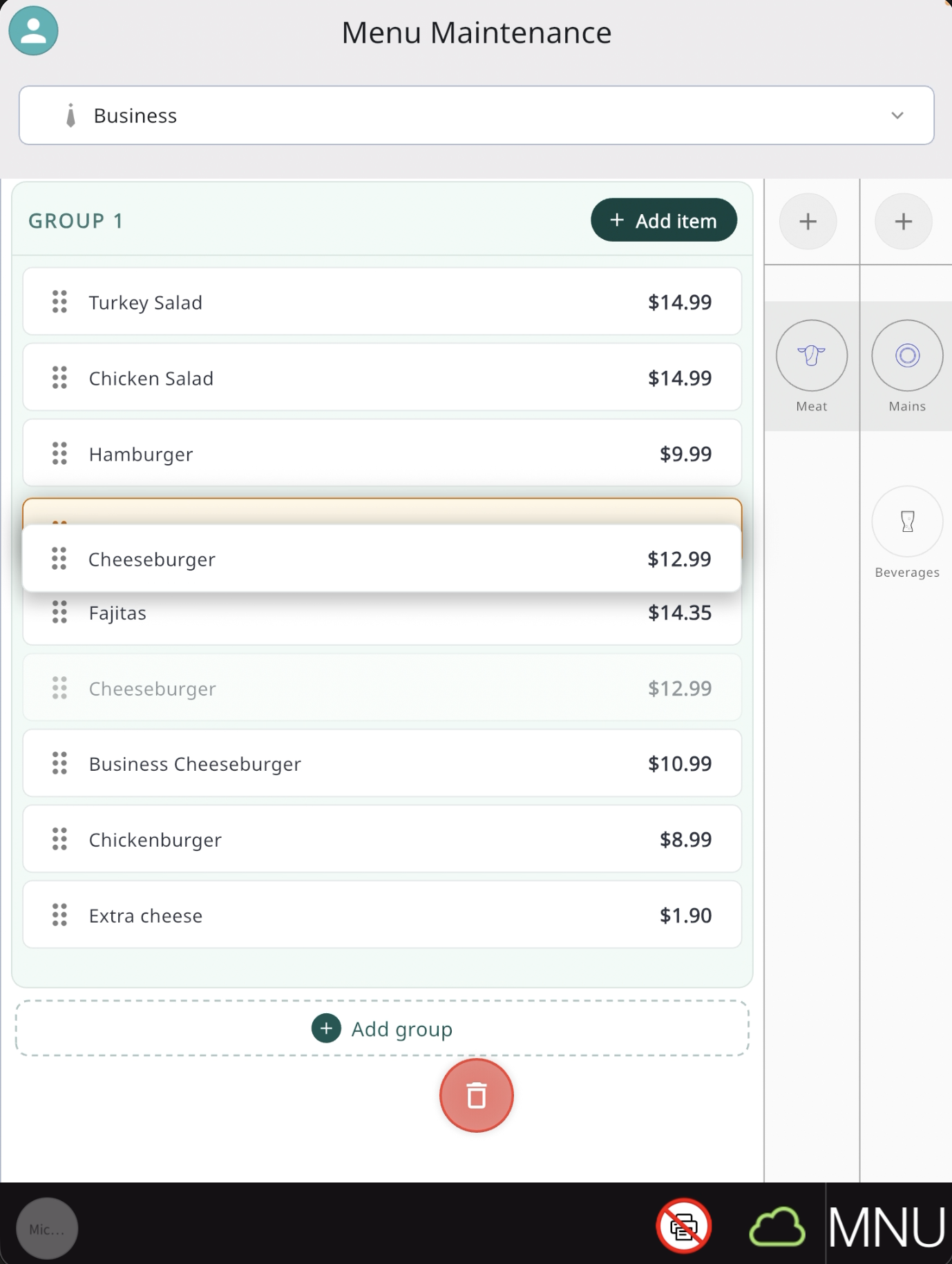
Move or reorder an item: press and hold it, then drag it to the required position or subcategory.
-
Remove an item from the display: press and hold it, then drag it to the trash icon at the bottom.
-
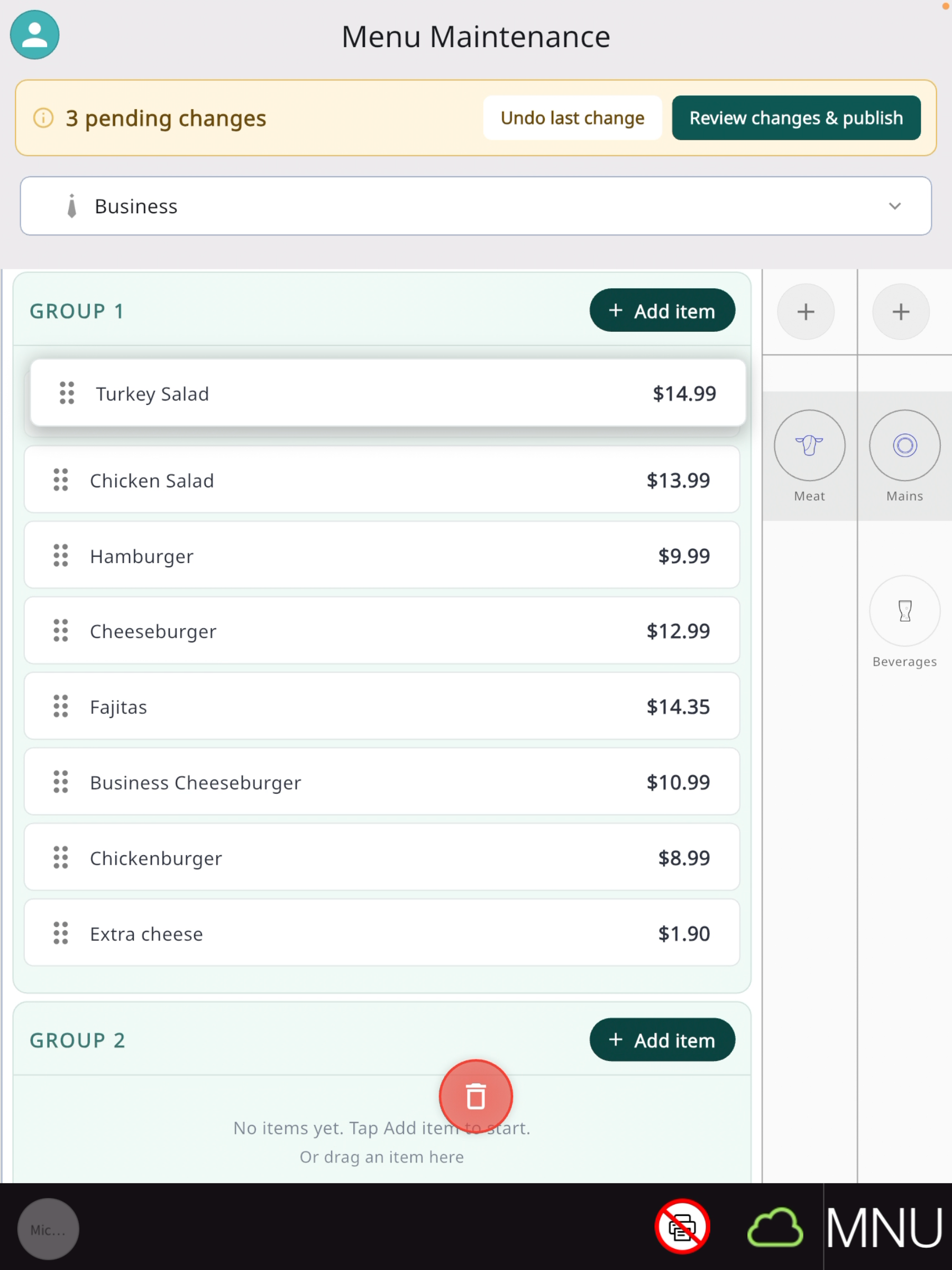
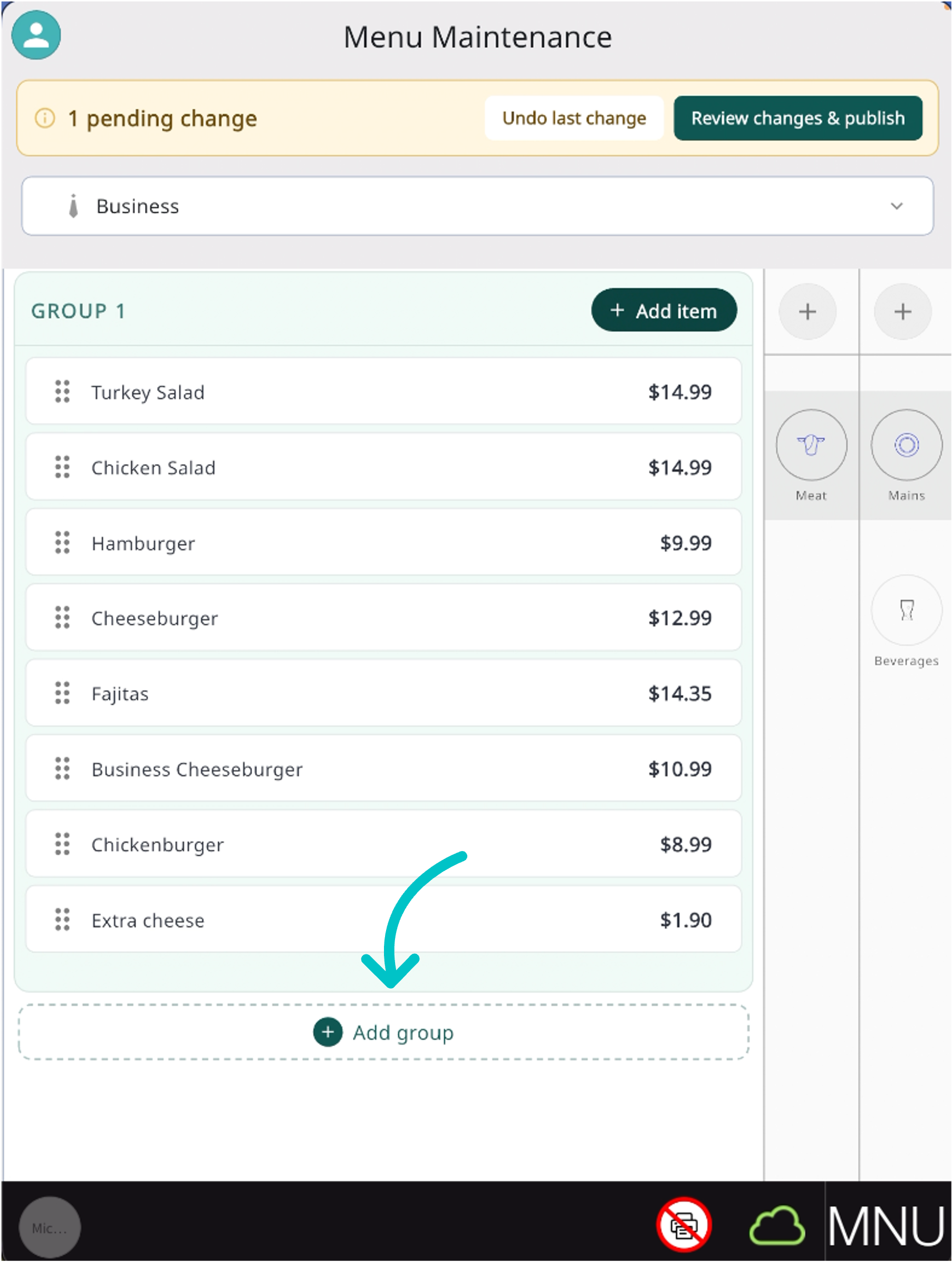
Add a group: tap Add group at the bottom.
Removing or rearranging existing content changes the menu display without deleting catalog items. Creating items and changing prices also update the catalog.
Change an item price
-
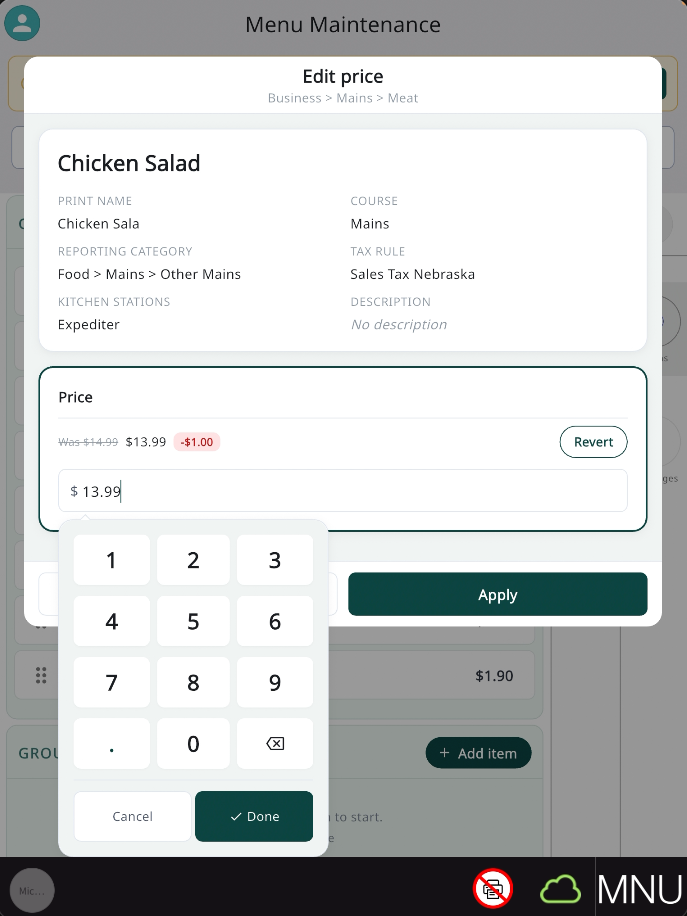
Tap the item to open Price edit and enter the new price.
-
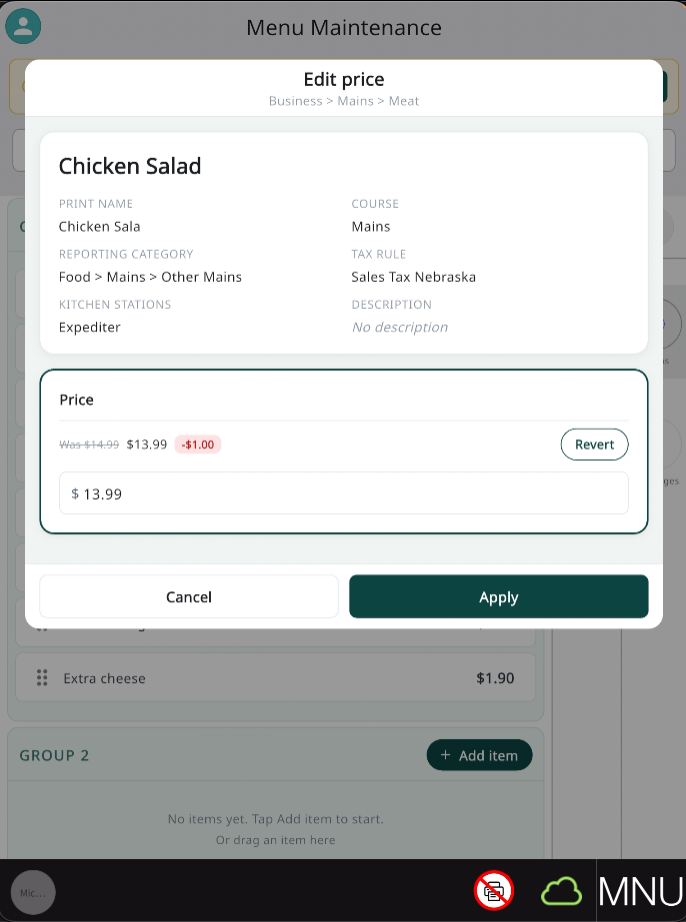
Tap Done, then review the previous price and the difference.
-
Tap Apply to keep the change, or Undo to restore the previous price.
Open-price items cannot be repriced here; the server enters their amount when ordering.
Add an existing item
-
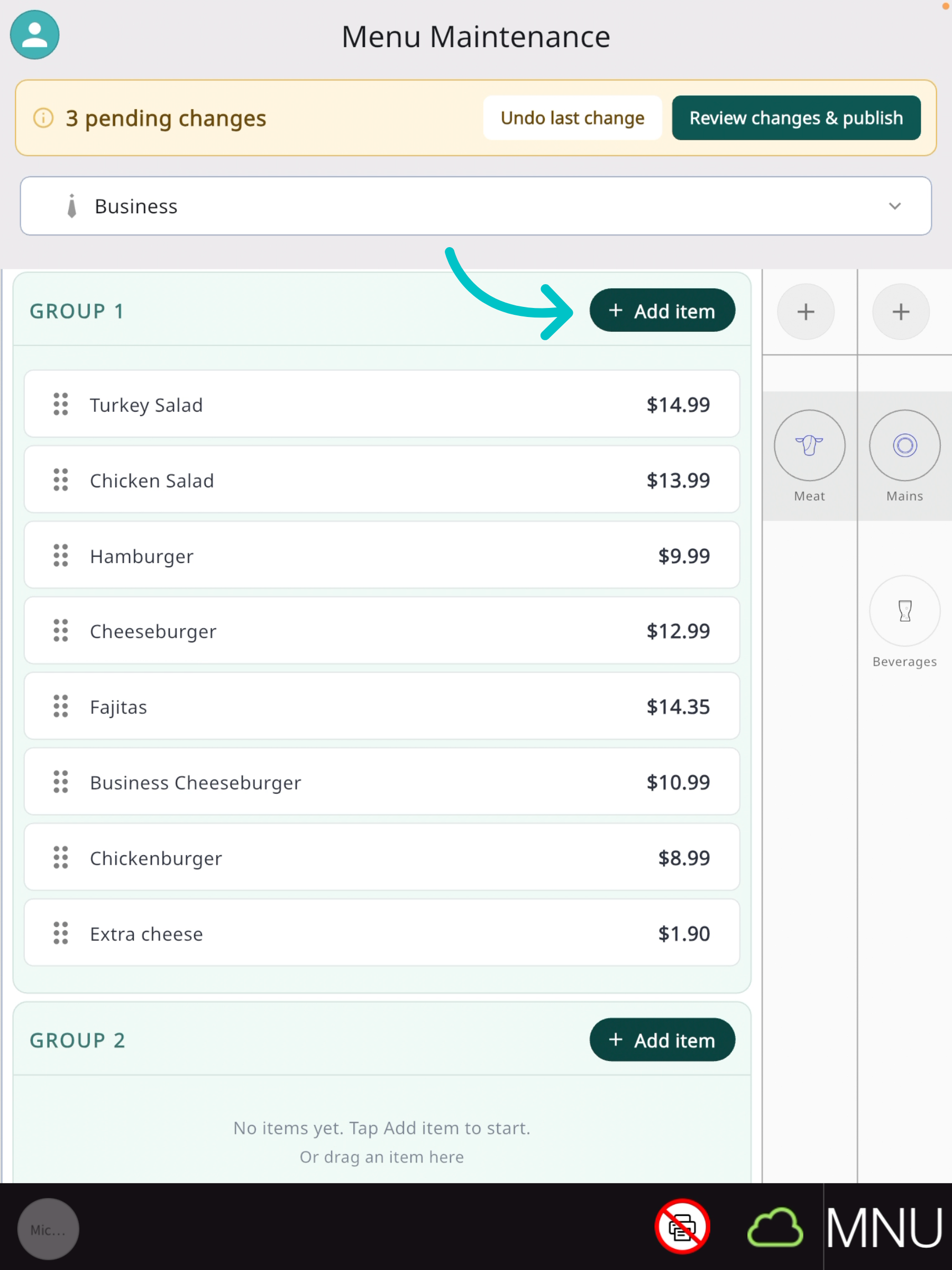
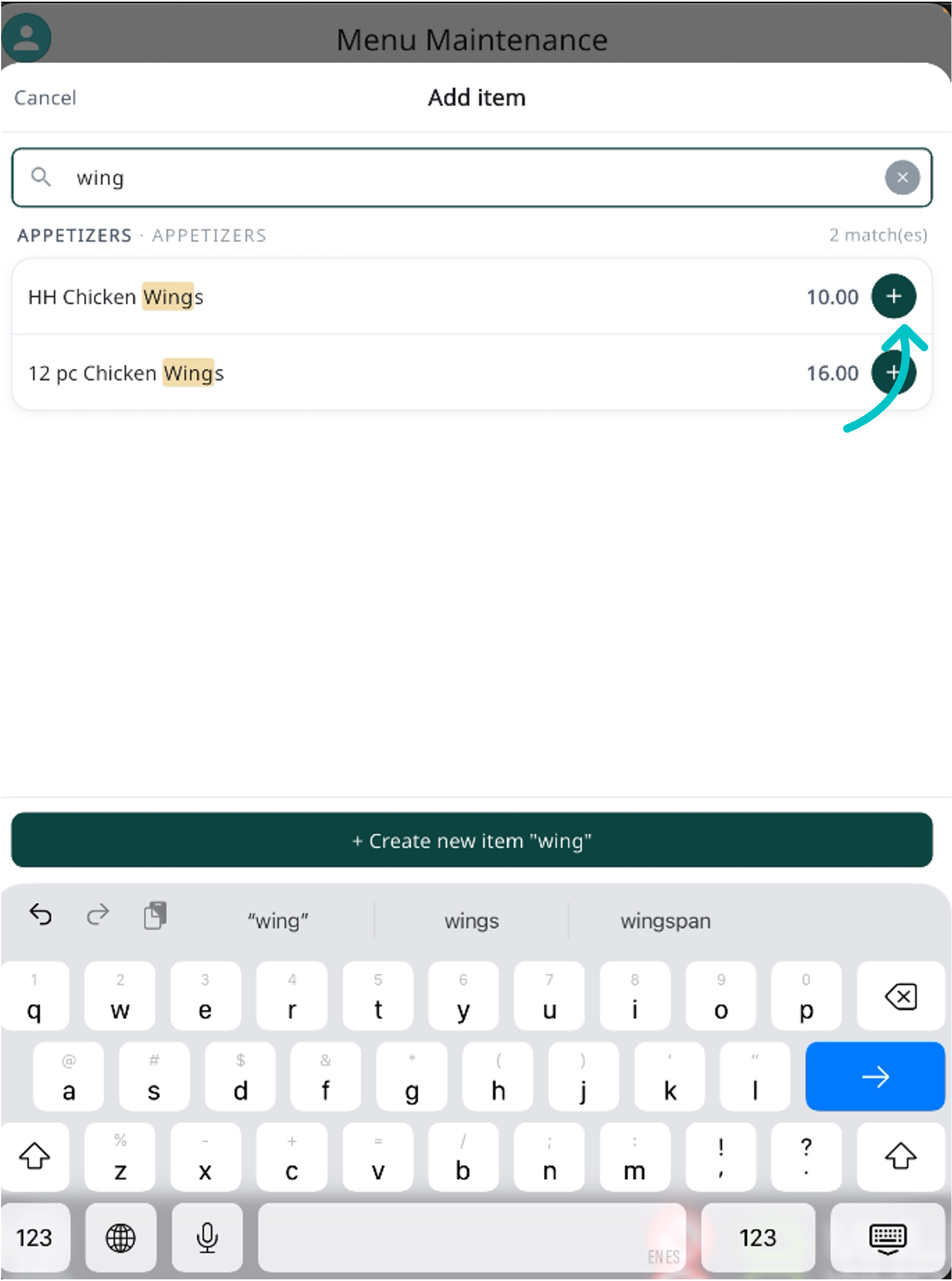
In the required group, tap Add item.
-
Search for the item and tap its plus icon.
Create a new item
-
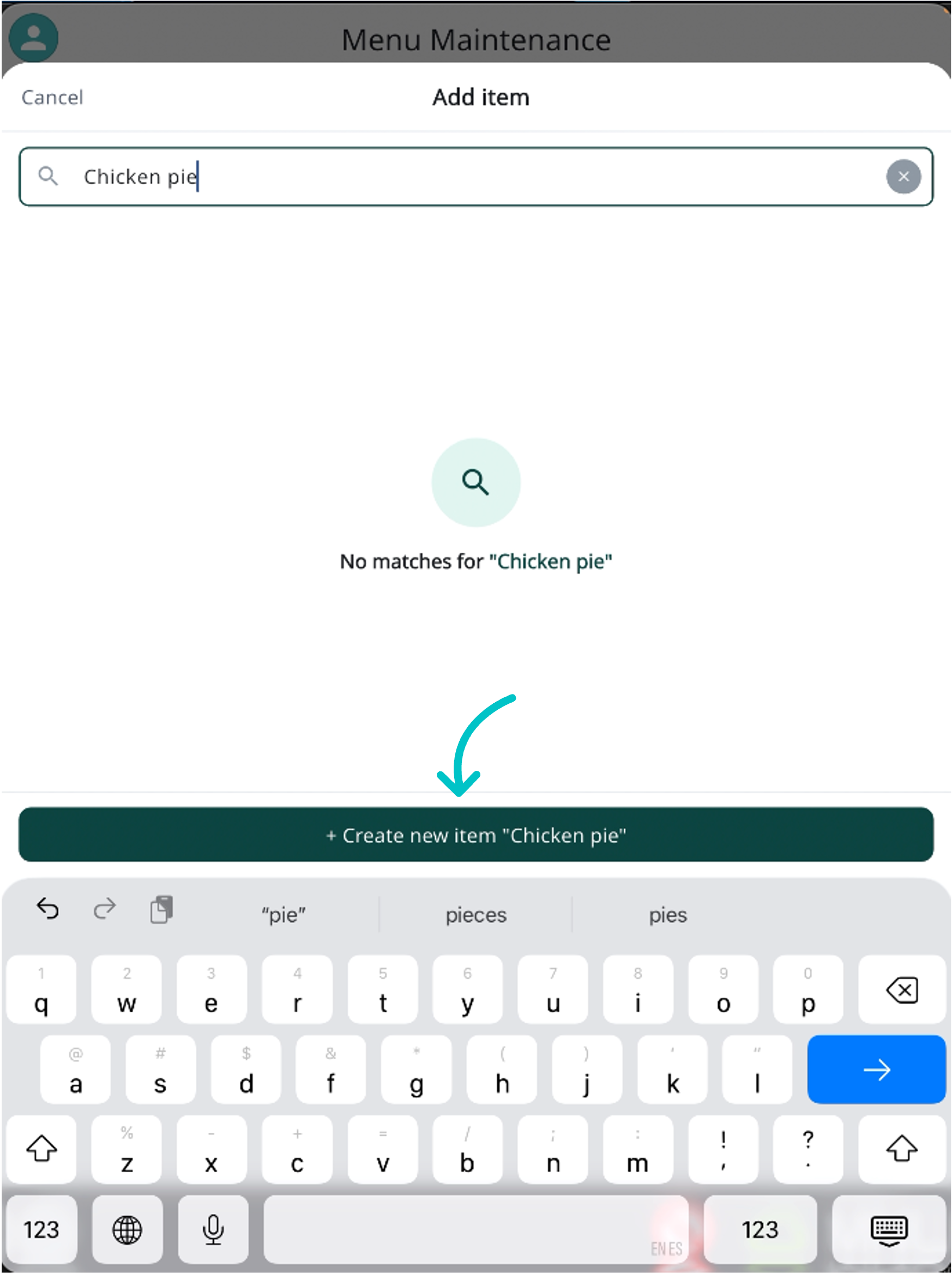
Tap Add item, enter the new name in search, and tap Create new item.
-
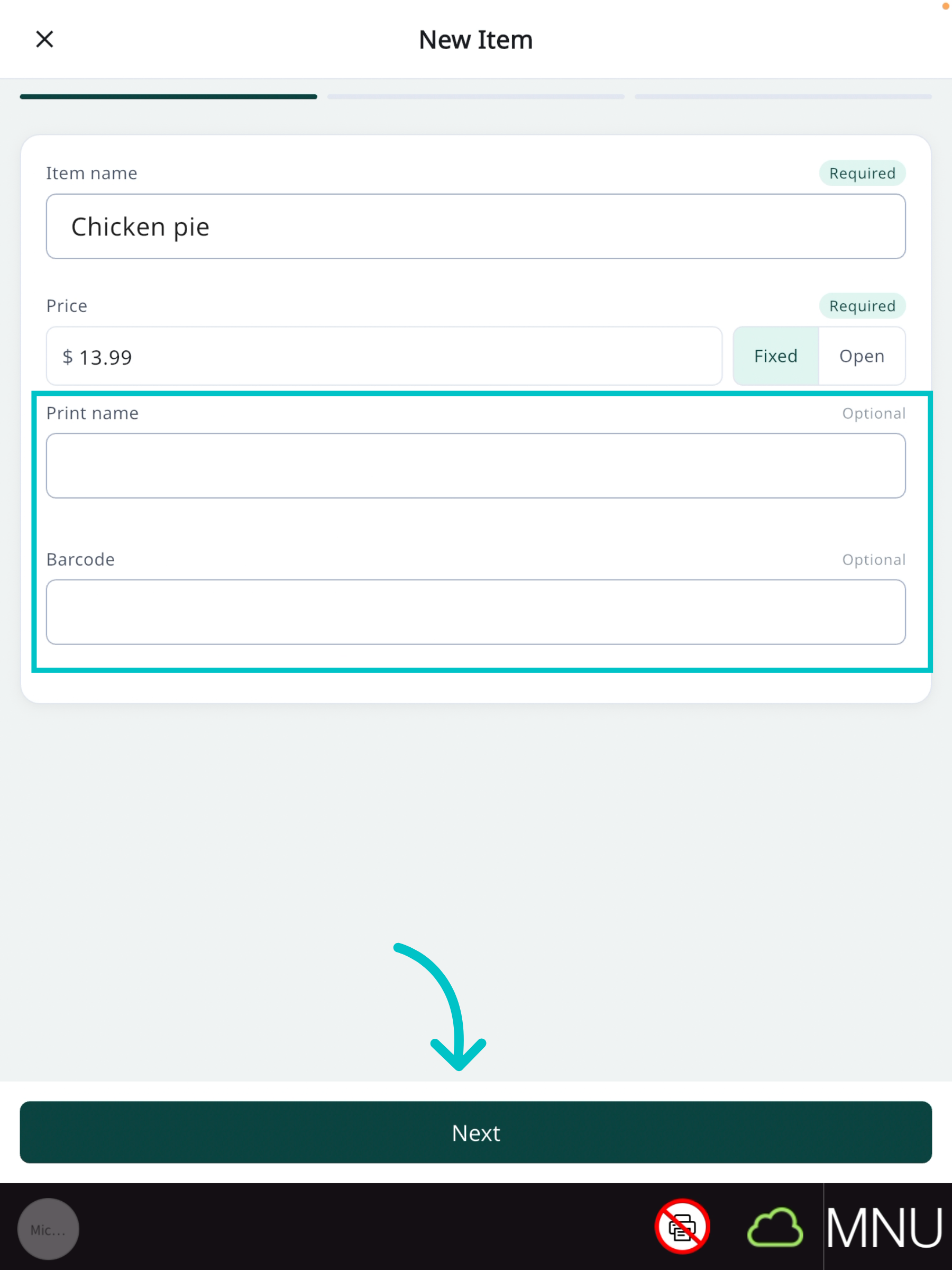
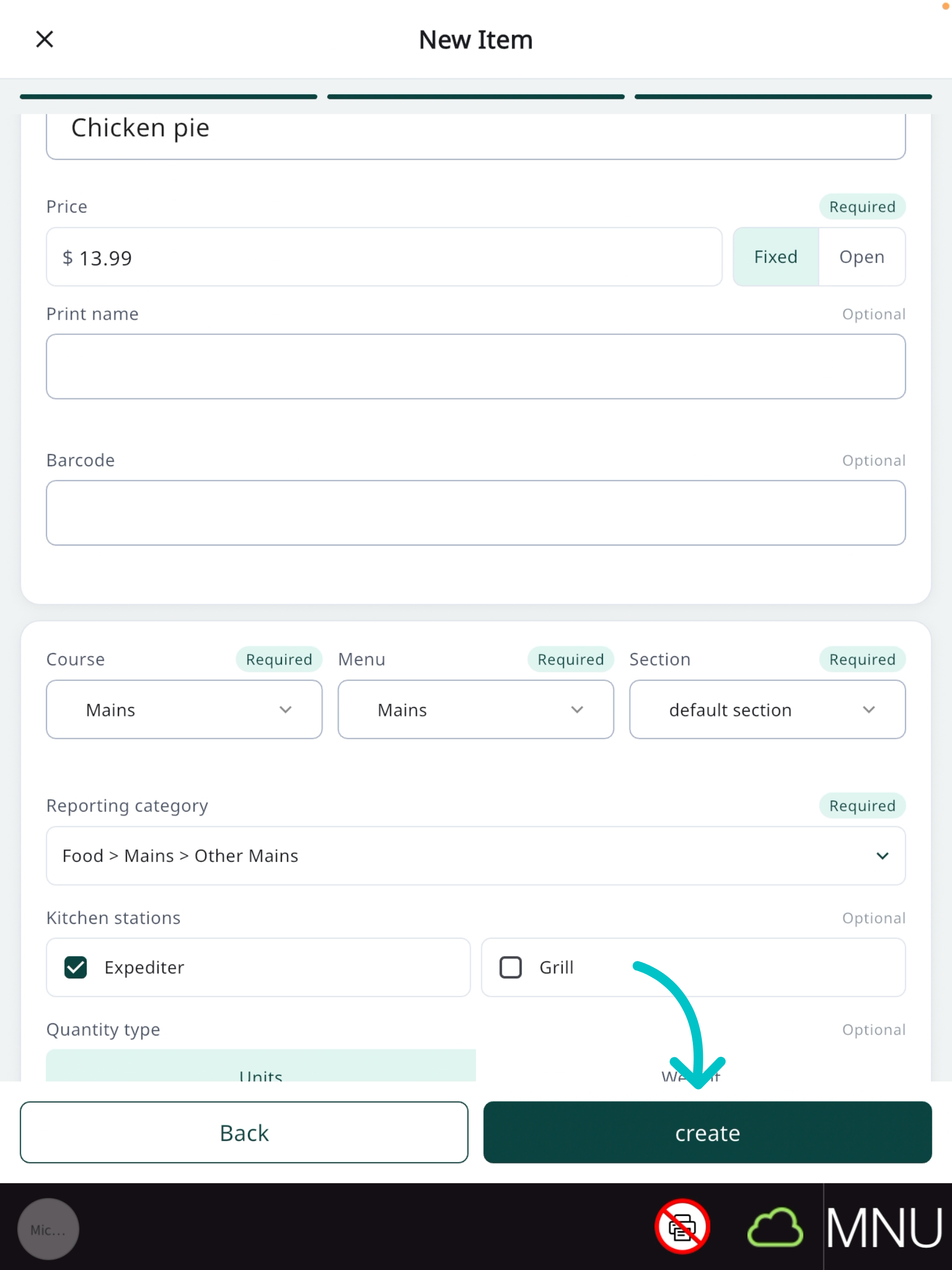
Choose Fixed or Open pricing and enter the applicable amount. Select w/ Tax or No Tax, add an optional prep station or barcode, then tap Next.
-
For a taxed item, select a Tax Rule. The item cannot be saved without one unless No Tax is selected.
-
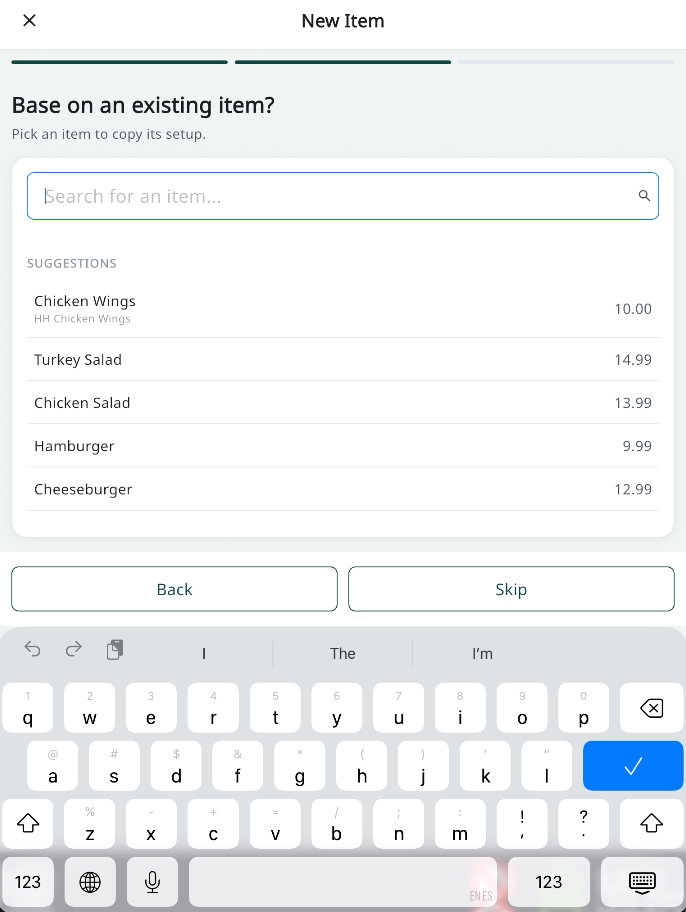
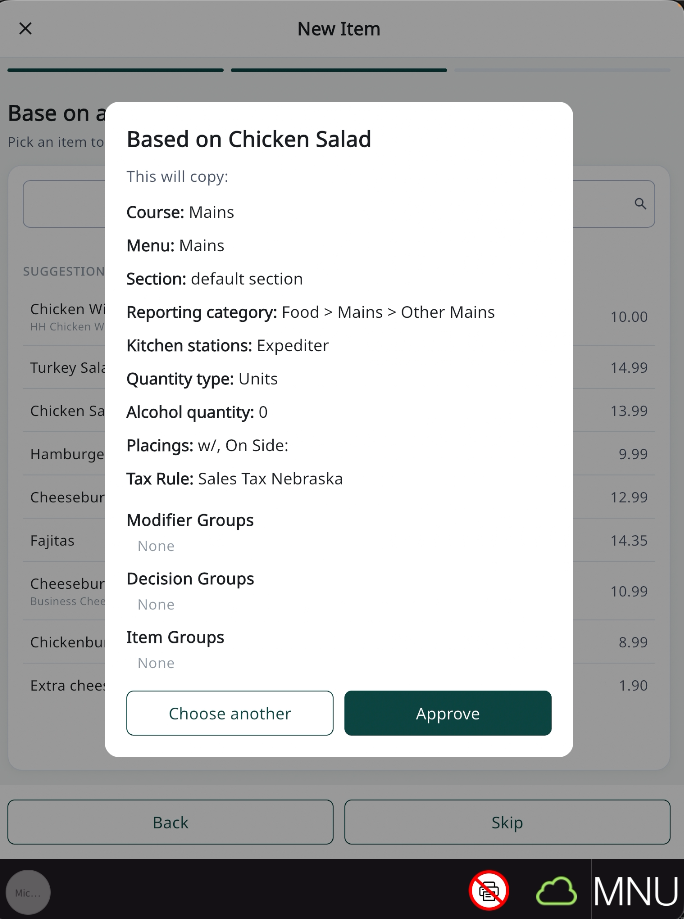
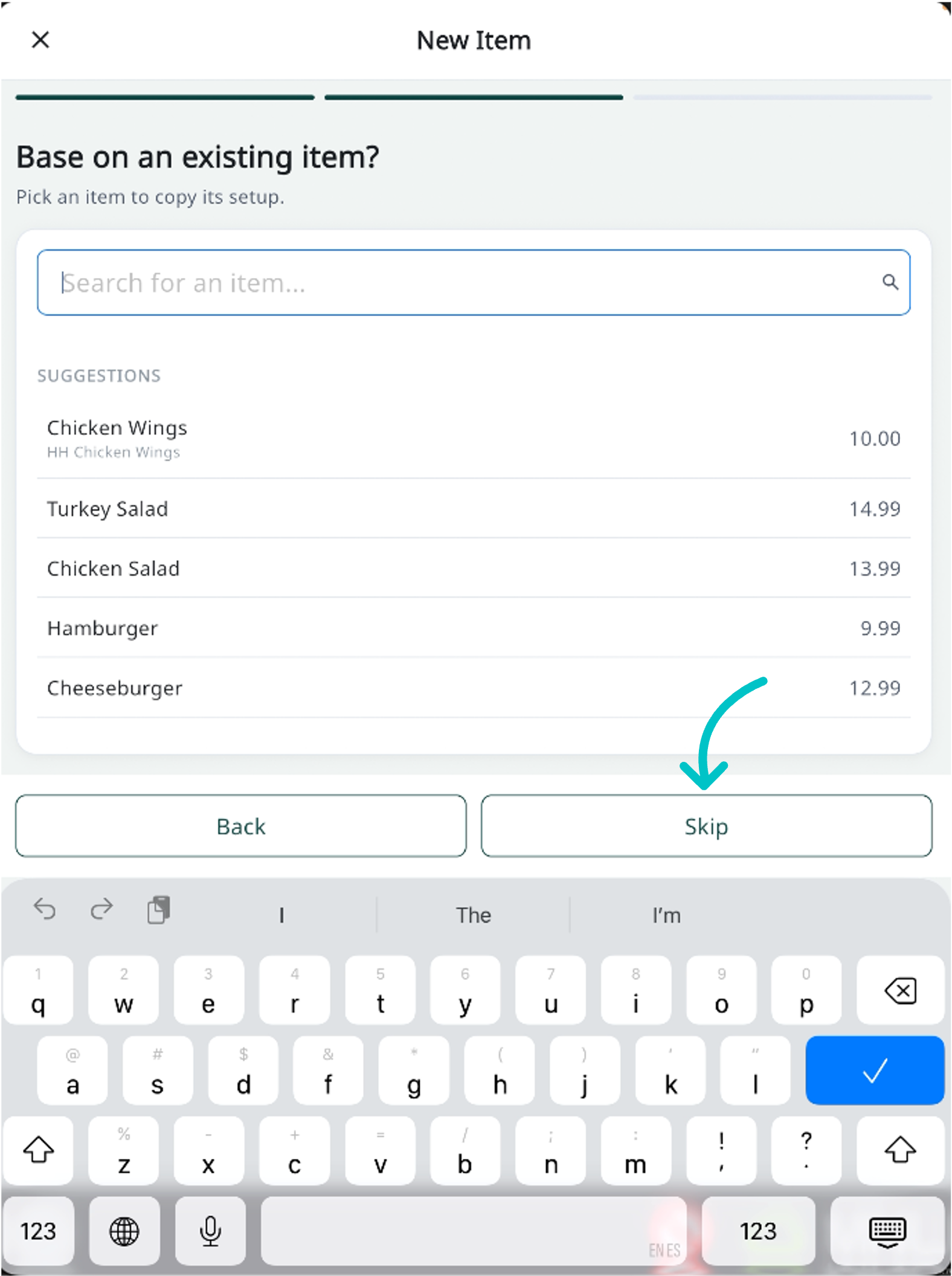
To copy settings, select an existing item, review the copied settings including tax type, and tap Approve. Adjust them as needed and tap Create. To enter settings manually, tap Skip, complete the required details, and tap Create.
Review, undo, and publish
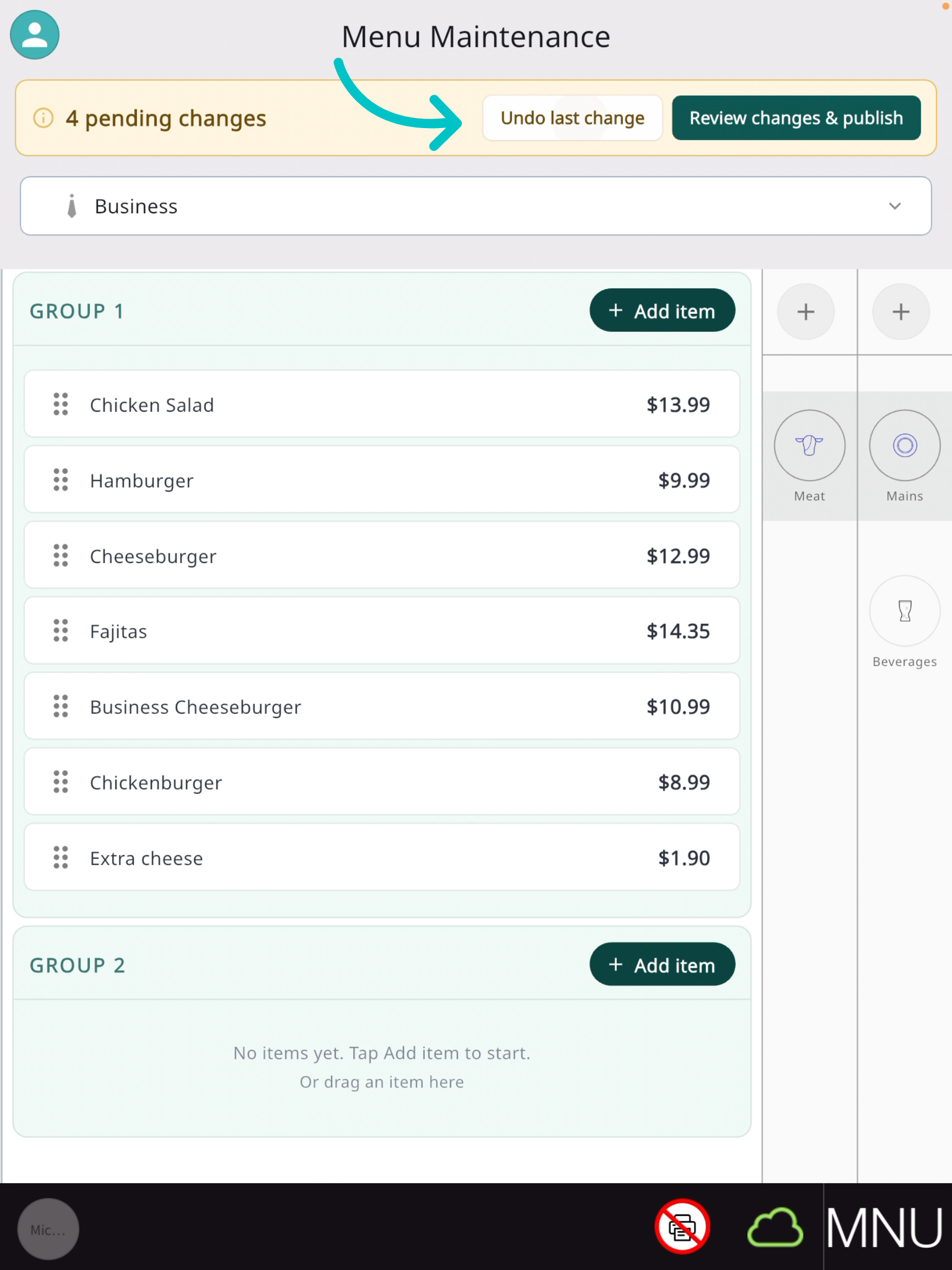
The top of the screen shows the number of unpublished changes. Tap Undo last change to reverse the last action; press and hold it to undo all menu-display changes.
-
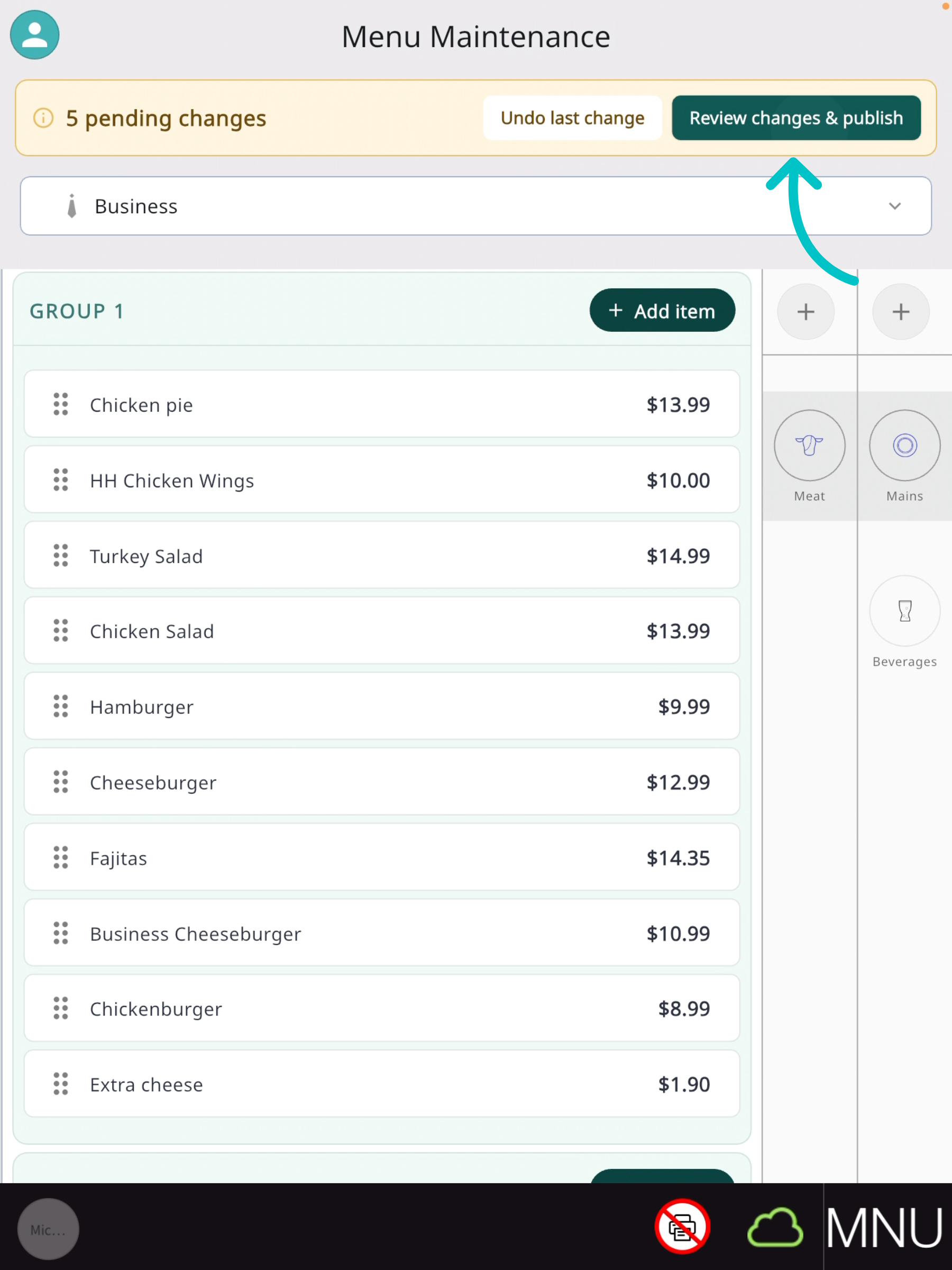
Tap Review changes & publish.
-
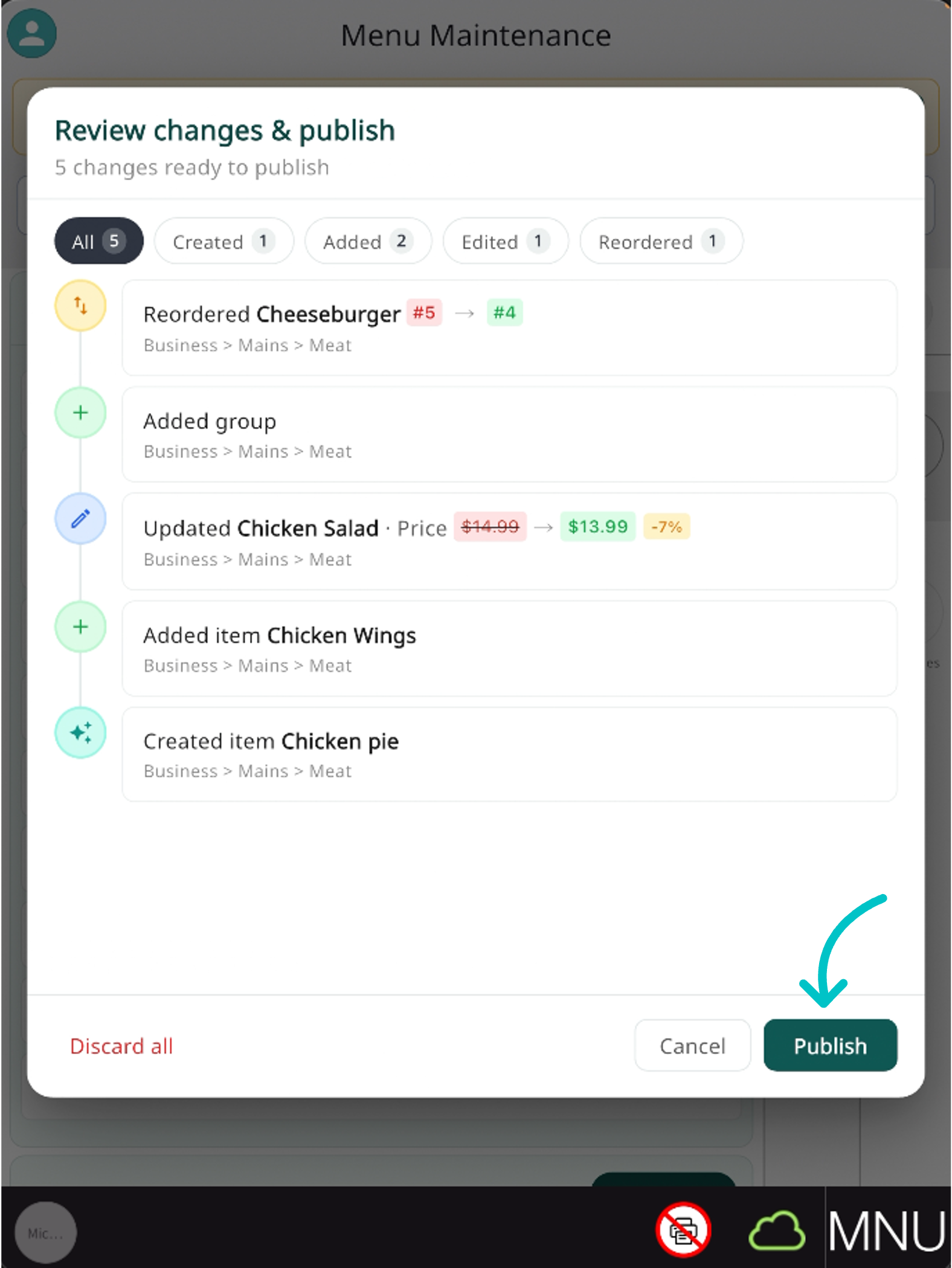
Review the complete list of updates.
-
Tap Publish to apply them, or Reset all to discard the changes.
Publishing here applies only the PAD changes shown on the review screen. Office changes must be published separately from Tabit Office.