
Overview
The Production Management dashboard shows projected availability for the coming week, helping managers spot likely shortages before service.
Before you begin
A production plan must be configured for the items you want to monitor. Dashboard access requires the appropriate Future Production Planning permission for your site. If the page is unavailable, ask your authorized administrator or Flyght Support to review access.
Open the dashboard
-
In Tabit Office, open Menu > Production Management.
-
Select Dashboard.
-
Review the projected stock for each item and future date.
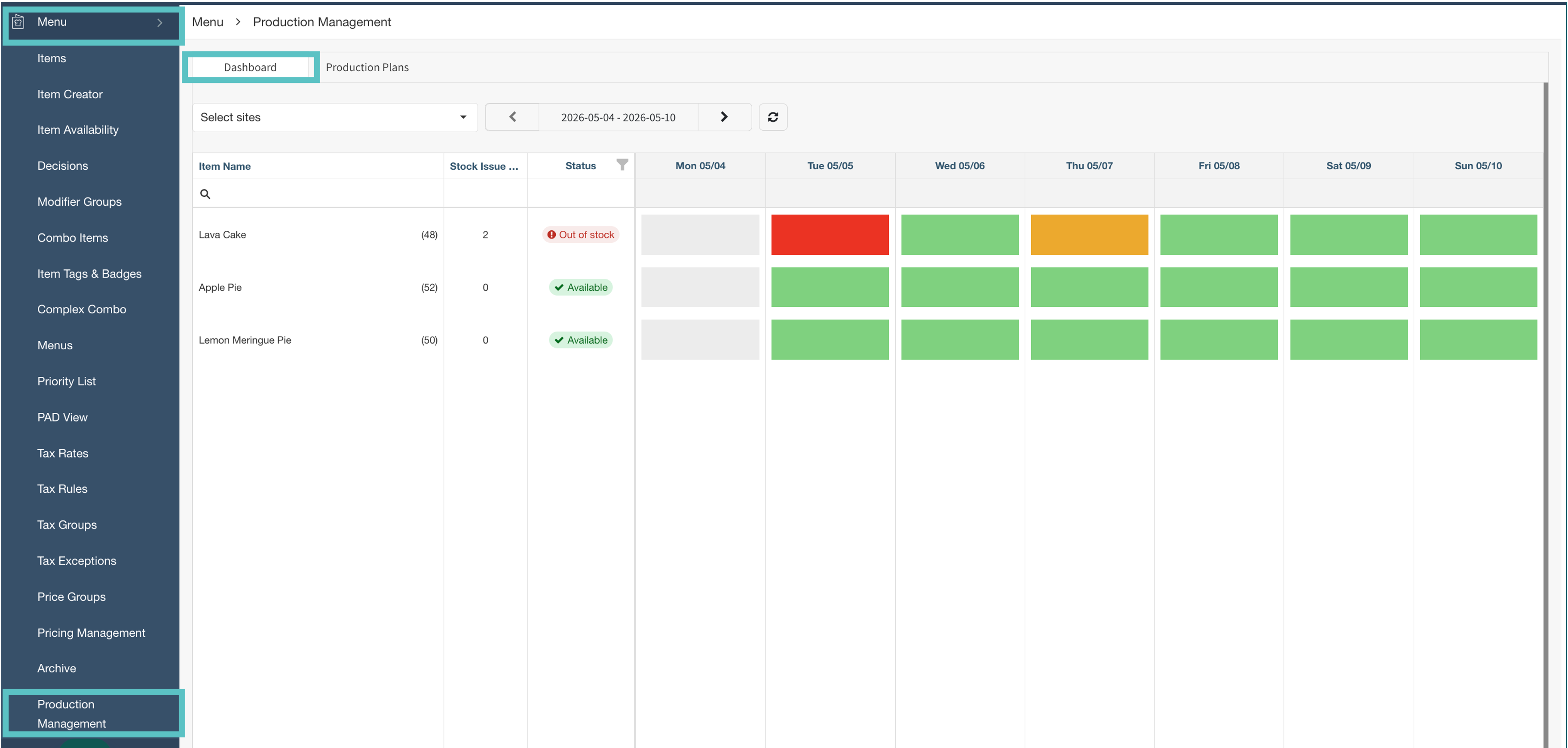
Dashboard example. Available controls depend on your permissions.
Read the stock status
|
Status |
Meaning |
|---|---|
|
Green — Available |
Projected stock is above the item’s configured alert threshold. |
|
Yellow — Below threshold |
Projected stock has reached or fallen below that threshold. |
|
Red — Out of stock |
No remaining stock is projected. |
Use the threshold configured for the item rather than assuming every item uses the same percentage.
Review a projected shortage
-
Identify the item and future date showing low stock or no stock.
-
Review its weekday quantities, validity dates, carryover rule, and any special-date override in the production plan.
-
Confirm the restaurant’s actual preparation capacity before changing quantities. Save any authorized plan changes, then review the dashboard again.
If projected availability still does not match the intended plan, contact Flyght Support with the item, date, and saved plan details.
The inventory day advances after EOD is run. Review the business-day boundary when checking how leftovers affect the next day.