
Overview
Set quantities for future order dates to keep advance orders within the amount your restaurant can prepare. For example, a restaurant preparing ten portions for Sunday could make seven available for advance orders and retain capacity for walk-in guests.
Before you begin
Use an account authorized to manage production plans for your site. These limits apply to future orders in Tabit Order and to PAD takeaway/delivery orders from PAD 12.0. Third-party future orders are not supported by this workflow.
The inventory day advances after end-of-day (EOD) is run. Keep this boundary in mind when reviewing carryover and the next day’s availability.
Open your production plan
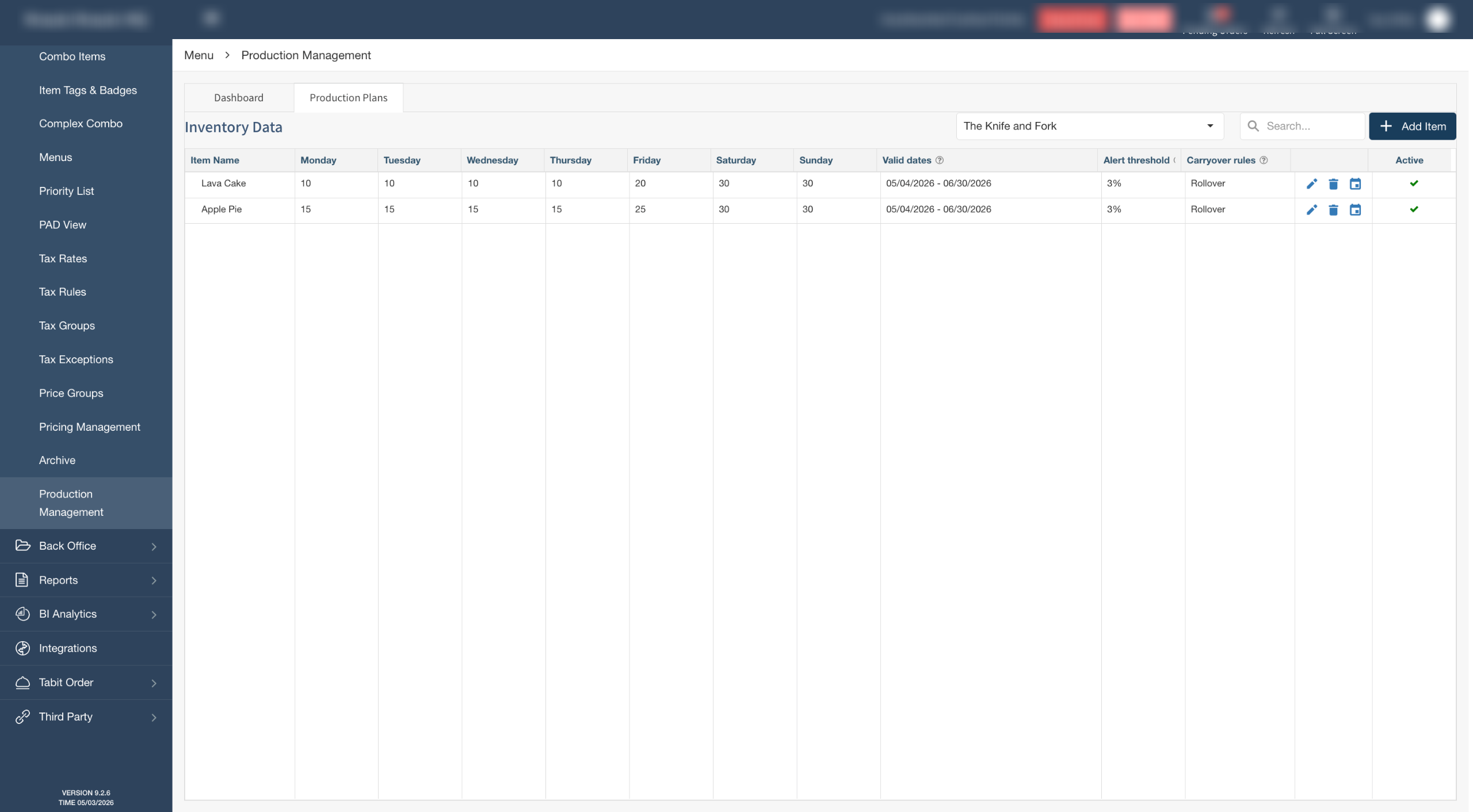
In Tabit Office, open Menu > Production Management > Production Plans, as shown in the screenshots. Some documentation calls the setup area Future Inventory Management.
Add an item and validity dates
-
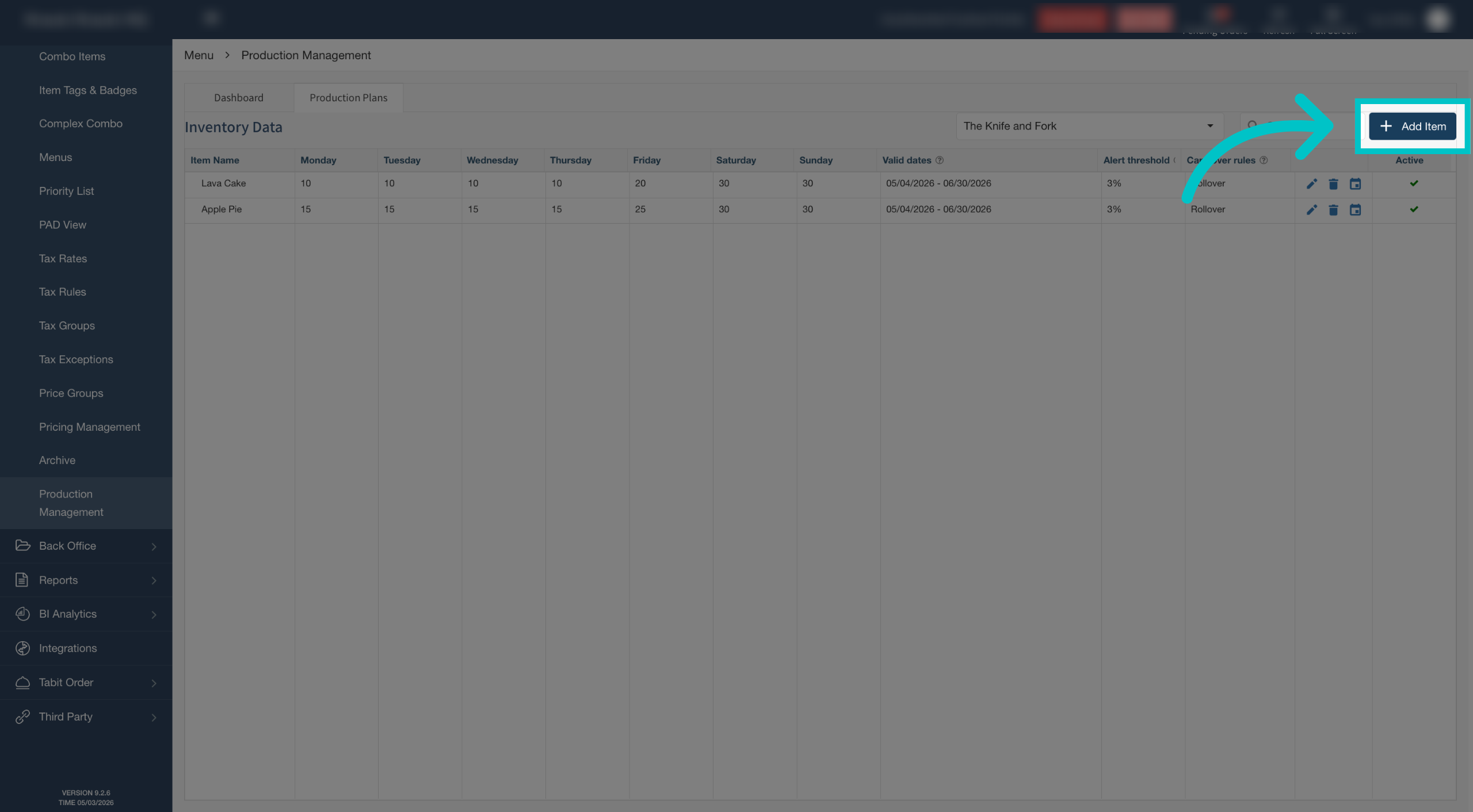
Select Add Item.
-
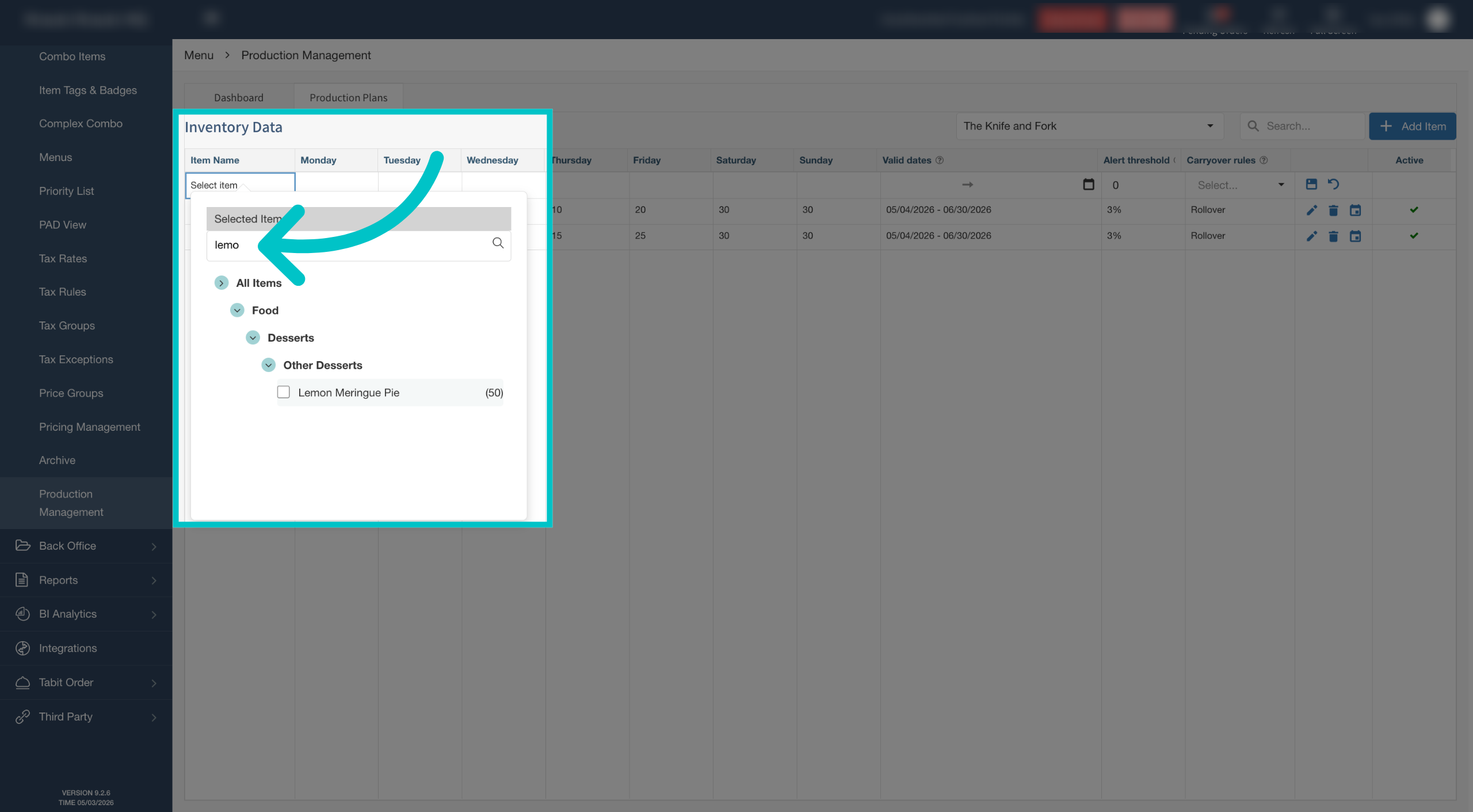
Choose an item from the item tree or search for it.
-
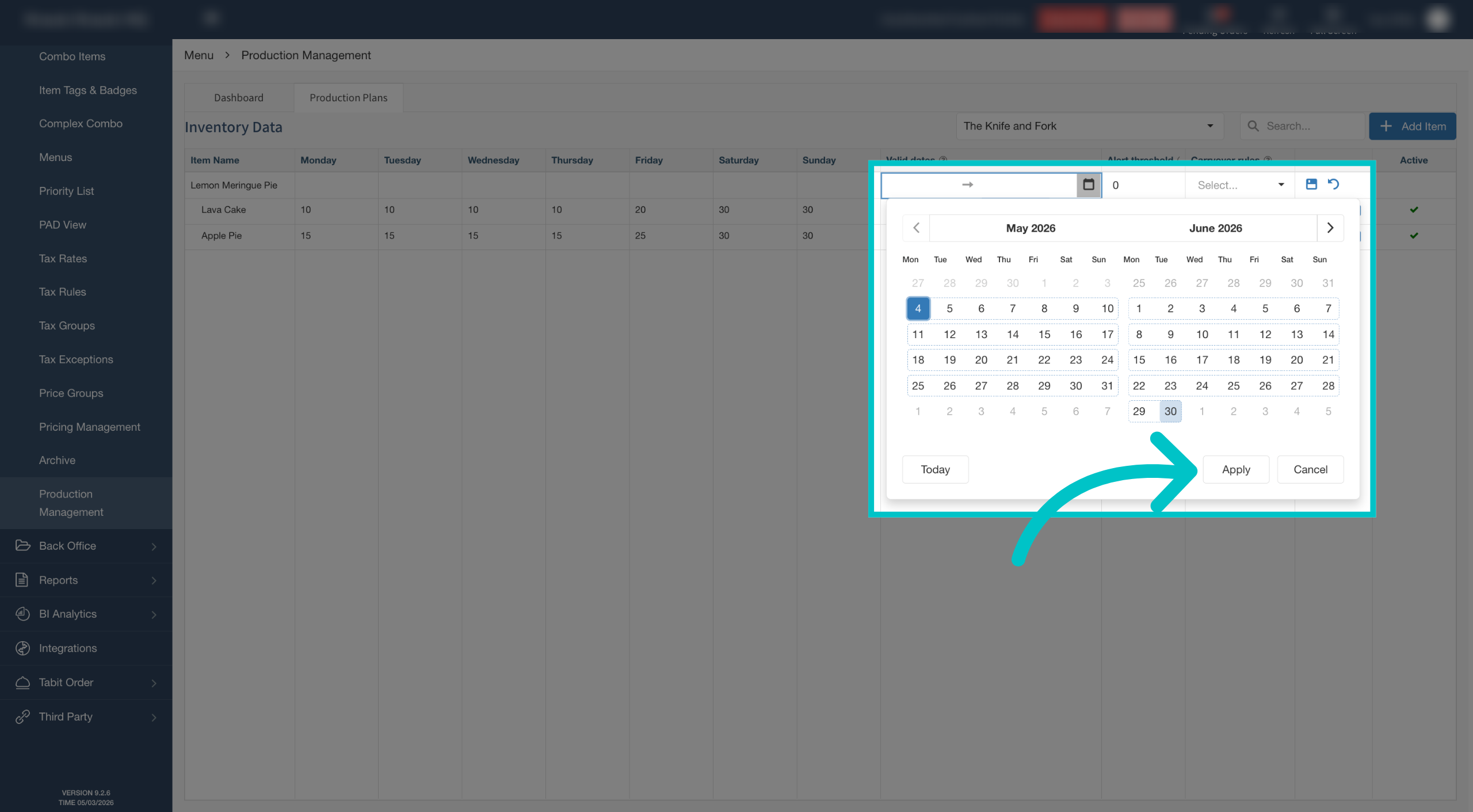
Enter the validity start date and an optional end date, then select Apply. The start date is required.
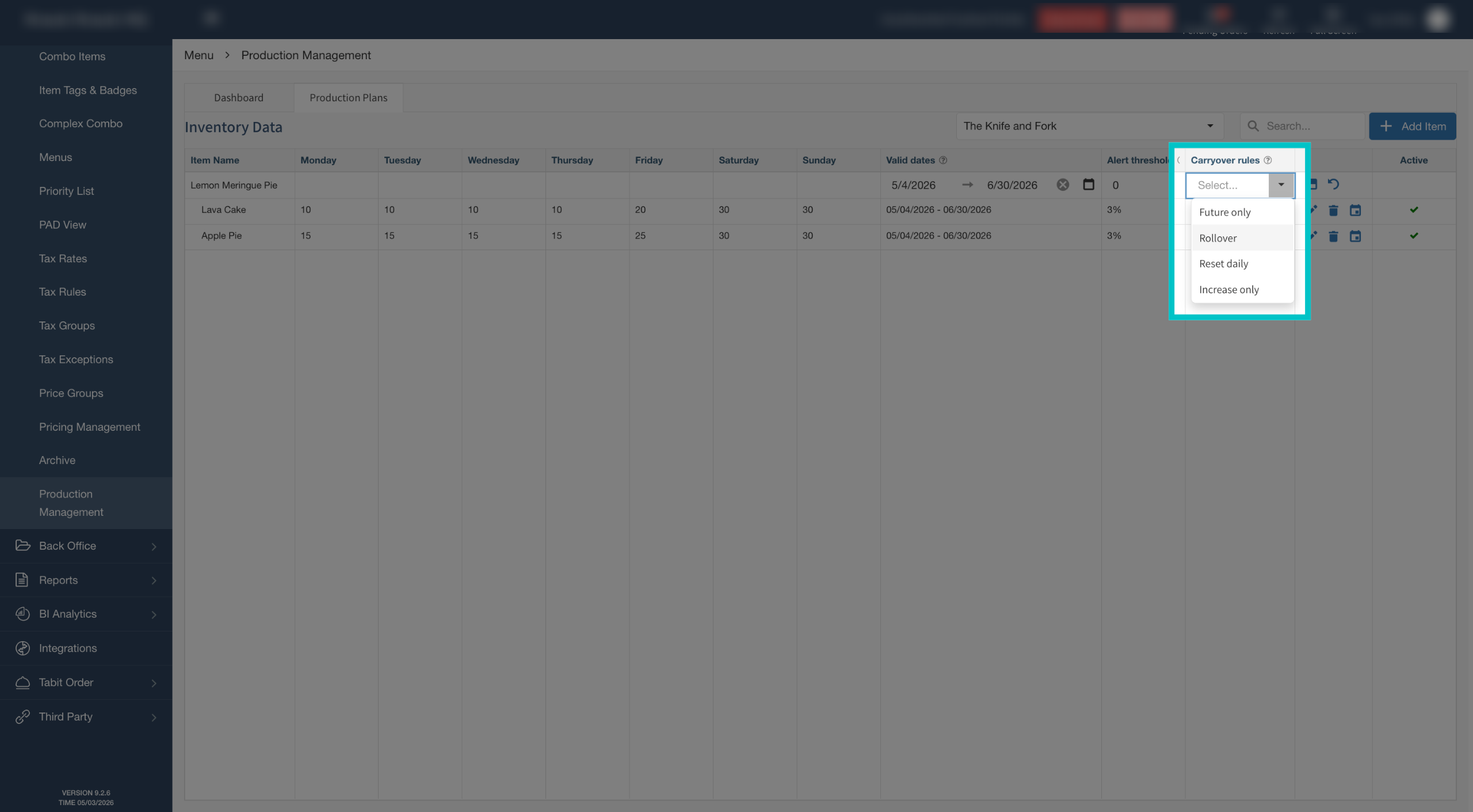
Choose how stock carries over
Select the rule that matches how the restaurant handles leftover stock.
|
Rule |
Effect |
|---|---|
|
Rollover |
Leftover units carry into the following day. |
|
Reset Daily |
Each day starts with its planned quantity; leftovers do not carry forward. |
|
Increase Only |
Leftovers may raise the following day’s stock but cannot reduce it. |
|
Future Only |
Future orders do not reduce today’s current stock for limited items. |
Enter weekday quantities and an alert threshold
-
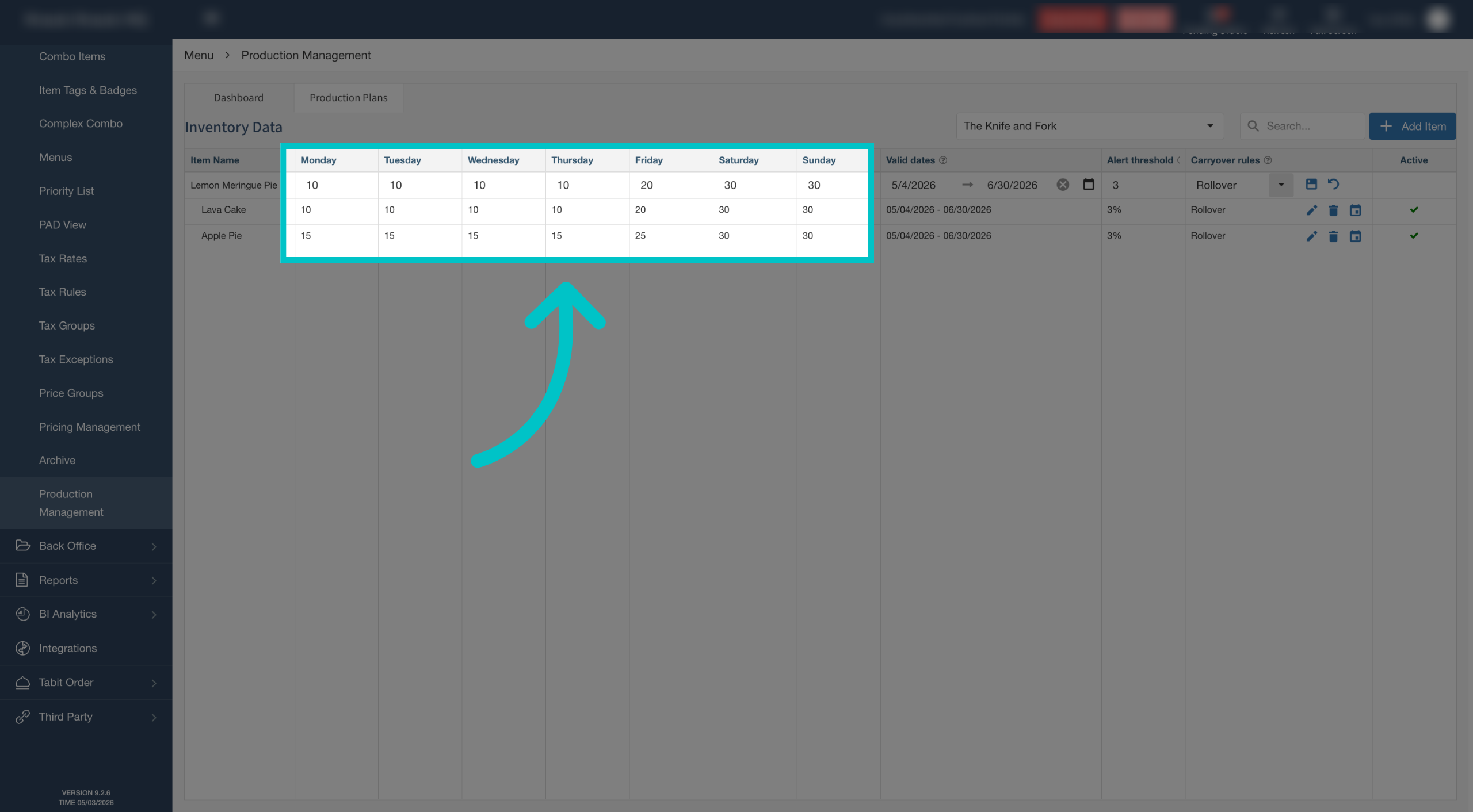
Enter the intended future-order quantity for every weekday; do not leave weekday fields blank.
-
If you need help deciding how a non-selling day should be represented, confirm the value with Flyght Support before saving.
-
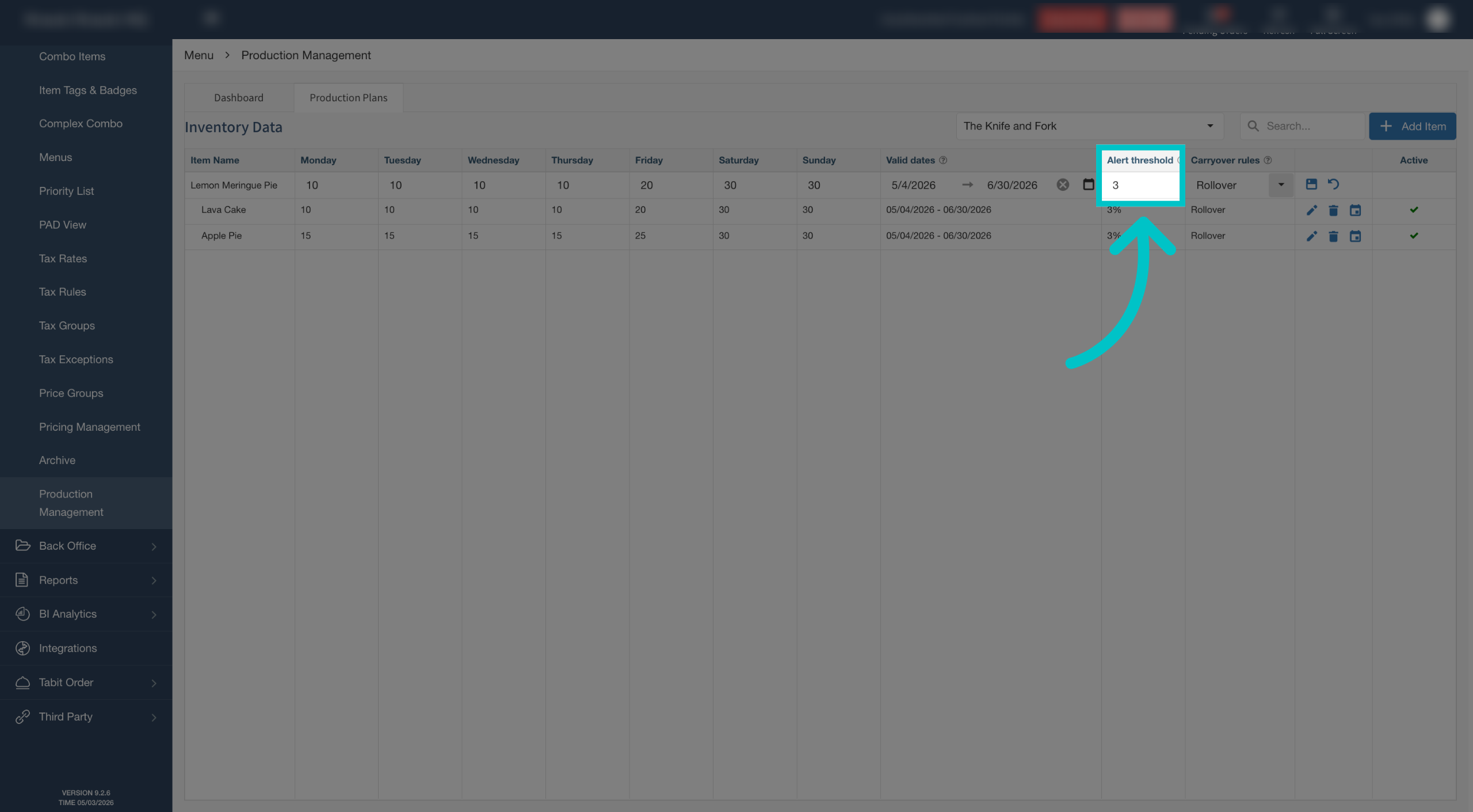
Optionally set the Alert threshold percentage. The dashboard uses this to identify low projected stock.
-
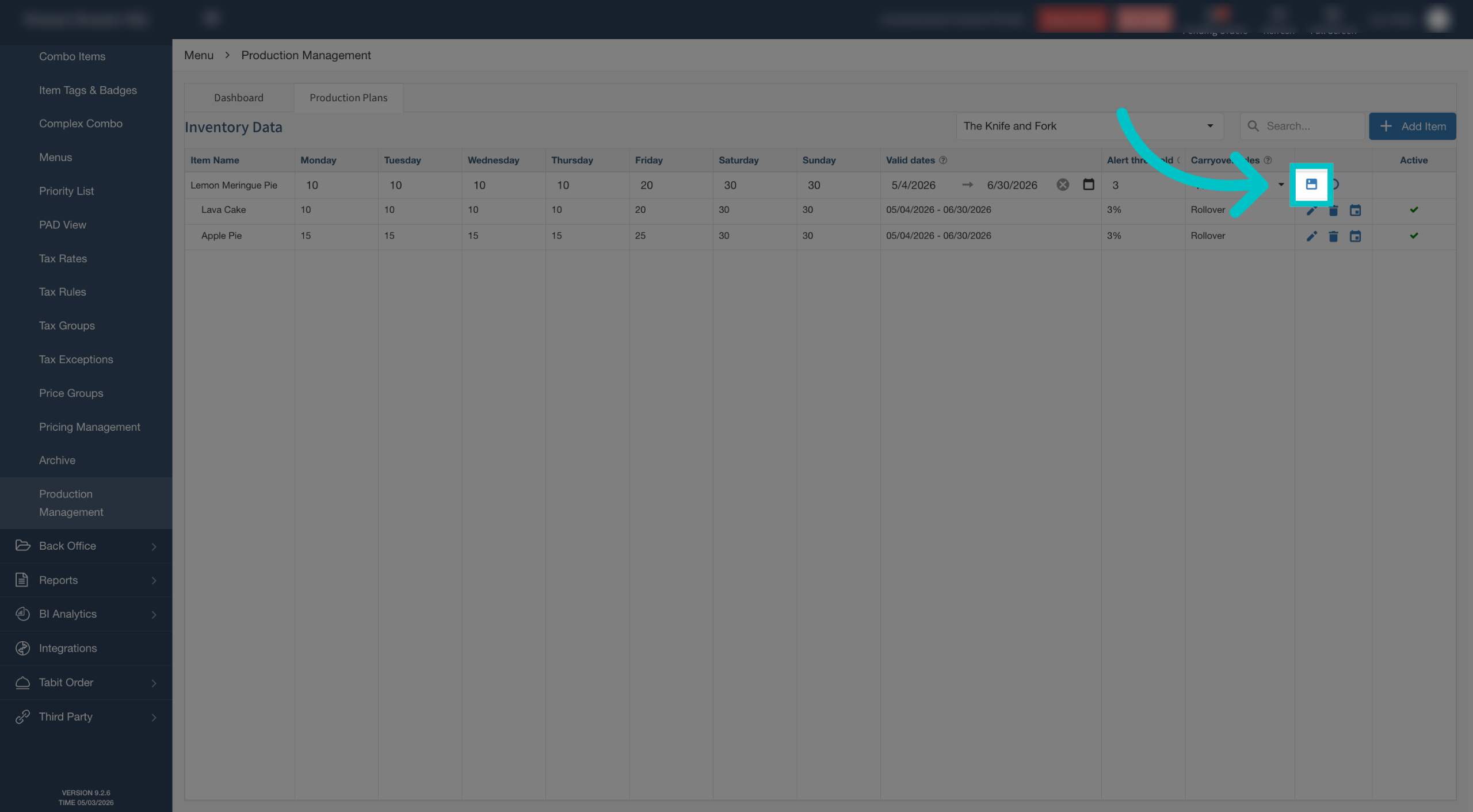
Review the quantities, dates, and carryover rule, then select Save.
Add a special-date override
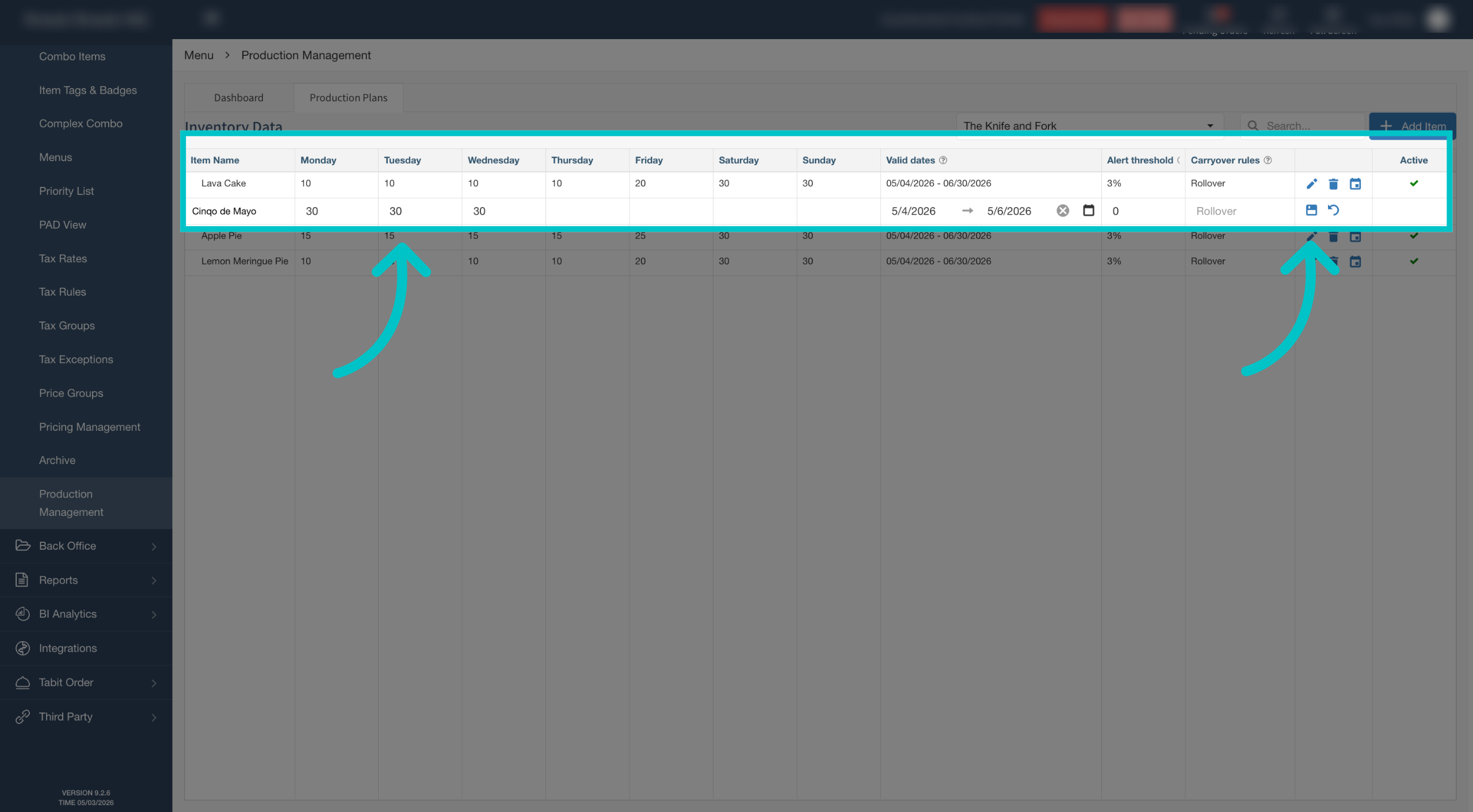
Use an override when a holiday or event needs a different quantity from the weekly plan.
-
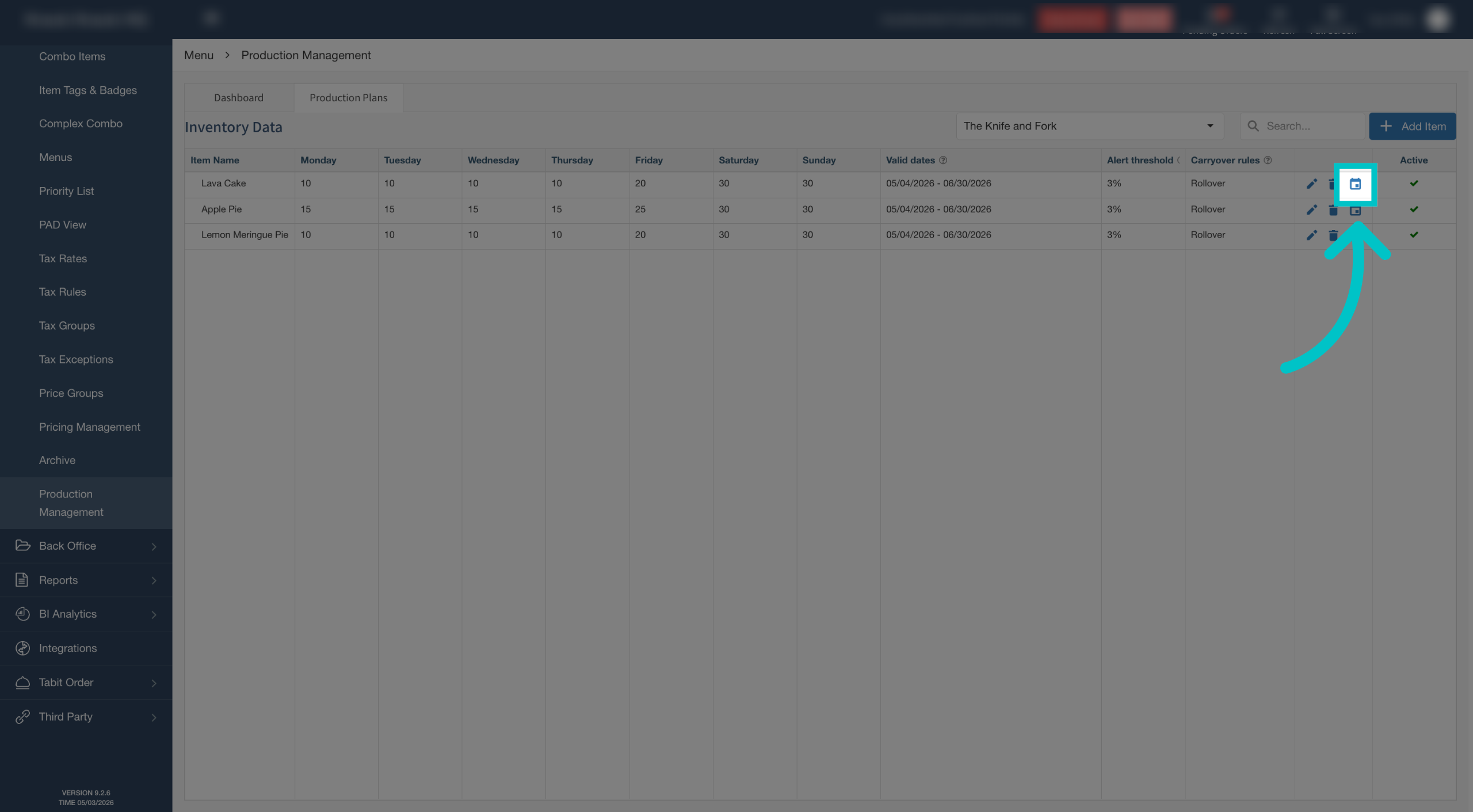
Select the calendar icon beside the item.
-
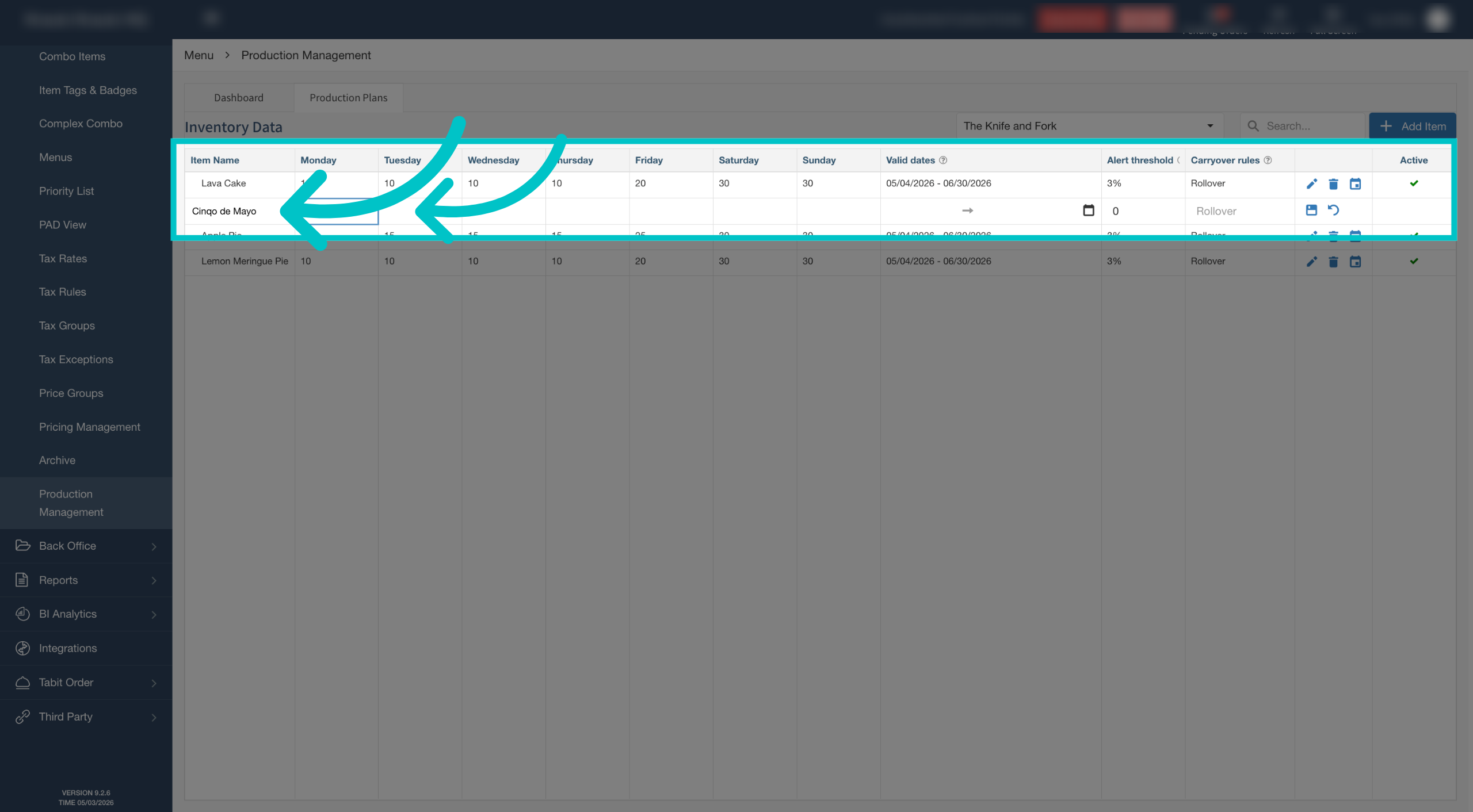
Enter the event or promotion name in the new row.
-
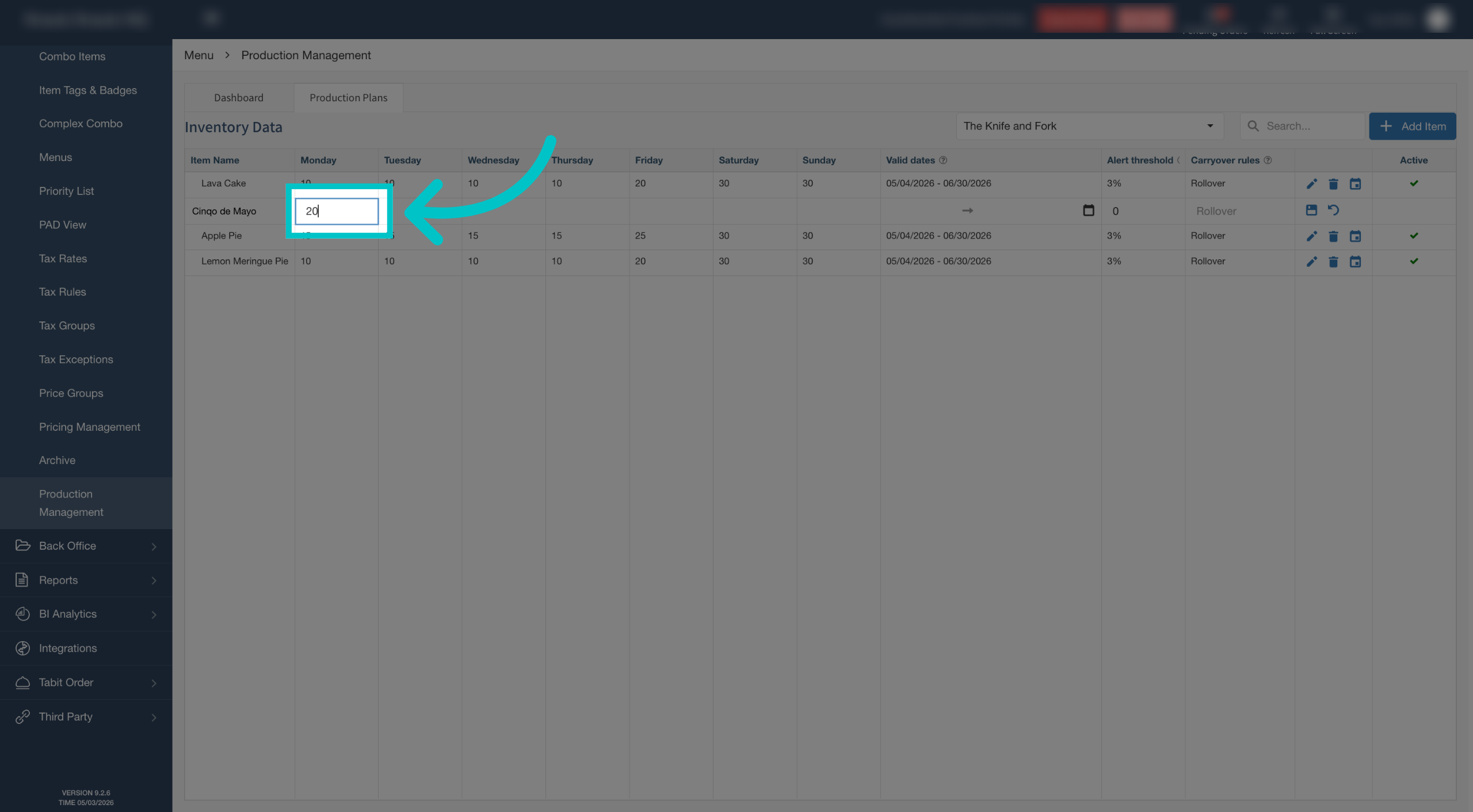
Enter the quantity for that occasion.
-
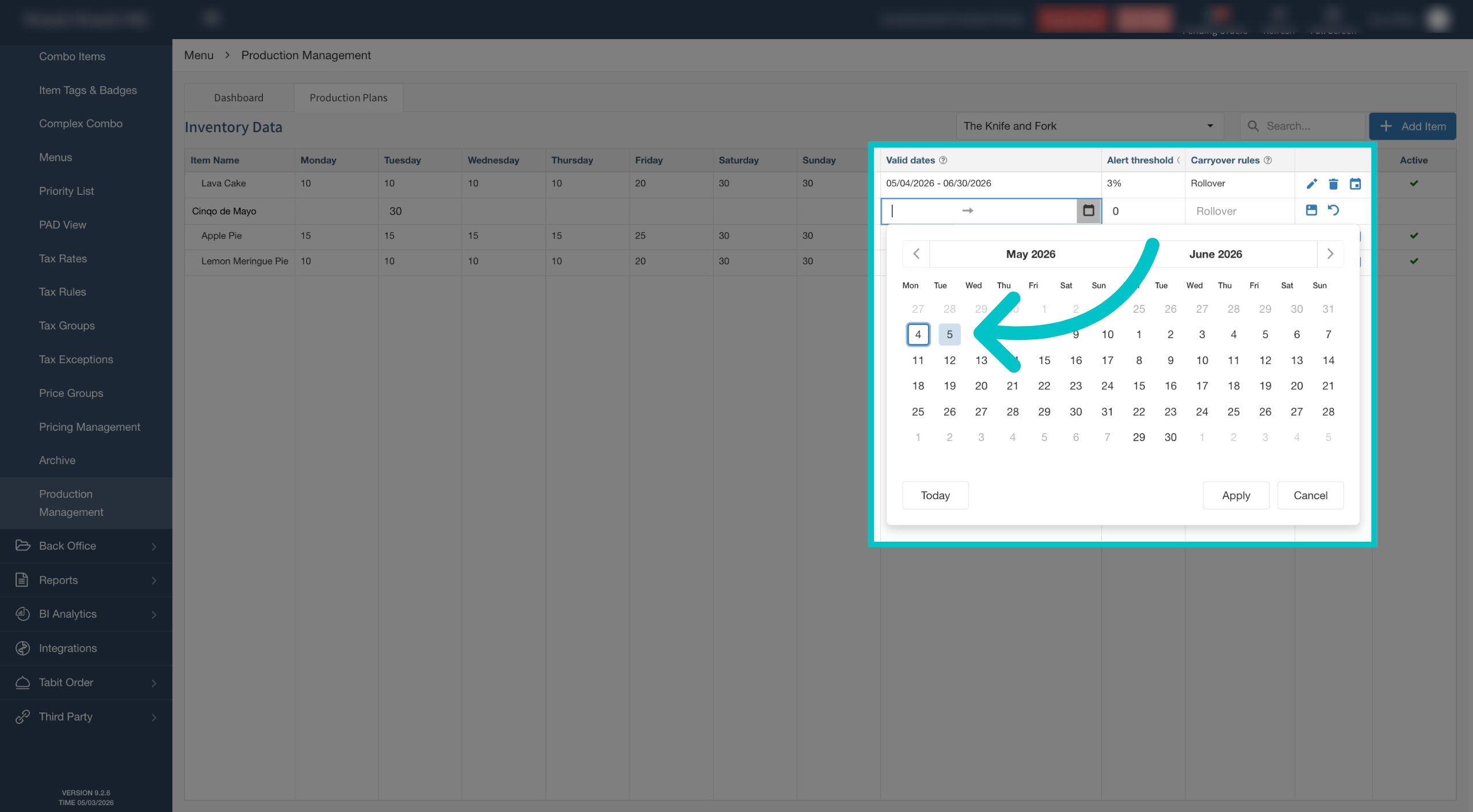
Choose the date or date range. It must fall within the item’s validity period.
-
Select Save.
Special-date rows do not allow a different carryover rule.
Check the plan
Review the saved weekday values and any special-date rows. Then use the Production Management dashboard to check projected availability for the upcoming week.