Overview
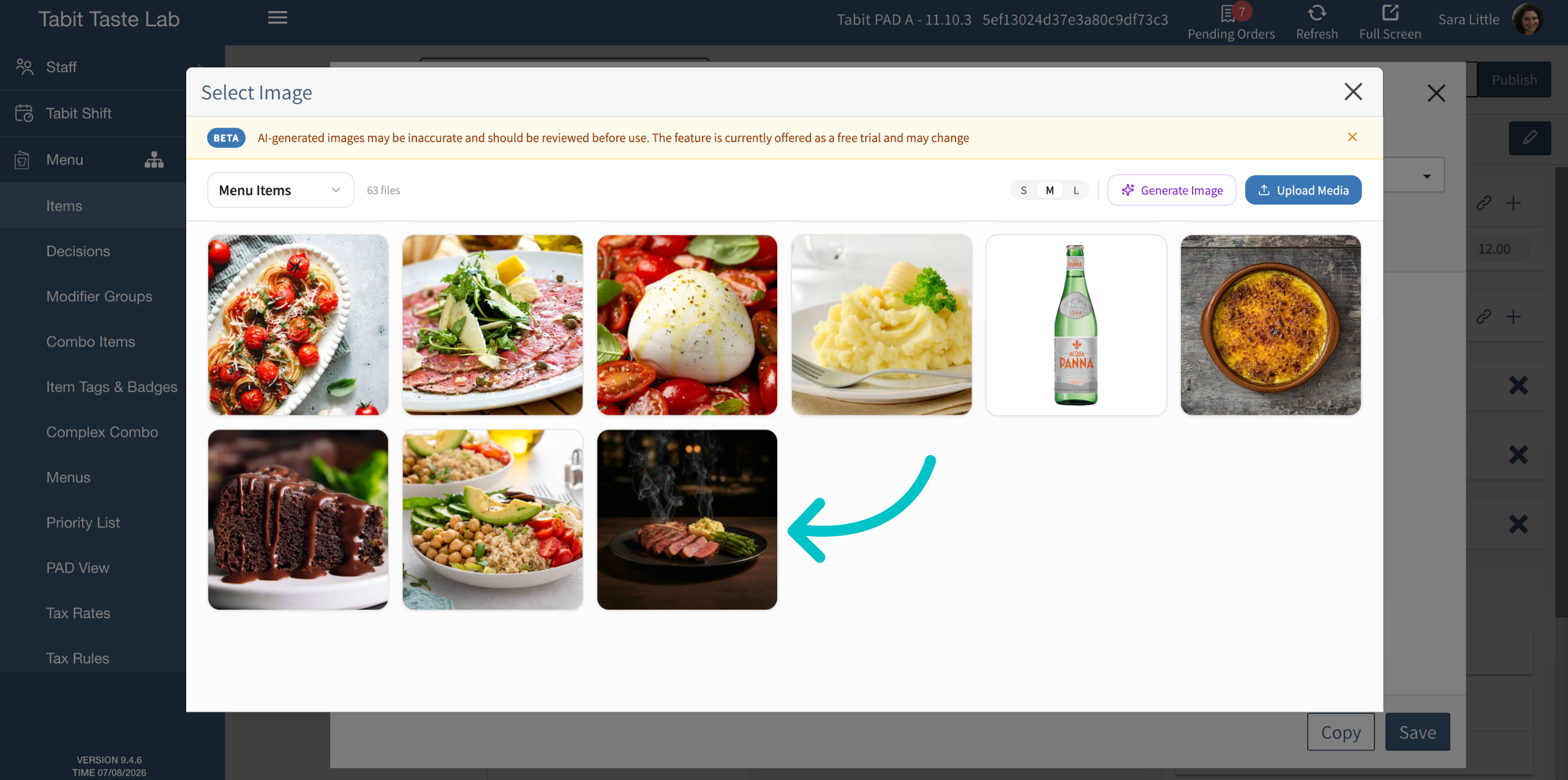
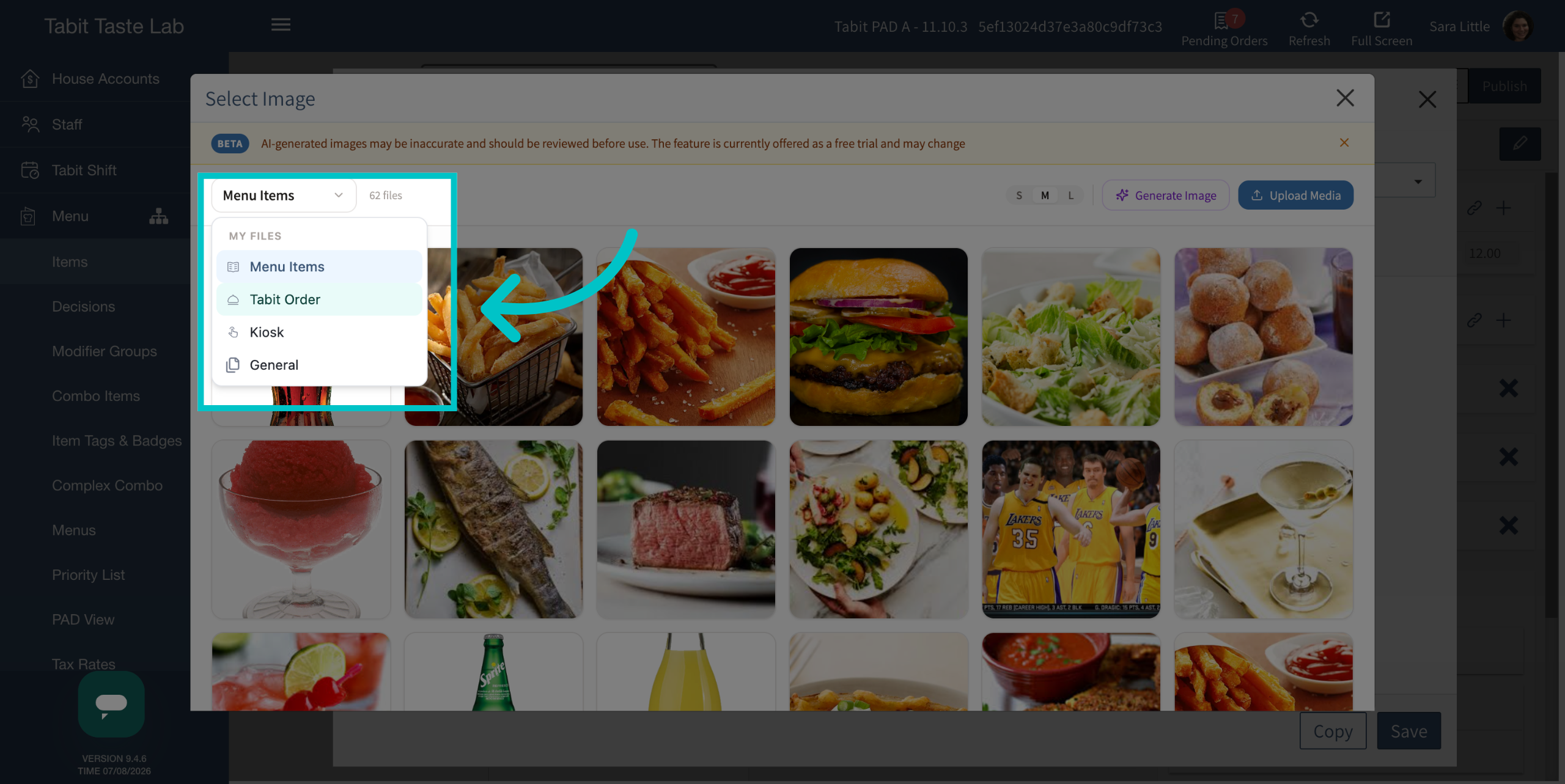
Use the Media Gallery to find and reuse images already uploaded to Tabit Office. Search by item name before uploading a duplicate. The gallery also includes images used in Tabit Order and Kiosk.
Tabit Loyalty uses separate image storage. Images uploaded there do not appear in the Media Gallery, and the gallery is not available from Loyalty.
Open the Media Gallery
-
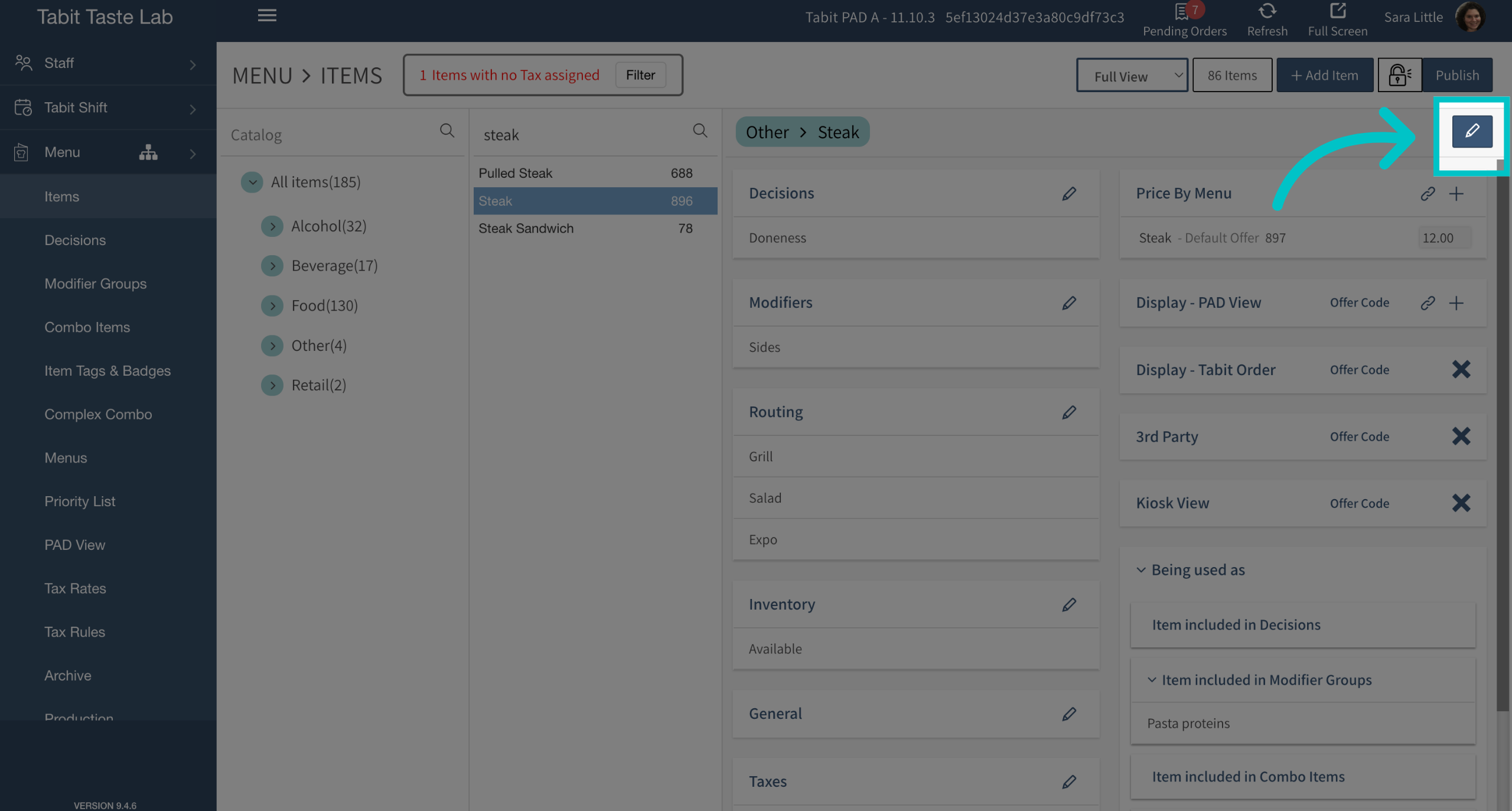
Open an existing item in Tabit Office and select the pencil icon to edit it, or create a new item.
-
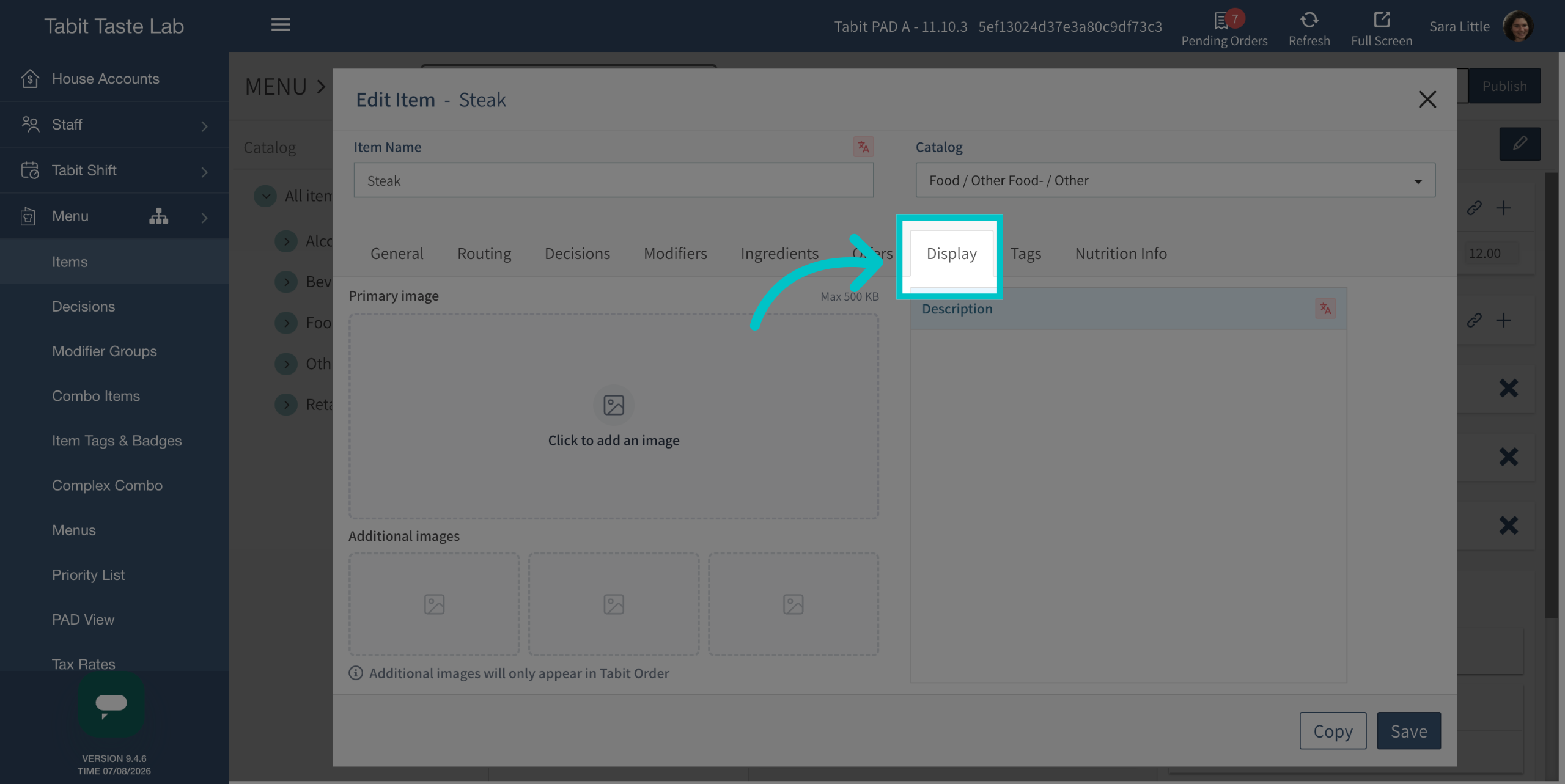
Open the Display tab.
-
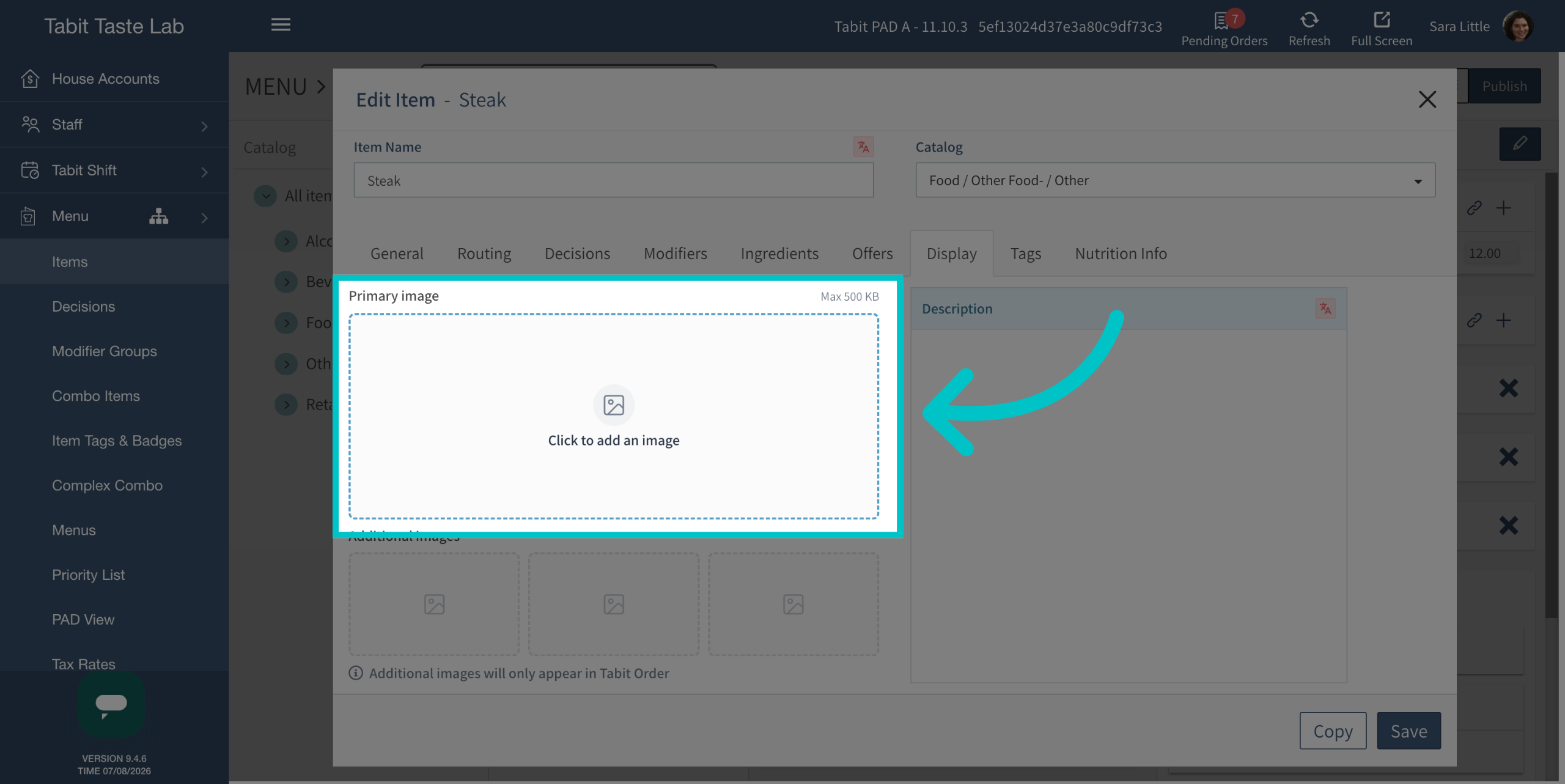
Select the option to add an image. The Media Gallery opens.
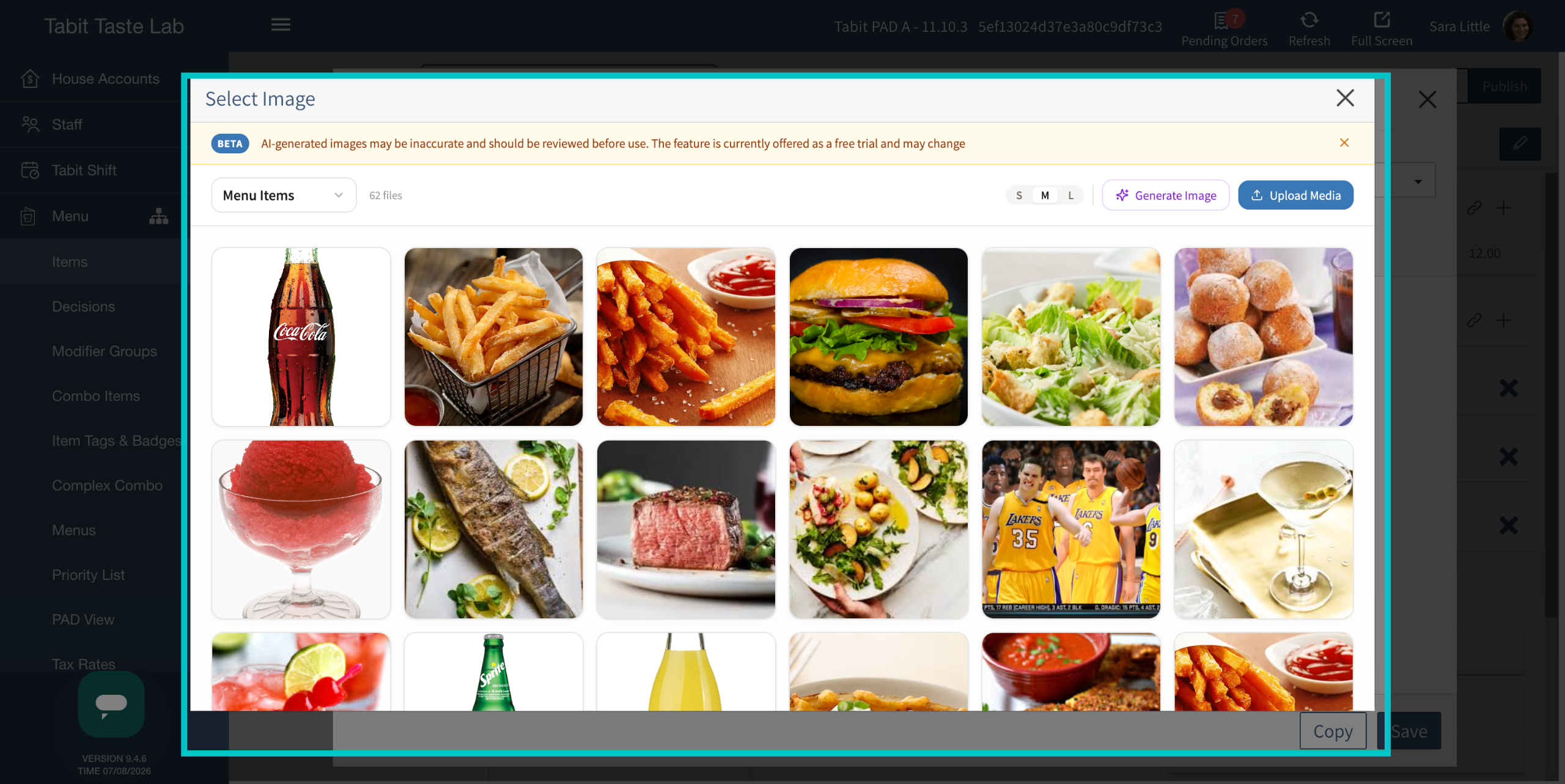
Find and reuse an image
-
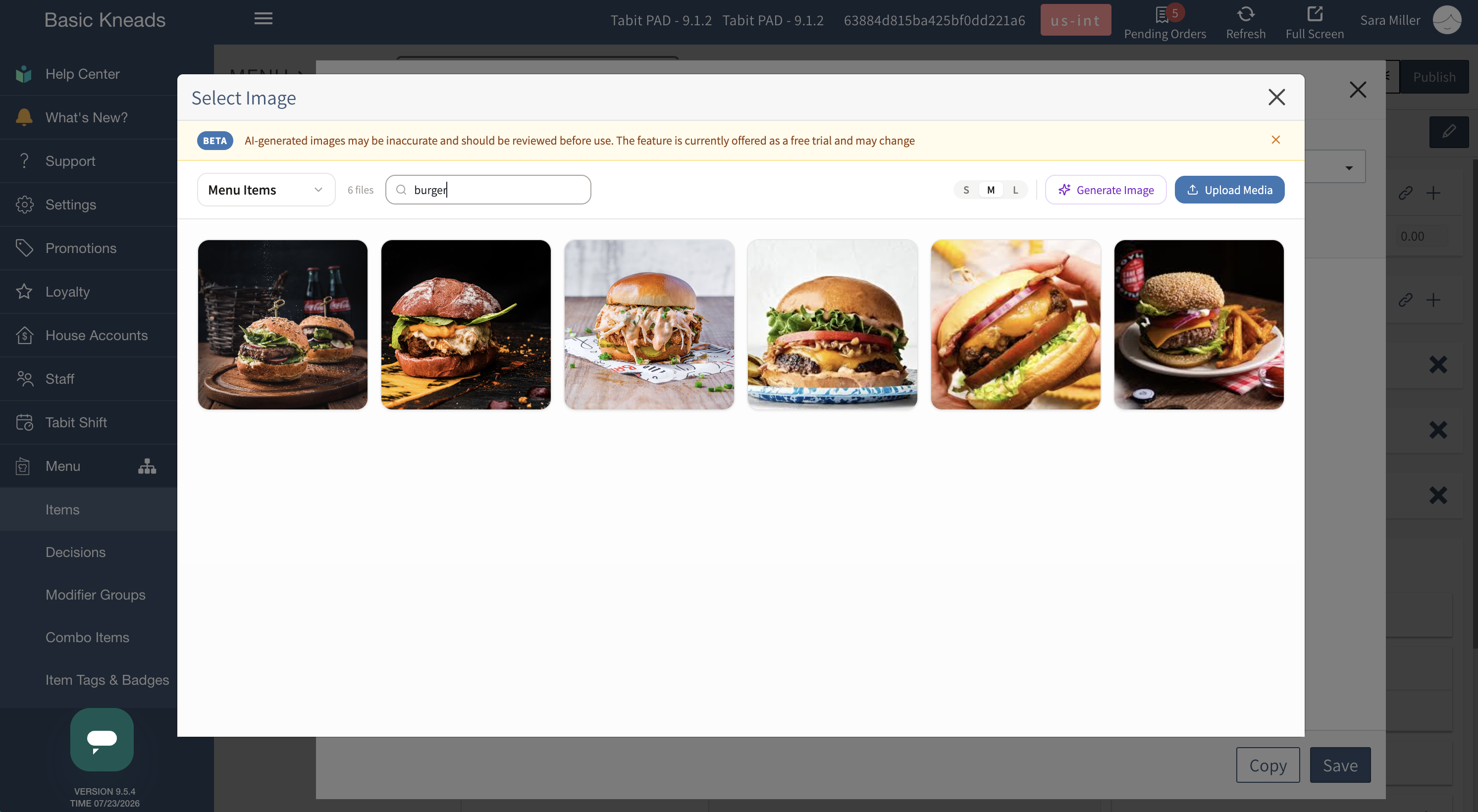
Enter the item name in the gallery search bar.
-
Select the image you want to use from the results.
-
If the editor opens, review the image and select Use Image to apply it to the item.
Upload a new image
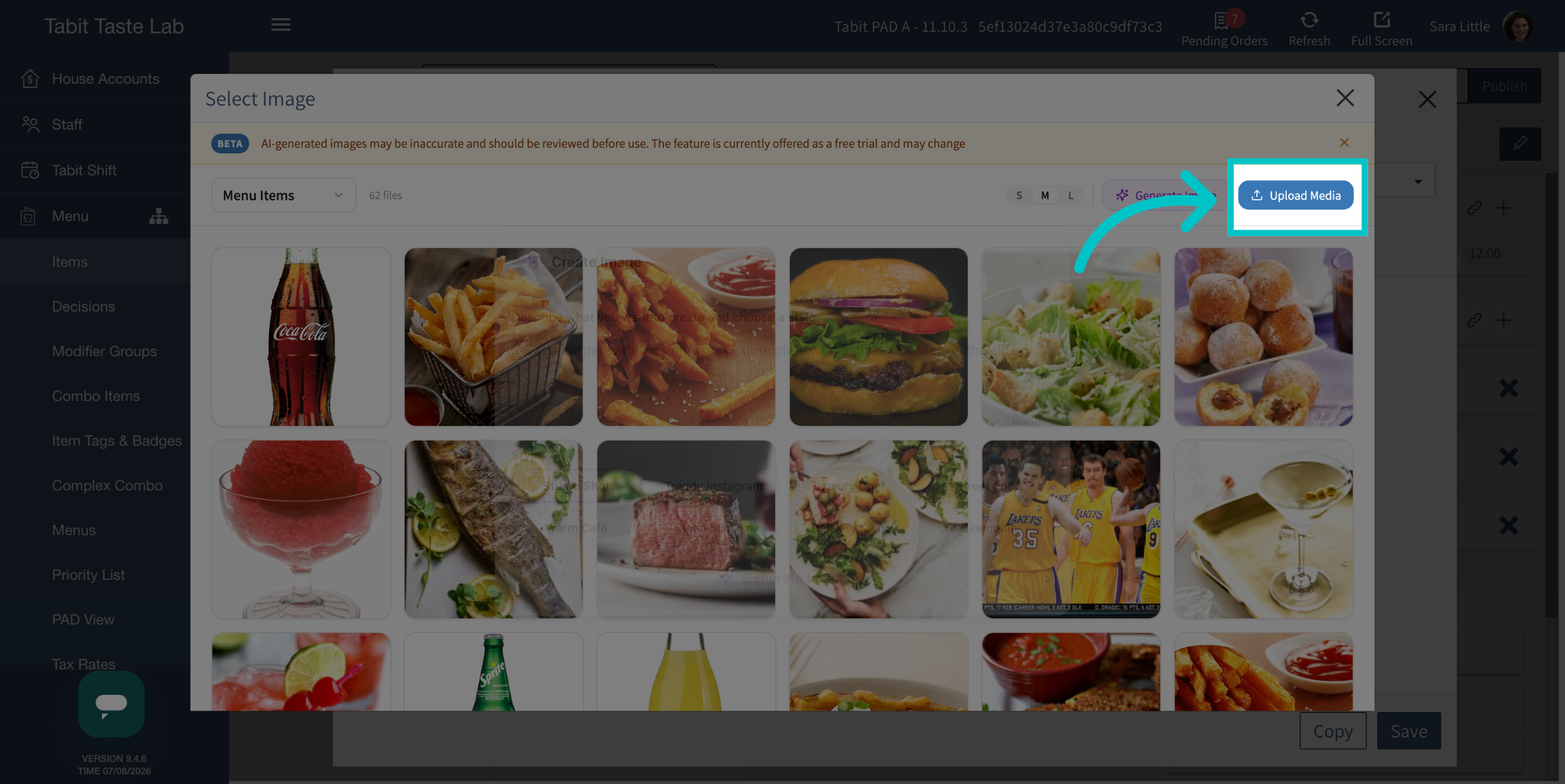
If the image is not already in the gallery, select Upload Media and choose the image to upload. Review it in the editor, then select Use Image.
Finish and verify
Confirm that the selected image appears on the item, then save the item changes. The image is available in the Media Gallery for reuse elsewhere.