Skip table of contents

Adding a Custom Menu Icon to the Customer Profile

Overview

Custom menu icons can be added to the Customer Profile to create a more cohesive and recognizable brand experience. By replacing the default side menu icon with your own branded image, you can align the Customer Profile with your restaurant’s visual identity and maintain consistency across all guest touchpoints. This small but impactful customization helps reinforce brand recognition and gives your digital experience a more polished, professional look.

https://app.guidde.com/share/playbooks/gZPjyKBwvGLVE6sSS8iZ7J

Follow the steps below to learn how to add a custom menu icon to the Customer Profile:

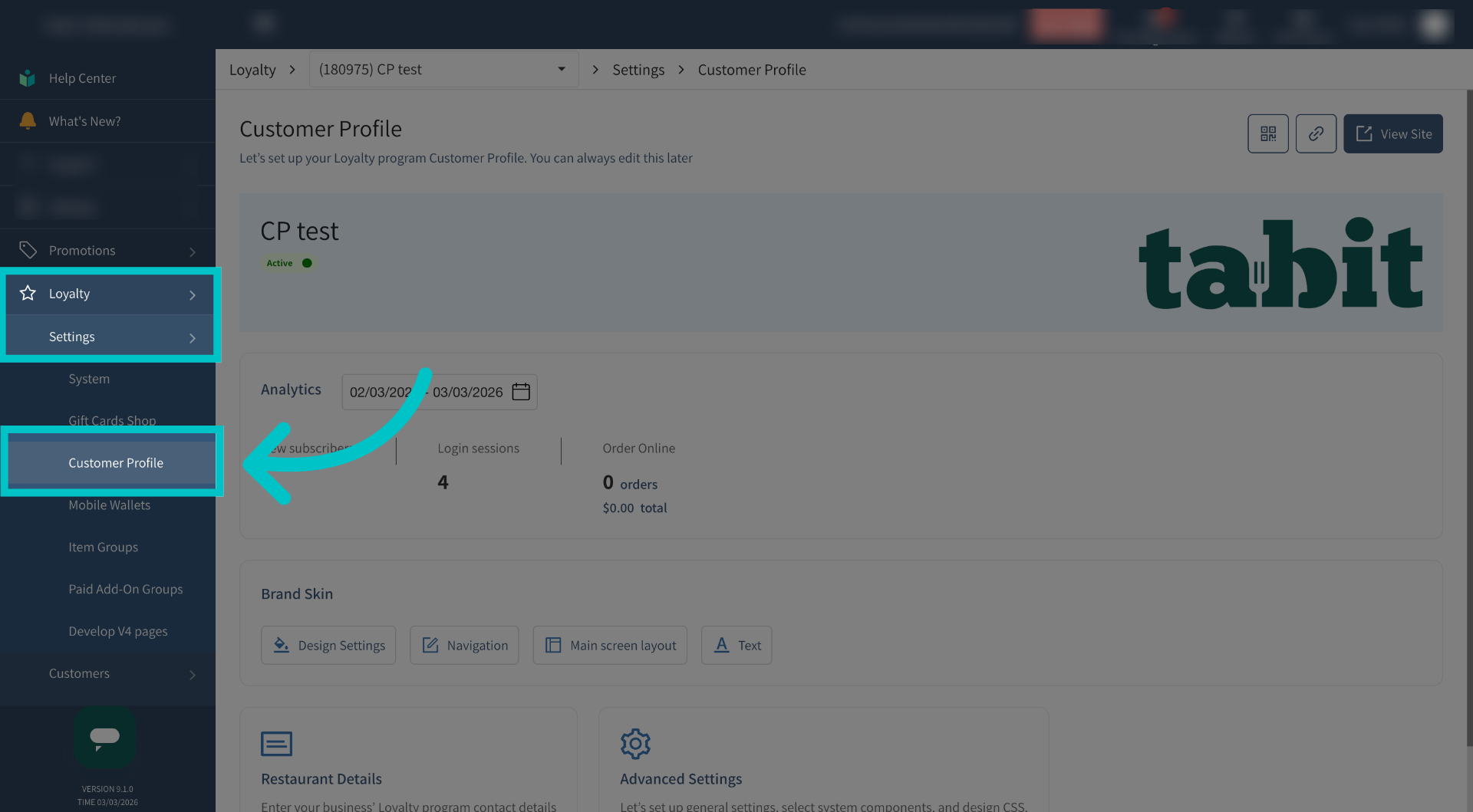
  1. In Tabit Office, go to Loyalty > Settings > Customer Profile

    image-20260307-050131.png
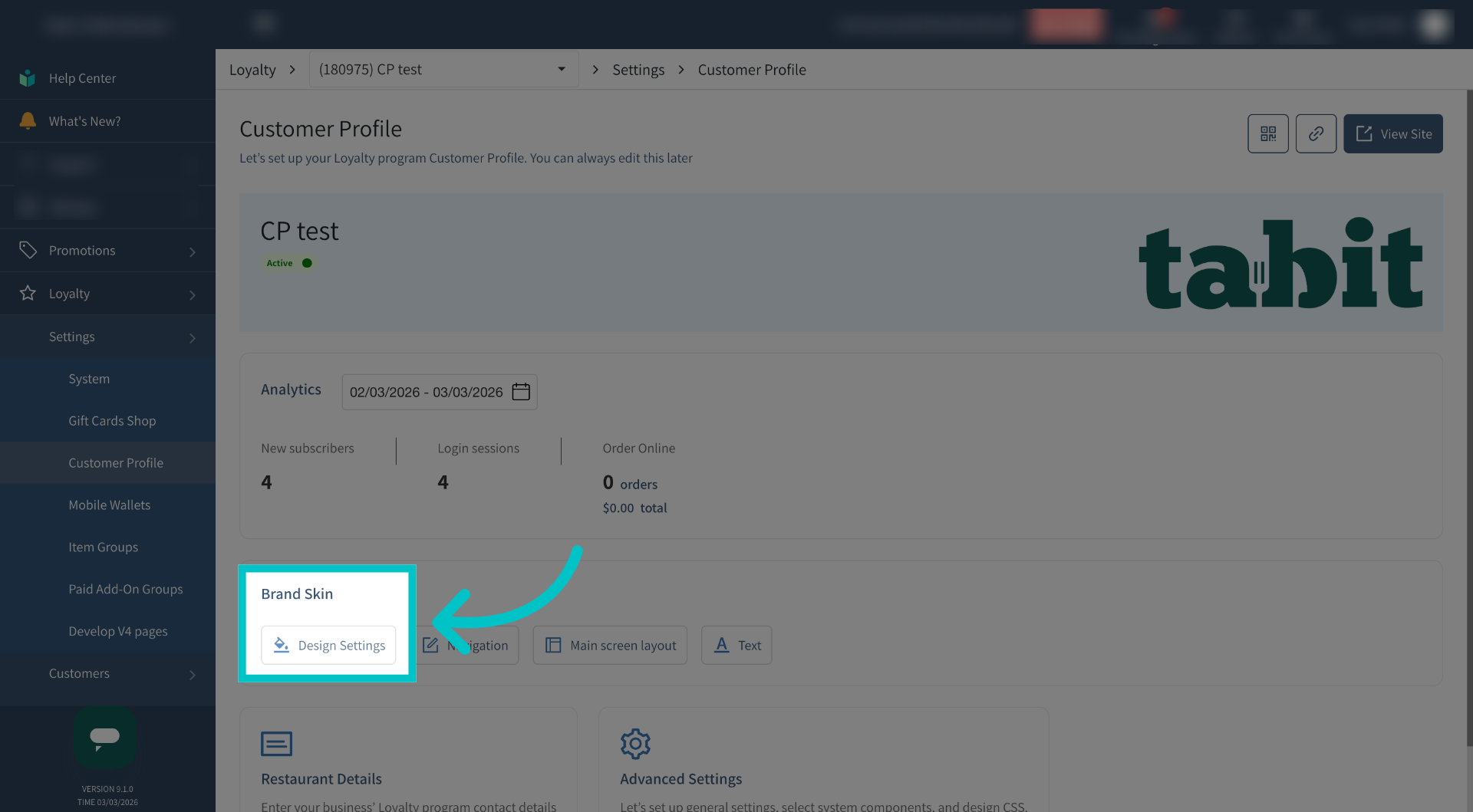
  2. Select Design Settings under Brand Skin

    image-20260307-050147.png
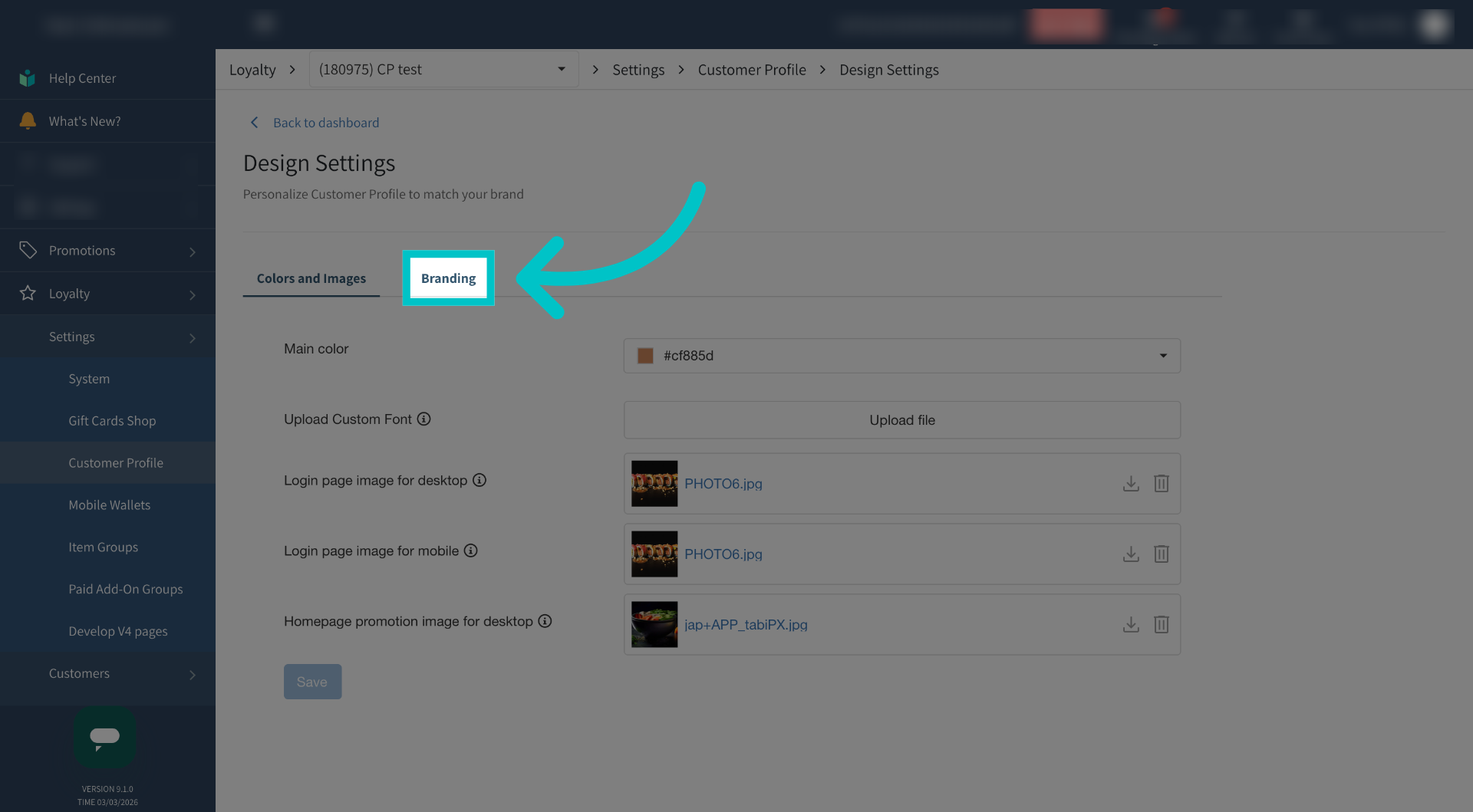
  3. Select the Branding tab

    image-20260307-050206.png
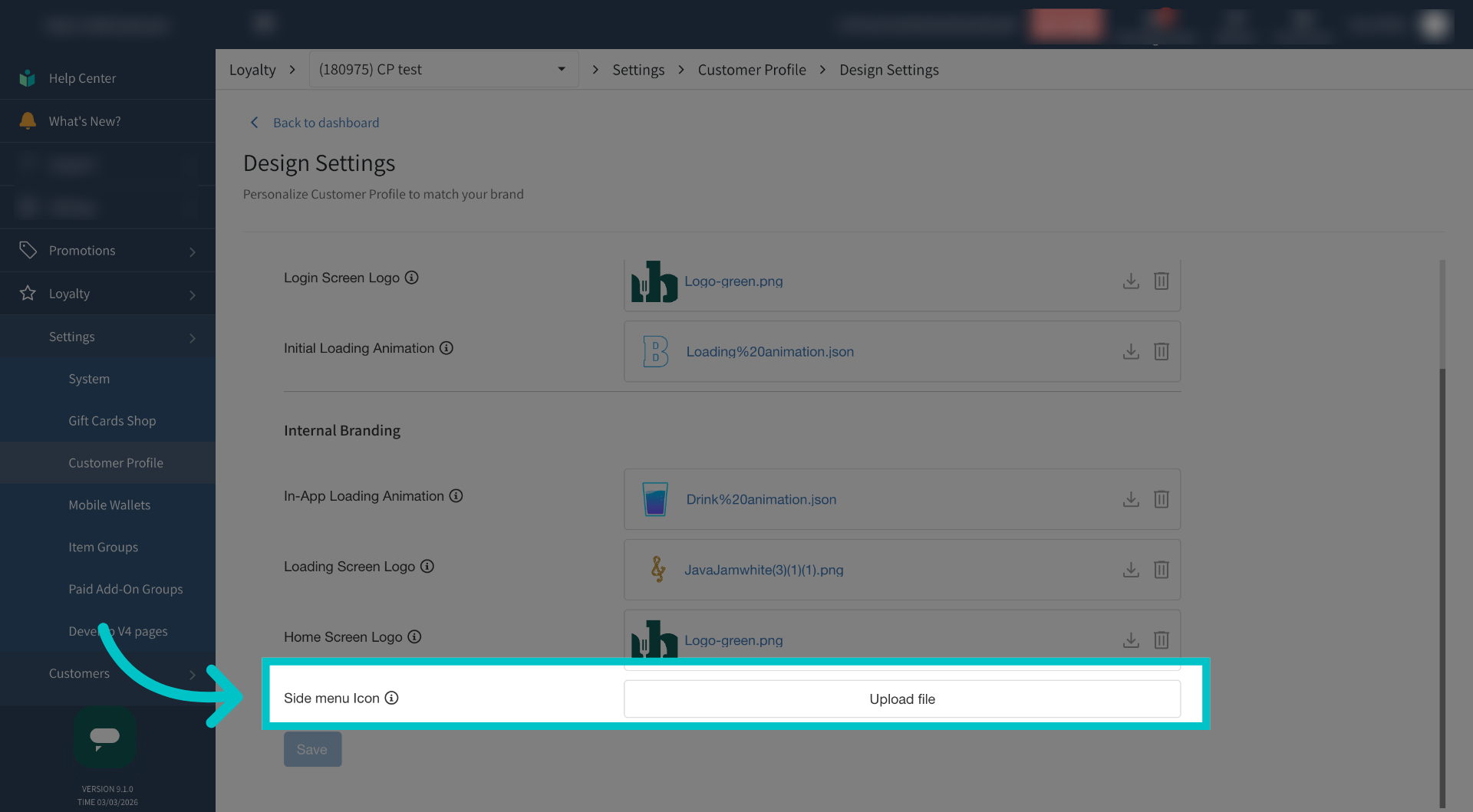
  4. Select Upload File next to Side Menu Icon and upload the image you would like to appear as the menu icon

    image-20260307-050924.png

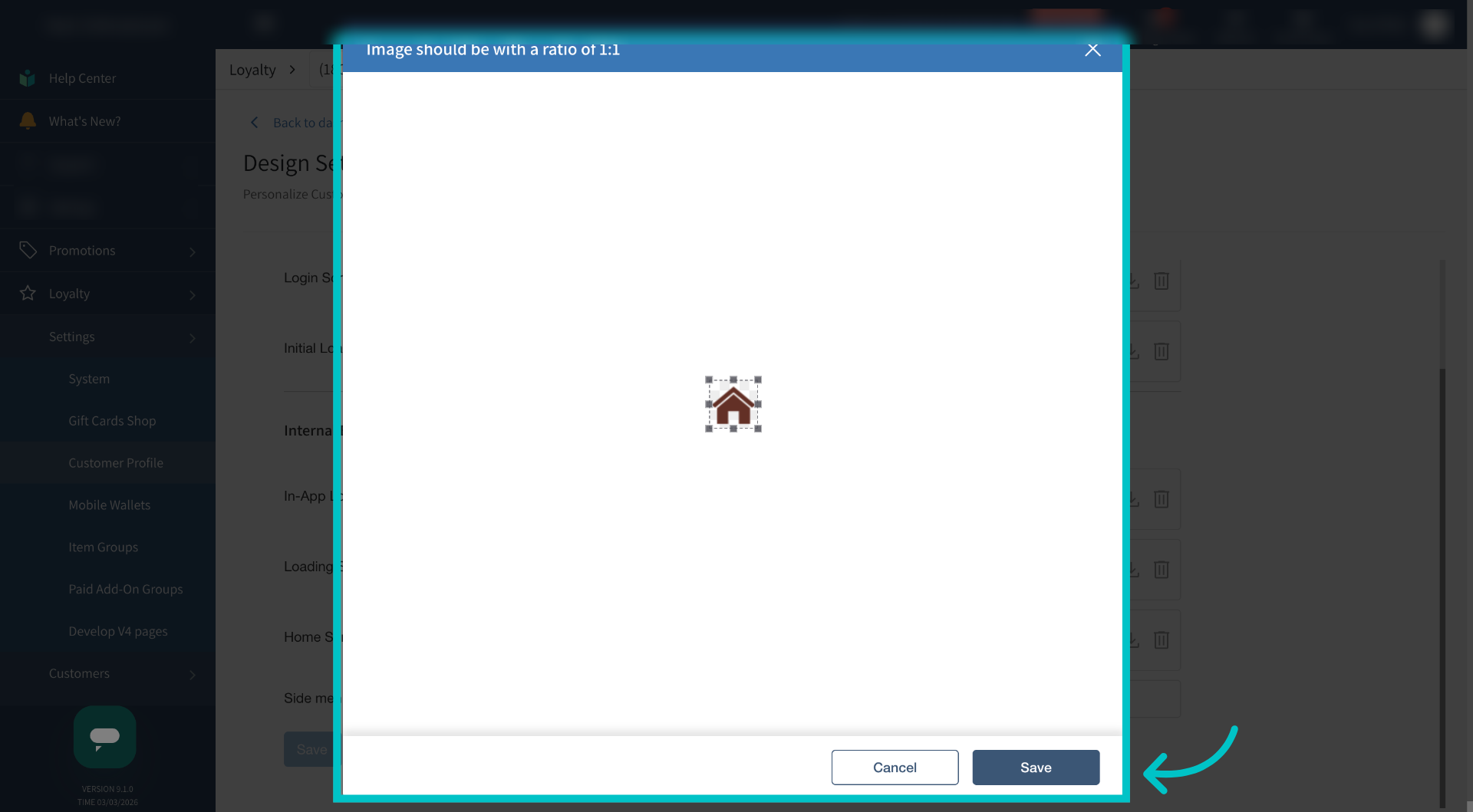
The file must be a .png or .jpg, no more than 0.5MB, with an image ration of 1:1

  1. Resize the image if needed and then select Save

    image-20260307-050942.png
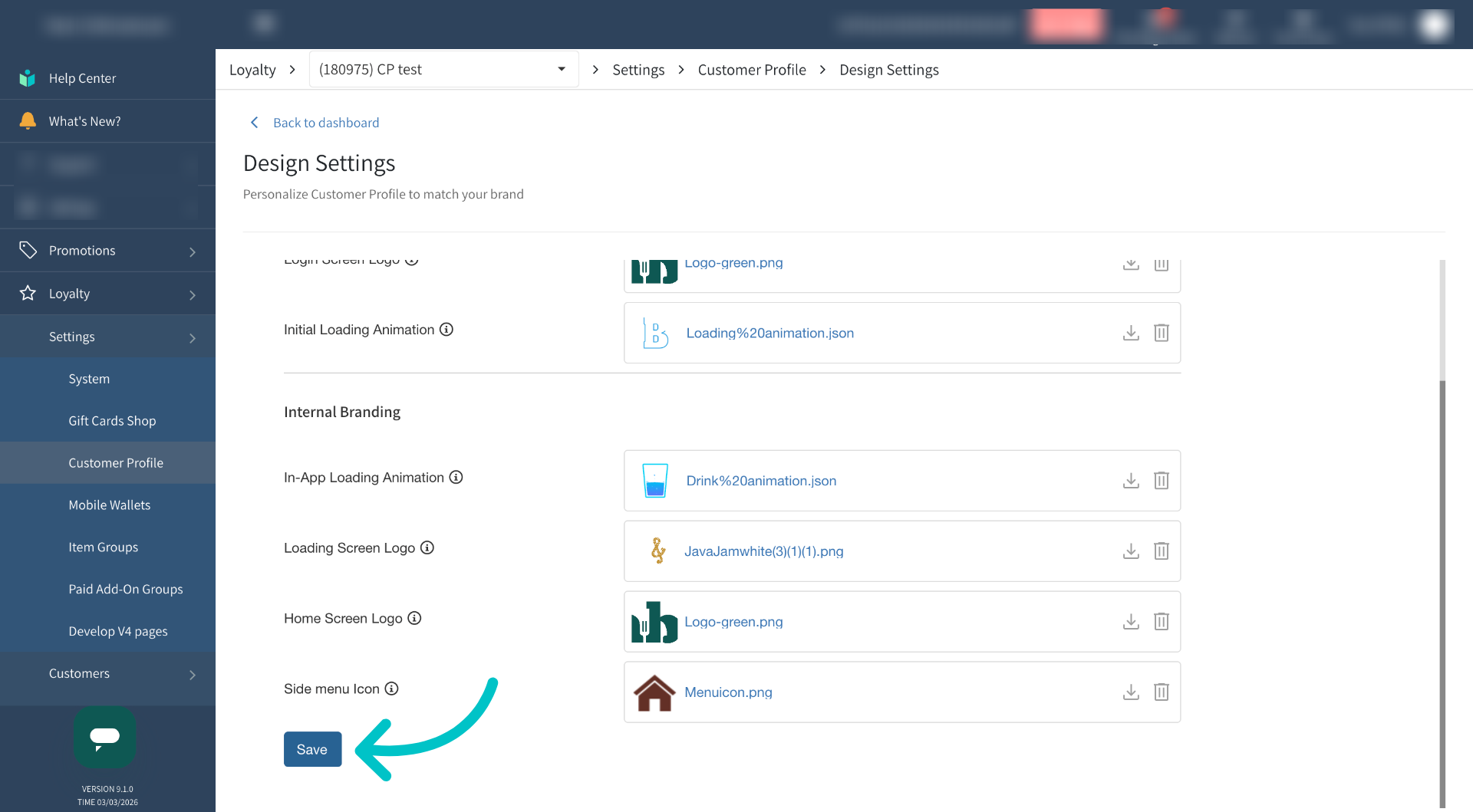
  2. Select Save again

    image-20260307-051018.png
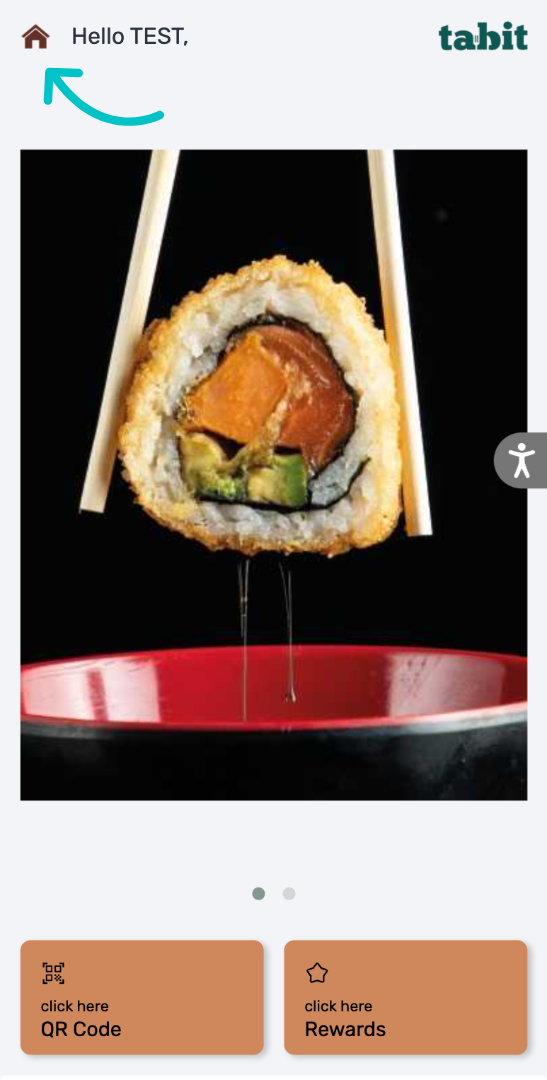
  3. Now the menu icon in the Customer Profile has been replaced with the uploaded image

    image-20260307-051052.png

JavaScript errors detected

Please note, these errors can depend on your browser setup.

If this problem persists, please contact our support.