Overview
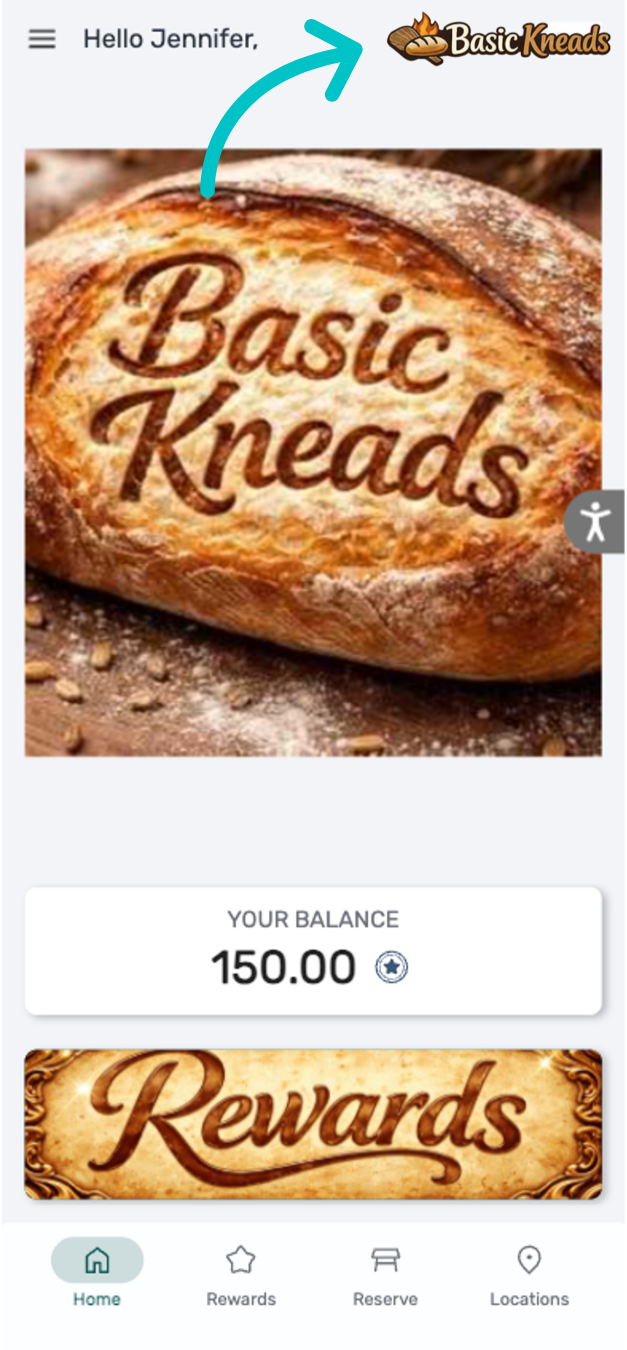
The Customer Profile includes several branding options, such as logos and branded buttons, helping reinforce your restaurant’s identity and maintain a consistent look across the Loyalty platform.
Follow the steps below to upload and display your logo in the Customer Profile:
-
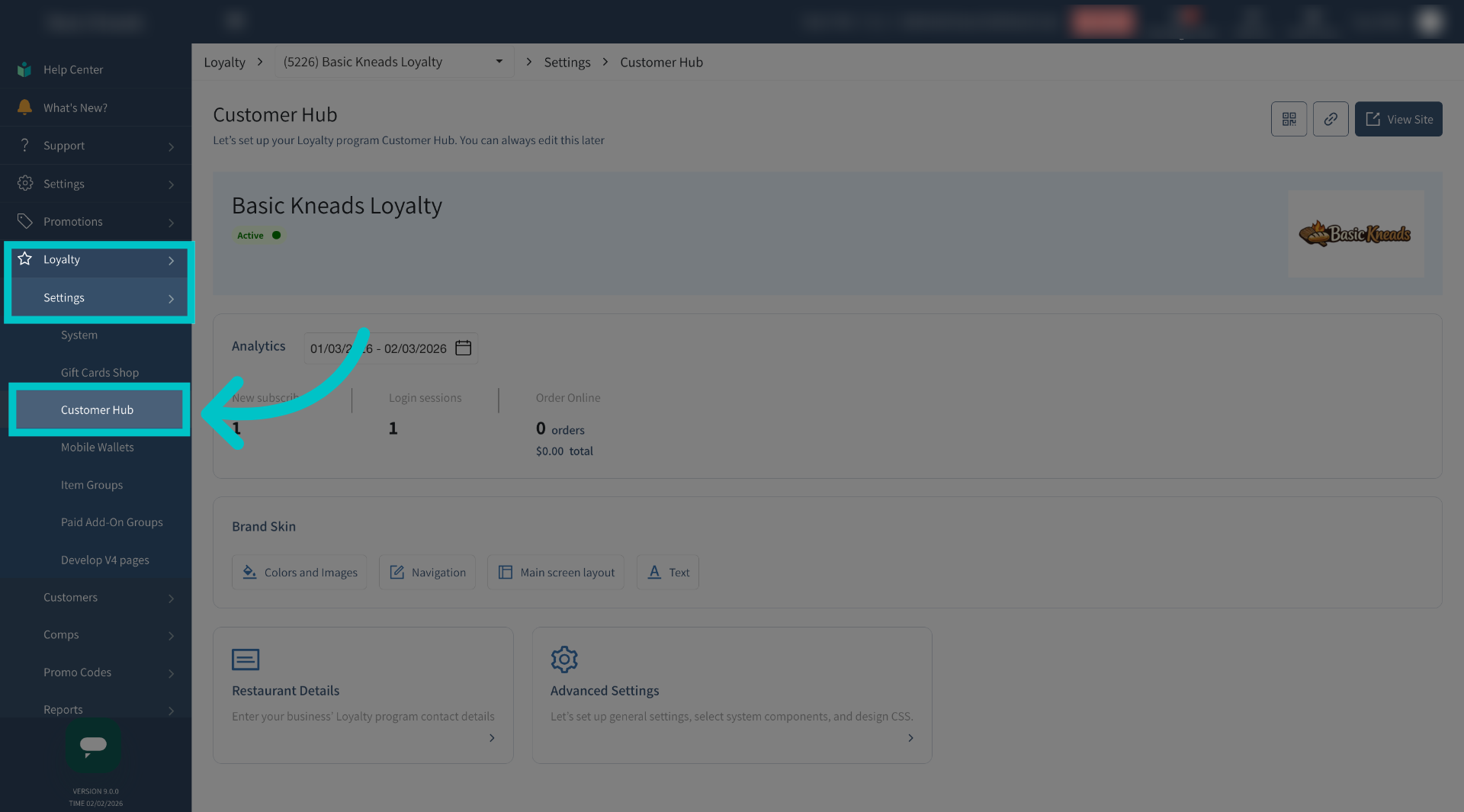
In Tabit Office, go to Loyalty > Settings > Customer Hub
-
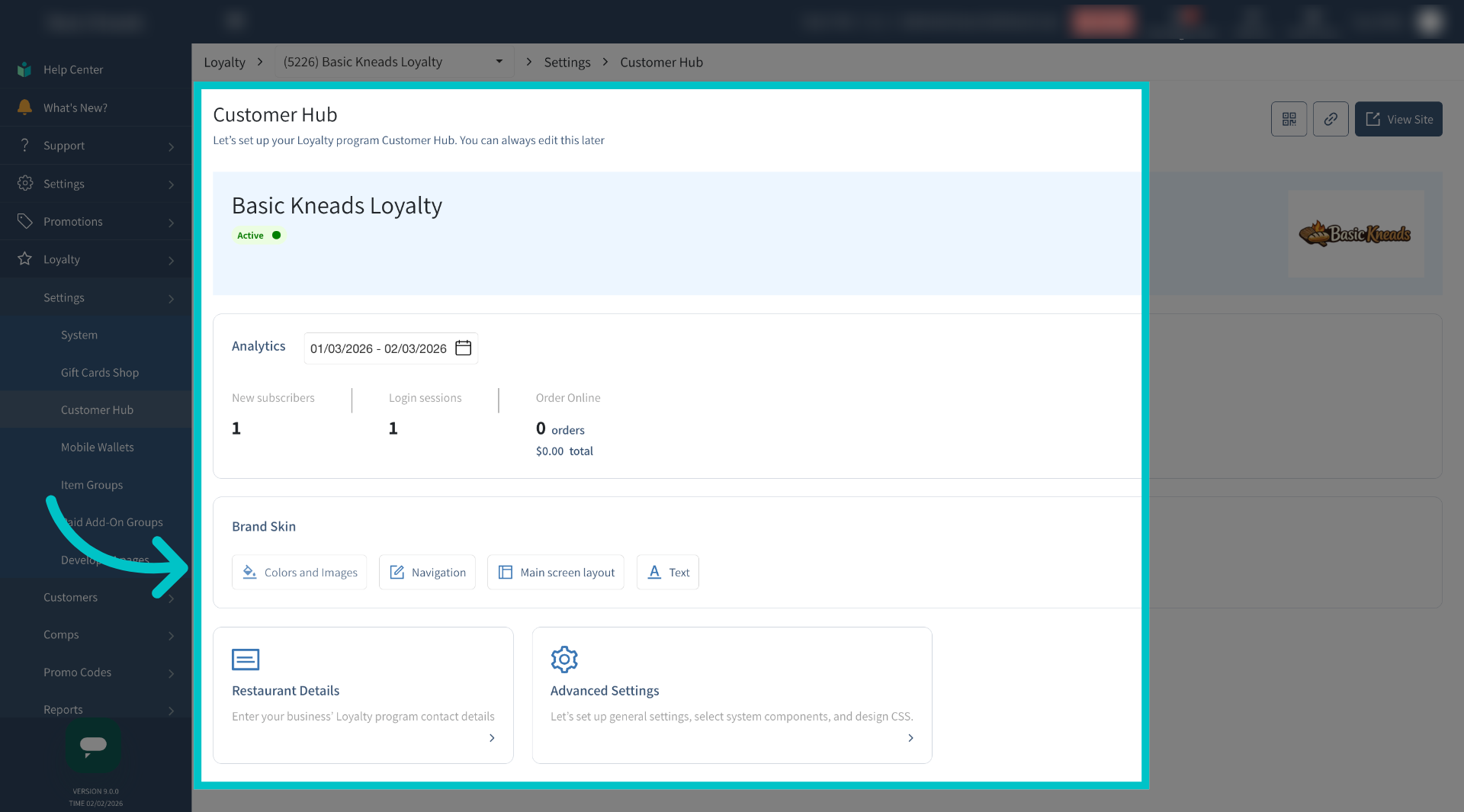
Select Colors and Images to manage visual elements like logos and color schemes for the customer profile
-
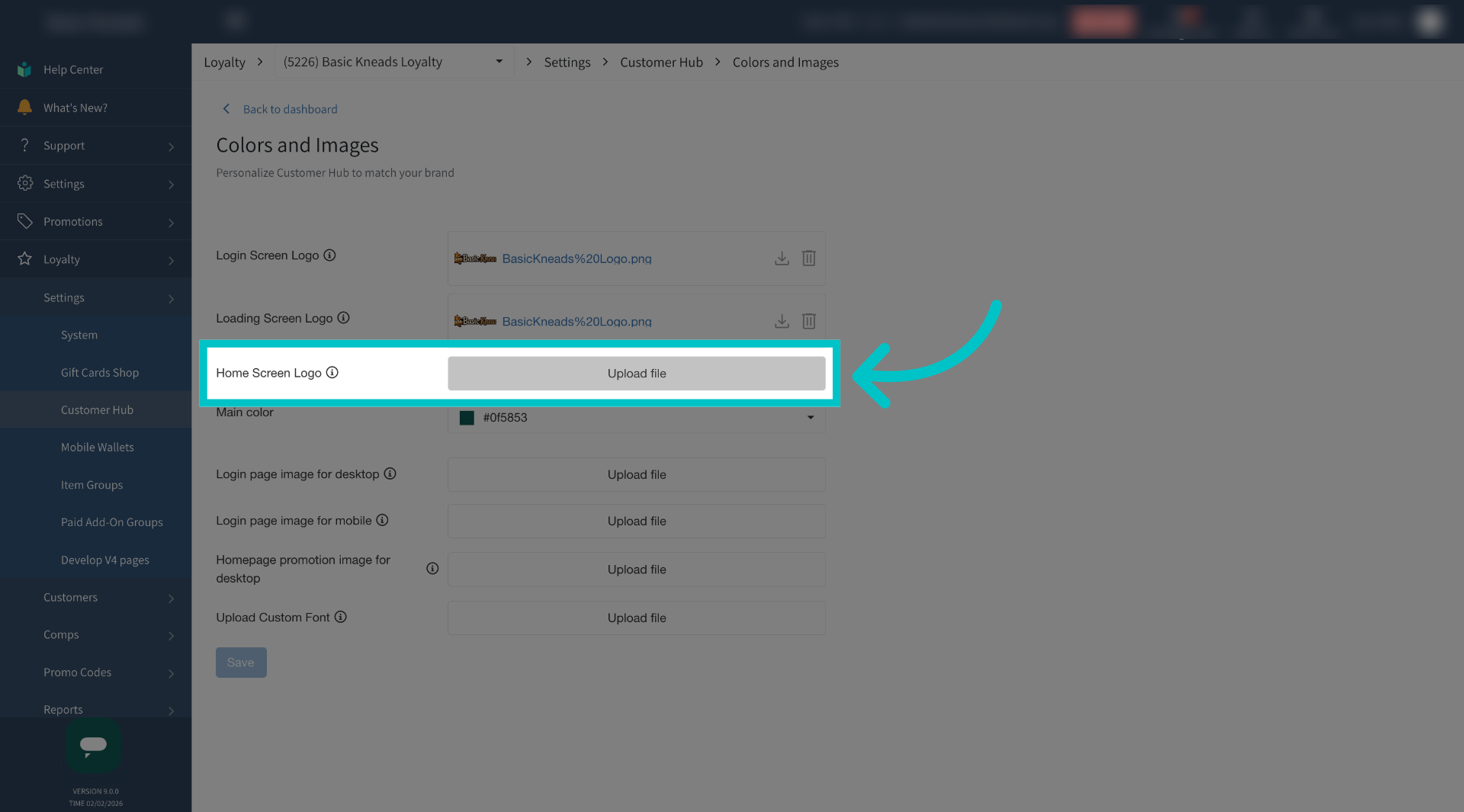
Select Upload file next to Home Screen Logo and upload the logo.
The file must be either a .png or .jpg and no more than 500 KB
-
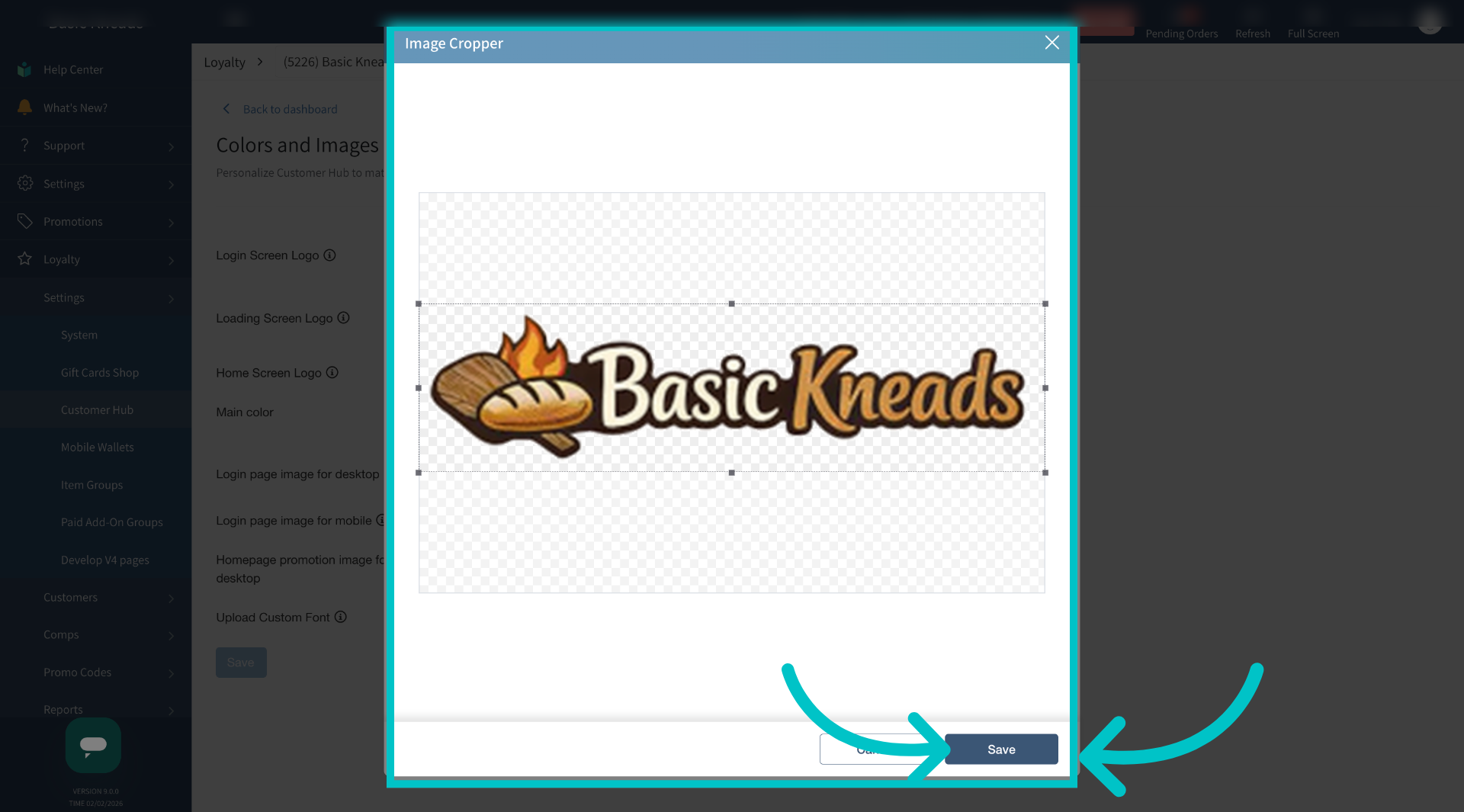
Use the image cropper to crop the logo as needed and then select Save
-
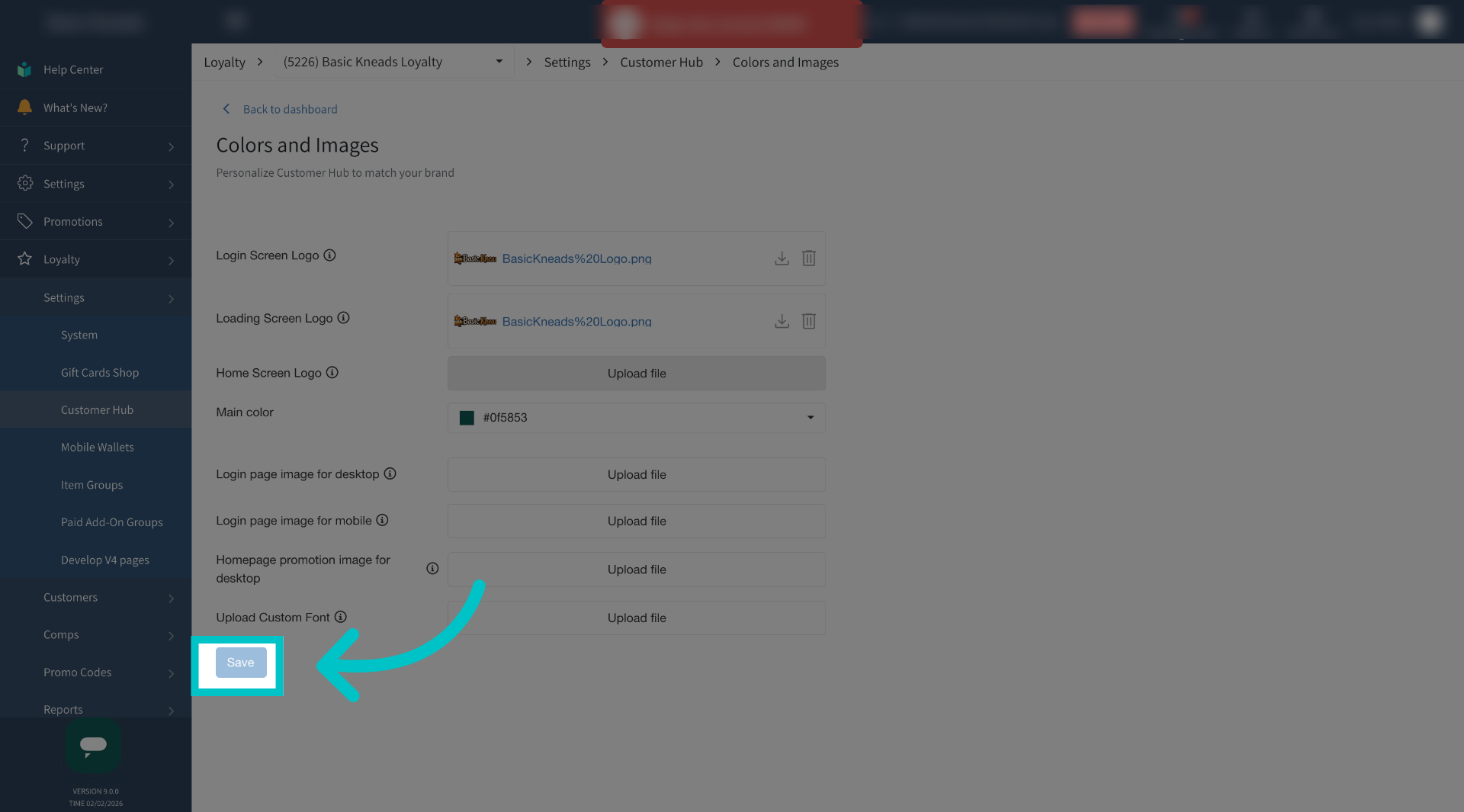
Select Save again to finalize the process
-
Now the logo will appear at the top right corner of the customer profile